Interface overview
MORELESS.TOOLS is designed with simplicity and efficiency in mind. Every element has a purpose, and we've eliminated unnecessary clutter so you can focus on what matters - getting your work done quickly.
The header
The header is always visible at the top of every page, providing quick access to essential functions. Here's what each element does:
Logo (left side)
Click the MORELESS.TOOLS logo to return to the homepage. The logo is always visible for quick navigation back to the main tool directory.
Search box
Click the search box or press Ctrl+K or ⌘+K on Mac to open the Command Palette. This is the fastest way to find and open any tool on the site.
BUILD button
Click the BUILD button to request a custom tool. Tell us what you need and we'll consider building it. This is your direct line to suggest new tools for the platform.
Favorites
Click the heart icon to see your favorited tools. Quick access to your most-used tools without searching.
Buy a coffee
Click the mug icon to support MORELESS.TOOLS. If you find our tools useful, you can buy us a coffee to help keep the project running.
Language selector
Click the flag icon to change the interface language. We support multiple languages and are continuously adding more.
Extra settings
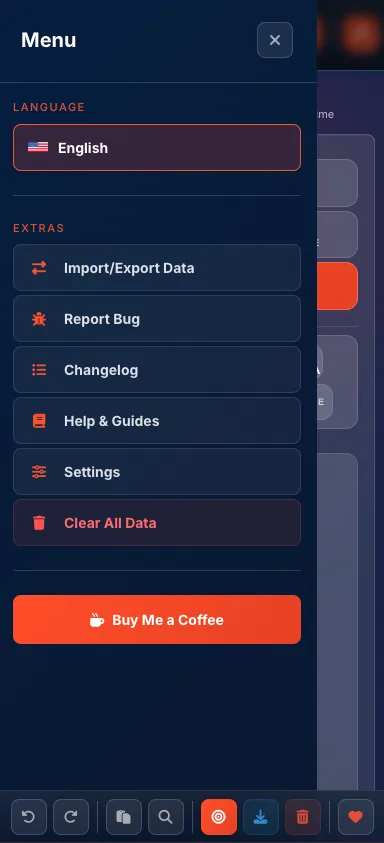
Click the six-dots icon to access extra settings. Here you'll find:
• Import/Export Data - backup and restore your favorites, presets, and preferences
• Report a bug
• Changelog
• Help & Guides
• Settings - notification filters, mode selector behavior, homepage landing, Command Palette shortcut
• Clear all data

Command Palette Power Feature
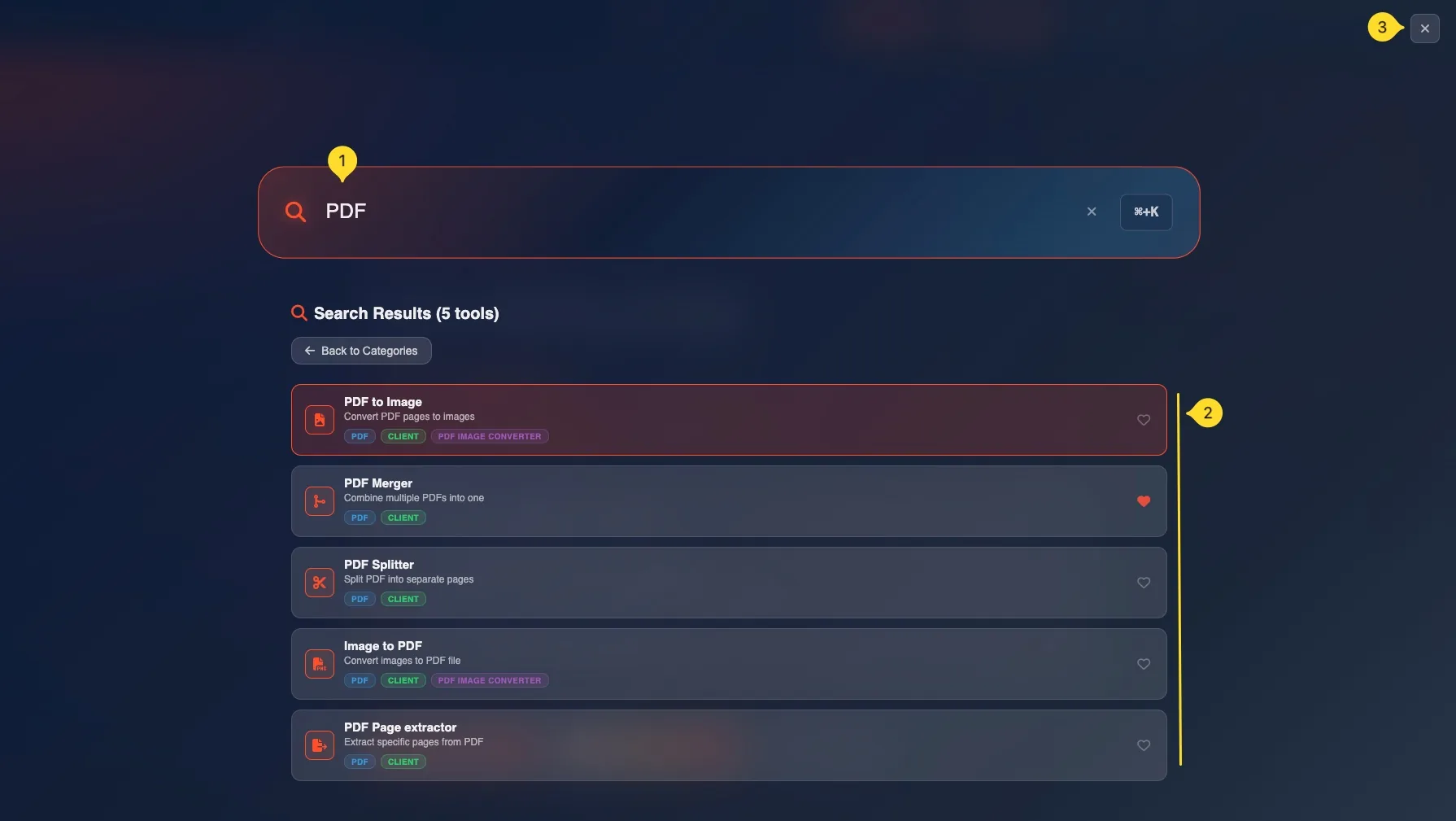
The Command Palette is the fastest way to navigate MORELESS.TOOLS. It's inspired by tools like VS Code and Spotlight, designed for users who prefer keyboards over mice.
Opening the command palette
Press Ctrl+K (Windows/Linux) or ⌘+K (Mac) from anywhere on the site. Alternatively, click the search icon in the header. A modal will appear with a search input at the top.
Searching for tools
Start typing the name of any tool. Results appear instantly as you type. The search is fuzzy, meaning "qr" will find "QR Code Generator" and "pdf mrg" will find "PDF Merger".
Navigating results
Use Arrow up and Arrow down keys to move through search results. The currently selected result is highlighted. Press Enter to open the selected tool.
Closing
Press Escape, click outside the modal, or click the X button in the top-right corner to close the Command Palette without navigating anywhere.
Tool page layout
Every tool page follows a consistent layout so once you learn one, you know them all. Here's the anatomy of a typical tool page:
Tool header
At the top, you'll see the tool's name and a brief description. Below that (on the right side of the container) are quick action buttons for favorites and sometimes buttons with extra features (Preset manager, history, etc.).

Mode selector (if applicable)
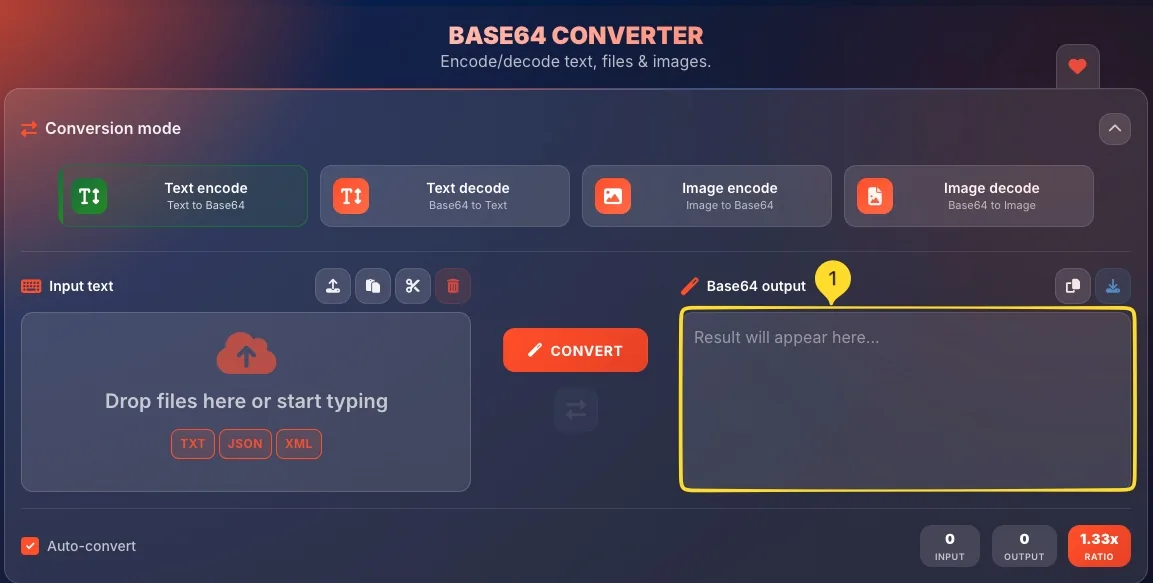
Some tools have multiple modes. For example, the Base64 Converter has modes for Text, Files, Images, and URLs. Click a mode button to switch between them. The currently active mode is highlighted with green color.

Input area
This is where you enter your data - whether that's typing text, uploading files, or configuring options. Input areas are clearly labeled and often include placeholder text or hints.

Action buttons
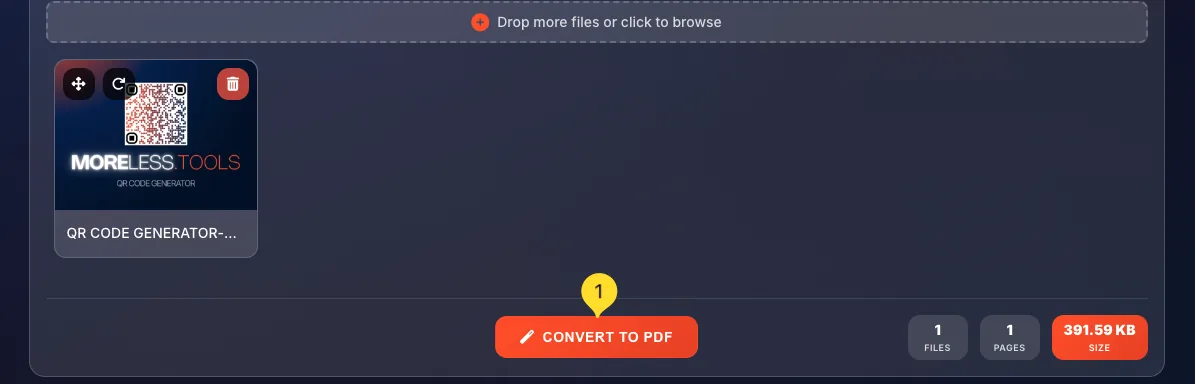
Buttons like "Generate", "Convert", "Download", or "Copy" trigger the main action. Primary actions are highlighted in orange. Secondary actions use a more subtle style.
Output/result area
Results appear here - whether it's generated text, a QR code image, converted files, or calculation results. Most outputs can be copied to clipboard or downloaded.
Settings panel (if applicable)
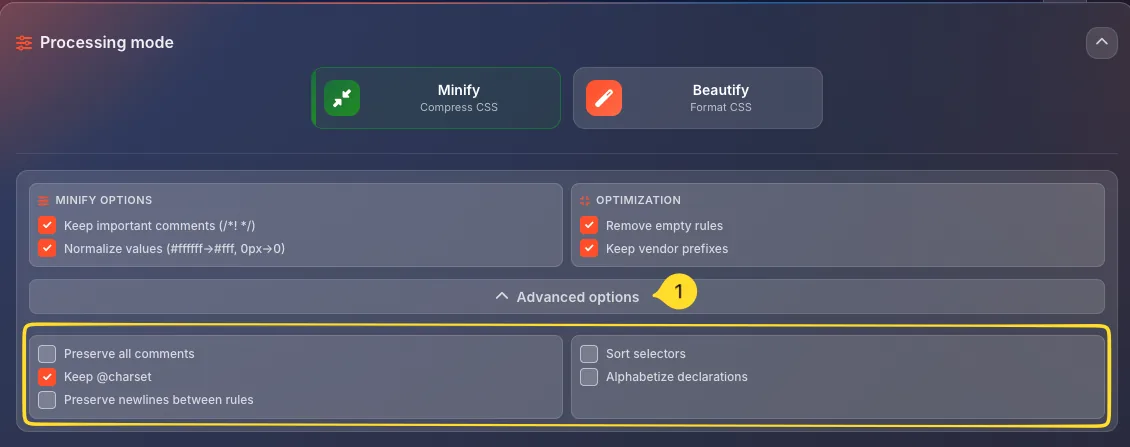
Many tools have expandable settings panels for advanced options. Click the settings/customize section to reveal additional controls. These are collapsed by default to keep the interface clean.
Processing badges
Every tool on MORELESS.TOOLS displays a colored badge that tells you exactly how your data is processed. This transparency is unique among online tool platforms — you always know what happens with your files before you use any tool. Click on any badge to see a detailed explanation.
Favorites system
The Favorites system lets you bookmark tools you use frequently for quick access. Your favorites are saved locally in your browser and persist across sessions.
Adding a favorite
On any tool page, look for the heart icon (usually in the top-right area or tool header). Click it to add the tool to your favorites. The heart will fill in to indicate it's saved.
Removing a favorite
Click the filled heart icon again to remove a tool from your favorites. No confirmation is needed - you can always add it back.

Accessing favorites
Click the heart icon in the header or use the Command Palette (Ctrl+K / ⌘+K) to view all your favorited tools. Your favorites appear in the Command Palette for quick access.

Favorites are local
Since we don't have user accounts, favorites are stored in your browser's local storage. They persist on the same browser but don't sync automatically across devices. However, you can use Import/Export Data in extra settings (six-dots icon in the header) to backup your favorites and restore them on another device.
Keyboard shortcuts
Power users can navigate MORELESS.TOOLS entirely with the keyboard. Here are the global shortcuts that work on every page:
Mobile experience
MORELESS.TOOLS is fully responsive and works great on phones and tablets. The interface automatically adapts to smaller screens.
Navigation on mobile
On mobile devices, the header navigation collapses into a hamburger menu. Tap the menu icon (three horizontal lines) to expand navigation options.

Tool pages on mobile
Tool layouts stack vertically on small screens. Input areas take full width for easier typing. Action buttons are larger for touch targets.
Bottom action bar
On some tools, frequently-used actions appear in a fixed bar at the bottom of the screen for easy thumb access on mobile.

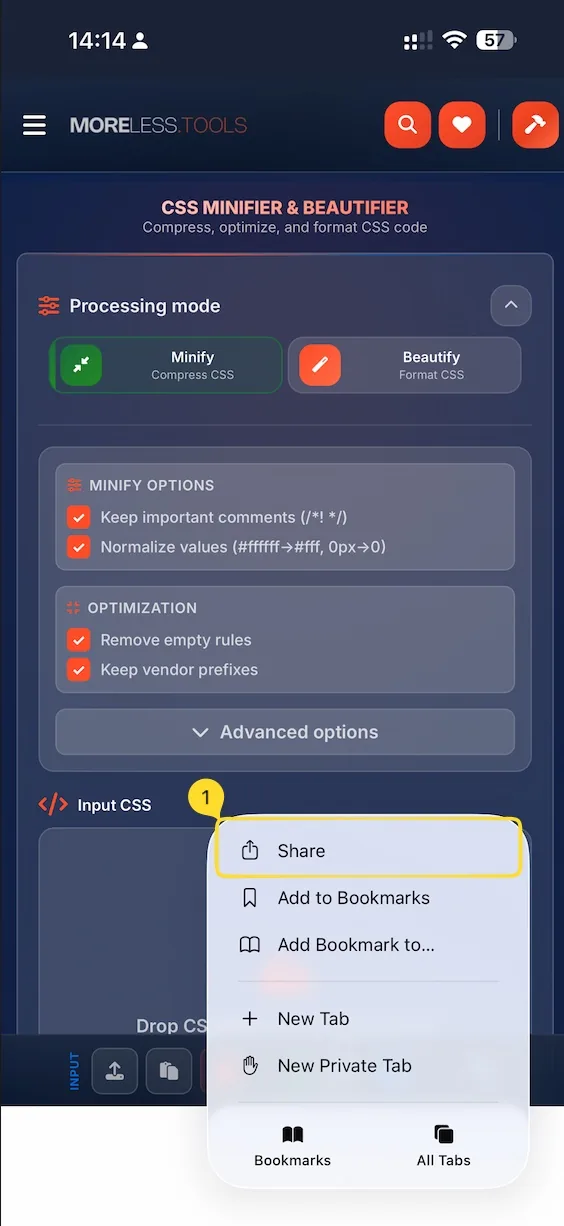
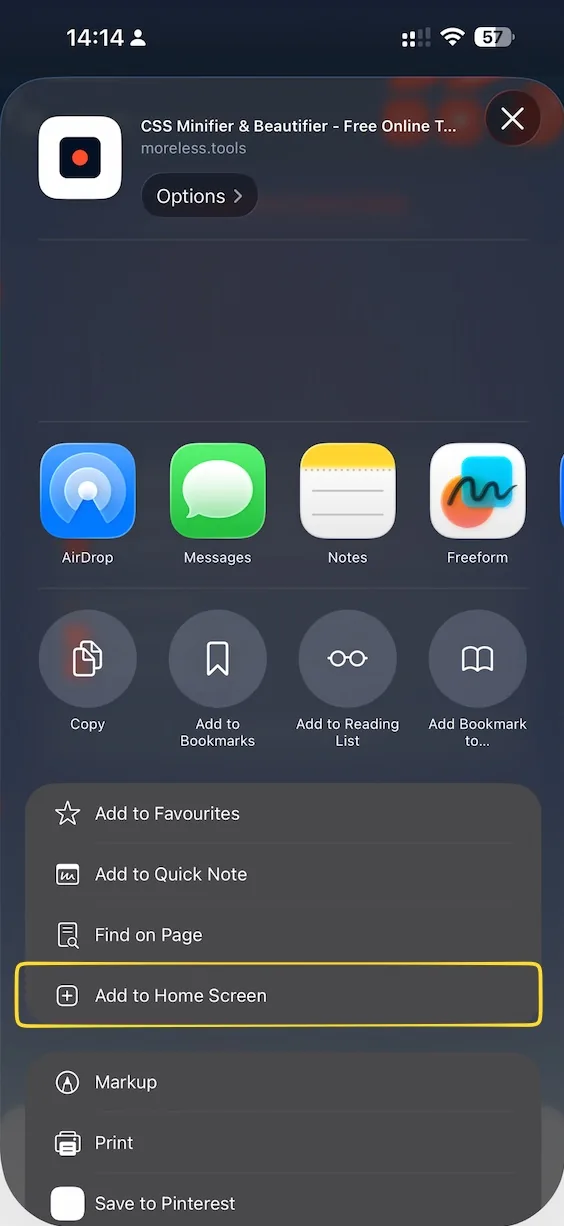
Add to home screen
You can add MORELESS.TOOLS to your phone's home screen for an app-like experience. In Safari (iOS) or Chrome (Android), use the "Add to Home Screen" option.