Settings overview
MORELESS.TOOLS remembers your preferences so you don't have to configure things every time you visit. All settings are stored locally in your browser - we never store your preferences on our servers.
Extra settings menu (six-dots icon)
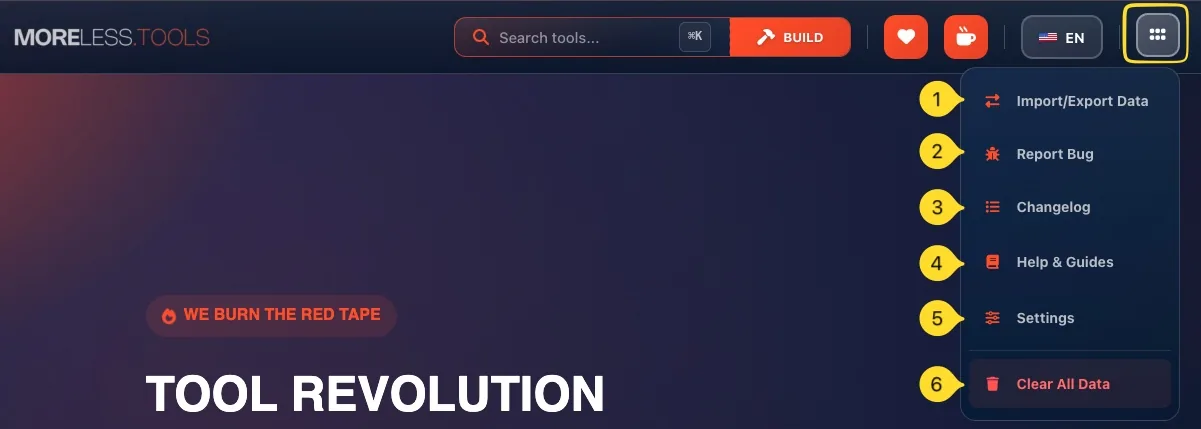
The six-dots icon in the header opens the extra settings menu - your main hub for managing MORELESS.TOOLS. Here's everything you'll find:
Import/Export data
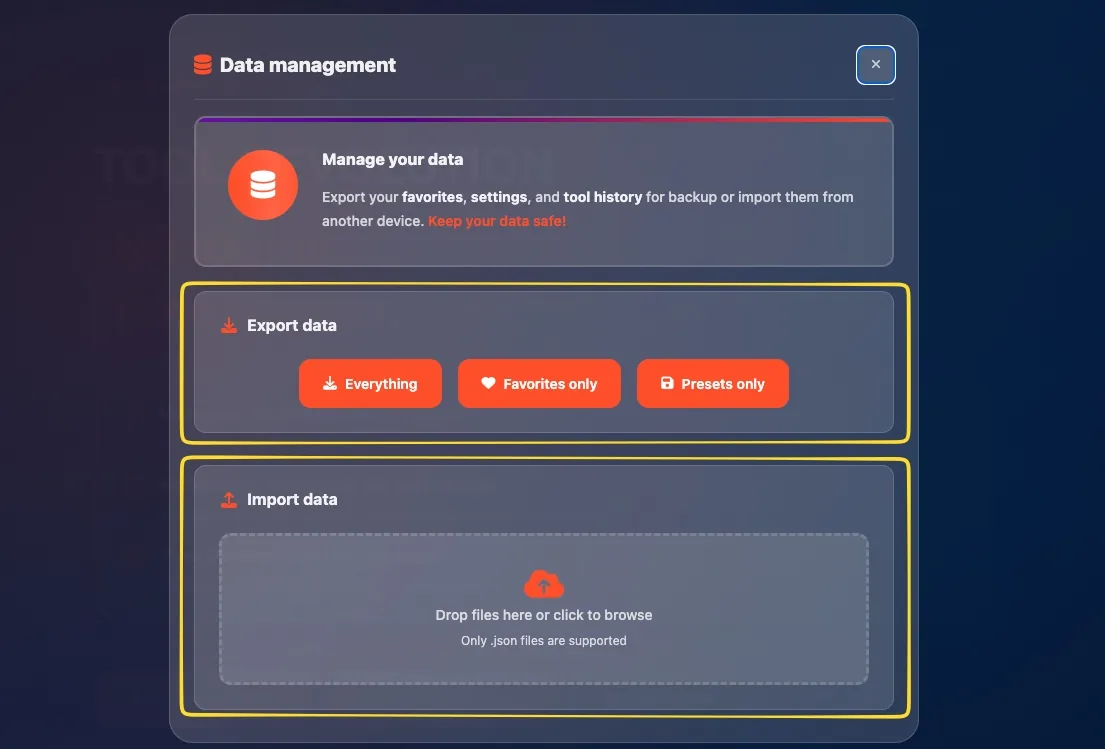
Opens Data Management modal where you can export all your data (favorites, presets, preferences, tool history) as a JSON file, or import previously exported data to a new device or browser.
Report a bug
Opens a form to report issues. You can also join our Discord for faster support and direct communication.
Changelog
See what's new - recent updates, new tools, bug fixes, and improvements.
Help & Guides
Quick link to this documentation you're reading right now.
Settings
Opens Global Settings modal where you can customize notification filters, mode selector behavior, homepage landing section, and Command Palette shortcut.
Clear all data
Danger zone - removes all locally stored data including favorites, presets, preferences, and history. Use this to start fresh. This cannot be undone!
Global settings (under Settings)
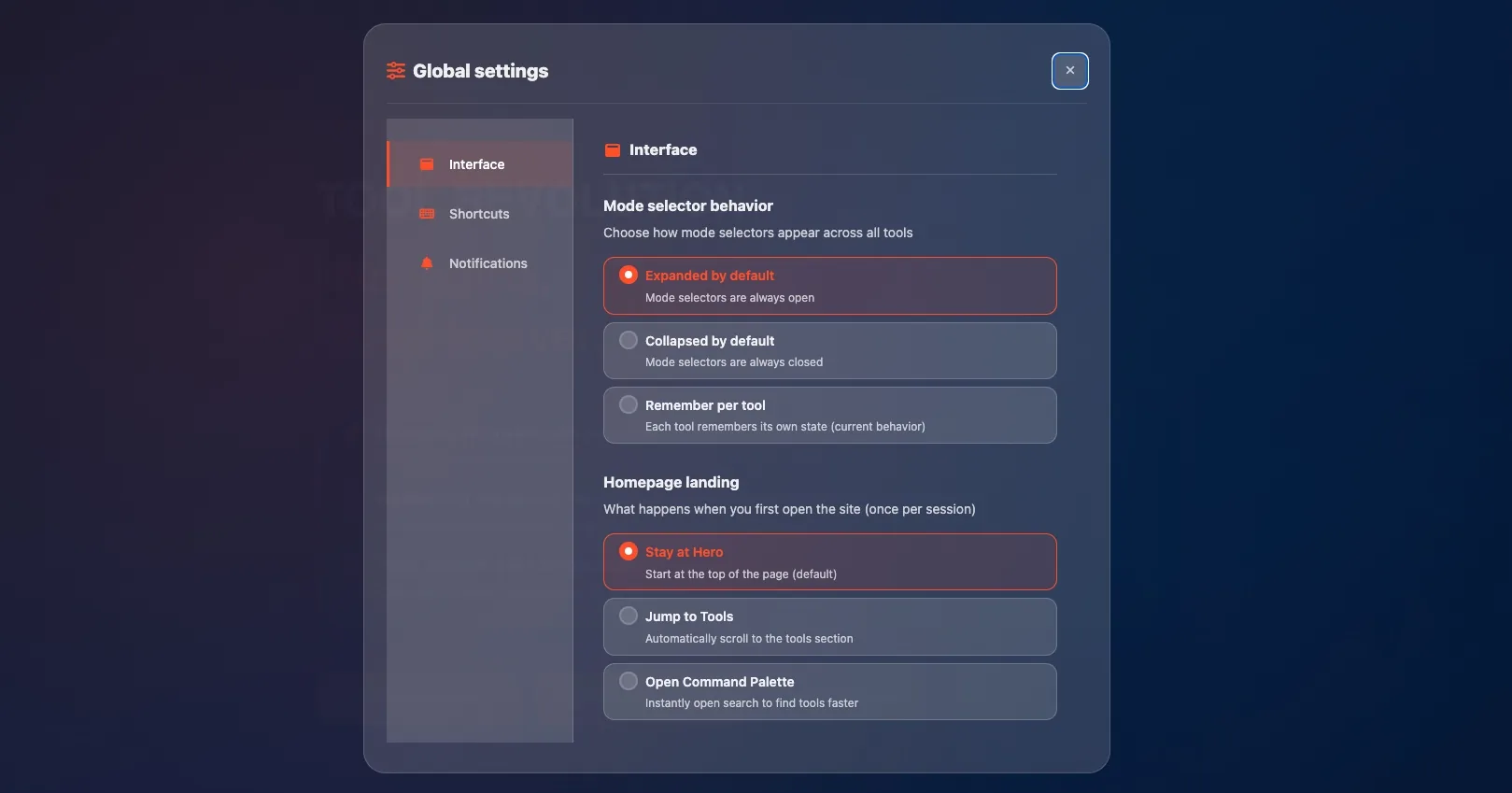
When you click Settings in the extra settings menu, a modal opens with three tabs:
Interface
Contains two options:
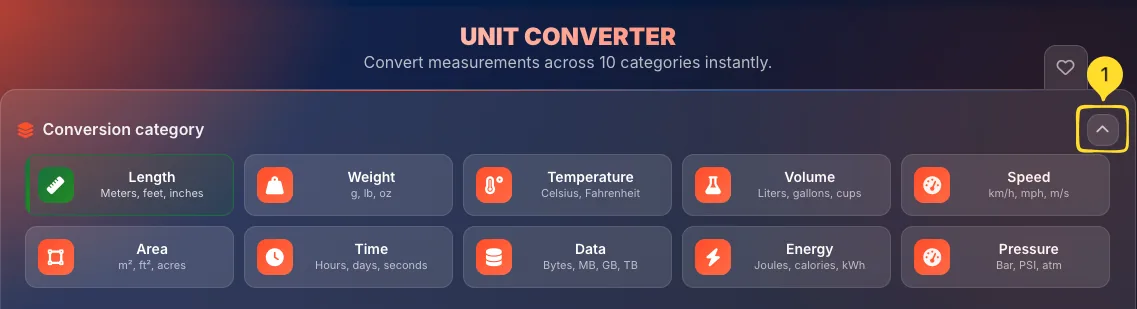
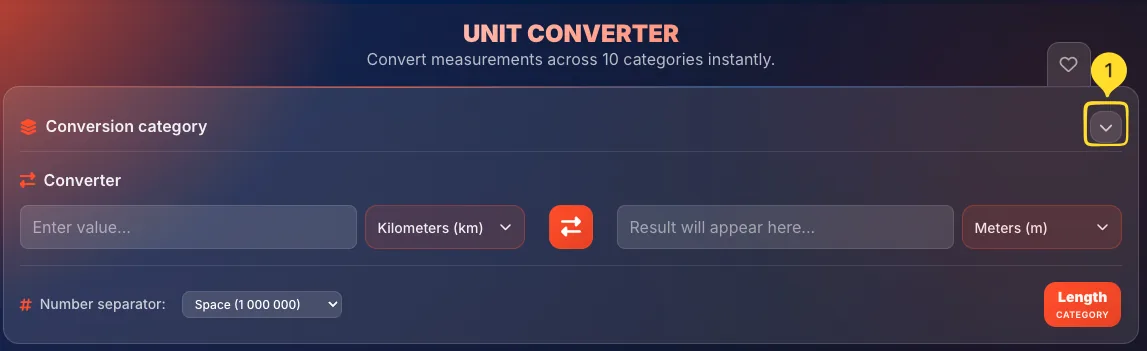
• Mode selector behavior - The Mode selector controls collapsible sections in tools. When enabled, you can collapse category panels (like the "Conversion category" in Unit Converter) to get more workspace - helping you stay focused on your current task. Choose whether mode buttons should be expanded by default, collapsed by default, or remembered per tool.
• Homepage landing - Choose what happens when you visit the homepage - stay at hero (default), jump directly to the tools section, or automatically open the Command Palette.
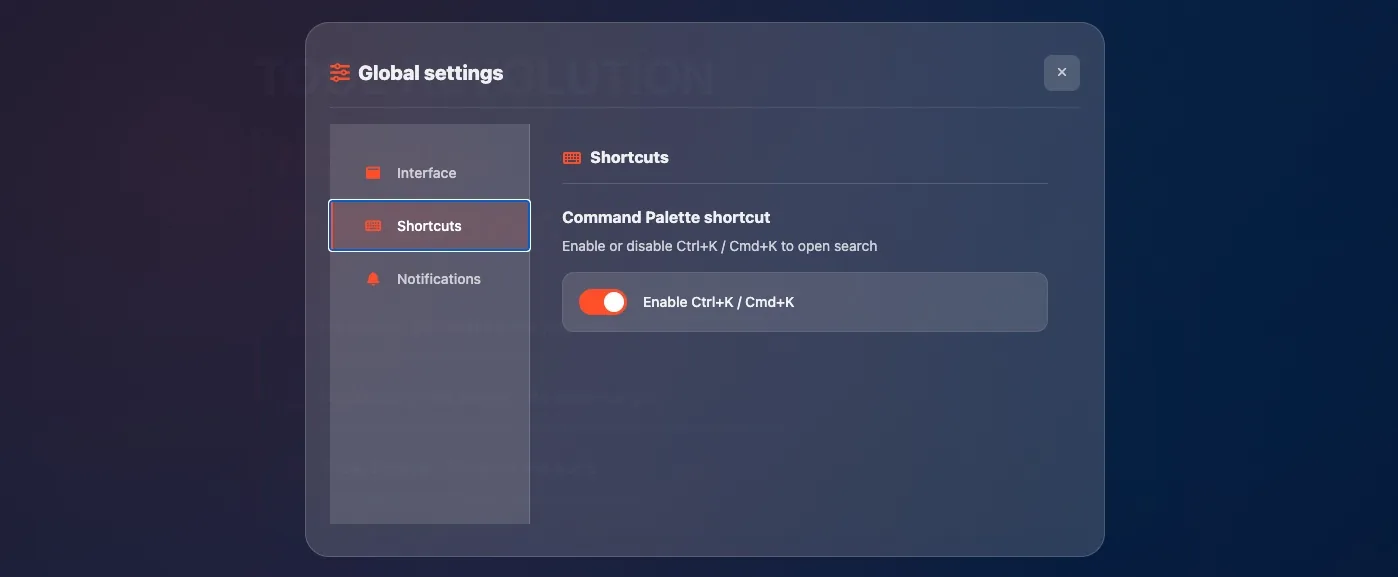
Shortcuts
Contains the Command Palette shortcut toggle. Enable or disable the keyboard shortcut for opening Command Palette (Ctrl+K / ⌘+K). If disabled, you can still open Command Palette by clicking the search box in the header.
Notifications
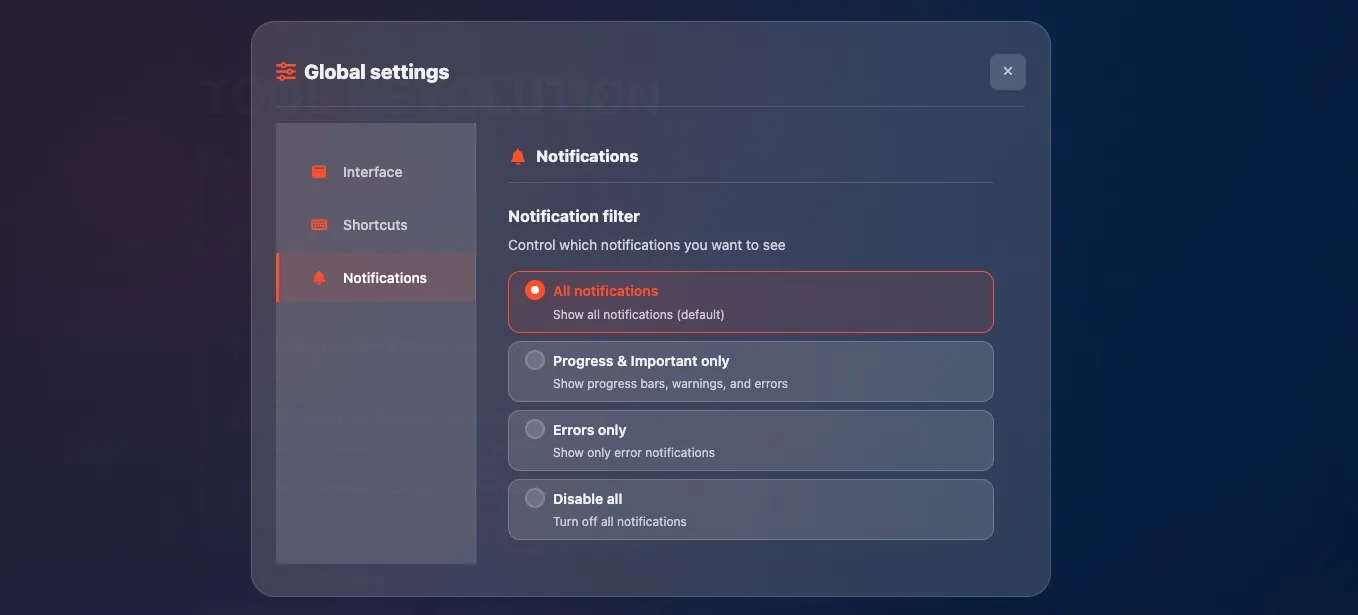
Contains the Notification filter setting. Control which notifications you see:
• All notifications (default) - Show everything
• Progress & Important only - Show progress bars, warnings, and errors
• Errors only - Show only error notifications
• Disable all - Turn off all notifications
Language settings (flag icon)
Language selection is separate from Extra settings - it has its own dedicated flag icon in the header for quick access.
Selecting a language
Click the flag icon in the header (near the six-dots icon). A dropdown will appear showing all available languages with their native names and flag icons. Click any language to select it.

Available languages
We currently support English and are actively adding more languages. Check the language selector for the current list.
Automatic detection
On your first visit, we try to detect your browser's language preference and show the interface in that language. You can change it at any time.
URL-based language
The language is part of the URL (e.g., /en/ for English). When you switch languages, the URL updates. You can share language-specific links with others.
Data management (Import/Export)
MORELESS.TOOLS stores data locally in your browser. Use Import/Export Data in Extra settings to backup and restore.
What data is stored
We store the following data locally in IndexedDB in your browser - never on our servers:
• Favorites - your bookmarked tools
• Presets - saved configurations in tools like Preset Manager
• Tool history - generated QR codes, color palettes, etc.
• Analytics - your usage stats per tool
• Auto-saved content - Word Counter, Code Editor, etc.
• Preferences - your settings and customizations
Exporting your data
Click Import/Export Data in Extra settings, then click Export. A JSON file will download containing all your data. Keep this safe as a backup.
Importing data
On a new device or browser, click Import/Export Data, then Import. Select your previously exported JSON file. All your favorites, presets, and preferences will be restored.
Clearing all data
Click Clear all data in extra settings to remove everything and start fresh. This cannot be undone - export first if you want to keep anything!