Overview
The Base64 Converter transforms data between its original format and Base64 encoding. With 4 specialized modes for text and images, you can encode plain text to Base64, decode Base64 back to text, convert images to Base64 data URIs, or restore images from Base64 strings.
Interface overview
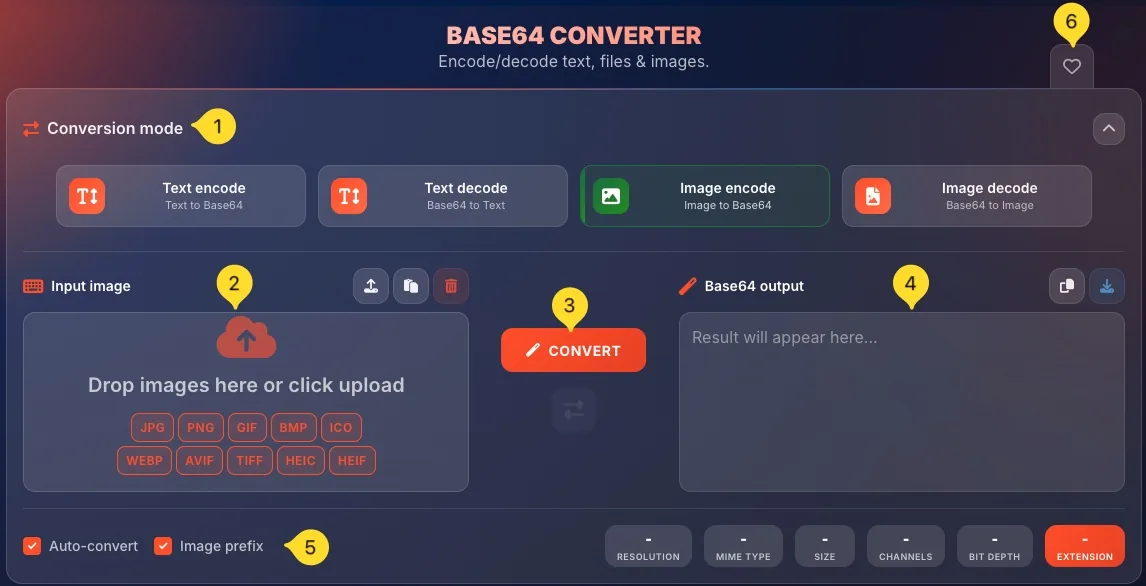
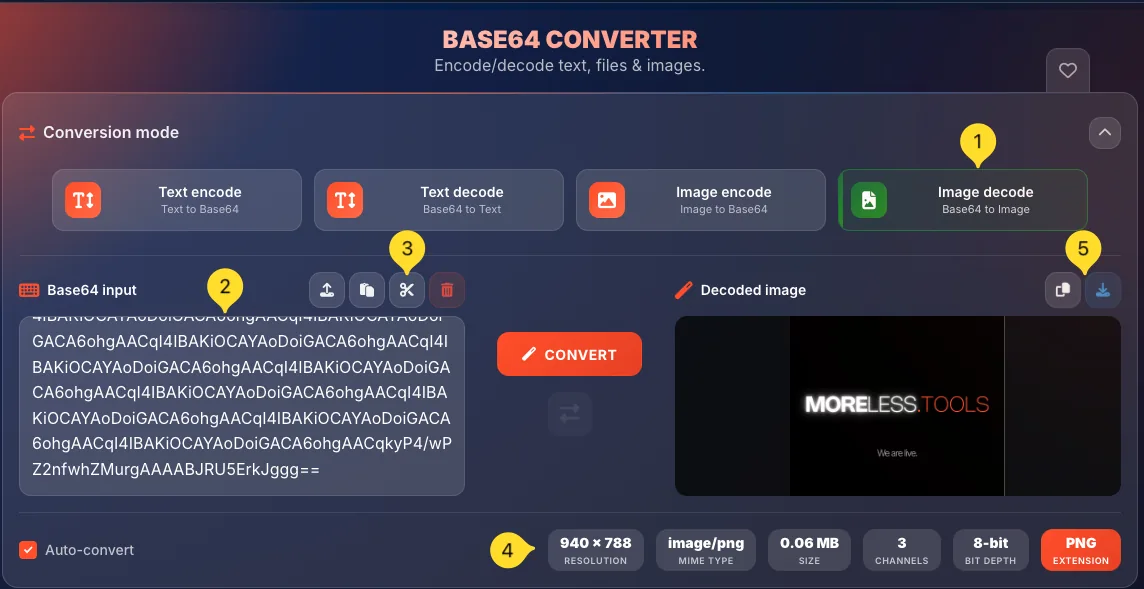
The Base64 Converter has a clean two-panel layout with the conversion mode selector at the top. Here's what you'll find:
Conversion mode selector (top)
At the top, you'll see 4 mode buttons arranged horizontally:
• Text encode: Text to Base64
• Text decode: Base64 to Text
• Image encode: Image to Base64
• Image decode: Base64 to Image
Click any button to switch modes. The active mode is visually highlighted. You can collapse this section using the arrow icon on the right.
Input panel (left)
The left panel is for your input data. The header changes based on mode:
• Text encode: Input text
• Text decode: Base64 input
• Image encode: Input image
• Image decode: Base64 input
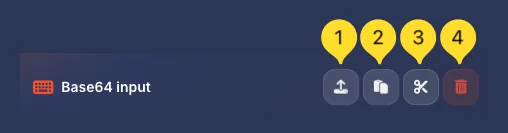
Action buttons appear in the top right of the panel (Upload, Paste, Trim, Clear). Below is the input area - either a text field or a drop zone.
CONVERT button & Swap icon
In the center between the two panels:
• CONVERT button (orange) - click to convert your input to output
• Swap icon (arrows) - swaps the input and output content (useful for re-encoding)
Note: With Auto-convert enabled, conversion happens automatically as you type.
Output panel (right)
The right panel shows your conversion result. The header changes based on mode:
• Text encode: Base64 output
• Text decode: Decoded text
• Image encode: Base64 output
• Image decode: Decoded image
Action buttons - Copy, Download. The result displays as text or an image preview.
Bottom bar
At the bottom of the tool:
• Auto-convert checkbox (left) - enables automatic conversion as you type
• Image prefix checkbox (Image encode only) - adds data URI prefix
• Statistics (right) - shows conversion metrics (different for text vs image modes)
Favorites (top right)
The heart icon in the top right lets you add this tool to your favorites for quick access from the homepage.
Conversion modes
The Base64 Converter offers 4 specialized modes. Each mode is optimized for a specific type of conversion, with appropriate input methods and output formats.
Text encode mode Text to Base64
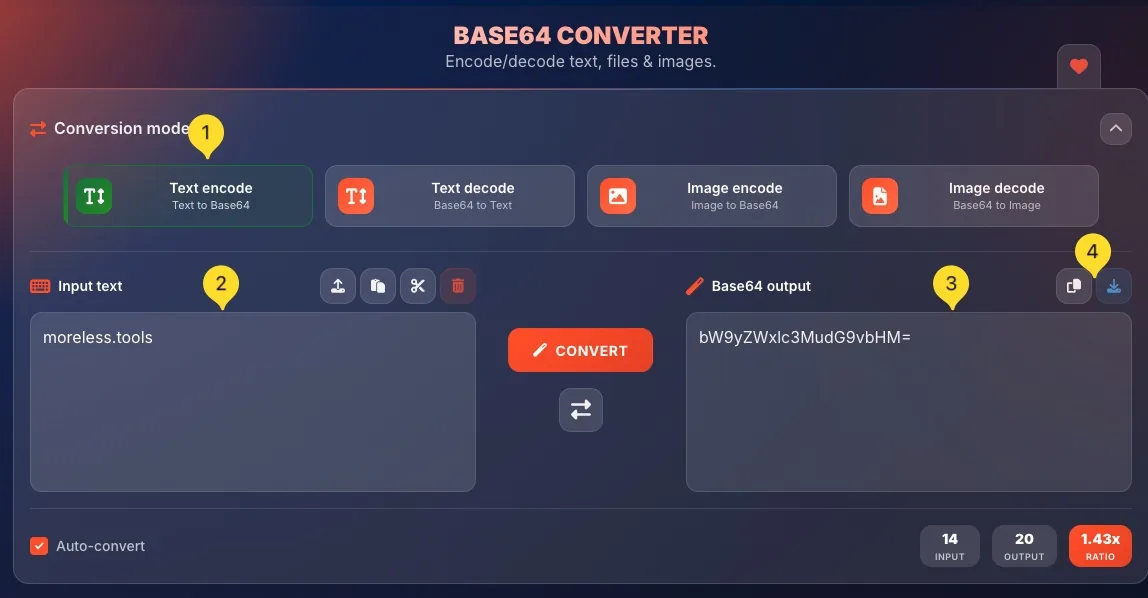
Text encode mode converts plain text (letters, numbers, symbols) into a Base64 encoded string. This is the default mode and most commonly used for basic encoding.
Select Text encode mode
Click the Text encode button at the top. It shows Text to Base64 as the description. This is the default mode when you open the tool.
Enter your text
You have multiple options to input text:
• Type directly: start typing in the input area
• Paste: click the Paste button or use Ctrl+V (⌘+C on Mac)
• Upload file: drop a TXT, JSON, or XML file
The drop zone shows Drop files here or start typing with supported format badges - TXT, JSON, XML.
Get Base64 output
With Auto-convert enabled, the Base64 result appears instantly as you type in the Base64 output panel. Without Auto-convert, click the orange CONVERT button.
Use the result
Click Copy to copy the Base64 string to clipboard, or Download to save it as a file. Use this Base64 string in APIs, configurations, or anywhere text-safe encoding is needed.
Text decode mode Base64 to Text
Text decode mode converts a Base64 encoded string back into readable plain text. Use this to decode Base64 strings you've received or found.
Select Text decode mode
Click the Text decode button at the top. It shows Base64 to Text as the description.
Enter Base64 string
Input your Base64 encoded string:
• Type/paste directly: enter the Base64 string in the input area
• Upload file: drop a TXT, JSON, or XML file containing Base64
The input area is labeled Base64 input.
Trim whitespace (optional)
Use the Trim button (scissors icon) to remove leading/trailing whitespace from your Base64 input. This is helpful when copying Base64 from sources that add extra spaces.
Get decoded text
The decoded text appears in the output panel. If the Base64 encoded binary data (not text), the output may show unreadable characters - this is normal for non-text data.
Use the result
Click Copy to copy the decoded text to clipboard, or Download to save it as a file. The decoded text is ready to use in your application or document.
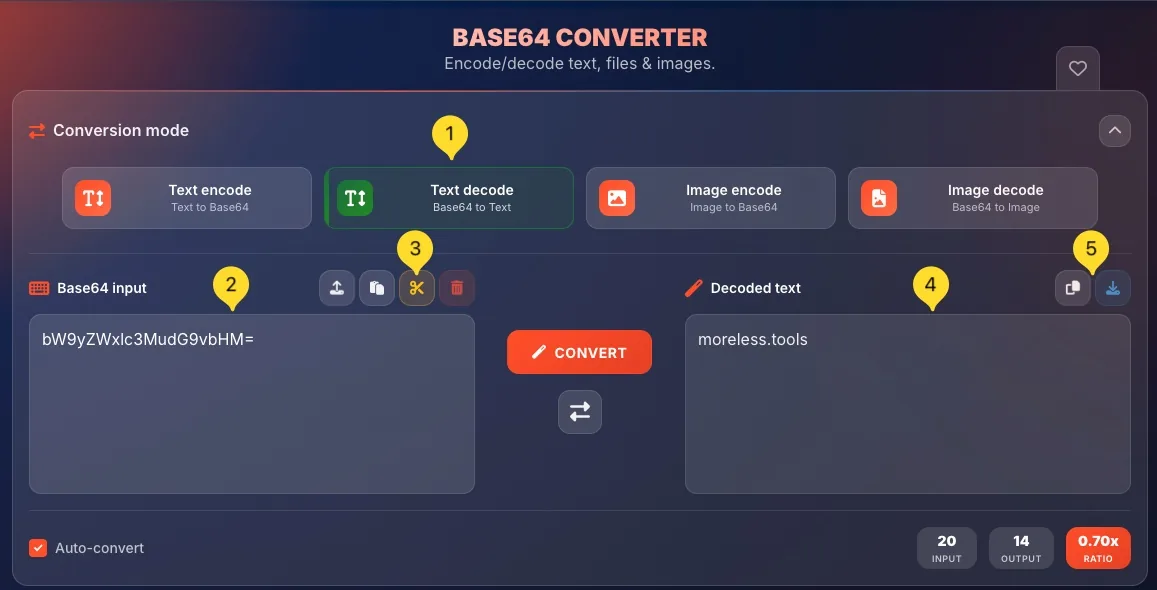
Image encode mode Image to Base64
Image encode mode converts image files into Base64 data URIs that can be embedded directly in HTML, CSS, or JSON - no external file needed.
Select Image encode mode
Click the Image encode button at the top. It shows Image to Base64 as the description.
Upload an image
The drop zone shows Drop images here or click upload with supported formats:
Row 1: JPG, PNG, GIF, BMP, ICO
Row 2: WEBP, AVIF, TIFF, HEIC, HEIF
Drag and drop an image or click to browse. The image preview appears in the input area.
Note: HEIC/HEIF files are automatically converted to JPEG and TIFF files to PNG for browser compatibility. The statistics panel shows the original format, while the Base64 output contains the converted format.
Configure options
Two checkboxes are available at the bottom:
• Auto-convert: automatically convert when image is uploaded
• Image prefix: include the data URI prefix (e.g., "data:image/png;base64,")
Keep Image prefix checked for HTML/CSS use.
Get Base64 data URI
The output is a complete data URI ready for use:data:image/png;base64,iVBORw0KGgoAAAA...
Copy this entire string and paste it into HTML src attributes or CSS url() values.
View image statistics
The statistics bar shows detailed image information:
• RESOLUTION: image dimensions (e.g., 800x600)
• MIME TYPE: format (e.g., image/png)
• SIZE: file size
• CHANNELS: color channels (RGB, RGBA)
• BIT DEPTH: color depth
• EXTENSION: file extension
Use the result
Click Copy to copy the Base64 data URI to clipboard, or Download to save it as a text file. Paste the data URI directly into HTML <img src="..."> or CSS background-image: url(...) for inline embedding.
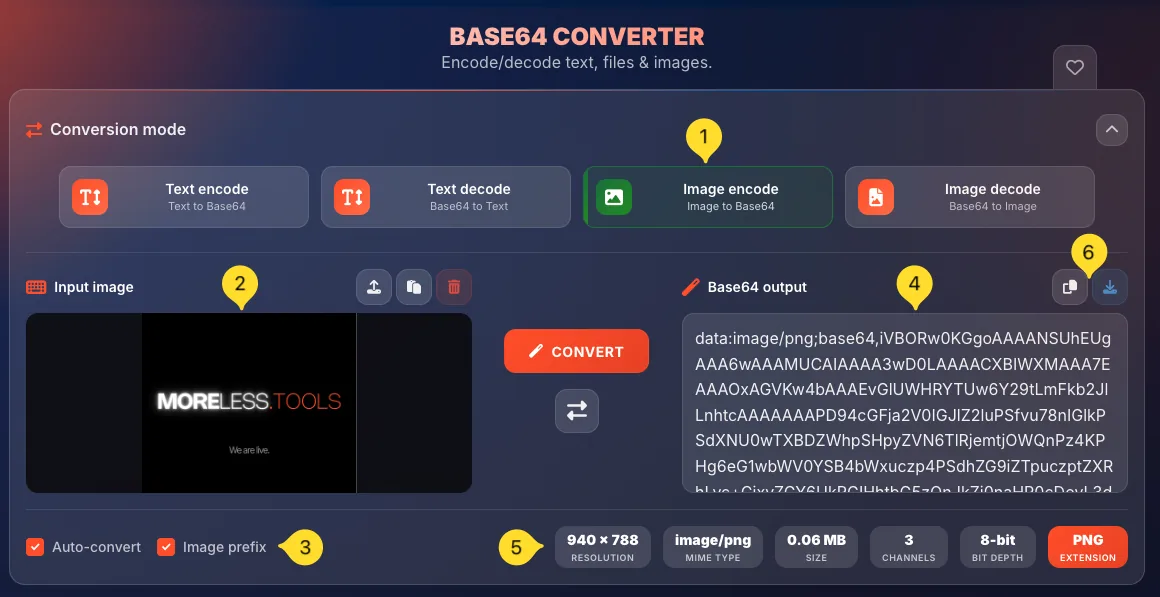
Image decode mode Base64 to Image
Image decode mode converts a Base64 encoded image string back into a viewable and downloadable image file.
Select Image decode mode
Click the Image decode button at the top. It shows Base64 to Image as the description.
Enter Base64 image string
Input the Base64 encoded image data:
• Paste directly: paste the Base64 string (with or without data URI prefix)
• Upload file: drop a TXT file containing the Base64 string
The tool automatically detects the image format from the data.
Trim whitespace (optional)
Use the Trim button (scissors icon) to remove leading/trailing whitespace from your Base64 input. This is helpful when copying Base64 from sources that add extra spaces or line breaks.
View image statistics
The statistics bar shows detailed image information:
• RESOLUTION: image dimensions (e.g., 800x600)
• MIME TYPE: format (e.g., image/png)
• SIZE: file size
• CHANNELS: number of color channels (3 = RGB, 4 = RGBA)
• BIT DEPTH: color depth
• EXTENSION: file extension
This helps verify the image was decoded correctly.
Use the result
The Decoded image panel shows a preview of the restored image. Click Copy to copy the image to clipboard, or Download to save the image as a file. The tool automatically detects the image format from the Base64 data (JPEG, PNG, GIF, WebP, BMP, AVIF, TIFF, SVG) and saves with the correct extension.
•
data:image/png;base64,iVBORw0KGgo... (with prefix)•
iVBORw0KGgo... (without prefix)Input panel actions
The input panel header contains action buttons that help you manage your input data. Available buttons vary slightly by mode.
Upload button
Click the Upload button (upload icon) to open a file browser and select a file to import. Alternatively, drag and drop files directly onto the input area.
Paste button
Click the Paste button (clipboard icon) to paste content from your clipboard. This is equivalent to pressing Ctrl+V (⌘+V on Mac) but works even when the input area isn't focused.
Trim button (Text modes only)
Click the Trim button (scissors icon) to remove whitespace from the beginning and end of your input. Useful when Base64 strings have been copied with extra spaces or line breaks.
Clear button
Click the Clear button (red trash icon) to remove all content from the input area. This also clears the output and resets statistics.
Output panel actions
The output panel header contains action buttons for working with your conversion results.
Copy button
Click the Copy button (clipboard icon) to copy the entire output to your clipboard. A notification confirms the copy. For text modes, this copies the text. For image decode, this copies the image data.
Download button
Click the Download button (download icon) to save the output as a file:
• Text encode: Downloads as .txt with Base64 content
• Text decode: Downloads as .txt with decoded text
• Image encode: Downloads as .txt with Base64 data URI
• Image decode: Downloads the actual image file (PNG, JPG, etc.)

Auto-convert feature
The Auto-convert checkbox at the bottom left enables real-time conversion as you type or upload content.
When enabled (default)
With Auto-convert checked (default setting):
• Conversion happens instantly as you type
• Results update in real-time
• No need to click CONVERT button
• Statistics update live
This provides immediate feedback and the fastest workflow.
When disabled
With Auto-convert unchecked:
• You must click the CONVERT button to convert
• Useful for very large inputs where real-time conversion would be slow
• Gives you control over when conversion happens
• Reduces CPU usage during input
Image prefix checkbox (Image encode only)
In Image encode mode, an additional checkbox appears:
• Image prefix: when checked, output includes the full data URI prefix: data:image/png;base64,
• When unchecked, output is just the raw Base64 string without prefix
Keep this checked for HTML/CSS embedding. Uncheck it if you only need the raw Base64.

Statistics (Text modes)
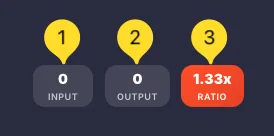
When using Text encode or Text decode modes, the statistics bar at the bottom right shows three metrics:
INPUT counter
Shows the character count of your input data. For Text encode, this is the number of characters in your plain text. For Text decode, this is the length of your Base64 string.
OUTPUT counter
Shows the character count of the conversion result. For Text encode, this is the Base64 string length. For Text decode, this is the decoded text length.
RATIO badge (orange)
Shows the size ratio between output and input (e.g., "1.33x"). For encoding, this is typically ~1.33x (33% larger). For decoding, this is typically ~0.75x (25% smaller). The ratio helps you understand the Base64 size overhead.
Statistics (Image modes)
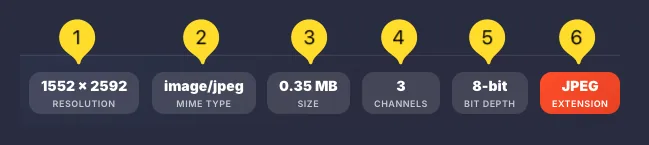
When using Image encode or Image decode modes, the statistics bar shows detailed image metadata:
RESOLUTION
Shows the image dimensions in pixels (e.g., "1920x1080"). This confirms the image was loaded/decoded correctly.
MIME TYPE
Shows the image format type (e.g., "image/png", "image/jpeg"). This is the format that will be used in the data URI prefix.
SIZE
Shows the file size of the original image (e.g., "45.2 KB").
Note: Base64 output will be ~33% larger than this.
CHANNELS
Shows the number of color channels as a digit:
• 3: RGB (red, green, blue - no transparency)
• 4: RGBA (red, green, blue, alpha - with transparency)
• 1: Grayscale (single channel)
BIT DEPTH
Shows the color bit depth (e.g., "8-bit", "16-bit"). Higher bit depth means more color precision but larger file size.
EXTENSION badge (orange)
Shows the file extension (e.g., "PNG", "JPG"). This is highlighted in orange as the primary format identifier.
What is Base64?
Base64 is an encoding method that converts binary data into a text format using 64 printable ASCII characters. Understanding Base64 helps you use this tool effectively.
Binary to text conversion
Computers store data as binary (0s and 1s), but many systems only handle text. Base64 converts binary files into text that can pass through text-only channels like email, JSON APIs, or HTML attributes.
The 64 characters
Base64 uses exactly 64 characters:
• A-Z (26 uppercase letters)
• a-z (26 lowercase letters)
• 0-9 (10 digits)
• + and / (2 special characters)
• = (padding character)
These characters are safe in almost any text context.
Size increase (~33%)
Base64-encoded data is approximately 1.33x larger than the original. Every 3 bytes of binary become 4 characters of Base64. This is the trade-off for text compatibility.
Example: A 100 KB image becomes ~133 KB of Base64 text.
NOT encryption
Important: Base64 is encoding, NOT encryption. Anyone can decode it instantly - it provides zero security. Never use Base64 to "hide" passwords or sensitive data. Use proper encryption for security.
Base64 "SGVsbG8=" → Text "Hello"
The process is fully reversible - encoding then decoding gives back the exact original.
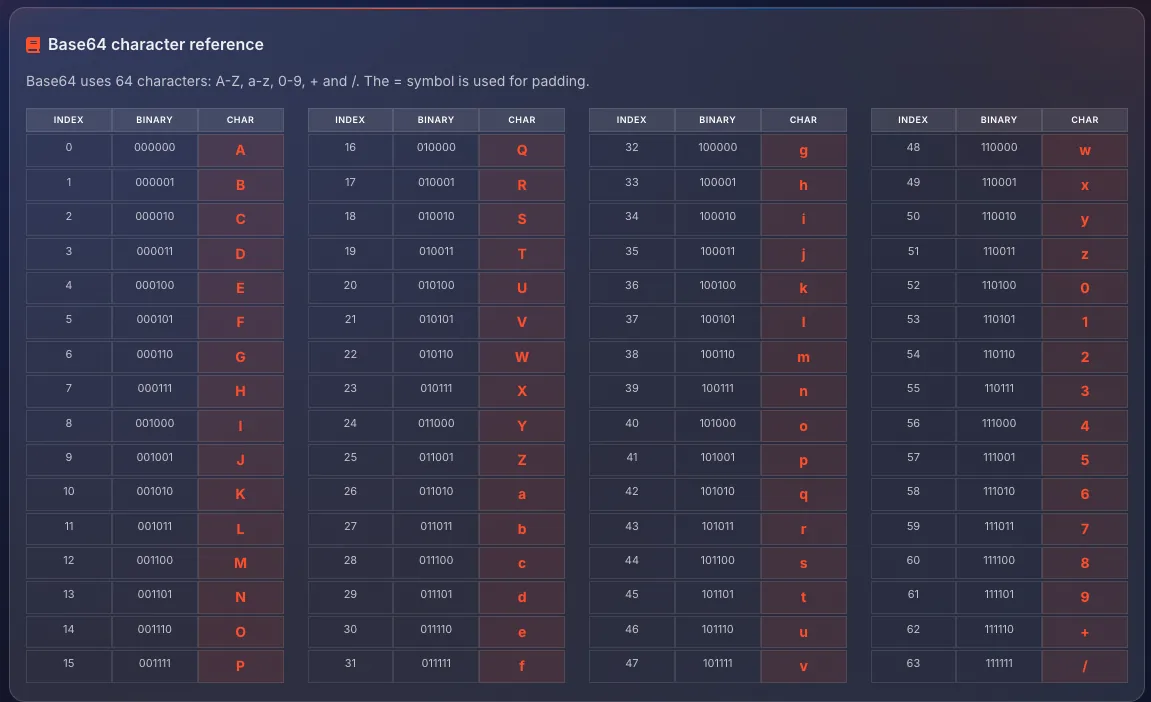
Base64 character reference Reference table
Base64 uses exactly 64 characters to represent binary data. Below the main tool, you'll find a reference table showing all 64 characters with their index values and binary equivalents.
The 64 characters
The standard Base64 alphabet consists of:
• Index 0-25: A, B, C, D, E, F, G, H, I, J, K, L, M, N, O, P, Q, R, S, T, U, V, W, X, Y, Z
• Index 26-51: a, b, c, d, e, f, g, h, i, j, k, l, m, n, o, p, q, r, s, t, u, v, w, x, y, z
• Index 52-61: 0, 1, 2, 3, 4, 5, 6, 7, 8, 9
• Index 62: + (plus)
• Index 63: / (slash)
The padding character
The = (equals sign) is used for padding. Base64 works in groups of 4 characters representing 3 bytes. When the input doesn't divide evenly by 3:
• 1 byte remaining → output ends with "=="
• 2 bytes remaining → output ends with "="
• 3 bytes (no remainder) → no padding needed
Binary representation
The reference table shows the 6-bit binary value for each character:
• A = 000000 (decimal 0)
• B = 000001 (decimal 1)
• / = 111111 (decimal 63)
Each Base64 character represents exactly 6 bits of data.
Why these characters?
These 64 characters were chosen because they:
• Are printable ASCII characters
• Are safe in most text contexts (URLs, email, HTML)
• Don't conflict with common delimiters
• Are available on all keyboards
Common use cases
Tips & Best practices
Frequently asked questions
data:[mime-type];base64,[data]. Example: data:image/png;base64,iVBORw0KGgo... can be used directly in an img src attribute.