Overview
The Case Converter transforms text between 12 different capitalization styles. Whether you need to fix text stuck in CAPS LOCK, create proper titles, convert to programming naming conventions like camelCase or snake_case, or clean up messy spacing - this tool handles it all instantly.
Interface overview
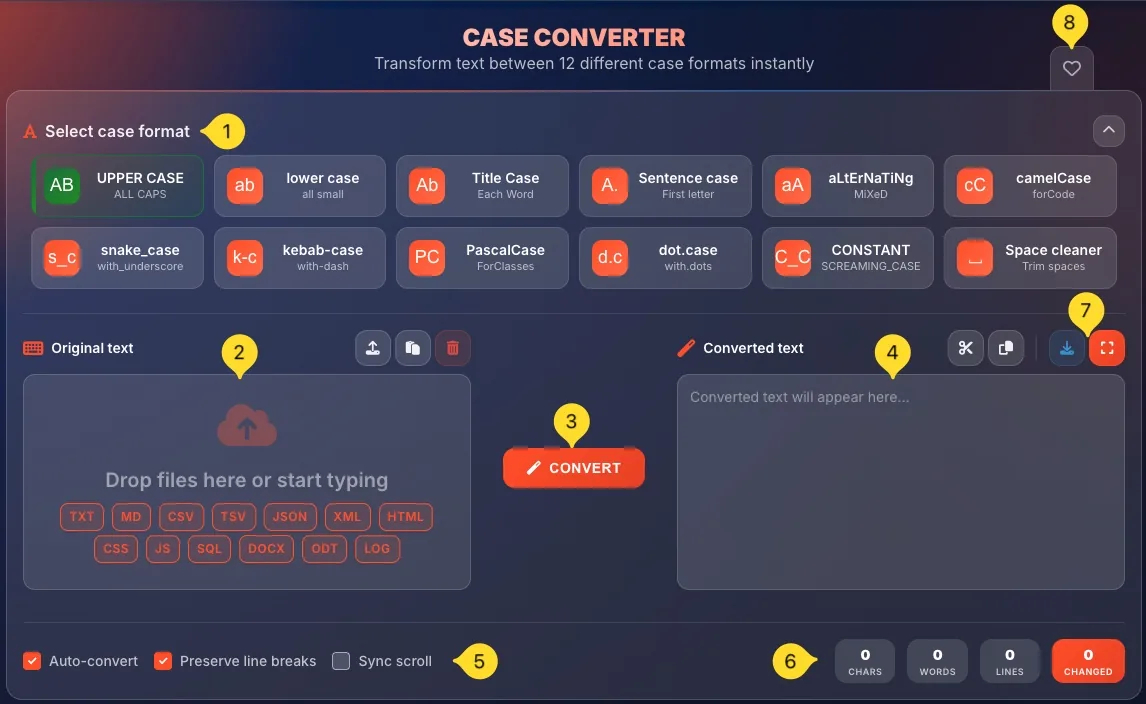
The Case Converter has a clean two-panel layout with the case format selector at the top. Here's what you'll see:
Case format selector (top)
At the top, you'll find Select case format: a collapsible grid showing all 12 case formats. Each format button displays:
• Icon (colored square) showing a preview of the format
• Format name (e.g., UPPER CASE, camelCase)
• Brief description (e.g., ALL CAPS, forCode)
Click the arrow on the right to collapse/expand this section.
Original text panel (left)
The left panel is where you enter your text:
• Header with keyboard icon and Original text label
• Action buttons (top right) - Upload, Paste, Clear
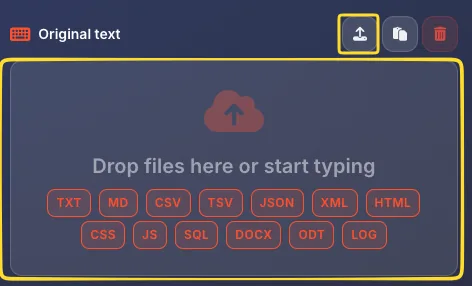
• Drop zone: Drop files here or start typing
• Supported formats displayed as badges - TXT, MD, CSV, TSV, JSON, XML, HTML, CSS, JS, SQL, DOCX, ODT, LOG
CONVERT button (center)
The orange CONVERT button sits between the two panels. Click it to convert your text using the selected case format.
Note: If Auto-convert is enabled (default), you don't need to click this button - conversion happens automatically.
Converted text panel (right)
The right panel shows your converted result:
• Header with magic wand icon and Converted text label
• Action buttons (top right) - Trim, Copy, Download, Fullscreen
• Output area: displays Converted text will appear here... before conversion
Options row (bottom left)
Below the panels, you'll find three checkboxes:
• Auto-convert (checked by default) - converts automatically as you type
• Preserve line breaks (checked by default) - keeps your text's line structure
• Sync scroll (unchecked by default) - scrolls both panels together
Statistics (bottom right)
Four counters track your text in real-time:
• CHARS: total character count
• WORDS: total word count
• LINES: total line count
• CHANGED (orange) - number of characters that were modified
Download button & Fullscreen mode
In the output panel header:
• Download button (download icon) - save the converted text as a file
• Fullscreen button (expand icon) - enter distraction-free focus mode for editing larger texts
Fullscreen mode hides all other UI elements and lets you focus on your text.
Favorites (top right)
Click the heart icon in the top right corner to add Case Converter to your favorites for quick access from the homepage.
The 12 case formats
Case Converter offers 12 different formats organized into three categories:
• Text cases (6 formats) - for general text transformation
• Programming cases (5 formats) - for code naming conventions
• Space cleaner (1 utility) - for cleaning up whitespace
Each format is represented by a button with a colored icon showing a preview of how text will look.
Text cases (6 formats)
These formats are perfect for everyday text transformation:
Description: ALL CAPS
Converts all letters to capitals.
• Input: "hello world"
• Output: "HELLO WORLD"
Use for: Headlines, acronyms, emphasis, fixing caps lock mistakes
Description: all small
Converts all letters to lowercase.
• Input: "HELLO WORLD"
• Output: "hello world"
Use for: Usernames, URLs, email addresses, code variables
Description: Each Word
Capitalizes the first letter of each word.
• Input: "hello world"
• Output: "Hello World"
Use for: Headlines, book titles, proper names, article titles
Description: First letter
Capitalizes only the first letter of each sentence.
• Input: "HELLO WORLD. HOW ARE YOU?"
• Output: "Hello world. How are you?"
Use for: Normal paragraphs, fixing ALL CAPS text, proper sentences
Description: MiXeD
Alternates between lowercase and uppercase letters.
• Input: "hello world"
• Output: "hElLo WoRlD"
Use for: Memes, sarcastic text, stylized social media posts
Description: forCode
First word lowercase, subsequent words capitalized, no spaces.
• Input: "hello world"
• Output: "helloWorld"
Use for: JavaScript variables, Java methods, JSON keys
Programming cases (5 formats)
These naming conventions are standard in programming. Use them to convert variable names, function names, and identifiers:
Description: with_underscore
All lowercase, words separated by underscores.
• Input: "hello world"
• Output: "hello_world"
Use for: Python variables, database columns, Ruby methods, file names
Description: with-dash
All lowercase, words separated by hyphens.
• Input: "hello world"
• Output: "hello-world"
Use for: URLs, CSS class names, HTML attributes, file names
Description: ForClasses
Every word capitalized, no spaces or separators.
• Input: "hello world"
• Output: "HelloWorld"
Use for: Class names (C#, Java, TypeScript), React components, constructors
Description: with.dots
All lowercase, words separated by dots.
• Input: "hello world"
• Output: "hello.world"
Use for: Configuration keys, Java package names, property paths
Description: SCREAMING_CASE
All uppercase, words separated by underscores.
• Input: "hello world"
• Output: "HELLO_WORLD"
Use for: Constants in most languages, environment variables, enum values
Space cleaner Utility
The 12th format is a special utility for cleaning up whitespace issues:
What it does
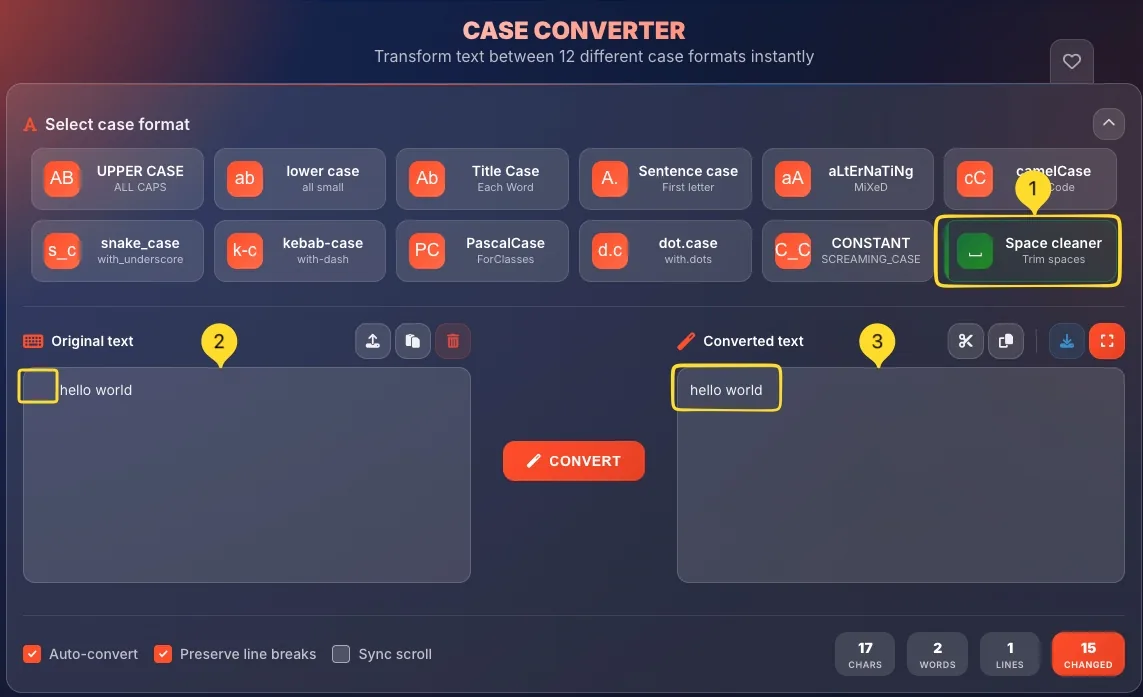
Space cleaner removes excess whitespace from your text:
• Trims leading/trailing spaces from each line
• Collapses multiple consecutive spaces into one
• Removes extra blank lines
• Cleans up tabs and irregular spacing
Example
Input: " hello world "
Output: "hello world"
All the extra spaces are cleaned up while preserving the meaningful content.
When to use
Use Space cleaner when:
• Text copied from PDFs has weird spacing
• You need to normalize whitespace before processing
• Data pasted from spreadsheets has irregular spacing
• Cleaning up OCR output with spacing issues
How to convert text
Converting text is simple. Follow these steps:
Enter your text
Type directly into the Original text panel, or:
• Paste from clipboard (click Paste button or Ctrl+V)
• Drop a file into the drop zone
• Upload by clicking the Upload button
Select a case format
Click one of the 12 format buttons in the Select case format section. The currently selected format is visually highlighted.
View the result
If Auto-convert is enabled (default), the result appears immediately in the Converted text panel.
If Auto-convert is disabled, click the orange CONVERT button to convert.
Copy or download
Use the output panel actions to:
• Copy: copy result to clipboard
• Download: save as a text file
• Cut: cut to clipboard (removes from output)
Try different formats
Click different format buttons to see the same text in various cases. The conversion updates instantly with Auto-convert enabled.
Input panel actions
The Original text panel has three action buttons in the header (top right):
Upload button
Click the upload icon to open a file picker. Select a text file from your computer. Supported formats:
• Text: TXT, MD, LOG
• Data: CSV, TSV, JSON, XML
• Code: HTML, CSS, JS, SQL
• Documents: DOCX, ODT
Paste button
Click the clipboard icon to paste text from your clipboard into the input panel. This is equivalent to pressing Ctrl+V (or ⌘+V on Mac).
Clear button
Click the trash icon to clear all text from the input panel. This also clears the output and resets statistics to zero.

Output panel actions
The Converted text panel has four action buttons in the header (top right):
Trim button
Click the scissors icon to trim whitespace from the converted text. Removes leading and trailing spaces from each line.
Copy button
Click the copy icon to copy the converted text to your clipboard. A notification confirms the copy. The text remains in the output panel.
Download button
Click the download icon to save the converted text as a file. You can choose to download the file as a .txt, .md or .docx file with your converted content.
Fullscreen button
Click the expand icon to enter Fullscreen mode (also called Focus mode). This provides a distraction-free editing environment. See the Fullscreen mode section for details.

File upload feature
Case Converter can read text from 13 different file formats. Here's what's supported:
Plain text files
TXT: Standard text files
MD: Markdown files
LOG: Log files
These are read directly as-is.
Data files
CSV: Comma-separated values
TSV: Tab-separated values
JSON: JavaScript Object Notation
XML: Extensible Markup Language
Perfect for converting database exports, configuration files, and structured data.
Code files
HTML: Web pages
CSS: Stylesheets
JS: JavaScript files
SQL: Database queries
Useful for converting variable names or normalizing code style.
Document files
DOCX: Microsoft Word documents
ODT: LibreOffice/OpenOffice documents
Text is extracted from these document formats automatically.
How to upload
Two ways to get files into the tool:
• Drag and drop: drag a file from your computer and drop it on the input panel
• Click Upload: click the upload button and select a file from the file picker
The file's text content appears in the input panel ready for conversion.
Conversion options
Three checkboxes at the bottom control how conversion works:
Auto-convert
Default: Checked (enabled)
When enabled, the output updates automatically as you:
• Type in the input panel
• Change the selected case format
• Paste or upload text
When disabled, you must click the CONVERT button to convert.
Tip: Disable auto-convert for very large texts to prevent lag while typing.
Preserve line breaks
Default: Checked (enabled)
When enabled, your text's line structure is preserved. Multi-line text stays multi-line.
When disabled, line breaks may be modified during certain conversions (like space cleaning).
Tip: Keep this enabled unless you want to merge lines.
Sync scroll
Default: Unchecked (disabled)
When enabled, scrolling in one panel scrolls the other panel to the same position. This helps compare input and output for long texts.
When disabled, each panel scrolls independently.
Tip: Enable this when reviewing changes in long documents.

Statistics
Four counters in the bottom right track your text in real-time:
CHARS
Total number of characters in your input text, including spaces and punctuation.
WORDS
Total number of words in your input text. Words are separated by spaces and punctuation.
LINES
Total number of lines in your input text. Counts line breaks to determine this.
CHANGED (orange)
Number of characters that were modified during conversion. This shows you how much of your text was actually changed.
• If you convert "hello" to UPPER CASE → "HELLO", CHANGED shows 5 (all 5 letters changed)
• If text is already in the target format, CHANGED shows 0

Fullscreen mode Focus mode
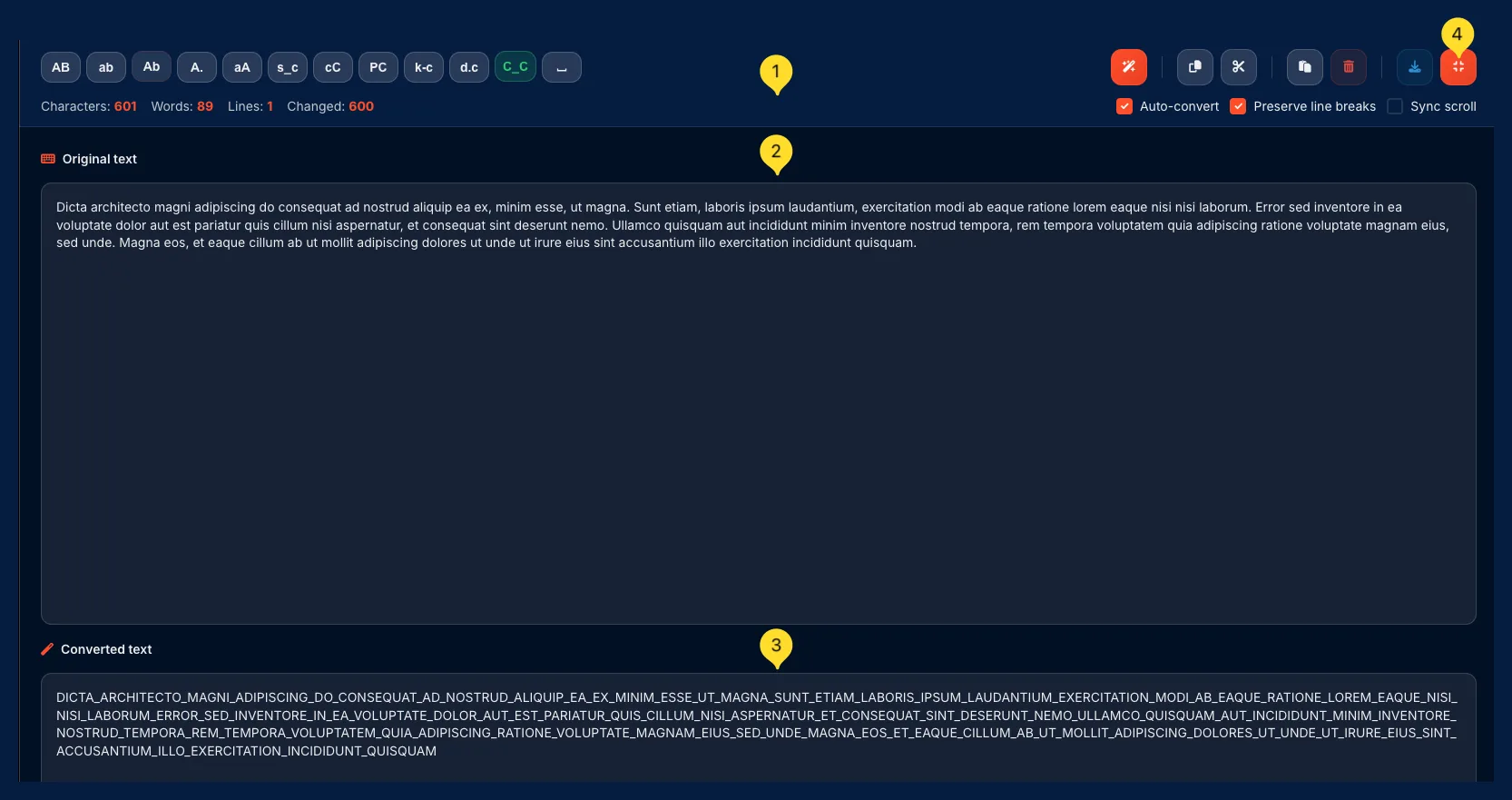
Fullscreen mode (also called Focus mode) provides a distraction-free editing environment. Click the expand icon in the output panel header to enter this mode.
Compact toolbar (top)
In fullscreen mode, all controls move to a single compact toolbar at the top:
Left side:
• Case format buttons as small pills (AB, ab, Ab, A., aA, s_c, cC, PC, k-c, d.c, C_C, space icon)
• Click any pill to switch case format
Center:
• Statistics inline: "Characters: X Words: X Lines: X Changed: X"
Right side:
• Action buttons: Convert, Copy, Cut, Paste, Clear, Download, Exit fullscreen
• Checkboxes: Auto-convert, Preserve line breaks, Sync scroll
Full-width input panel
The Original text panel takes the top half of the screen. It spans the full width for maximum editing space.
The panel label shows a keyboard icon and Original text.
Full-width output panel
The Converted text panel takes the bottom half of the screen. It also spans the full width.
The panel label shows a pencil icon and Converted text.
Live conversion
With Auto-convert enabled, typing in the input immediately updates the output below. You can see both original and converted text simultaneously.
Exit fullscreen
Click the exit/collapse icon in the toolbar (rightmost button) to return to normal view. All your text and settings are preserved.
• Working with long documents
• Need maximum screen space for editing
• Want to focus without UI distractions
• Comparing input and output side by side (vertically)
Common use cases
Here are practical scenarios where Case Converter saves time:
userFirstName (camelCase) or user_first_name (snake_case).my-blog-post.Tips & Best practices
Frequently asked questions
• 6 text cases: UPPER CASE, lower case, Title Case, Sentence case, aLtErNaTiNg, camelCase
• 5 programming cases: snake_case, kebab-case, PascalCase, dot.case, CONSTANT_CASE
• 1 utility: Space cleaner
getUserNamePascalCase starts with uppercase:
GetUserNameUse camelCase for variables/functions, PascalCase for classes/components.