Overview
The Dice Roller is a 3D dice simulator designed for RPG players, board gamers, and anyone who needs random numbers. It features 7 standard dice types (d4, d6, d8, d10, d12, d20, d100) plus fully customizable dice with any number of sides. The tool includes realistic 3D animations, sound effects, quick presets for common RPG rolls, modifiers, advanced options like exploding dice, and a complete roll history. All processing happens in your browser - no internet needed.
Interface overview
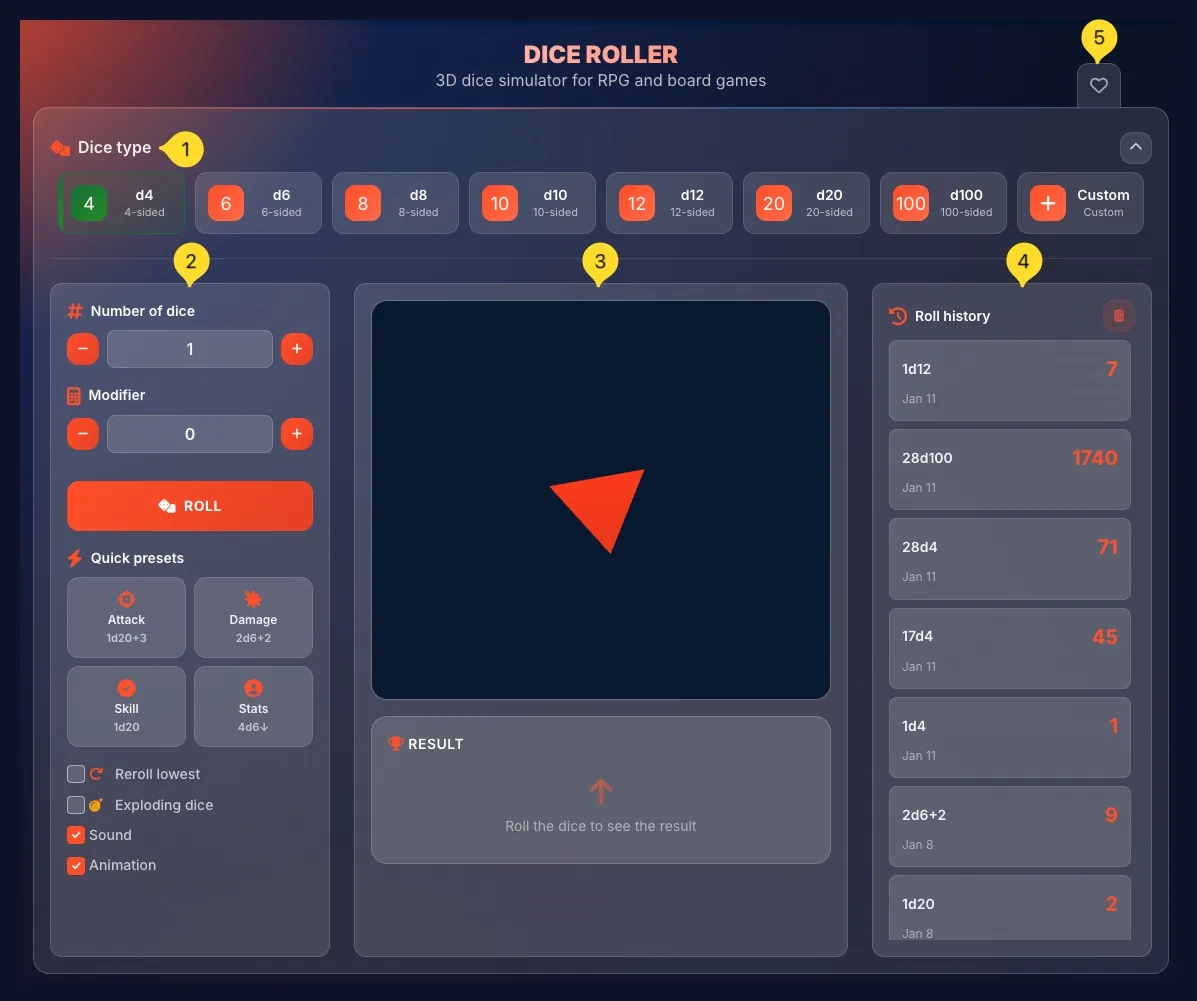
The dice roller uses a three-column layout with settings on the left, the 3D dice area in the center, and roll history on the right. Understanding each area helps you use the tool effectively.
Dice type selector
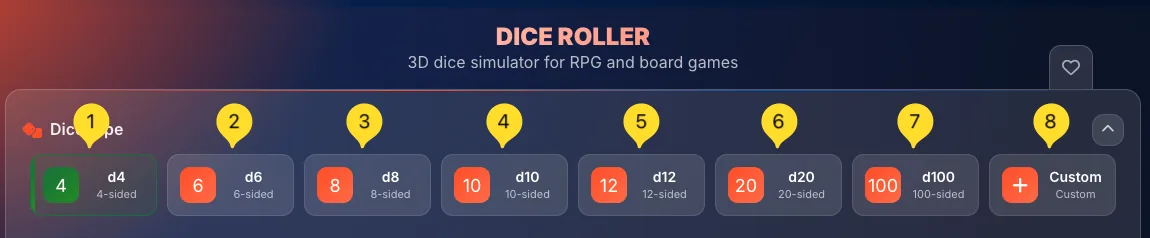
At the top is the Dice type row - a horizontal strip with 8 clickable buttons representing different dice types. This is where you choose what kind of die to roll (d4, d6, d8, d10, d12, d20, d100, or Custom).
Left column - Settings
The left panel contains all roll configuration:
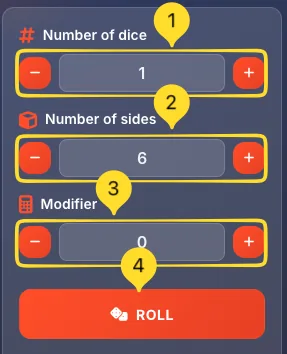
• Number of dice: how many dice to roll
• Number of sides (Custom mode only) - set custom sides
• Modifier: add/subtract from the total
• ROLL button: the main action button
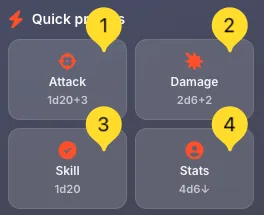
• Quick presets: 4 preset buttons for common RPG rolls
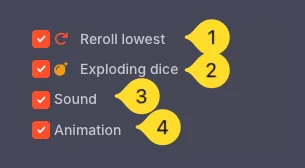
• Checkboxes: Reroll lowest, Exploding dice, Sound, Animation
Center column - 3D dice area
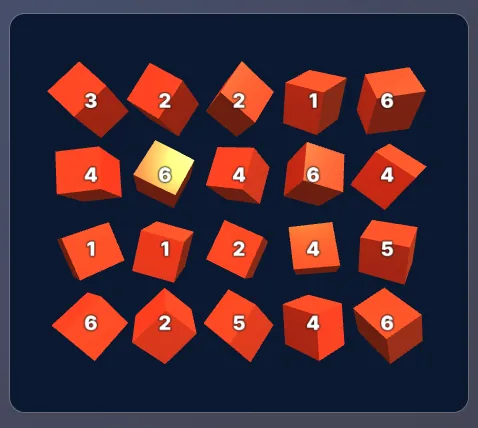
The large center panel is the 3D visualization area. This is where you see your dice rendered in 3D. The dice animate when you roll, tumbling realistically before landing. Below it is the RESULT panel showing your roll outcome.
Right column - Roll history
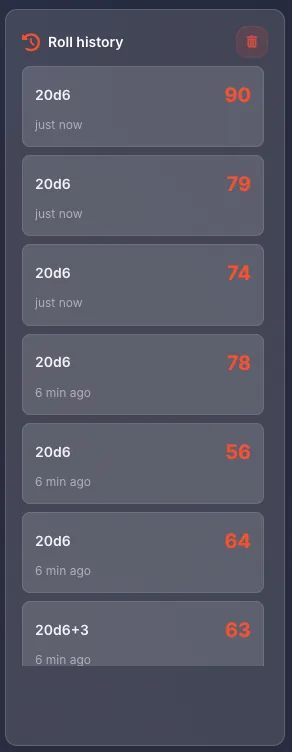
The right panel shows your Roll history: a chronological list of all your previous rolls. Each entry shows the dice formula (like 1d20 or 2d6+2), the result, and the date.
Favorites tab
On the left sidebar (desktop) or bottom bar (mobile), a heart icon lets you add this tool to your favorites for quick access from the Command palette.
Dice type selection 8 Options
The Dice type row contains 9 buttons for selecting which die to roll. Each button shows a number badge on the left and the dice name with description on the right. The selected dice type is visually highlighted.
d4 (4-sided)
The tetrahedron: a pyramid-shaped die with 4 faces. Results range from 1 to 4. Button shows 4 badge with "d4" and "4-sided" text. Used in RPGs for small weapons (daggers) and minor healing spells.
d6 (6-sided)
The classic cube: the most familiar die shape. Results range from 1 to 6. Button shows 6 badge with "d6" and "6-sided" text. Used in countless board games, Yahtzee, craps, and many RPG damage rolls.
d8 (8-sided)
The octahedron: two pyramids joined at the base. Results range from 1 to 8. Button shows 8 badge with "d8" and "8-sided" text. Common for medium weapon damage in RPGs (longswords, battleaxes).
d10 (10-sided)
The pentagonal trapezohedron: a kite-shaped face die. Results range from 1 to 10 (or 0-9). Button shows 10 badge with "d10" and "10-sided" text. Often used in pairs for percentile (d100) rolls.
d12 (12-sided)
The dodecahedron: 12 pentagon faces. Results range from 1 to 12. Button shows 12 badge with "d12" and "12-sided" text. Less common, used for greataxe damage and some special abilities.
d20 (20-sided)
The icosahedron: the iconic RPG die with 20 triangular faces. Results range from 1 to 20. Button shows 20 badge with "d20" and "20-sided" text. THE die for D&D - used for attacks, saving throws, skill checks, and initiative.
d100 (100-sided)
The percentile die: results range from 1 to 100. Button shows 100 badge with "d100" and "100-sided" text. Used for percentage rolls, random tables, and games with percentile mechanics.
Custom
The Custom button (green with + icon) lets you create dice with any number of sides. When selected, a new "Number of sides" control appears in the settings panel. Need a d7? d13? d47? Custom mode makes it possible.
Settings panel Left Column
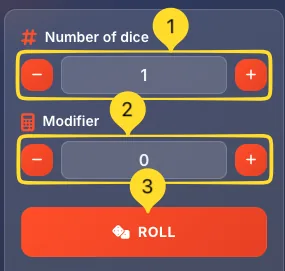
The left panel contains all the controls for configuring your dice roll. Each setting has plus/minus buttons for easy adjustment.
Number of dice
This control sets how many dice to roll at once:
• # icon with label "Number of dice"
• Minus button: decrease count
• Number display: shows current count (e.g., "1")
• Plus button: increase count
For example, to roll 3d6 (three six-sided dice), set this to 3.
Modifier
Add or subtract a fixed number from the total:
• Calculator icon with label "Modifier"
• Minus button: decrease modifier
• Number display: shows current modifier (e.g., "0")
• Plus button: increase modifier
For 2d6+3 (roll 2d6, add 3), set Number of dice to 2 and Modifier to 3. Use negative modifiers (like -2) for penalties.
ROLL button
The large orange ROLL button executes your dice roll:
• Shows a dice icon and ROLL text
• Click to roll the dice with current settings
• The 3D dice will animate in the center area
• Result appears in the Result panel below
• Roll is added to your history
Custom dice mode Advanced
When you select the Custom dice type, an additional control appears in the settings panel, allowing you to create dice with any number of sides.
Select Custom
Click the Custom button in the Dice type row. It's the rightmost button with a green + icon and Custom label. When selected, it's visually highlighted.
Number of sides control
A new control appears between Number of dice and Modifier:
• Cube icon with label Number of sides
• Minus button: decrease sides
• Number display: shows current sides (e.g., 6)
• Plus button: increase sides
This control ONLY appears in Custom mode.
Set your custom die
Use the plus/minus buttons to set the exact number of sides you need. Examples:
• d7: for 7-day week decisions
• d13: for special game mechanics
• d52: like drawing from a card deck
• Any number you need!
Roll custom dice
Once configured, the ROLL button works normally. The 3D visualization will show an appropriate shape, and results will be recorded in your roll history with the custom formula (e.g., "3d7+2").
Quick presets RPG Shortcuts
Below the ROLL button, you'll find Quick presets: four pre-configured buttons for the most common RPG dice rolls. Each preset has an icon, name, and the dice formula it uses.
Attack preset
Attack button (crosshairs icon):
• Formula: 1d20+3
• Rolls a d20 and adds 3
• Perfect for attack rolls in D&D
• Click to instantly roll without adjusting settings
• The +3 represents a typical attack bonus
Damage preset
Damage button (explosion/star icon):
• Formula: 2d6+2
• Rolls two d6 and adds 2
• Great for weapon damage rolls
• Typical for a greatsword with strength modifier
Skill preset
Skill button (checkmark icon):
• Formula: 1d20
• Rolls a single d20 with no modifier
• Use for skill checks, saving throws, initiative
• The base roll - add your own bonuses mentally
Stats preset
Stats button (person icon):
• Formula: 4d6↓ (4d6 drop lowest)
• Rolls four d6 and drops the lowest die
• Classic D&D character stat generation method
• Roll this 6 times for a full set of ability scores
Using presets
Click any preset button to immediately roll those dice. The settings panel will update to reflect the preset configuration, and the roll executes automatically. Presets are the fastest way to make common rolls.
Roll options 4 Checkboxes
Below the Quick presets, you'll find 4 checkbox options that modify how dice behave. Two are special rolling rules, two control the experience.
Reroll lowest
Reroll lowest (with refresh icon):
• When checked: if you roll the minimum value (1), that die is automatically rerolled
• Useful for "lucky" or "blessed" game mechanics
• Only the lowest result gets rerolled, once
• Great for games that give bonuses to low rolls
Exploding dice
Exploding dice (with bomb icon):
• When checked: if you roll the maximum value, roll that die again and add the result
• Can chain - if you keep rolling max, keep adding!
• Popular in games like Savage Worlds
• Creates exciting moments with potentially huge totals
Sound
Sound (checked by default):
• When enabled: plays realistic dice rolling sounds
• Adds satisfying audio feedback to each roll
• Uncheck for silent rolling (meetings, quiet environments)
• The sound matches the dice animation timing
Animation
Animation (checked by default):
• When enabled: dice tumble and animate in 3D before settling
• Creates the excitement of watching physical dice roll
• Uncheck for instant results (faster but less fun)
• Animation duration is a few seconds
3D dice visualization Center Panel
The large center panel displays your dice in real 3D graphics. The dice are rendered with proper geometry matching their type - tetrahedrons, cubes, octahedrons, etc.
Dice appearance
Each dice type has its correct 3D shape:
• d4: triangular pyramid (tetrahedron)
• d6: cube with rounded edges
• d8: two pyramids joined (octahedron)
• d10: kite-shaped faces
• d12: pentagon faces (dodecahedron)
• d20: triangular faces (icosahedron)
• d100: sphere-like with many faces
All dice are rendered in orange matching the MORELESS.TOOLS theme.
Idle state
When no roll is in progress, the selected dice type is displayed static in the center of the panel. It may slowly rotate to show its 3D nature. This preview shows what you're about to roll.
Roll animation
When you click ROLL (with Animation enabled):
• Dice tumble and bounce realistically
• Physics simulation creates natural movement
• Multiple dice interact with each other
• After a few seconds, dice settle to final positions
• Each die face-up shows its result
Multiple dice
When rolling more than one die:
• All dice appear in the visualization area
• They tumble together during animation
• Each settles showing its individual result
• The total is calculated and shown in the Result panel
Dark background
The dice area has a dark navy background (like a gaming table) that makes the orange dice highly visible. The contrast helps you clearly see the results.
Result panel Below Dice
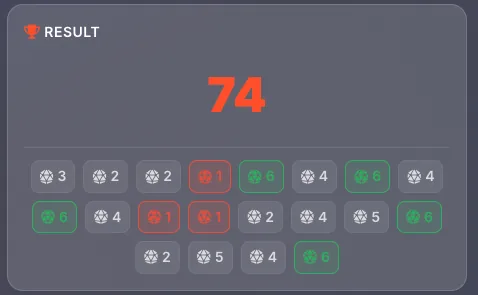
Below the 3D dice area is the RESULT panel, which displays the outcome of your roll.
Panel header
The panel shows RESULT with a trophy icon, indicating this is where your roll outcome appears.
Before rolling
Before you make any roll, the panel shows a placeholder message:
• An arrow icon pointing up (toward the dice area)
• Text: Roll the dice to see the result
• This reminds you to click the ROLL button
After rolling
Once you roll, the panel shows:
• Individual die results: each die's value
• Formula: what you rolled (e.g., 2d6+3)
• Total: the final sum including modifiers
• For example: "3 + 5 + 3 = 11" for 2d6+3
Special results
Some results may be highlighted:
• Natural 20 (d20 rolls) - often highlighted as critical success
• Natural 1 (d20 rolls) - often highlighted as critical failure
• Exploded dice: shown when exploding dice trigger additional rolls
Roll history Right Panel
The right column shows your Roll history: a complete log of all dice rolls made during your session. This is invaluable for tracking game progress and reviewing past results.
Panel header
At the top: Roll history with a clock/history icon. On the right side of the header is a trash icon button to clear all history.
History entries
Each roll creates a new entry in the list showing:
• Dice formula: what was rolled (e.g., 1d12, 28d100, 2d6+2)
• Result: the total in orange text on the right
• Date: when the roll was made (e.g., Jan 11)
Entries are displayed in cards with subtle styling.
Scroll through history
If you have many rolls, the panel becomes scrollable. Scroll up/down to see all your past rolls. Newest rolls typically appear at the top.
Clear history
Click the trash icon in the Roll history header to clear all entries. This removes all recorded rolls and starts fresh. Useful when starting a new game session.
Example entries
From the screenshots, example history entries:
• 1d12 → 7 (Jan 11)
• 28d100 → 1740 (Jan 11) - massive roll!
• 28d4 → 71 (Jan 11)
• 17d4 → 45 (Jan 11)
• 1d4 → 1 (Jan 11)
• 2d6+2 → 9 (Jan 8)
• 1d20 → 2 (Jan 8)
History persistence
Your roll history is saved in your browser and persists across sessions. Come back later and your rolls will still be there (unless you clear them).