Overview
The Duplicate Word Finder scans your text and identifies words that appear multiple times, highlighting them in real-time with unique colors. Beyond just finding duplicates, it includes a powerful CLEAN function to automatically remove repeated words, detailed statistics, and export options. Whether you're polishing an essay, optimizing content for SEO, or cleaning data - this tool makes repetition visible and fixable.
Interface layout Overview
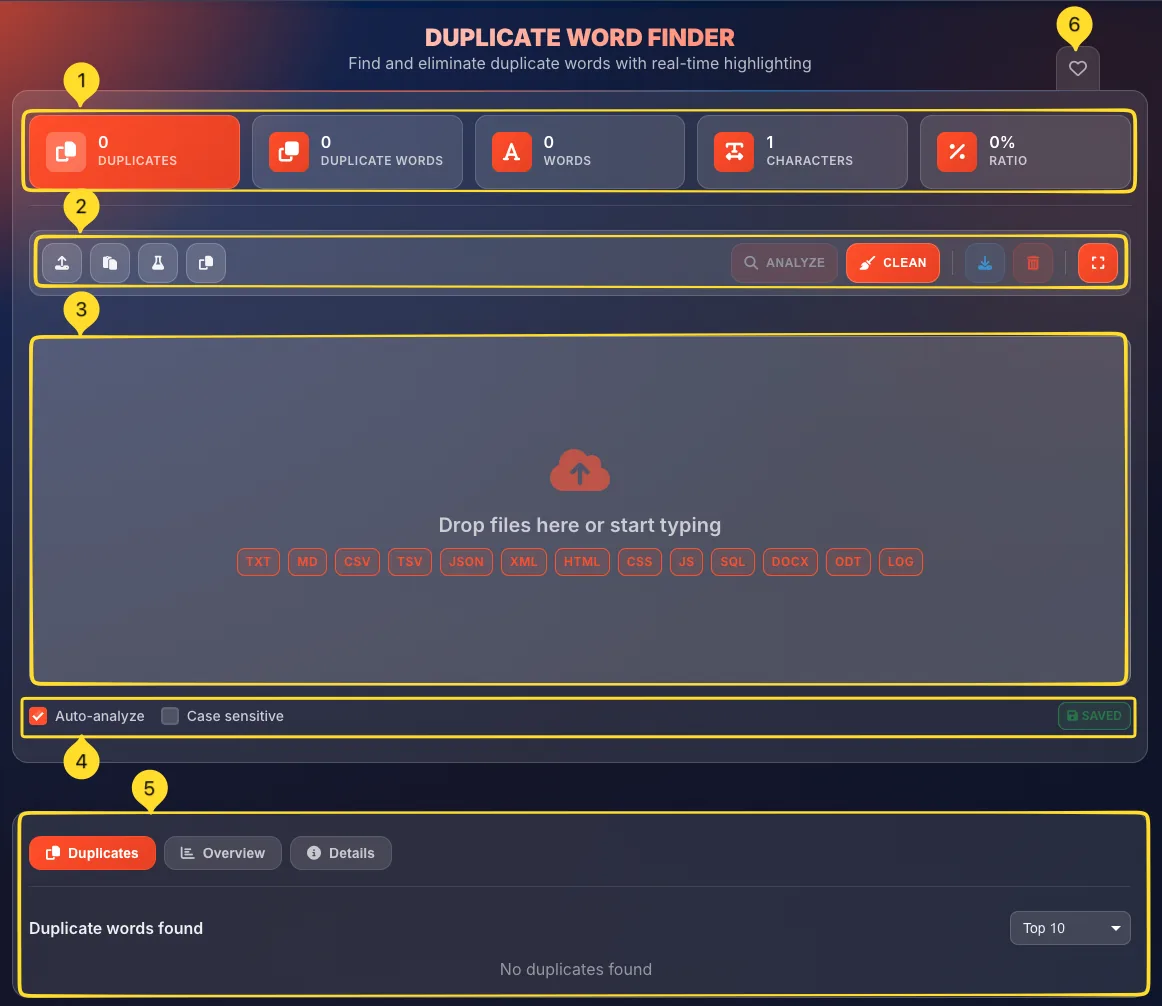
The Duplicate Word Finder interface is organized for efficient duplicate detection and removal:
Stats cards (top)
Five colorful cards displaying key metrics:
• DUPLICATES: total duplicate instances
• DUPLICATE WORDS: unique words that repeat
• WORDS: total word count
• CHARACTERS: total character count
• RATIO: percentage of duplicates
Toolbar
Two groups of buttons:
• Left: Upload, Paste, File upload, Copy
• Right: ANALYZE, CLEAN (orange), Download, Clear, Fullscreen
Text area
Large input area where you type or paste text. Duplicate words are automatically highlighted with unique colors as you type (when Auto-analyze is enabled).
Options bar
Below the text area:
• Auto-analyze checkbox - enables real-time analysis
• Case sensitive checkbox - controls matching behavior
• SAVED badge - confirms auto-save status
Analytics section
Below the text area: 3 tabs (Duplicates, Overview, Details) providing different views of duplicate analysis.
Favorites tab
On the left sidebar (desktop) or bottom bar (mobile), a heart icon lets you add this tool to your favorites for quick access from the Command Palette.
Stats cards 5 Metrics
The five stats cards at the top provide instant visibility into duplicate word status. All update in real-time:
DUPLICATES
Total count of duplicate word instances in your text (highlighted in orange as the primary metric).
Example: If "the" appears 50 times, that's 49 duplicates (first occurrence isn't a duplicate).
Icon: Copy/duplicate symbol
DUPLICATE WORDS
Number of unique words that have duplicates. If 9 different words repeat, this shows 9.
Icon: Copy symbol
Interpretation: Lower is better - fewer unique words are causing repetition.
WORDS
Total word count in your text. Words are separated by spaces.
Icon: Letter "A" symbol
CHARACTERS
Total character count including spaces. Every letter, number, and space is counted.
Icon: Text width symbol
RATIO
Percentage of your text that is duplicate words.
Icon: Percentage symbol
Interpretation:
• 0% = No duplicates (perfect)
• Low % = Minimal repetition (good)
• High % = Heavy repetition (may need cleaning)

Toolbar buttons 9 Actions
The toolbar provides quick access to input, analysis, and output functions:
Left side: Input buttons
Upload: Upload a text file
Paste: Paste from clipboard
Demo: Load sample text
Copy: Copy all text
ANALYZE button
Manually triggers duplicate analysis. Shows a magnifying glass icon.
When to use: If Auto-analyze is disabled, click this to scan for duplicates. Also useful to refresh after making changes.
CLEAN button (orange)
The most powerful feature: removes all duplicate words from your text with one click.
Icon: Broom/sparkle symbol
What it does: Keeps the first occurrence of each word and removes subsequent repetitions. See the CLEAN function section for details.
Download button
Opens the Export report modal. Download your analysis in TXT, CSV, MD, JSON, or DOCX format.
Clear button
Removes all text from the input area. Use to start fresh with new content.
Fullscreen button
Expands the interface to fill your browser window. Provides more space for working with longer texts.

Text area & highlighting Color-Coded
The text area is where you enter content and see duplicate highlighting in real-time:
Enter text
Type directly, paste with Ctrl+V/⌘+V, or drag and drop a file. The area accepts any plain text content.
Real-time highlighting
With Auto-analyze enabled, duplicate words are instantly highlighted as you type. Each unique duplicate word gets its own background color.
Color coding system
Each duplicate word is assigned a unique color:
• Orange: first duplicate word type
• Yellow: second duplicate word type
• Red: third duplicate word type
• Green, Blue, Purple...: additional duplicate types
This makes it easy to visually identify which words repeat and where.
Visual patterns
The color highlighting reveals patterns:
• Clusters of same color = repeated word used close together
• Scattered same color = word repeated throughout text
• Many different colors = many different words duplicating
Auto-save
Your text is automatically saved to browser storage. The SAVED badge confirms this. Your work persists across browser sessions.
Analysis options 2 Options
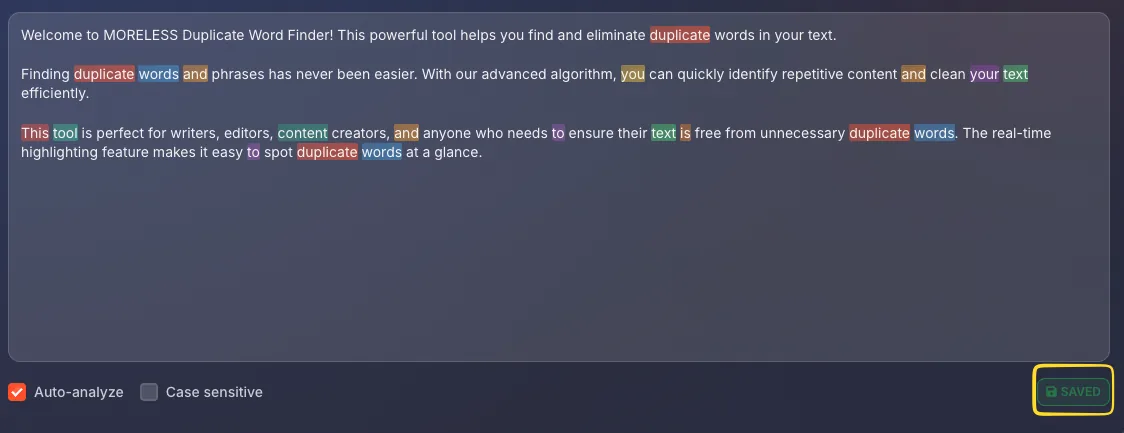
Two checkboxes control how duplicate analysis works:
Auto-analyze checkbox
When enabled (checked): Duplicates are detected and highlighted in real-time as you type or paste.
When disabled: You must manually click ANALYZE to detect duplicates.
Default: Enabled
Best practice: Keep enabled for most use cases. Disable only for very large texts where real-time analysis might cause lag.
Case sensitive checkbox
When enabled: "Hello" and "hello" are treated as different words.
When disabled: "Hello" and "hello" are treated as the same word (both highlighted as duplicates).
Default: Disabled (case-insensitive)
Use cases:
• Enable for code analysis where case matters
• Keep disabled for normal prose where "The" and "the" should match
Analytics tabs 3 Views
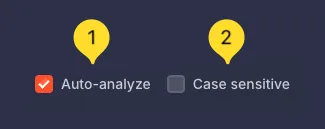
Below the text area, three tabs provide different views of your duplicate analysis:
Tab bar
Three tabs appear as buttons:
• Duplicates: List of duplicate words with counts
• Overview: Summary statistics (similar to Word Counter)
• Details: Granular text statistics
The active tab is visually highlighted.
Switching tabs
Click any tab to switch views. The content below updates instantly to show that tab's analysis.
Real-time updates
All three tabs update in real-time as you type or edit (when Auto-analyze is enabled).
Duplicates tab Word List
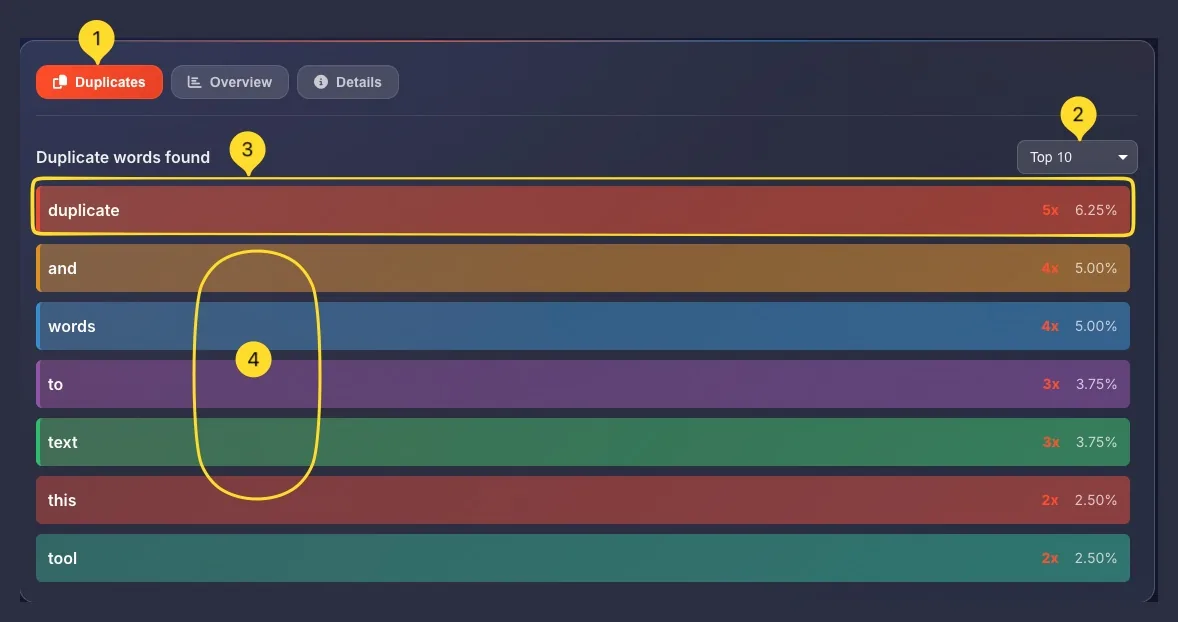
The Duplicates tab shows all words that appear more than once, sorted by frequency:
Duplicate words found heading
Shows "Duplicate words found" as the section title. Lists all words that repeat in your text.
Top N dropdown
A dropdown in the top-right lets you filter how many words to display: Top 10, Top 20, Top 50, etc.
Default: Top 10 (shows the 10 most repeated words)
Word list
Each word appears as a colored row with:
• The word itself (left side)
• Count: how many times it appears (e.g., "345x")
• Percentage: what % of total words (e.g., "24.52%")
Color matching
Each row's background color matches the highlighting color in the text area. This makes it easy to:
• Click a word in the list
• Instantly identify all its occurrences in your text by color
Sorting
Words are sorted by frequency (most repeated first). The top offenders appear at the top of the list.
Overview tab Summary
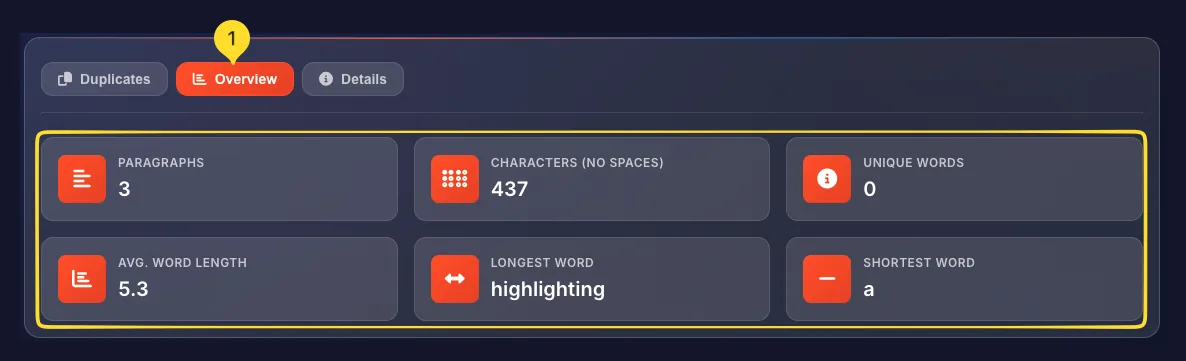
The Overview tab provides a summary of your text statistics, similar to the Word Counter tool:
Overview section
Displays key metrics in a clean grid layout including word count, character count, sentence count, paragraph count, and reading time.
Details tab 8 Metrics
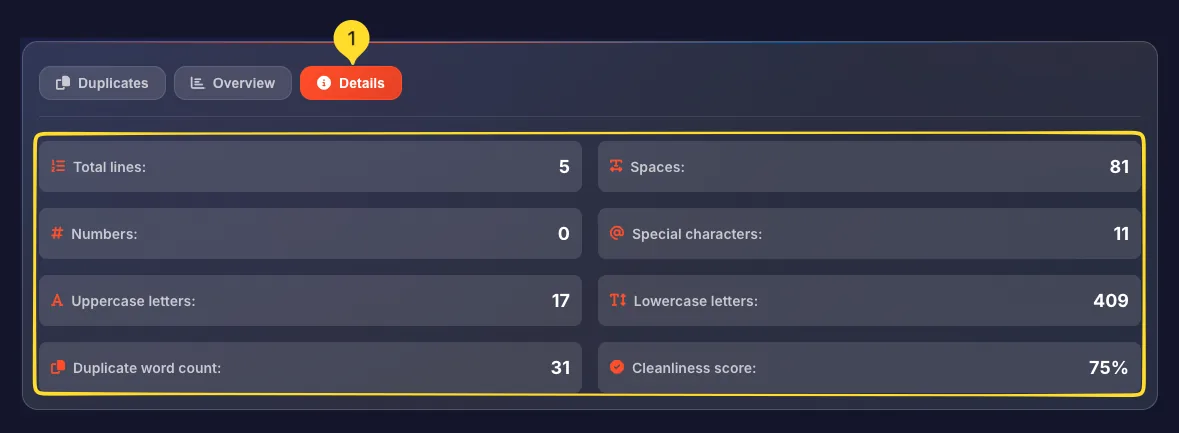
The Details tab provides granular statistics about your text in a clean grid layout:
Total lines
Number of lines in your text. Each line break creates a new line.
Spaces
Total count of space characters. Useful for understanding text density.
Numbers
Count of numeric digits (0-9) in your text.
Special characters
Count of special characters like @, #, $, %, &, *, etc.
Uppercase letters
Number of capital letters (A-Z) in your text.
Lowercase letters
Number of small letters (a-z) in your text.
Duplicate word count
Total number of duplicate word instances. Same as the DUPLICATES stat card, but shown in the details view for reference.
Cleanliness score
Percentage of text that is NOT duplicated: the inverse of the duplicate ratio.
Interpretation:
• 100% = No duplicates (perfectly clean)
• High % = Low repetition (clean text)
• Low % = High repetition (needs cleaning)
Example: 1% cleanliness = 99% of words are duplicates.
CLEAN function Remove Duplicates
The CLEAN button (orange, with broom icon) is the tool's most powerful feature - it automatically removes duplicate words:
What CLEAN does
When you click CLEAN:
• Keeps the first occurrence of each word
• Removes all subsequent occurrences of that word
• Maintains sentence structure (grammar may need fixing afterward)
Example
Before: "The cat sat on the mat. The cat was happy."
After CLEAN: "The cat sat on mat. was happy."
Notice: First "The", "cat" kept. Subsequent removed.
When to use CLEAN
Good for:
• Data cleaning (removing duplicate entries)
• Creating word lists from repetitive text
• Seeing unique words only
• Quick de-duplication
Not ideal for:
• Prose where you want to keep natural flow
• Text where some repetition is intentional
After cleaning
After clicking CLEAN:
• Text is modified in place
• Stats update to show new (lower) duplicate counts
• Highlighting disappears (no more duplicates)
• You may need to review and fix grammar
Undo if needed
If CLEAN removes too much, you can:
• Use browser's Undo (Ctrl+Z / ⌘+Z) immediately
• Reload the page (your original was auto-saved)
• Paste your original text again

Export report 6 Options
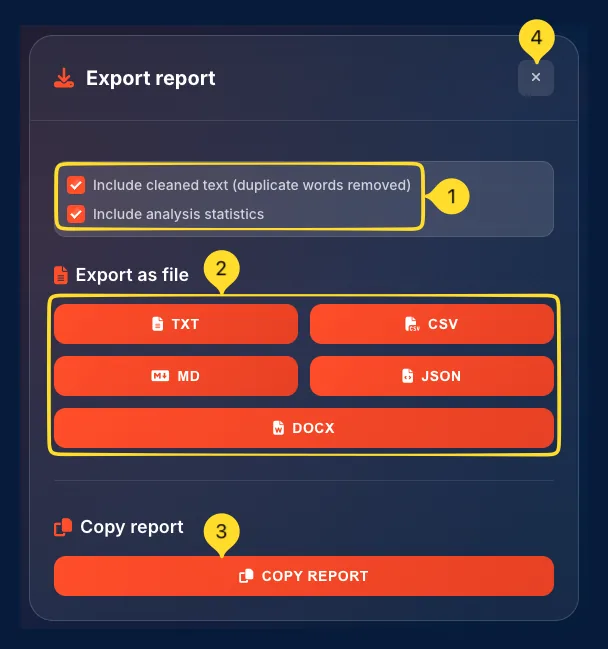
Click the Download button to open the Export report modal. Export your analysis with flexible options:
Open export modal
Click the Download button (down arrow icon) in the toolbar. The "Export report" modal opens.
Export options (checkboxes)
Two checkboxes control what's included in the export:
• Include cleaned text (duplicate words removed): When checked, exports the text WITH duplicates removed (as if CLEAN was applied)
• Include analysis statistics: When checked, includes all the stats (word count, duplicate count, cleanliness score, etc.)
Export as file section
Five file format buttons in a grid:
• TXT: Plain text file
• CSV: Spreadsheet format
• MD: Markdown format
• JSON: Structured data
• DOCX: Microsoft Word document
TXT export
Downloads a plain text file with your text and/or statistics in readable format.
CSV export
Downloads a spreadsheet-compatible file. Great for importing duplicate word data into Excel or Google Sheets.
MD export
Downloads a Markdown file. Useful for documentation or GitHub READMEs.
JSON export
Downloads structured data. Useful for developers or automated processing.
DOCX export
Downloads a Word document. Perfect for sharing reports or including in larger documents.
Copy to clipboard
Below file options, the COPY REPORT button copies the report to your clipboard. Paste it anywhere.
Close modal
Click the X button in the top-right corner to close without exporting.
Fullscreen mode Focus Mode
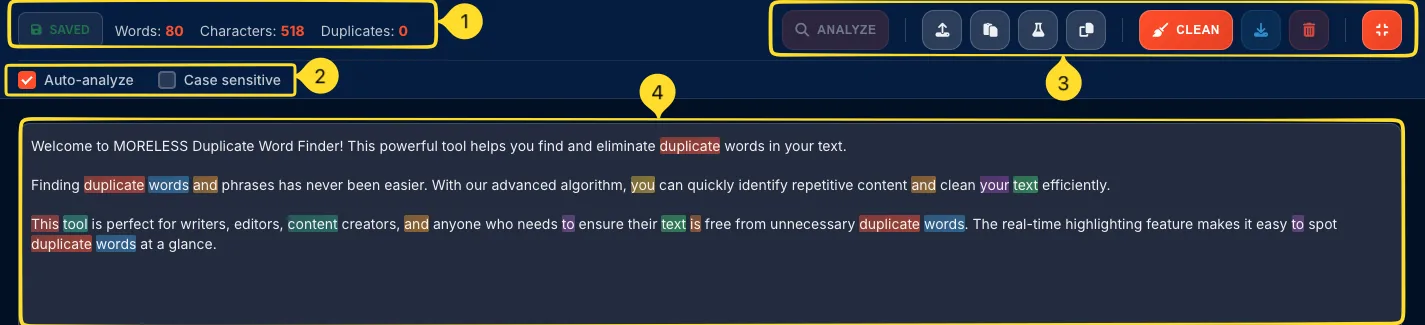
Enter fullscreen mode for distraction-free duplicate analysis with a larger workspace:
Enter fullscreen
Click the Fullscreen button (expand icon) in the toolbar's right side. The interface expands to fill your browser window.
Fullscreen header
At the top, a compact header shows:
• SAVED badge
• Words: X: Current word count
• Characters: X: Current character count
• Duplicates: X: Current duplicate count
Options in fullscreen
Below the header:
• Auto-analyze checkbox
• Case sensitive checkbox
Same functionality as normal view.
Toolbar in fullscreen
The full toolbar is available:
• Upload, Paste, File upload, Copy (left)
• ANALYZE, CLEAN, Download, Clear, Exit fullscreen (right)
Large text area
The text input area expands to fill the remaining screen space. Color highlighting works the same way - perfect for analyzing longer documents.
Exit fullscreen
Click the Exit fullscreen button (compress icon) or press Escape key. Returns to normal interface view.
Tips for better writing
Frequently asked questions
• TXT: Plain text
• CSV: Spreadsheets
• MD: Markdown
• JSON: Structured data
• DOCX: Word documents
Plus Copy to clipboard.