Overview
The Hash Generator creates cryptographic hashes from text or files using 12 popular algorithms. It supports the SHA-2 family (SHA-256, SHA-512, SHA-384, SHA-224), legacy algorithms (MD5, SHA-1), the modern SHA-3 family (SHA3-256, SHA3-512, SHA3-384, SHA3-224), plus BLAKE2B and CRC32. All hashes are generated simultaneously: type or drop a file and see all 12 results instantly. Export to TXT, CSV, or JSON, or copy individual/all hashes to clipboard.
Interface overview
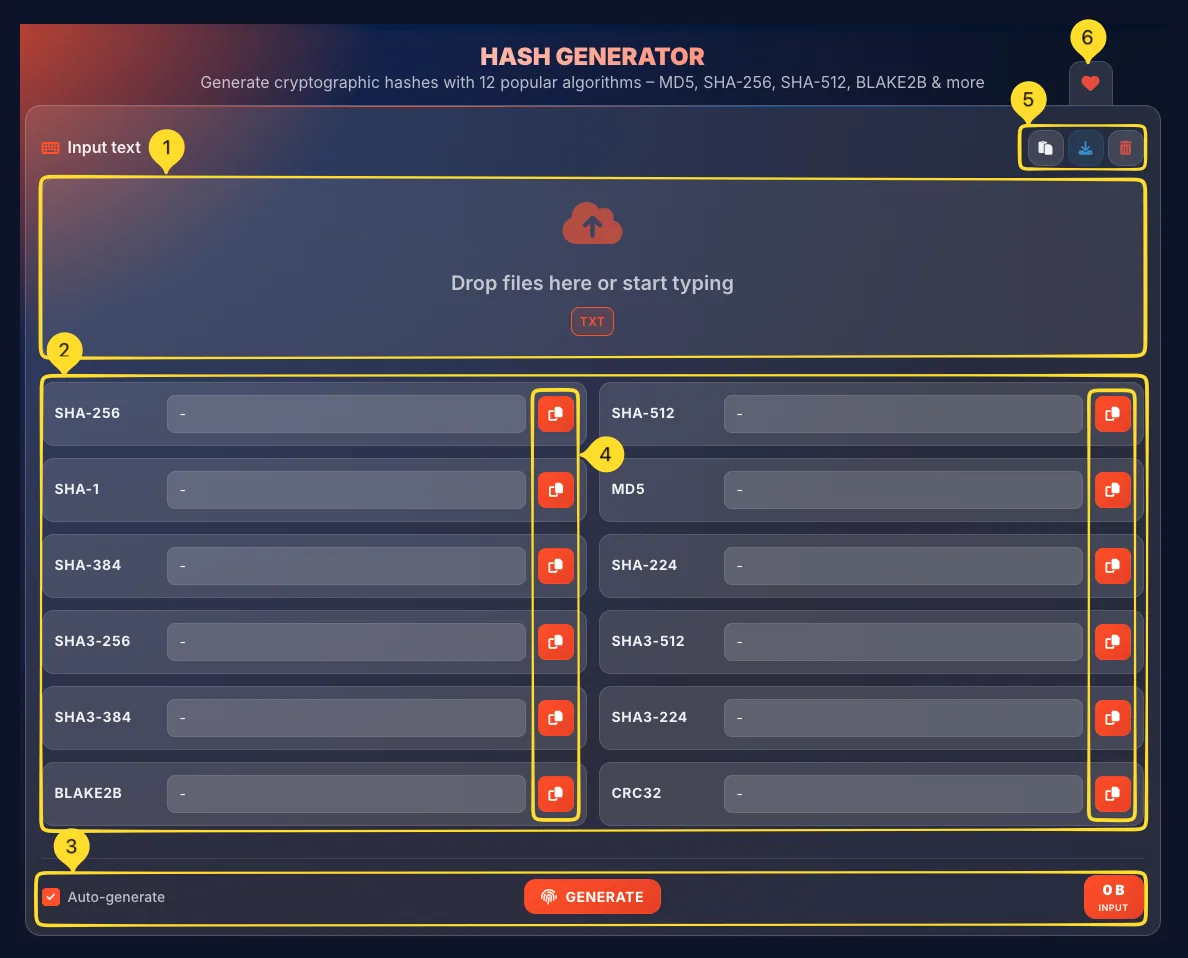
The Hash Generator has a clean, vertical layout with the input area at the top and hash output cards below. Understanding each section helps you work efficiently.
Input section with drop zone
At the top is the Input text section:
• Drop zone: large area for typing or dropping files
• TXT badge: indicates text file support
• "Drop files here or start typing" placeholder text
• Supports both direct text input and file drag-and-drop
Hash output grid
Below the input is a grid of 12 hash output cards arranged in 2 columns. Each card shows the algorithm name, the hash value (or "-" if empty), and a copy button to copy that specific hash.
Bottom controls
At the bottom of the tool:
• Auto-generate checkbox (left) - enables live hashing as you type
• GENERATE button (center) - manually trigger hash generation
• Input size indicator (right) - shows "0 B INPUT" or the size of your input
Header action buttons
In the Input text section header (top right):
• Paste button - paste text from clipboard
• Export button (download icon) - opens Export results modal
• Clear button (trash icon) - remove all input
Favorites tab
On the left sidebar (desktop) or bottom bar (mobile), a heart icon lets you add this tool to your favorites for quick access from the Command palette.
Input area Text & Files
The input area accepts both text input and file drops. It's where you provide the data to be hashed.
Section header
The header shows Input text with a keyboard icon on the left. On the right side are three action buttons:
• Paste: paste text from clipboard
• Download: opens Export results modal
• Clear: remove all input
Drop zone
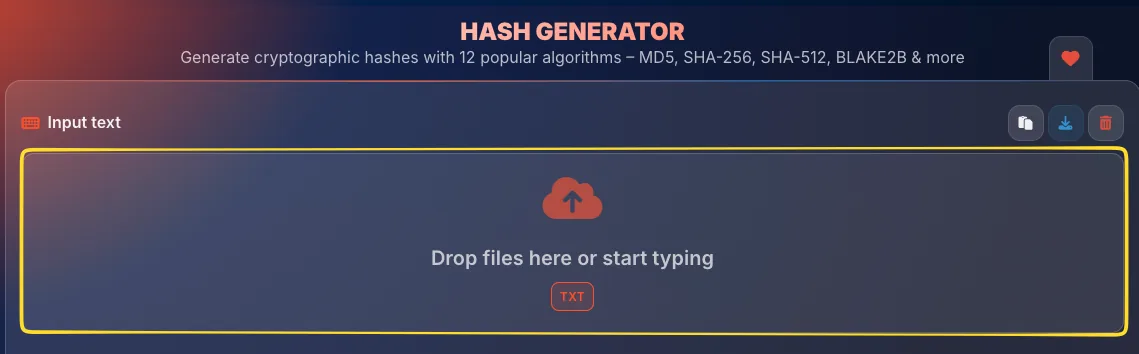
The large input area displays:
• Upload icon
• Drop files here or start typing: the placeholder text
• TXT badge: indicates the supported file type
You can either type directly into this area or drag and drop a file.
Text input
Click inside the drop zone and start typing or paste text. As you type (with Auto-generate enabled), all 12 hash values update in real-time. This is the fastest way to hash short strings.
File input
Drag and drop a .txt file onto the drop zone. The file's contents will be read and hashed. Files are processed entirely in your browser: nothing is uploaded to any server. Only plain text files (.txt) are supported for file input.
12 hash algorithms Complete List
The hash generator supports 12 different algorithms displayed in a 2-column grid. Here's what each algorithm offers:
SHA-256 (Row 1, Left)
Secure Hash Algorithm 256-bit: The current industry standard. Produces a 64-character hex string (256 bits). Used in SSL certificates, Bitcoin, file verification, and most modern security applications. Recommended for most uses.
SHA-512 (Row 1, Right)
Secure Hash Algorithm 512-bit: Produces a 128-character hex string (512 bits). From the same SHA-2 family as SHA-256 but with longer output. Use when you need an extra security margin.
SHA-1 (Row 2, Left)
Secure Hash Algorithm 1: Legacy algorithm producing 40 characters (160 bits).
Deprecated for security: collisions have been demonstrated. Still used in some older systems (Git commits). Avoid for new security applications.
MD5 (Row 2, Right)
Message Digest 5: Fast algorithm producing 32 characters (128 bits).
Cryptographically broken: collisions can be created. Fine for checksums and quick file verification, but NOT for security purposes.
SHA-384 (Row 3, Left)
Secure Hash Algorithm 384-bit: Part of SHA-2 family. Produces 96 characters. A truncated version of SHA-512, offering a middle ground between SHA-256 and SHA-512.
SHA-224 (Row 3, Right)
Secure Hash Algorithm 224-bit: Part of SHA-2 family. Produces 56 characters. A truncated version of SHA-256 for applications needing shorter hashes.
SHA3-256 (Row 4, Left)
SHA-3 256-bit: The newest standard (Keccak algorithm). Different internal design from SHA-2. Produces 64 characters. Use for defense in depth or when SHA-2 compatibility isn't required.
SHA3-512 (Row 4, Right)
SHA-3 512-bit: SHA-3 family with maximum output. Produces 128 characters. The most secure option when you need cutting-edge algorithms.
SHA3-384 (Row 5, Left)
SHA-3 384-bit: SHA-3 family producing 96 characters. Offers a balance between SHA3-256 and SHA3-512.
SHA3-224 (Row 5, Right)
SHA-3 224-bit: SHA-3 family with shorter output. Produces 56 characters. For applications needing compact SHA-3 hashes.
BLAKE2B (Row 6, Left)
BLAKE2b: A modern, fast hash algorithm. Produces up to 128 characters. Faster than MD5 while being secure. Used in many modern applications, including password hashing libraries.
CRC32 (Row 6, Right)
Cyclic Redundancy Check 32-bit: Produces only 8 characters.
Not cryptographic: designed for error detection, not security. Used in ZIP files, network packets, and data integrity checks where speed matters more than security.
Hash output cards Results
Each hash algorithm has its own output card displaying the result. All 12 cards update simultaneously when you input data.
Card layout
Each card contains three elements:
• Algorithm name (left) - e.g., "SHA-256", "MD5"
• Hash value (center) - the generated hash or "-" if empty
• Copy button (right) - orange button to copy that specific hash
Empty state
When no input is provided, all hash fields show a dash ("-") placeholder. This indicates no hash has been generated yet.
Hash display
Once you provide input, each card shows the full hash value in the center field. Hashes are displayed in lowercase hexadecimal format. Long hashes may be truncated visually but the full value is stored.
Copy individual hash
Click the orange copy button on any card to copy that specific hash to your clipboard. A notification confirms the copy. This is useful when you only need one particular algorithm.
Grid arrangement
Cards are arranged in a 2-column grid with 6 rows:
• Row 1: SHA-256, SHA-512
• Row 2: SHA-1, MD5
• Row 3: SHA-384, SHA-224
• Row 4: SHA3-256, SHA3-512
• Row 5: SHA3-384, SHA3-224
• Row 6: BLAKE2B, CRC32
Auto-generate & Generate Controls
The bottom of the tool contains controls for hash generation. You can either auto-generate as you type or manually trigger generation.
Auto-generate checkbox
Auto-generate (checked by default):
• When enabled: hashes update instantly as you type
• Every keystroke triggers recalculation of all 12 hashes
• Perfect for interactive exploration and short inputs
• May cause lag for very large inputs - disable if needed
GENERATE button
The orange GENERATE button (with fingerprint icon) in the center:
• Click to manually calculate all hashes
• Useful when Auto-generate is disabled
• Also useful after dropping a large file
• All 12 hashes are calculated simultaneously
Input size indicator
The orange badge on the right shows your input size:
• "0 B INPUT": no input provided
• "256 B INPUT": 256 bytes of text
• "1.5 MB INPUT": for larger file inputs
This helps you understand the data being hashed.
When to disable Auto-generate
Consider disabling Auto-generate when:
• Processing very large files (reduces CPU load)
• Typing long text that shouldn't be hashed mid-entry
• You want more control over when hashing occurs
With Auto-generate off, use the GENERATE button to hash on demand.

Export results Download & Copy
Click the Download button in the input section header to open the Export results modal. This lets you save or copy all hash values at once.
Open the modal
Click the download icon (arrow pointing down) in the Input text section header. The Export results modal opens with export options.
Modal header
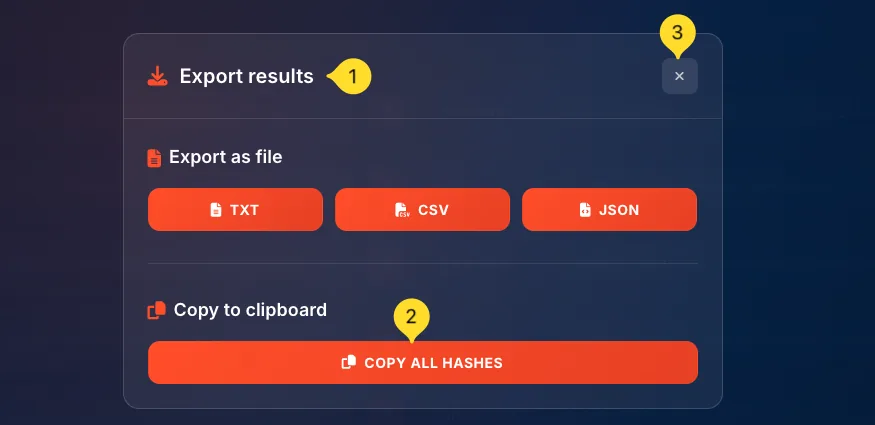
The modal shows Export results with a download icon. An X button in the top right closes the modal without exporting.
Export as file
The Export as file section offers three format buttons:
• TXT: Plain text format, one hash per line
• CSV: Comma-separated values for spreadsheets
• JSON: Structured data format for developers
Click any button to download the file immediately.
Copy to clipboard
The Copy to clipboard section has one button:
• COPY ALL HASHES (orange button with copy icon)
• Copies all 12 hash values to your clipboard at once
• Useful for pasting into documents or sharing
Export formats explained
TXT format: SHA-256: abc123... SHA-512: def456...
CSV format: Algorithm,Hash SHA-256,abc123... SHA-512,def456...
JSON format: {"SHA-256": "abc123...", "SHA-512": "def456..."}
Understanding hashes Concepts
A hash is a fixed-length "fingerprint" produced by running data through a hash function. Understanding how hashes work helps you use them effectively.
One-way function
Hash functions are one-way: easy to compute a hash from data, practically impossible to reverse (get data from hash). You can't "decrypt" a hash - it's not encryption.
Fixed output length
Regardless of input size - 1 byte or 1 gigabyte - the hash is always the same length. SHA-256 always produces 64 hex characters (256 bits), whether you hash "hi" or a 4K movie.
Deterministic
The same input always produces the same hash. This enables verification: if two hashes match, the data matches. Hash "hello" today and tomorrow - you'll get identical results.
Avalanche effect
A tiny change in input dramatically changes the output. "hello" and "Hello" produce completely different hashes. Change one bit, and about half the hash bits flip. This catches even minor tampering.
Collision resistance
Good hash algorithms make it extremely hard to find two different inputs that produce the same hash (a "collision"). MD5 and SHA-1 have known collisions; SHA-256 and SHA-3 do not.
Input:  "hello"
SHA-256: 2cf24dba5fb0a30e26e83b2ac5b9e29e1b161e5c1fa7425e73043362938b9824

Input:  "Hello" (capital H - one bit changed!)
SHA-256: 185f8db32271fe25f561a6fc938b2e264306ec304eda518007d1764826381969

Completely different outputs from a tiny change!