Overview
The HEX ⇄ Decimal Converter lets you instantly convert between hexadecimal (base-16) and decimal (base-10) number systems. It's a bidirectional tool essential for programming, web development, working with color codes, memory addresses, and understanding computer data at a low level.
Interface overview
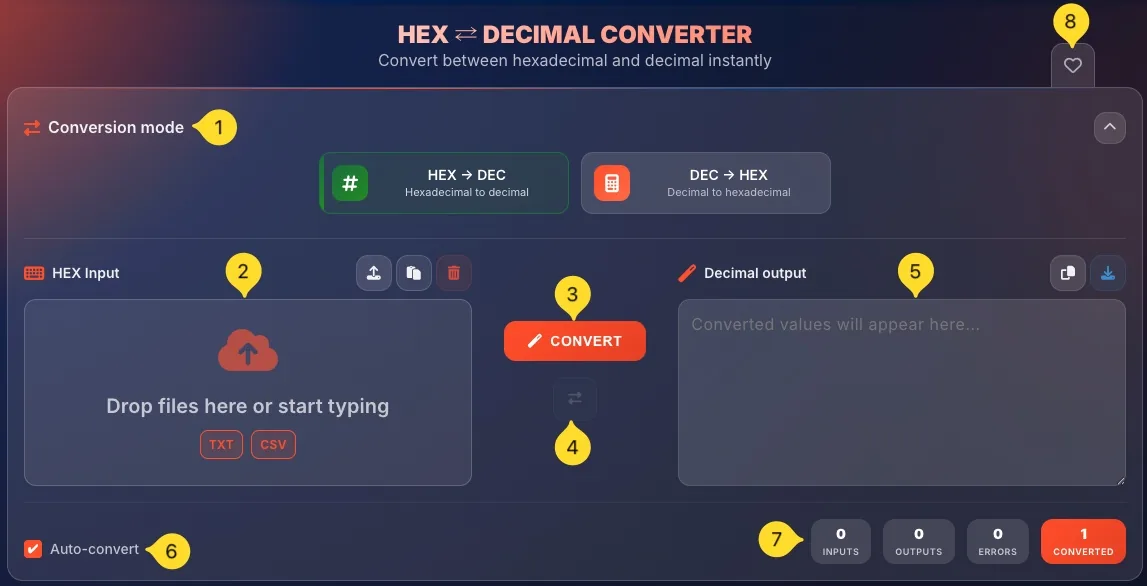
The HEX ⇄ Decimal Converter has a clean two-panel layout with mode selector at the top. Here's what you'll see:
Conversion mode selector (top)
At the top, you'll find Conversion mode: a collapsible section with two mode buttons:
• HEX → DEC (# icon, Hexadecimal to decimal) - converts hex values to decimal
• DEC → HEX (calculator icon, Decimal to hexadecimal) - converts decimal to hex
Click a mode button to switch. The selected mode is highlighted with a colored border.
Input panel (left)
The left panel is where you enter your values:
• Header with keyboard icon and label (HEX Input or Decimal input depending on mode)
• Action buttons: Upload, Paste, Clear
• Drop zone: Drop files here or start typing
• Supported formats displayed as badges - TXT, CSV
CONVERT button (center)
The orange CONVERT button sits between the two panels. Click it to perform the conversion.
Note: If Auto-convert is enabled (default), conversion happens automatically.
Swap button
Below the CONVERT button, you'll see a swap icon (⇄). Click it to swap the contents of input and output panels and switch to the opposite conversion mode.
Output panel (right)
The right panel shows your converted result:
• Header with magic wand icon and label (Decimal output or HEX Output)
• Action buttons: Copy, Download
• Output area: displays Converted values will appear here... before conversion
Options row (bottom left)
Below the panels, you'll find checkboxes that change based on mode:
HEX → DEC mode:
• Auto-convert only
DEC → HEX mode:
• Auto-convert: converts automatically as you type
• Uppercase HEX: outputs A-F instead of a-f
• Include 0x prefix: adds "0x" before each hex value
Statistics (bottom right)
Four counters track your conversion in real-time:
• INPUTS: number of values entered
• OUTPUTS: number of values converted
• ERRORS: number of invalid values
• CONVERTED (orange) - successful conversions
Favorites (top right)
Click the heart icon in the top right corner to add HEX ⇄ Decimal Converter to your favorites for quick access from the homepage.
Conversion modes
The converter offers two modes that work in opposite directions:
• HEX → DEC: converts hexadecimal values to decimal numbers
• DEC → HEX: converts decimal numbers to hexadecimal values
Each mode has its own specific options. The interface adapts based on which mode is selected, showing only relevant options.
HEX → DEC mode Hexadecimal to decimal
HEX → DEC mode converts hexadecimal values to their decimal equivalents. This is useful when you encounter hex values in code, memory dumps, or color codes and need to understand the actual numbers.
Input - Hexadecimal values
Enter hexadecimal values in the input panel. You can enter:
• Plain hex - FF, 1A, DEADBEEF
• With 0x prefix - 0xFF, 0x1A
• With # prefix - #FF, #FF5733
• Multiple values - one per line or comma-separated
Letters can be uppercase or lowercase (FF = ff).

Output - Decimal numbers
The output shows decimal equivalents:
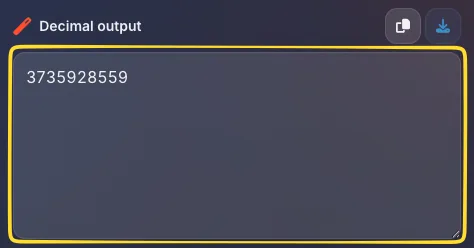
• FF → 255
• 1A → 26
• DEADBEEF → 3735928559
• dd → 221
Available options
In HEX → DEC mode, only one option is available:
• Auto-convert (checked by default) - converts automatically as you type

Example
Input - dd
Output - 221
The hex value DD (13×16 + 13 = 221) is converted to its decimal equivalent.
INPUT (HEX)     OUTPUT (DECIMAL)
FF              255
1A              26
10              16
CAFEBABE        3405691582
DEADBEEF        3735928559
FFFFFFFF        4294967295
DEC → HEX mode Decimal to hexadecimal
DEC → HEX mode converts decimal numbers to hexadecimal format. Essential when you need to work with color codes, memory addresses, or binary data representations.
Input - Decimal numbers
Enter decimal numbers in the input panel:
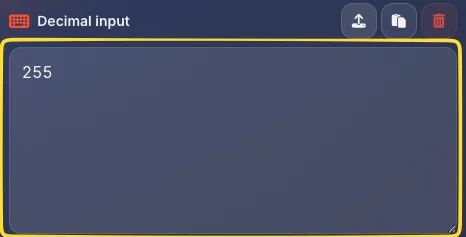
• Single value - 255
• Multiple values - one per line or comma-separated
• Only digits 0-9 are valid
Output - Hexadecimal values
The output shows hex equivalents:
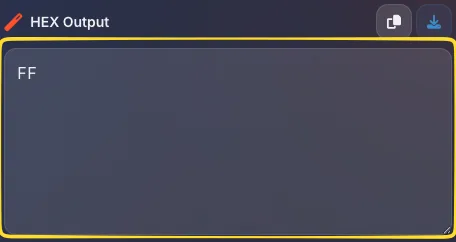
• 255 → FF (or ff or 0xFF depending on options)
• 16777215 → FFFFFF (white color in RGB)
Available options
In DEC → HEX mode, three options are available:
• Auto-convert: converts automatically as you type
• Uppercase HEX (checked by default) - outputs FF instead of ff
• Include 0x prefix: adds 0x prefix: 255 → 0xFF

Output formatting
Use the checkboxes to control output format:
• Uppercase ON, prefix OFF: FF
• Uppercase ON, prefix ON: 0xFF
• Uppercase OFF, prefix OFF: ff
• Uppercase OFF, prefix ON: 0xff
INPUT (DECIMAL)     OUTPUT (HEX)
255                 FF
16                  10
256                 100
65535               FFFF
16777215            FFFFFF
4294967295          FFFFFFFF
How to convert
Converting values is simple. Follow these steps:
Select conversion mode
Choose your direction:
• HEX → DEC: if you have hexadecimal values
• DEC → HEX: if you have decimal numbers
Enter your values
Input your values by:
• Typing directly in the input panel
• Pasting from clipboard (click Paste button or Ctrl+V)
• Dropping a file onto the drop zone
• Uploading via the Upload button
Configure options (DEC → HEX only)
In DEC → HEX mode, set your preferences:
• Toggle Uppercase HEX for FF vs ff
• Toggle Include 0x prefix for 0xFF format
View the result
If Auto-convert is enabled (default), the result appears immediately.
If disabled, click the orange CONVERT button.
Copy or export
Use the output panel buttons:
• Copy: copy to clipboard
• Download: opens export modal with TXT, CSV, JSON options
Input panel actions
The input panel has three action buttons in the header (top right):
Upload button
Click the upload icon to open a file picker. Select a file from your computer. Supported formats:
• TXT: plain text files with values
• CSV: comma-separated values
Paste button
Click the clipboard icon to paste text from your clipboard into the input panel. Equivalent to pressing Ctrl+V (or ⌘+V on Mac).
Clear button
Click the trash icon (red) to clear all content from the input panel. This also clears the output and resets statistics.

Output panel actions
The output panel shows your converted result with these action buttons:
Copy button
Click the copy icon to copy all converted values to your clipboard. A notification confirms the copy. Values are copied with line breaks between them.
Download button
Click the download icon (blue) to open the Export modal. This gives you multiple options for saving and sharing your results.

Conversion options
The checkboxes at the bottom control conversion behavior. Available options depend on the current mode:
Auto-convert
Available in - Both modes
Default - Checked (enabled)
When enabled, conversion happens automatically as you:
• Type in the input panel
• Paste content
• Upload a file
• Change options
When disabled, you must click the CONVERT button.
Uppercase HEX
Available in: DEC → HEX mode only
Default: Checked (enabled)
When enabled, hex output uses uppercase letters: FF, DEADBEEF
When disabled, hex output uses lowercase: ff, deadbeef
Most programming conventions prefer uppercase for hex values.
Include 0x prefix
Available in: DEC → HEX mode only
Default: Unchecked (disabled)
When enabled, each hex value gets the 0x prefix: 0xFF, 0x1A
When disabled, plain hex is output - FF, 1A
Use the prefix when pasting into programming code (C, JavaScript, Python).
Export modal Export results
Click the Download button in the output panel to open the Export modal. It offers multiple ways to save and share your converted values:
Export as file
Three file format options:
• TXT: plain text file, one value per line
• CSV: comma-separated values, compatible with Excel
• JSON: structured data format for programming
Copy to clipboard
Click COPY RESULTS to copy all converted values to your clipboard. Same as the Copy button, but accessible from the modal.
Share
Click COPY SHARE LINK to copy a shareable URL. The link encodes your input values and conversion mode, so others can see the same conversion.
Perfect for sharing with colleagues or saving for later.
Close modal
Click the X button in the top right corner to close the modal without exporting.

Error handling Conversion errors
When you enter invalid values, the converter shows clear error messages to help you fix the problem:
Error banner
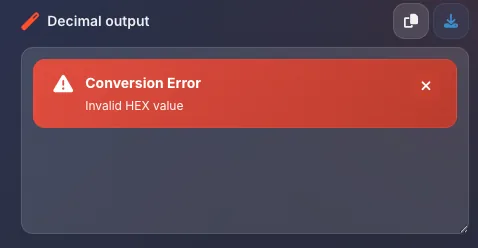
Invalid values trigger a red error banner in the output panel with:
• Warning icon (triangle with exclamation)
• Conversion Error title
• Error description (e.g., "Invalid decimal value")
• X button to dismiss the error
Common HEX → DEC errors
Invalid hex values include:
• Non-hex characters (G, H, Z, etc.)
• Special characters or spaces in the middle
• Empty input
Common DEC → HEX errors
Invalid decimal values include:
• Letters (A, B, C, etc.)
• Special characters
• Negative numbers (without special handling)
• Non-numeric input
Error counter
The ERRORS counter in the statistics section tracks how many invalid values were encountered. This helps when processing large batches - you can see at a glance if some values failed.
Statistics
Four counters in the bottom right track your conversion in real-time:
INPUTS
Shows the number of values entered in the input panel. Each line or comma-separated value counts as one input.
OUTPUTS
Shows the number of converted values in the output panel. Should match INPUTS minus ERRORS for successful conversions.
ERRORS
Shows the number of invalid values that couldn't be converted. Check this when processing batches to ensure all values converted successfully.
CONVERTED (orange)
Shows the total successful conversions in the current session. The highlight makes it easy to spot.
This counter accumulates across multiple conversions until you clear or refresh.

HEX reference table Built-in reference
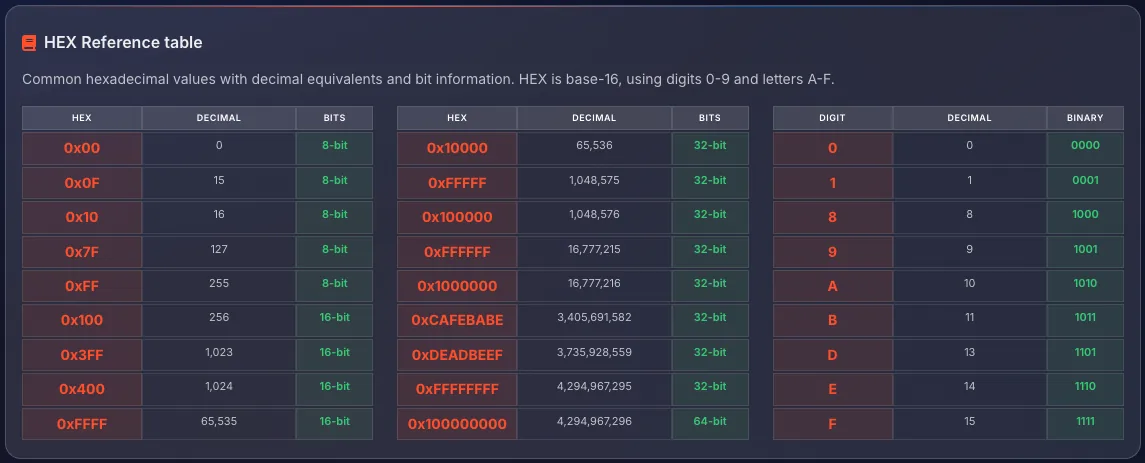
Below the converter, you'll find the HEX Reference table: a comprehensive guide to common hexadecimal values with their decimal equivalents and bit information.
8-bit and 16-bit values
The first table shows common values for 8-bit (1 byte) and 16-bit (2 byte) ranges:
• 0x00 = 0 (8-bit minimum)
• 0x0F = 15 (single hex digit max)
• 0x7F = 127 (signed 8-bit max)
• 0xFF = 255 (8-bit maximum / 1 byte)
• 0x100 = 256 (first 16-bit value)
• 0xFFFF = 65,535 (16-bit maximum)
32-bit and 64-bit values
The second table shows larger values:
• 0x10000 = 65,536 (first value over 16-bit)
• 0xFFFFFF = 16,777,215 (RGB color max)
• 0xCAFEBABE = 3,405,691,582 (Java class file magic number)
• 0xDEADBEEF = 3,735,928,559 (common debug marker)
• 0xFFFFFFFF = 4,294,967,295 (32-bit maximum)
• 0x100000000 = 4,294,967,296 (first 64-bit value)
HEX digit table
The third table shows all 16 hex digits with their decimal and binary equivalents:
• 0 = 0 = 0000
• 1 = 1 = 0001
• 8 = 8 = 1000
• 9 = 9 = 1001
• A = 10 = 1010
• F = 15 = 1111
Each hex digit represents exactly 4 binary bits.
Using the reference
Use this table to:
• Quickly look up common values without converting
• Understand bit boundaries (8-bit, 16-bit, 32-bit)
• Learn the relationship between hex, decimal, and binary
• Recognize famous hex values like CAFEBABE and DEADBEEF
Understanding number systems
Before diving in, let's understand the two number systems you're converting between. This knowledge helps you work more effectively with the tool.
Decimal (Base-10)
The number system you use every day. It has 10 digits: 0, 1, 2, 3, 4, 5, 6, 7, 8, 9.
Each position represents a power of 10:
• 255 = (2×100) + (5×10) + (5×1)
• 1024 = (1×1000) + (0×100) + (2×10) + (4×1)
Hexadecimal (Base-16)
A number system with 16 digits: 0-9 and A-F.
• A = 10, B = 11, C = 12, D = 13, E = 14, F = 15
Each position represents a power of 16:
• FF = (15×16) + (15×1) = 255
• 10 = (1×16) + (0×1) = 16
Why hexadecimal exists
Computers work in binary (base-2), but binary numbers are long. Hexadecimal is compact:
• Each hex digit = exactly 4 binary digits (bits)
• F = 1111, A = 1010, 0 = 0000
• 8 bits (1 byte) = 2 hex digits (00-FF)
This makes hex perfect for memory addresses, color codes, and low-level programming.
Common hex prefixes
Hex numbers are often written with prefixes:
• 0x: programming (0xFF) - C, JavaScript, Python
• #: colors (#FF0000) - CSS, design tools
• h suffix: assembly (FFh)
• No prefix: context-dependent
Our converter accepts values with or without these prefixes.
Common use cases
Here's when you'll typically need hex-decimal conversion:
Tips & Best practices
DEADBEEF is easier to read than deadbeef. Most conventions prefer uppercase.Frequently asked questions
• For binary: each hex digit = 4 binary digits
• F = 1111, A = 1010, 0 = 0000
• You can chain conversions: decimal → hex → binary mentally