Overview
The JSON Formatter is a powerful multi-mode tool for working with JSON data. Choose from 8 operation modes to format, minify, visualize, compare, query, convert, transform, or validate your JSON. Perfect for developers, data analysts, and anyone working with APIs, configuration files, or JSON data.
8 Operation modes
At the top of the interface you'll find a grid of 8 operation mode buttons arranged in 2 rows. Each mode has an icon, title, and description. Click any mode to switch. The active mode is visually highlighted.
Format mode Beautify JSON
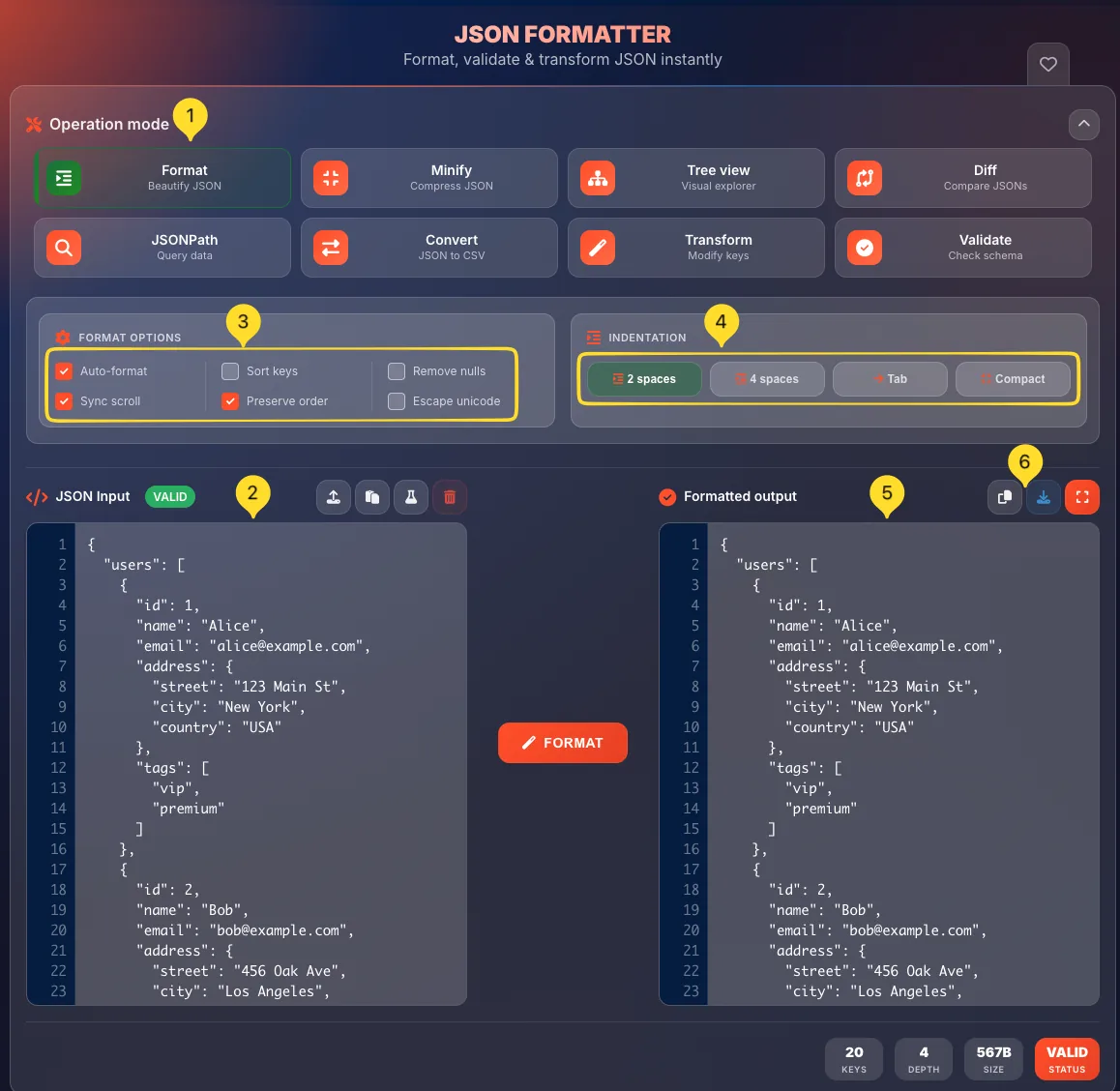
Format mode transforms minified or messy JSON into clean, readable code with proper indentation. This is the default mode when you open the tool.
Select Format mode
Click the Format button in the operation modes grid (top-left, first button). It has an indentation icon and description Beautify JSON. The button is highlighted when active.
Enter your JSON
Paste your JSON into the JSON Input panel on the left. You can paste minified JSON from API responses, config files, or any JSON string.
The panel has action buttons at the top: Upload, Paste, Sample, Clear.
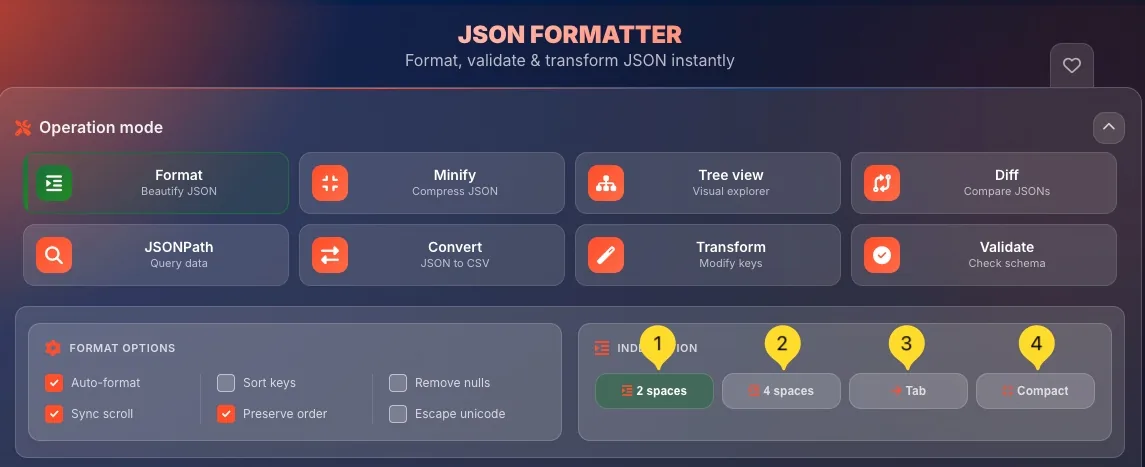
Configure **FORMAT OPTIONS**
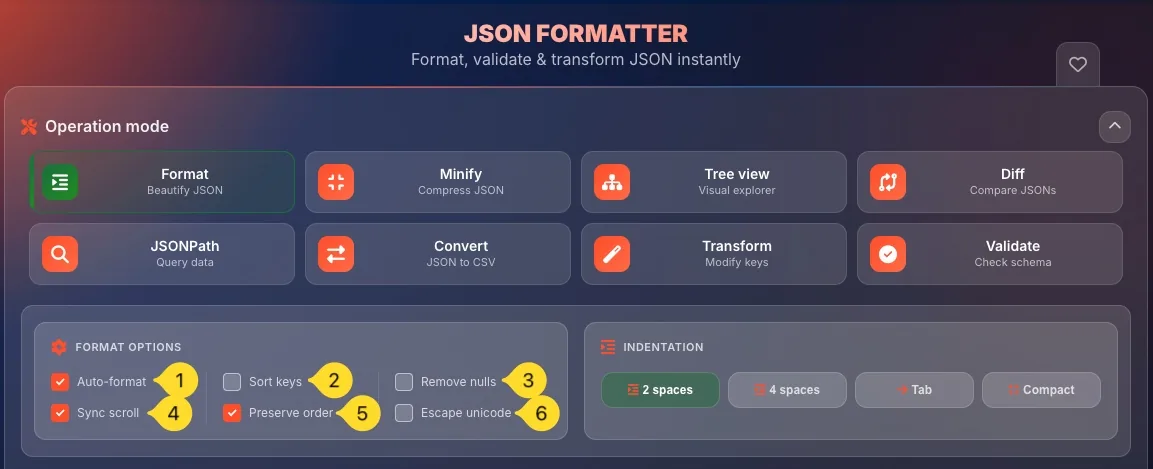
Below the mode buttons, find FORMAT OPTIONS: a row of toggle switches:
• Auto-format: Format automatically as you type
• Sort keys: Alphabetically sort object keys
• Remove nulls: Strip null values from output
• Sync scroll: Synchronize scrolling between panels
• Preserve order: Keep original key order
• Escape unicode: Escape special characters
Choose INDENTATION
Next to FORMAT OPTIONS, find INDENTATION buttons:
• 2 spaces: Compact indentation
• 4 spaces: Standard indentation (most common)
• Tab: Tab character indentation
• Compact: No indentation, but with line breaks
Click your preferred option. The active choice is highlighted.
View formatted output
The Formatted output panel on the right shows your beautified JSON with syntax highlighting. Colors distinguish strings (orange), numbers (blue), booleans (purple), and null (gray). If JSON is invalid, you'll see an error message instead.
Copy or download
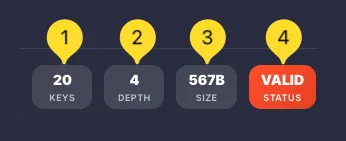
Use the action buttons at the top of the output panel: Copy to clipboard, Download as .json file. The stats bar at the bottom shows KEYS, DEPTH, SIZE, and STATUS (Valid/Invalid).
// Before (minified)
{"user":{"name":"John","age":30,"email":"[email protected]"}}

// After (formatted with 2 spaces)
{
  "user": {
    "name": "John",
    "age": 30,
    "email": "[email protected]"
  }
}
Minify mode Compress JSON
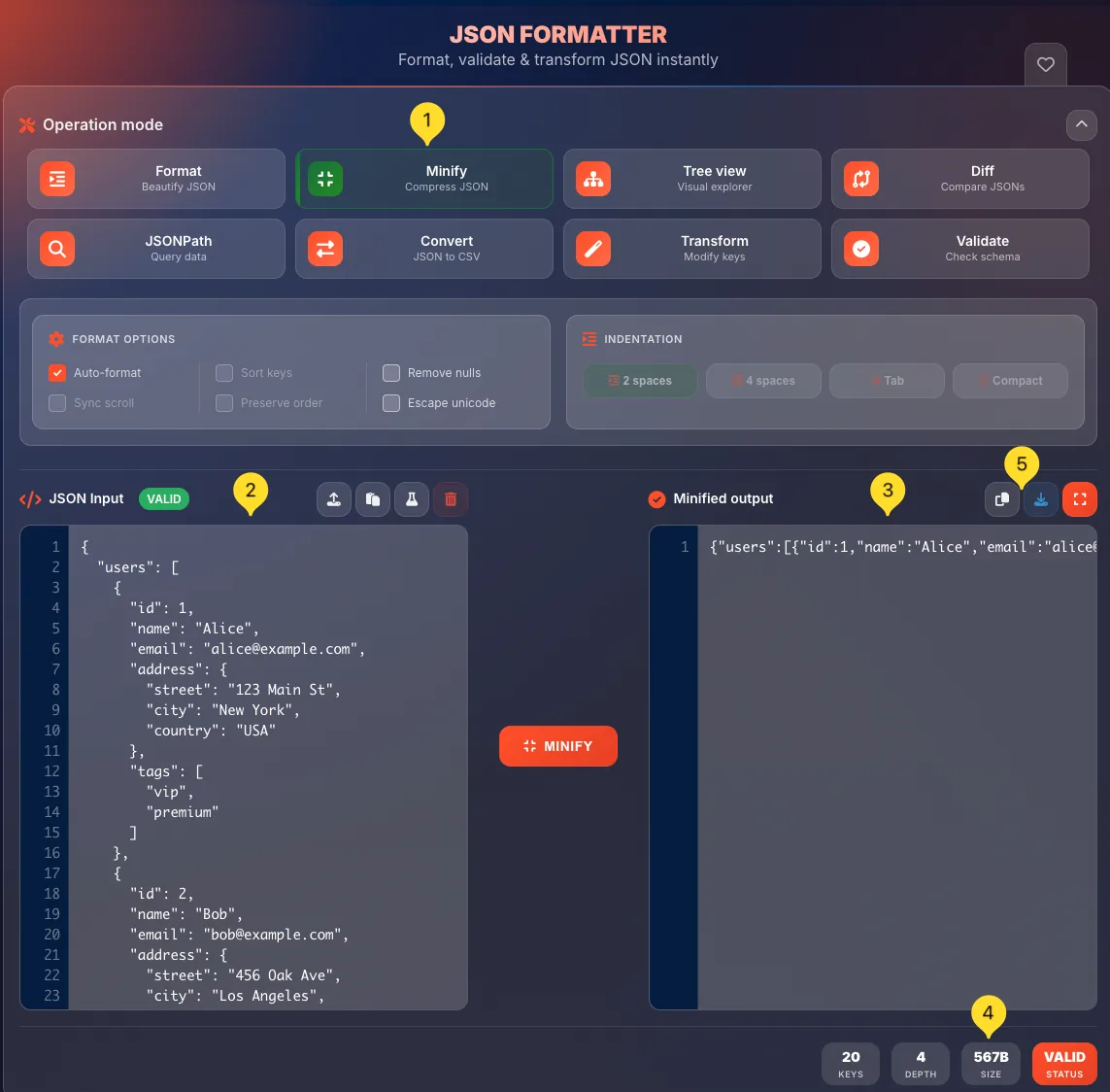
Minify mode removes all whitespace to create the smallest possible JSON output. Essential for reducing payload size in APIs, databases, and storage.
Select Minify mode
Click the Minify button in the operation modes grid (second button, top row). It has a compress icon and description Compress JSON.
Enter formatted JSON
Paste your formatted (beautified) JSON into the JSON Input panel. The JSON can have any indentation - spaces, tabs, line breaks.
View minified output
The Minified output panel shows your JSON compressed to a single line. All whitespace is removed while maintaining valid JSON syntax. The output is still syntax-highlighted for readability.
Check size reduction
Look at the SIZE value in the stats bar at the bottom. Compare with the original to see how much space you saved. Minification typically reduces JSON size by 10-30%.
Copy minified result
Click Copy to copy the minified JSON to your clipboard. Use Download to save as a .json file. The minified output is ready for API payloads or storage.
Tree view mode Visual explorer
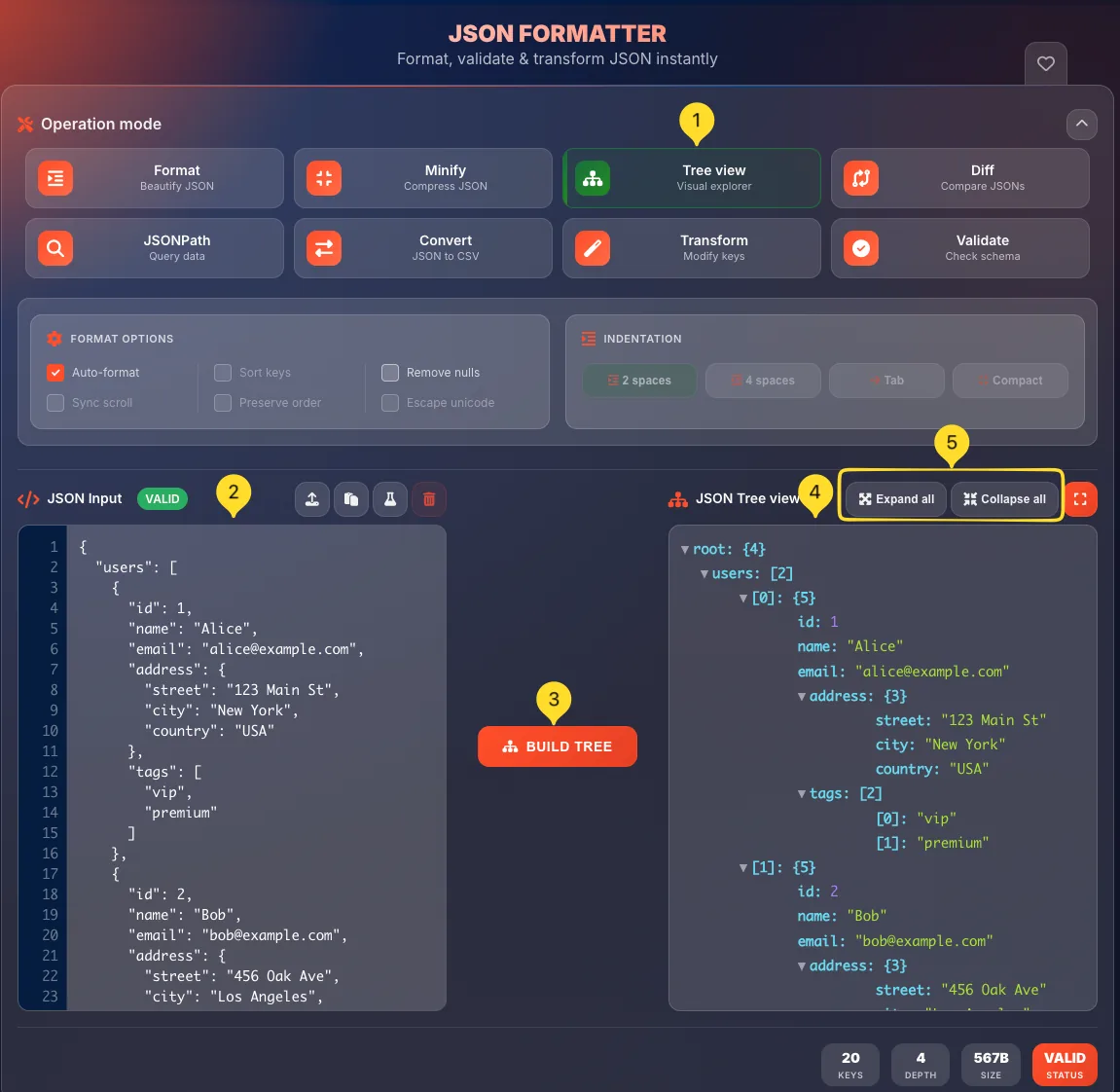
Tree view mode displays your JSON as an interactive, expandable tree structure. Perfect for exploring complex nested data and understanding JSON hierarchy.
Select Tree view mode
Click the Tree view button in the operation modes grid (third button, top row). It has a sitemap/tree icon and description Visual explorer.
Enter your JSON
Paste valid JSON into the JSON Input panel on the left. The JSON can be formatted or minified - the tree view will structure it the same way.
Click BUILD TREE
Click the BUILD TREE button below the input panel. This parses your JSON and generates the interactive tree visualization in the right panel.
Explore the tree
The JSON Tree view panel shows your data as a hierarchical tree. Each level is indented:
• Objects { } - Show key-value pairs with expand/collapse controls
• Arrays [ ] - Show indexed items with item count
• Values: Show strings, numbers, booleans, nulls with type coloring
Click the arrow icons (▶/▼) next to objects and arrays to expand or collapse them.
Use Expand all / Collapse all
At the top of the tree panel, find two buttons:
• Expand all: Opens every nested level at once
• Collapse all: Closes everything to show only top-level keys
These buttons are essential for navigating large JSON structures quickly.
Diff mode Compare JSONs
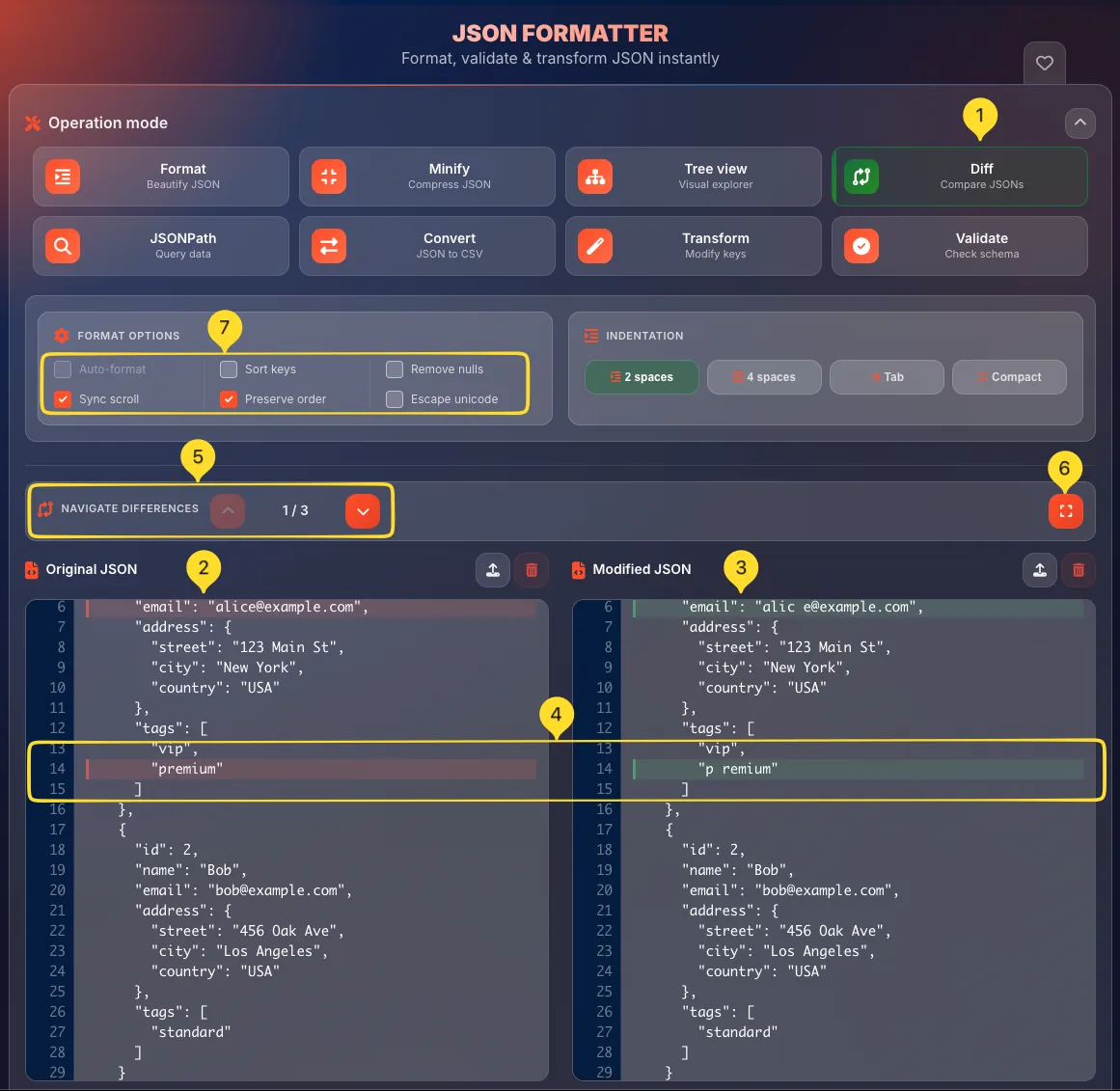
Diff mode compares two JSON documents side-by-side, highlighting every difference. Essential for debugging API changes, tracking config modifications, and code reviews.
Select Diff mode
Click the Diff button in the operation modes grid (fourth button, top row). It has a code-compare icon and description Compare JSONs. The interface changes to show two input panels.
Enter Original JSON
Paste the first (original/baseline) JSON into the Original JSON panel on the left. This is typically the "before" version or the expected output.
Enter Modified JSON
Paste the second (modified/new) JSON into the Modified JSON panel on the right. This is typically the "after" version or the actual output.
View differences
The tool automatically compares both JSONs and highlights differences:
• Red background: Removed lines (in original only)
• Green background: Added lines (in modified only)
• Yellow/Orange: Changed values
Lines are matched and aligned for easy comparison.
Navigate differences
At the top of the comparison area, find the NAVIGATE DIFFERENCES bar. It shows the total number of differences found. Use the Previous (↑) and Next (↓) buttons to jump between differences. The current difference is highlighted.
Enable Focus mode
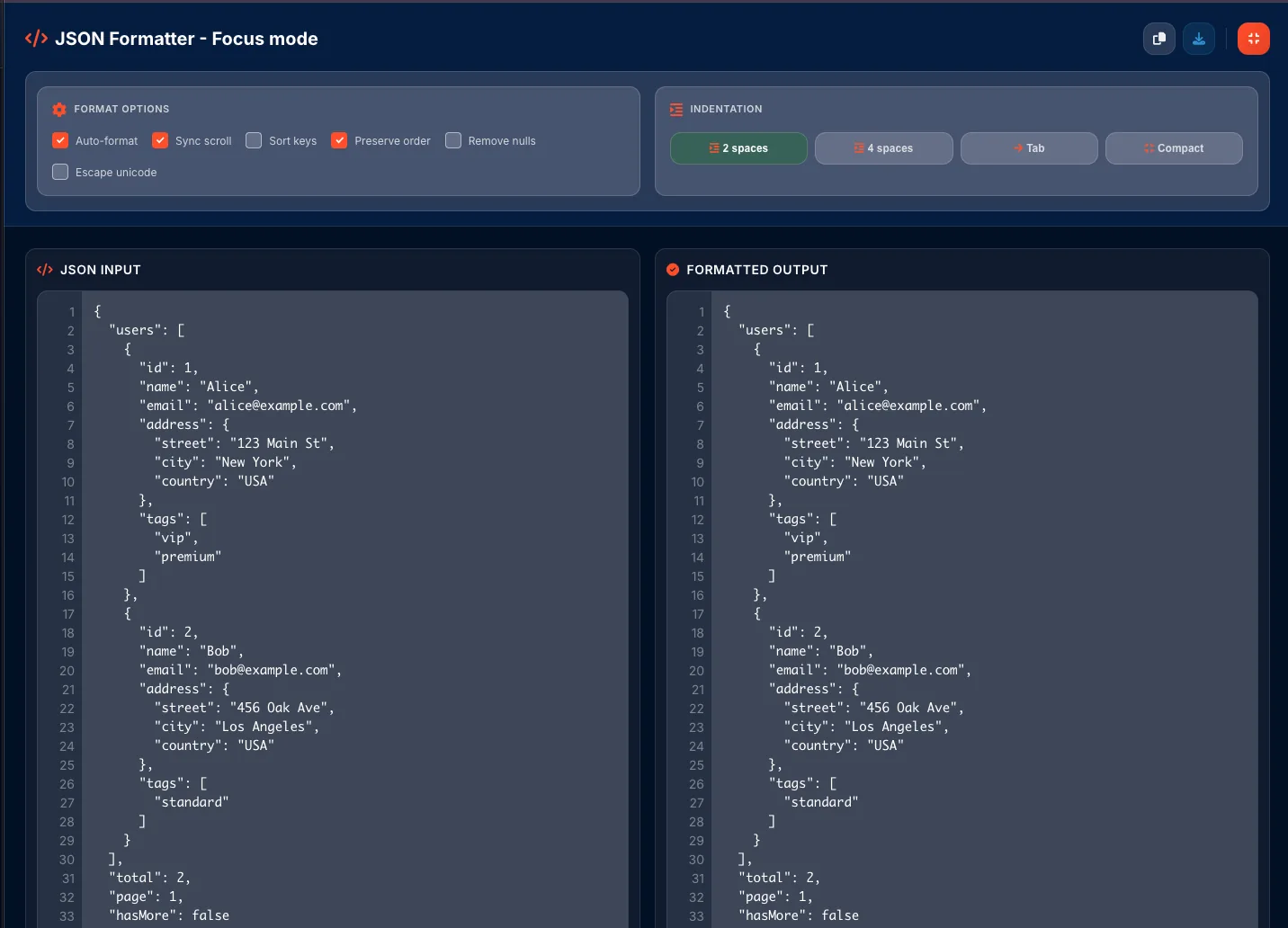
Click the Focus button (expand icon) in the toolbar to enter Focus mode: a fullscreen comparison view. FORMAT OPTIONS appear in a horizontal row at the top. Focus mode removes all distractions for detailed analysis. Press Escape or click Exit Focus to return to normal view.
Use Sync scroll
Enable Sync scroll in FORMAT OPTIONS to scroll both panels together. This keeps matching lines aligned as you navigate through long JSON documents.
JSONPath mode Query data
JSONPath mode lets you query JSON data using powerful path expressions. Extract specific values, filter arrays, and navigate complex structures without writing code.
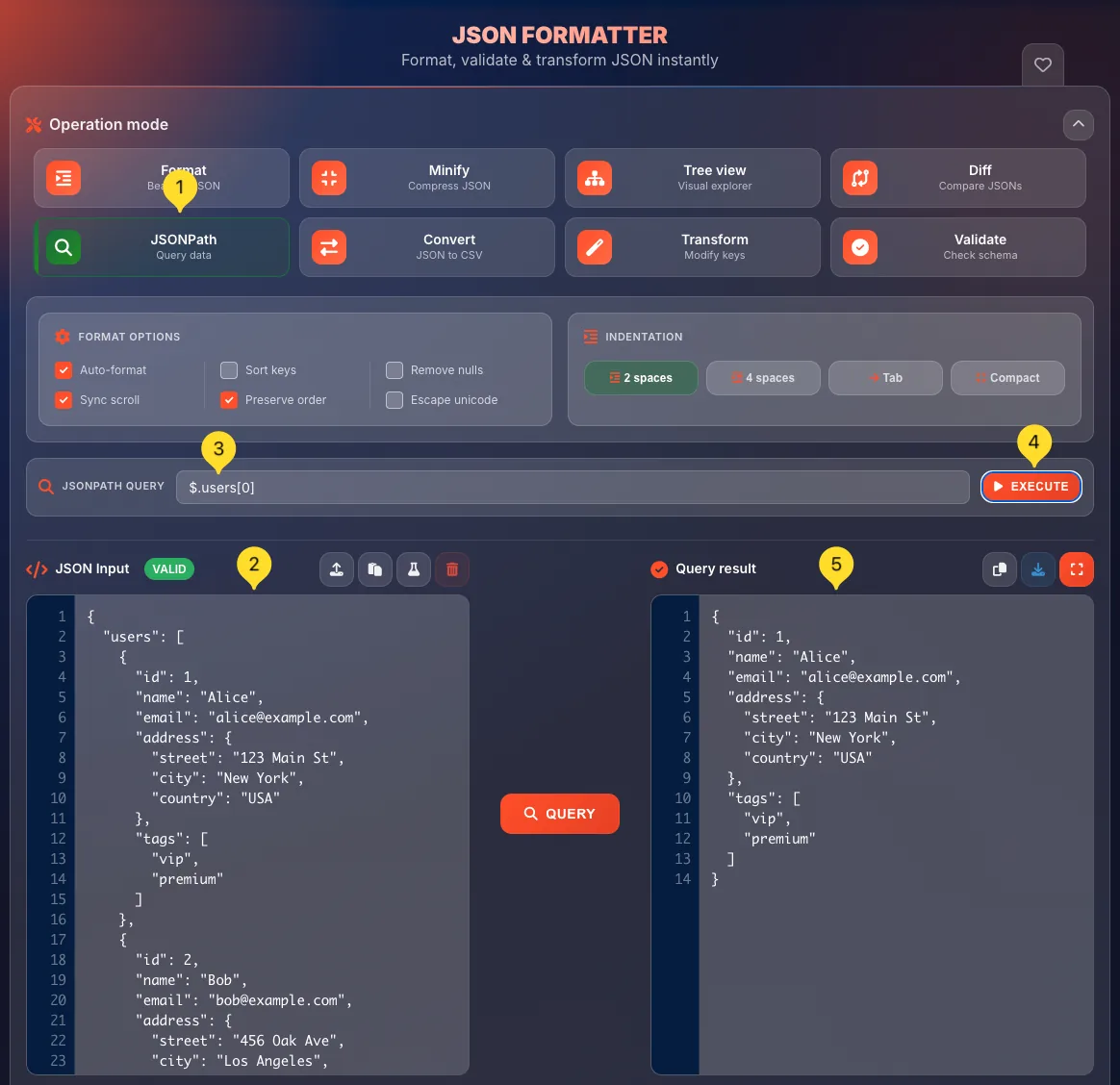
Select JSONPath mode
Click the JSONPath button in the operation modes grid (first button, second row). It has a search icon and description Query data.
Enter your JSON
Paste the JSON you want to query into the JSON Input panel. This could be an API response, configuration, or any JSON data you need to extract values from.
Write your JSONPath query
In the JSONPATH QUERY input field, enter your path expression.
The placeholder shows an example: $.store.book[<em>].title.
Common patterns:
• $ - Root element
• .key - Child property
• [0] - Array index
• [</em>] - All array elements
• ..key - Recursive descent (find key anywhere)
Click EXECUTE
Click the EXECUTE button next to the query input. The tool evaluates your JSONPath expression against the input JSON.
View query result
The Query result panel shows the extracted data. If your path matches multiple values (like [*]), you'll see an array of results. If it matches a single value, you'll see that value. Invalid paths show an error message.
Refine your query
Modify your JSONPath expression and execute again. JSONPath supports filters like[?(@.price<10)] to find items where price is less than 10. Use the tree view mode first if you need to explore the structure.
// Sample JSON
{"store": {"book": [{"title": "A"}, {"title": "B"}]}}

// JSONPath queries
$.store.book[0].title    → "A"
$.store.book[*].title    → ["A", "B"]
$..title                 → ["A", "B"]
$.store.book.length      → 2
Convert mode JSON to CSV
Convert mode transforms JSON data into CSV (comma-separated values) format. Perfect for importing JSON into spreadsheets, databases, or data analysis tools.
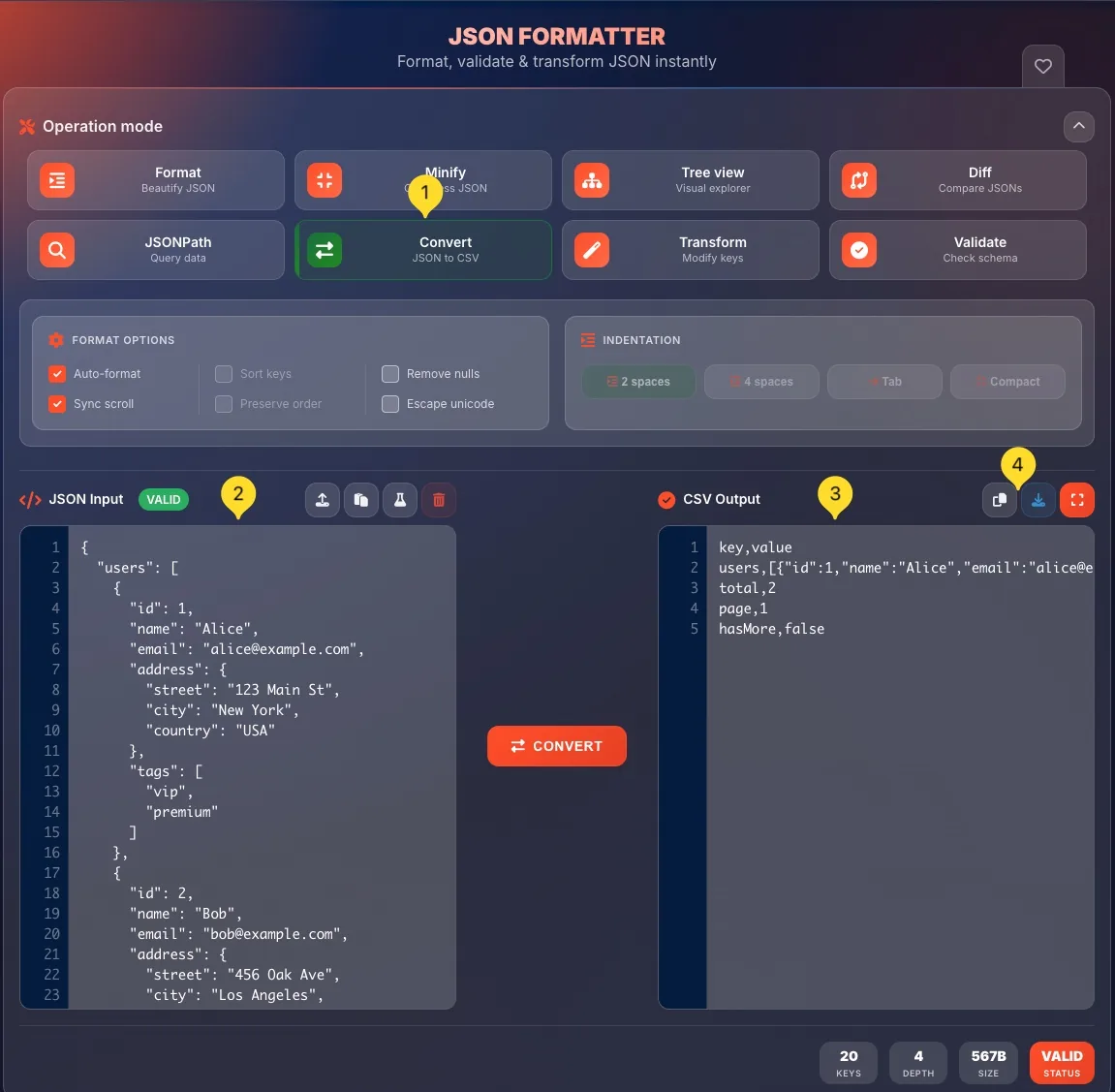
Select Convert mode
Click the Convert button in the operation modes grid (second button, second row). It has an exchange icon and description JSON to CSV.
Enter your JSON
Paste JSON data into the JSON Input panel. For best results, use an array of objects with consistent keys:[{"name": "John", "age": 30}, {"name": "Jane", "age": 25}]
Each object becomes a row, and keys become column headers.
View CSV output
The CSV output panel shows your converted data:
• First row contains column headers (from JSON keys)
• Following rows contain values
• Values are comma-separated
• Strings with commas or quotes are properly escaped
Download CSV file
Click Download to save the CSV file. It will have a .csv extension and can be opened directly in Excel, Google Sheets, or any spreadsheet application.
Use JSONPath to extract and flatten nested data before converting.
Transform mode Modify keys
Transform mode changes the naming convention of all keys in your JSON. Convert between camelCase, snake_case, kebab-case, and more with one click.
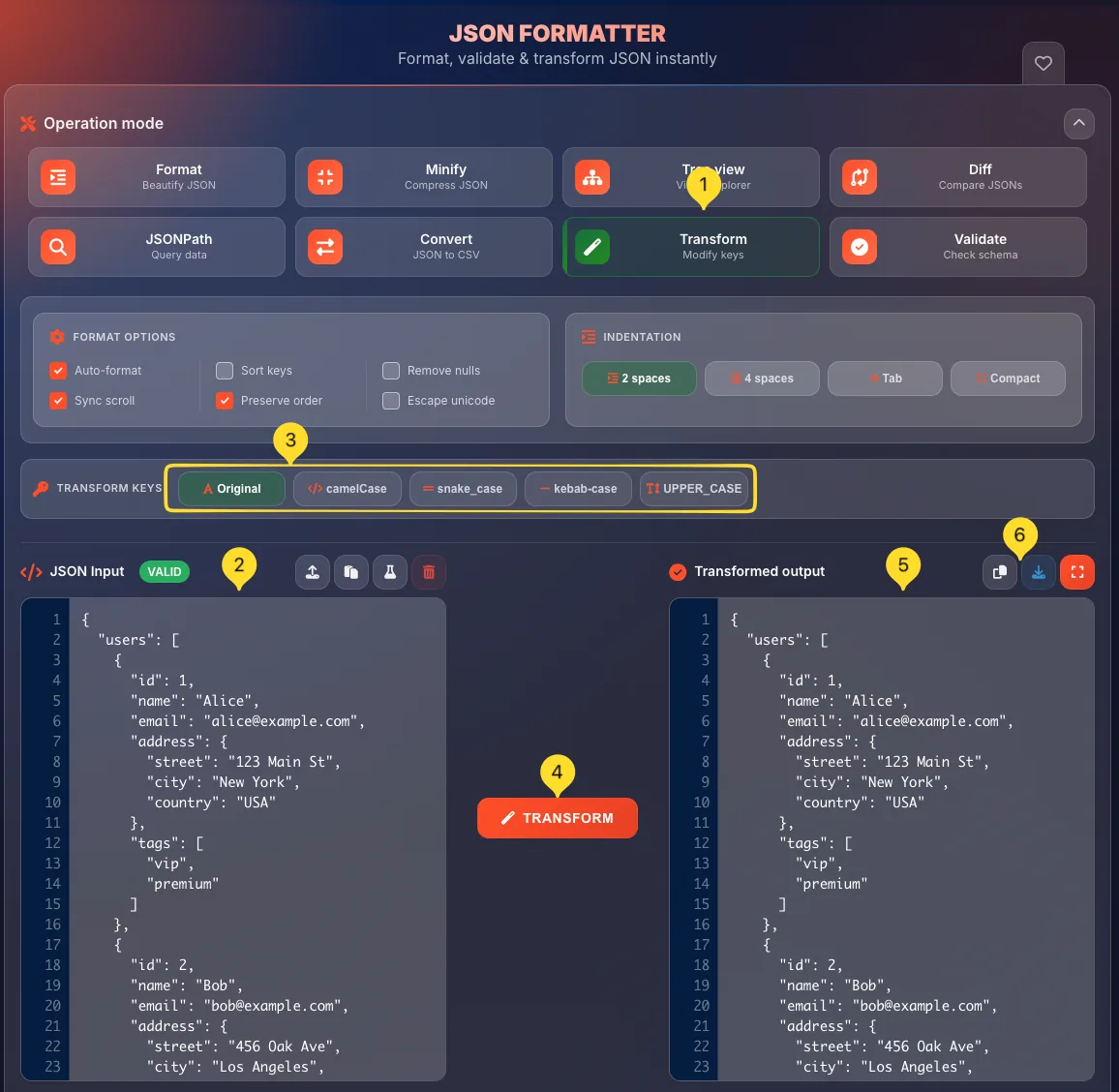
Select Transform mode
Click the Transform button in the operation modes grid (third button, second row). It has a magic wand icon and description Modify keys.
Enter your JSON
Paste JSON into the JSON Input panel. The tool will transform all object keys throughout the entire structure, including nested objects. A VALID badge appears if your JSON is valid.
Choose TRANSFORM KEYS option
Below the input panel, find TRANSFORM KEYS: a row of 5 buttons:
• Original: Keep keys as-is (no transformation)
• camelCase: likeThis (JavaScript standard)
• snake_case: like_this (Python/Ruby standard)
• kebab-case: like-this (CSS/URL standard)
• UPPER_CASE: LIKE_THIS (Constants/Env vars)
Click your desired format.
Click TRANSFORM
Click the TRANSFORM button to apply the transformation. All keys in your JSON are converted to the selected naming convention.
View transformed output
The output panel shows your JSON with all keys transformed:
• userName → user_name (camelCase to snake_case)
• first_name → firstName (snake_case to camelCase)
• user-id → userId (kebab-case to camelCase)
Values remain unchanged - only keys are transformed.
Copy or download
Copy the transformed JSON to use in your project. This is essential when integrating APIs with different naming conventions or converting between frontend (camelCase) and backend (snake_case) formats.
// Original (camelCase)
{"userName": "john", "firstName": "John"}

// → snake_case
{"user_name": "john", "first_name": "John"}

// → kebab-case
{"user-name": "john", "first-name": "John"}

// → UPPER_CASE
{"USER_NAME": "john", "FIRST_NAME": "John"}
Validate mode Check schema
Validate mode checks your JSON against a JSON Schema. Verify that your data has the correct structure, required fields, and data types.
Select Validate mode
Click the Validate button in the operation modes grid (fourth button, second row). It has a check-circle icon and description Check schema.
Enter your JSON
Paste the JSON you want to validate into the JSON Input panel. This is the data that will be checked against the schema.
Enter JSON Schema
Paste your JSON Schema into the Schema panel. The schema defines the expected structure:
• type - Expected data type (object, array, string, number, etc.)
• properties - Object property definitions
• required - Array of required property names
• items - Schema for array items
View validation result
The tool validates your JSON against the schema and shows:
• Valid (green) - JSON matches the schema
• Invalid (red) - JSON doesn't match, with specific error messages
Error messages describe what's wrong: missing required fields, wrong types, invalid formats.
Fix validation errors
Use the error messages to fix issues in your JSON:
• "Required property missing" - Add the required field
• "Type mismatch" - Change value type (e.g., string to number)
• "Additional properties not allowed" - Remove unexpected fields
Re-validate after each fix until your JSON passes.
// Schema
{
  "type": "object",
  "required": ["name", "email"],
  "properties": {
    "name": {"type": "string"},
    "email": {"type": "string", "format": "email"},
    "age": {"type": "integer", "minimum": 0}
  }
}
FORMAT OPTIONS 6 Toggles
The FORMAT OPTIONS row provides fine-grained control over formatting behavior. Each option is a toggle switch that can be turned on or off independently.
Auto-format
When enabled, JSON is formatted automatically as you type or paste. Disable this for large files to prevent lag - then format manually with the button.
Sort keys
Alphabetically sorts all object keys in the output. Useful for:
• Standardizing JSON output
• Making diffs cleaner (same key order)
• Finding specific keys faster
Remove nulls
Strips all null values from the output JSON. Useful for cleaning up API responses or reducing payload size when nulls are meaningless.
Sync scroll
Synchronizes scrolling between input and output panels. When you scroll one panel, the other scrolls to the same position. Essential for comparing long documents in Diff mode.
Preserve order
Maintains the original order of object keys. When disabled (and Sort keys is off), key order may change during parsing. Enable to guarantee key order is preserved.
Escape unicode
Converts unicode characters to escape sequences. For example, é becomes \u00e9. Useful for ASCII-only environments or when JSON will be embedded in code.
INDENTATION settings
The INDENTATION buttons control how formatted JSON is indented. Choose the style that matches your project's coding standards.
2 spaces
Indents with 2 space characters per level. Compact but readable. Common in:
• JavaScript/TypeScript projects
• npm package.json files
• Modern web development
4 spaces
Indents with 4 space characters per level. More visually distinct levels. Common in:
• Python-related projects
• Enterprise codebases
• When readability is priority
Tab
Indents with tab characters (\t). Each tab displays at the editor's tab width setting. Common in:
• Go projects
• Some legacy codebases
• When users need adjustable width
Compact
No indentation, but keeps line breaks. Each property on its own line without leading spaces. Smaller than formatted but more readable than minified.
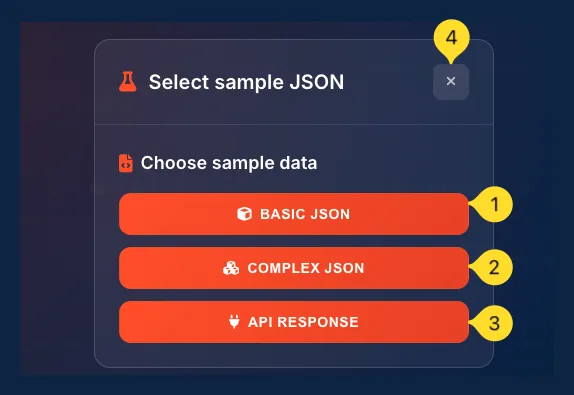
Sample JSON modal Quick start
The Sample JSON modal provides pre-built JSON examples to help you get started or test different scenarios without typing anything.
Open sample modal
Click the Sample button in the JSON Input panel toolbar (between Paste and Clear). A modal dialog opens with sample JSON options.

Choose BASIC JSON
Click BASIC JSON for a simple, flat object with common data types (strings, numbers, booleans). Perfect for testing basic formatting.
Choose COMPLEX JSON
Click COMPLEX JSON for nested objects, arrays, and multiple data types. Great for testing:
• Tree view exploration
• JSONPath queries
• Deep nesting handling
Choose API RESPONSE
Click API RESPONSE for a realistic API response structure with:
• Status codes and metadata
• Paginated results array
• Nested user/product objects
Perfect for testing Convert to CSV or JSONPath queries.
Modal closes
After selecting a sample, the modal closes and the sample JSON appears in the input panel. You can now use any operation mode to work with this data.
Stats bar Live metrics
The stats bar at the bottom of the interface shows live metrics about your JSON data. These values update in real-time as you edit.
KEYS
Shows the total number of keys (properties) in your JSON. Counts all keys at all nesting levels. Useful for understanding data complexity.
DEPTH
Shows the maximum nesting depth of your JSON. A flat object has depth 1, an object containing an object has depth 2, etc. High depth can indicate overly complex data structures.
SIZE
Shows the file size of your JSON in bytes, KB, or MB. Updates when you format or minify, so you can see the size difference between formatted and minified versions.
STATUS
Shows whether your JSON is Valid or Invalid. If invalid, the main panel shows the specific error message with line and position.
Input & Output actions
Both the input and output panels have action buttons in their headers for common operations.
Input panel actions
The JSON Input panel toolbar has:
• Upload: Load JSON from a local file
• Paste: Paste from clipboard
• Sample: Open sample JSON modal
• Clear: Empty the input panel
Output panel actions
The output panel toolbar has:
• Copy: Copy result to clipboard
• Download: Save as .json file
Button names may vary slightly by mode (e.g., "Copy CSV" in Convert mode).
Focus mode button
In Diff mode, the toolbar includes a Focus button (expand icon). Click to enter fullscreen comparison mode. The FORMAT OPTIONS appear horizontally at the top in Focus mode. Press Escape or click Exit to return.

Common JSON errors
{"name": "John"} not {name: "John"}. This is different from JavaScript objects where unquoted keys are allowed."text" not 'text'. Single quotes are invalid in JSON, even though JavaScript and Python accept them.{"a": 1, "b": 2} not {"a": 1, "b": 2,}. Remove trailing commas from arrays and objects.// or /<em> </em>/. Remove all comments before validating. Use JSON5 or JSONC formats if you need comments.undefined, NaN, or Infinity. Only strings, numbers, booleans, null, arrays, and objects are valid JSON values.{ needs a matching }, every [ needs a ]. Count your brackets if you get "unexpected end of input" errors. Use the tree view to visualize structure.Frequently asked questions
Example: $.users[].name gets all user names. Select JSONPath mode, enter your query, and click Execute.