Overview
The Online Notepad is a rich text editor that runs entirely in your browser. Create and manage multiple notepads, format your text with a full toolbar, and export to 4 different formats. Everything auto-saves to IndexedDB every 3 seconds, so you never lose your work. Your data stays 100% on your device - nothing is sent to any server.
Interface overview Layout Guide
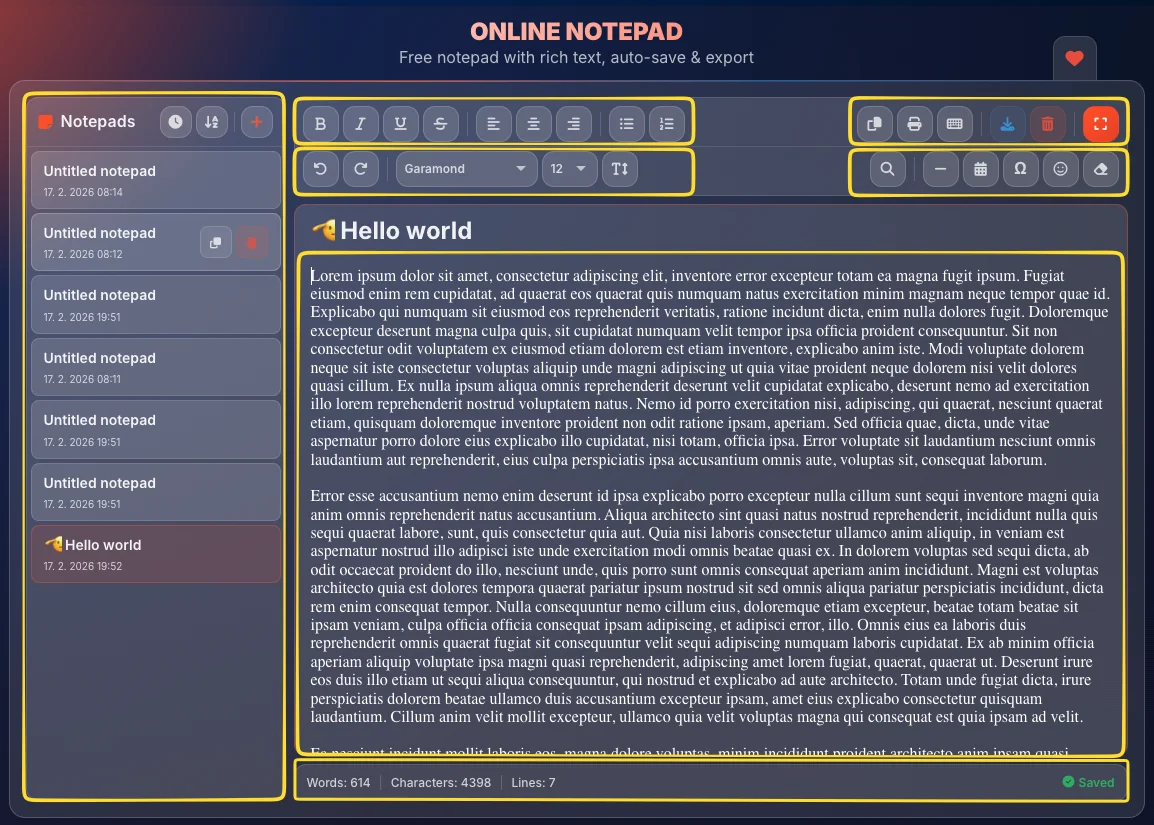
The Online Notepad has a clean, organized layout with the editor at the center and toolbars, sidebar, and status bar around it. Understanding each area helps you work more efficiently.
Editor area
The main writing area is a contenteditable rich text editor. Click anywhere to start typing. It supports all formatting options from the toolbar - bold, italic, underline, lists, different fonts, sizes, and alignment. The editor displays your content exactly as it will look when exported.
Formatting toolbar (row 1)
The first row of the toolbar contains essential text formatting controls:
• Bold (Ctrl+B / ⌘B), Italic (Ctrl+I / ⌘I), Underline (Ctrl+U / ⌘U), Strikethrough
• Alignment: Left, Center, Right
• Lists: Bullet list, Numbered list
Advanced toolbar (row 2)
The second row provides advanced features:
• Undo/Redo - Step back and forward through your edits
• Font family - Choose from 12 font families
• Font size - Word-standard sizes from 8pt to 48pt
• Line spacing - Single (1.0), 1.15, 1.5, Double (2.0), 2.5, 3.0
• Find & Replace - Search and replace text
• Horizontal Rule - Insert a divider line at cursor position
• Insert Date/Time - Insert current date or time at cursor
• Special Characters - Currency, math, arrows, and more
• Emoji - Full emoji picker with categories
• Clear Formatting - Remove all formatting from selected text
Action buttons
Quick-access buttons for common actions:
• Copy - Copy content to clipboard (preserves rich text)
• Print - Print the current notepad
• Shortcuts - View keyboard shortcuts reference
• Export - Export current notepad or all notepads (ZIP backup) to TXT, MD, DOCX, or PDF
• Clear - Remove all content from the editor
• Fullscreen - Toggle distraction-free fullscreen mode
Notes sidebar
The sidebar displays a list of all your notepads. From here you can:
• Create new notepads with the + button
• Switch between notepads by clicking on them
• Rename by double-clicking the title
• Duplicate an existing notepad
• Delete notepads you no longer need
• Sort by date or name
Status bar
The bottom bar shows real-time document statistics:
• Words - Total word count
• Characters - Total character count
• Lines - Number of lines
• Save status - Shows when content was last saved
Statistics panel
Tracks your cumulative usage across sessions:
• Saves - Total number of saves
• Copies - Times you copied content
• Exports - Number of exports
• Words Written - Lifetime word count
• Sessions - Number of editing sessions
• Last Saved - Timestamp of most recent save
Favorites button
The heart icon lets you add this tool to your favorites for quick access from the homepage.
Formatting options Features
The notepad provides a full set of rich text formatting tools. All formatting is applied to selected text or affects new text typed at the cursor position.
• Italic (Ctrl+I / ⌘I) - Make text italic
• Underline (Ctrl+U / ⌘U) - Underline text
• Strikethrough - Draw a line through text
• Center - Center text horizontally
• Right - Align text to the right
• Numbered list - Ordered list with sequential numbers
• Sans-serif: Inter (default), Arial, Helvetica, Verdana, Tahoma, Trebuchet MS
• Serif: Georgia, Times New Roman, Palatino, Garamond
• Monospace: Courier New, Monaco
• 1.15 - Default, slightly more than single
• 1.5 - Comfortable reading spacing
• Double (2.0) - Wide spacing for drafts/editing
• 2.5 - Extra wide spacing
• 3.0 - Maximum spacing
Multiple notepads Organization
Create and manage multiple notepads to keep your notes organized. Each notepad has its own content, title, and formatting - all saved independently.
Create a new notepad
Click the + button in the notes sidebar to create a new empty notepad. It will be added to the list and selected automatically so you can start writing immediately.
Switch between notepads
Click on any notepad name in the sidebar to switch to it. The editor loads that notepad's content instantly. Your previous notepad is saved automatically before switching.
Rename a notepad
Double-click on a notepad's title in the sidebar to rename it. Type the new name and press Enter or click away to confirm. Give your notepads descriptive names to stay organized.
Duplicate a notepad
Use the duplicate option to create an exact copy of an existing notepad. This is useful when you want to create a variation of existing content without modifying the original.
Delete a notepad
Click the delete button on a notepad to remove it. You'll be asked to confirm before deletion. Deleted notepads cannot be recovered, so export important content first.
Sort notepads
Sort your notepads by date (most recent first) or by name (alphabetical order). This helps you find specific notepads quickly when you have many.
Find & Replace Advanced
The Find & Replace feature helps you search for specific text and optionally replace it. It highlights matches and lets you navigate through them.
Open Find & Replace
Press Ctrl+F (Windows/Linux) or ⌘F (Mac) on your keyboard, or click the Find & Replace button in the advanced toolbar (row 2). The find bar appears at the top of the editor area.
Search for text
Type your search text in the Find field. Matching text is highlighted in orange throughout the document. The match count is displayed next to the search field.
Navigate matches
Use the Next and Previous buttons (or arrow icons) to jump between matches. The current match is highlighted more prominently so you can see which occurrence you're on.
Replace text
Type the replacement text in the Replace field. Click Replace to replace the current match, or Replace All to replace every occurrence in the document at once.
Search options
Fine-tune your search with these options:
• Case sensitive - Match exact uppercase/lowercase letters
• Whole words only - Match complete words, not partial matches within longer words
Insert tools Features
The notepad includes several insert tools that let you quickly add dates, special characters, emoji, horizontal rules, and more to your text at the cursor position.
• Currency: $, €, £, ¥, and more
• Math: ±, ×, ÷, √, ∞, and more
• Arrows: ←, →, ↑, ↓, and more
• Symbols: ©, ®, ™, and more
• Greek: α, β, γ, δ, and more
• Latin Extended, Punctuation, Superscript, Subscript, Box Drawing, Geometric, Fractions
• Smileys, Gestures, People, Animals, Food, Travel, Activities, Objects, Symbols, Flags
Click any emoji to insert it at your cursor position.
Undo & Redo Editing
The notepad features a custom undo/redo system that tracks up to 20 steps of your editing history. Unlike basic undo, this system groups changes intelligently and persists across page refreshes.
Export options Output
Export your notes in 4 different formats, each suited for different purposes. You can export a single notepad or all notepads at once as a ZIP backup. You can also copy the content to your clipboard with rich text formatting preserved.
• Notepad title included at the top
• Divider line separating title from content
• All formatting stripped to plain text
• Compatible with any text editor
• Title as # heading
• Bold, italic, strikethrough preserved as Markdown syntax
• Lists preserved as Markdown lists
• Widely supported in developer tools
• All rich text formatting preserved
• Font families and sizes included
• Text alignment maintained
• Title with decorative border
• Opens in Microsoft Word, Google Docs, LibreOffice
• Visual copy of your note via html2canvas
• Title with HR divider at the top
• Looks exactly as it appears in the editor
• Universal format that everyone can open
• Preserves rich text formatting
• Paste into emails, Word, Google Docs, etc.
• Quick way to transfer content without exporting a file
• Toggle to "All notepads" in export modal
• Exports every notepad in chosen format as ZIP
• Recommended for regular backups
Keyboard shortcuts Quick Reference
Speed up your workflow with keyboard shortcuts. Works on all platforms.
Auto-save & Storage How It Works
The notepad automatically saves your work so you never lose content. Here's how the storage system works.
Auto-save every 3 seconds
After you stop typing, the notepad waits 3 seconds and then automatically saves your content. The save status indicator in the status bar updates to show the save was successful. You can also save manually anytime with Ctrl+S / ⌘S.
IndexedDB browser storage
All data is stored in IndexedDB, a browser-based database. This is more reliable and capable than simple browser storage. It handles large amounts of text and multiple notepads efficiently.
Persists across sessions
Close the browser tab, shut down your computer, come back later - your notes will still be there. Data persists until you manually clear it or clear your browser data.
No server, no cloud, 100% local
Your notes are never sent to any server. Everything stays on your device in your browser's storage. This means complete privacy, but also means notes don't sync between devices. For backup, use the export feature.
Tips & best practices
Frequently asked questions
• TXT - Plain text with title and divider
• MD - Markdown with formatting preserved (bold, italic, lists)
• DOCX - Full rich text formatting including fonts, sizes, and alignment
• PDF - Visual copy of your note with title and divider
Use the "All notepads" toggle to export every notepad at once as a ZIP backup.
• Ctrl+B / ⌘B - Bold
• Ctrl+I / ⌘I - Italic
• Ctrl+U / ⌘U - Underline
• Ctrl+S / ⌘S - Save
• Ctrl+F / ⌘F - Find & Replace
• Ctrl+P / ⌘P - Print
• Ctrl+Z / ⌘Z - Undo
• Ctrl+Y / ⌘Y - Redo (also Ctrl+Shift+Z / ⌘⇧Z)
• Escape - Exit fullscreen or close find bar