Overview
The Password generator creates secure passwords using 4 different modes to suit any need. Whether you need a complex random password, an easy-to-remember passphrase, a numeric PIN, or want to train your memory - this tool has you covered.
Interface overview
The Password generator has a clean, organized interface. Here's what you'll find:
Password mode selector
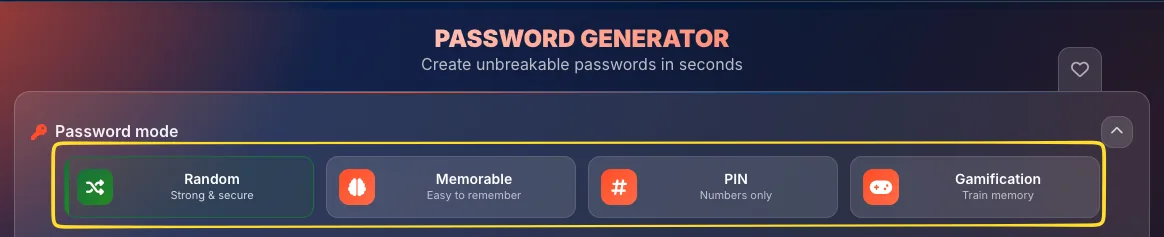
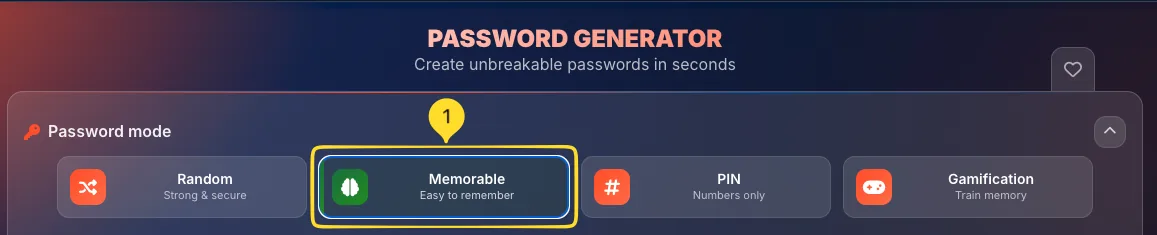
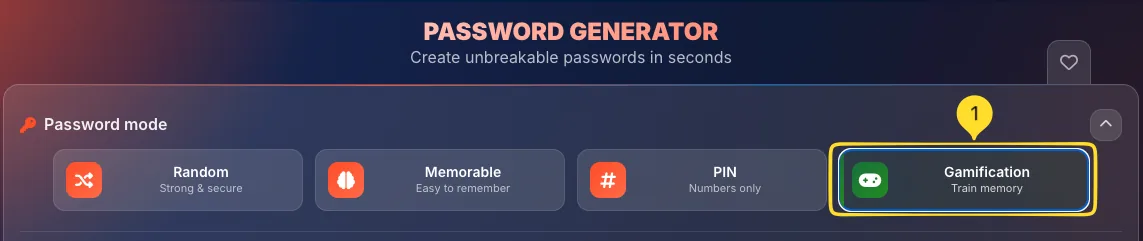
At the top, you'll see 4 mode buttons:
• Random: Strong & secure random passwords
• Memorable: Easy to remember passphrases
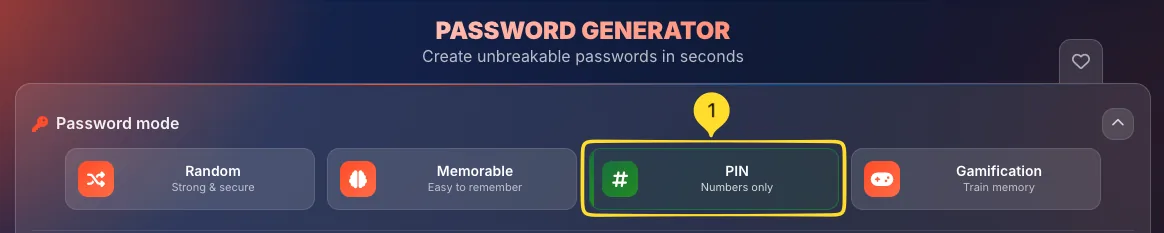
• PIN: Numbers only
• Gamification: Train your memory
Settings panel
Below the mode selector, you'll find mode-specific settings. Each mode has different options:
• Random: length, character types, advanced options
• Memorable: word count, capitalization, separator
• PIN: length, repeating digits
• Gamification: training mode selection
Generated password display
The GENERATED PASSWORD section shows your current password in large, readable text. To the right is a copy button (clipboard icon) to copy the password to your clipboard.

Strength indicator
Below the password display, you'll see:
• Strength bar: colored progress bar showing password strength
• Strength label: WEAK (red), FAIR (orange), GOOD (blue), or STRONG (green)
• Crack time: estimated time to crack the password (e.g., "Centuries+")

Generate button
The orange GENERATE PASSWORD button (or GENERATE PASSPHRASE/PIN depending on mode) creates a new password with your current settings. Click it anytime to generate a fresh password.

Tool tabs (right edge)
On the right edge of the screen, you'll find the tool tabs:
• Favorites (heart icon) - add this tool to your favorites for quick access

Random mode Most secure
Random mode generates cryptographically secure passwords using your browser's built-in random number generator. This is the most secure option and recommended for important accounts.
Select Random mode
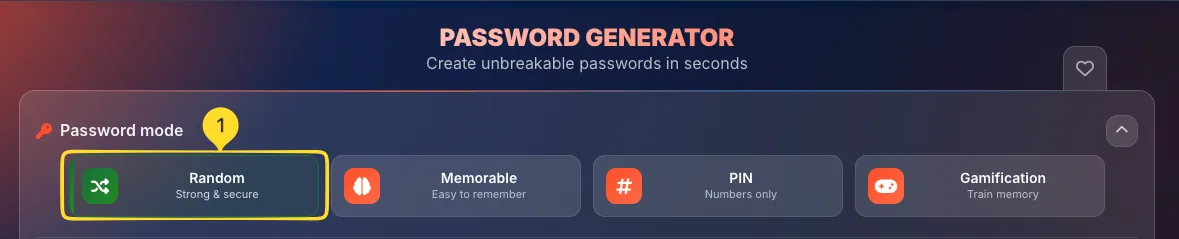
Click the Random button (shuffle icon) at the top. It shows "Strong & secure" as the description. This is usually the default mode when you open the tool.
Configure settings
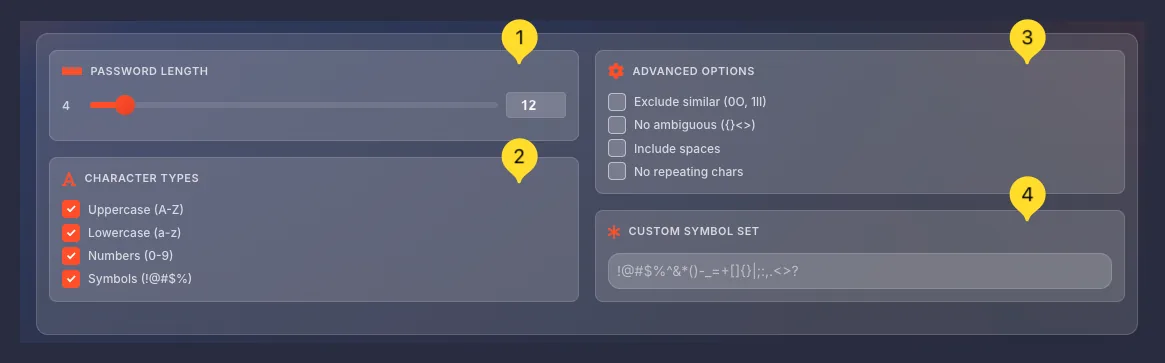
You'll see 4 settings sections:
• PASSWORD LENGTH: how many characters
• CHARACTER TYPES: which characters to include
• ADVANCED OPTIONS: exclusion rules
• CUSTOM SYMBOL SET: define your own symbols
Generate your password
Click GENERATE PASSWORD to create a new random password. The result appears in the display area with its strength rating and estimated crack time.
Copy and use
Click the copy button (clipboard icon) next to the password to copy it. A notification confirms the copy. Paste it into your password field or password manager.

Password length
The PASSWORD LENGTH section controls how many characters your password will contain. Longer passwords are exponentially more secure.
Use the slider
Drag the orange slider left (shorter) or right (longer). The minimum is 4 characters (shown on the left), and you can see the current length in the input field on the right.
Enter exact value
You can also type a specific number in the input field on the right side of the slider. For example, type "20" to set exactly 20 characters.
Recommended lengths
8-11 characters: Minimum acceptable (avoid if possible)
12-15 characters: Good for most accounts
16-20 characters: Strong, recommended for important account
20+ characters: Maximum security for critical accounts

Character types
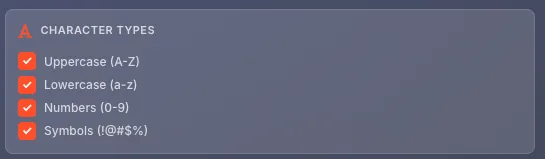
The CHARACTER TYPES section lets you choose which characters can appear in your password. More types = more possible combinations = harder to crack.
Uppercase (A-Z)
When checked, includes capital letters A through Z. Adds 26 possible characters per position.
Recommended: Keep enabled unless the website forbids uppercase.
Lowercase (a-z)
When checked, includes small letters a through z. Adds 26 possible characters per position.
Recommended: Always keep enabled - accepted everywhere.
Numbers (0-9)
When checked, includes digits 0 through 9. Adds 10 possible characters per position.
Recommended: Keep enabled - most sites require at least one number.
Symbols (!@#$%)
When checked, includes special characters like !, @, #, $, %, ^, &, *. Adds 30+ possible characters per position.
Note: Some websites don't allow certain symbols - disable if your password is rejected.
Advanced options
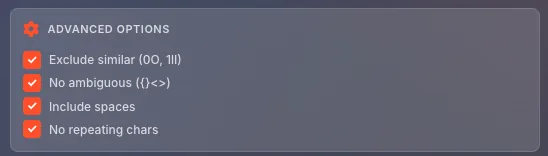
The ADVANCED OPTIONS section provides fine-tuned control over character selection. These are optional but useful for specific situations.
Exclude similar (0O, 1Il)
When checked, removes characters that look alike: 0 (zero) vs O (letter), 1 (one) vs l (lowercase L) vs I (uppercase i).
Use case: Enable when you'll need to read or type the password manually, like reading from a sticky note.
No ambiguous ({}[]<>)
When checked, removes symbols that might cause problems - curly braces {}, square brackets [], angle brackets <>, and similar.
Use case: Enable if websites reject your passwords with special symbols.
Include spaces
When checked, allows space characters in the password. Makes passwords slightly harder to type but adds another character type.
Use case: Only enable if you specifically need spaces. Most websites don't allow them.
No repeating chars
When checked, ensures no character appears more than once in the password. Example - "abc123" is allowed, but "aab123" is not.
Use case: Some security policies require this, but it slightly reduces randomness for very long passwords.
Custom symbol set
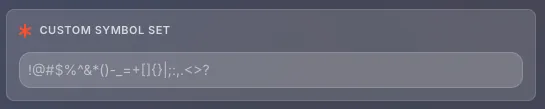
The CUSTOM SYMBOL SET section allows you to define exactly which symbols can appear in your password instead of using the default set.
View the default set
The input field shows the current symbol set !@#$%^&*()-_=+[]{}|;:,.<>? by default. These are all the symbols that CAN appear in your password when Symbols checkbox is enabled.
Customize the set
Edit the input field to include only the symbols you want. For example, if a website only allows !@#$, delete everything else and keep just those four.
Why customize?
Some websites have strict symbol requirements - they may only allow specific symbols like !@#$% but reject others like {}[]. Customizing prevents rejected passwords.
Memorable mode Easy to remember
Memorable mode generates passphrases - multiple random words combined together. These are easy to remember but still very secure because of their length.
Select Memorable mode
Click the Memorable button (brain icon) at the top. It shows "Easy to remember" as the description.
Example passphrase
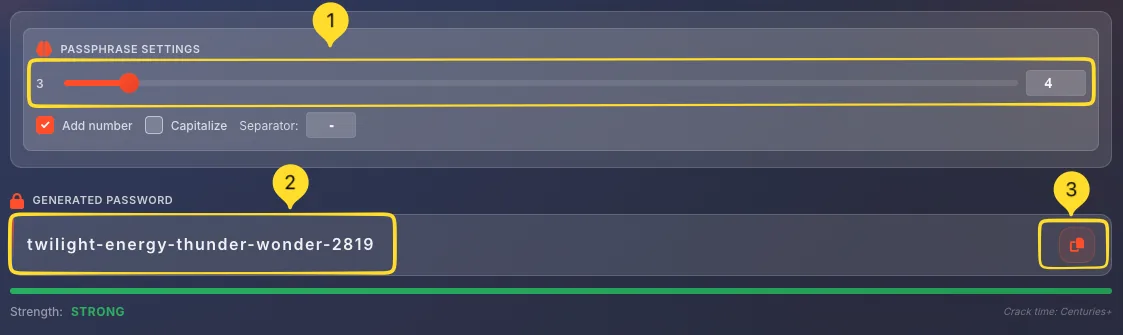
A memorable passphrase looks like - amazing-firefly-diamond-jungle-3087. It's much easier to remember than dMI2|HQT6;Tq but just as secure (or more!) due to its length.
Generate passphrase
Click GENERATE PASSPHRASE to create a new passphrase. Each click produces completely different random words.

Passphrase settings
The PASSPHRASE SETTINGS section controls how your passphrase is generated.
Word count slider
Drag the slider to choose how many words to include. The minimum is 3 words (shown on left), current count appears in the input field (right). More words = longer and more secure passphrase.

Add number checkbox
When checked, appends a random number to the end of your passphrase (e.g., -3087). Recommended: Enable this - many websites require at least one number, and this satisfies that requirement.
Capitalize checkbox
When checked, capitalizes the first letter of each word (e.g., Amazing-Firefly-Diamond).
Use case: Enable if the website requires uppercase letters.
Separator
Enter any character to separate the words. Common options:
• Hyphen (-): word-word-word (default, most readable)
• Underscore (_): word_word_word
• Period (.): word.word.word
• Custom: enter any character, number, or text you want
tiger-sunset-garden-blue-7291.PIN mode Numbers only
PIN mode generates numeric-only codes for situations where only numbers are allowed, such as device unlock codes, bank PINs, or voicemail passwords.
Select PIN mode
Click the PIN button (hashtag icon) at the top. It shows "Numbers only" as the description.
Example PIN
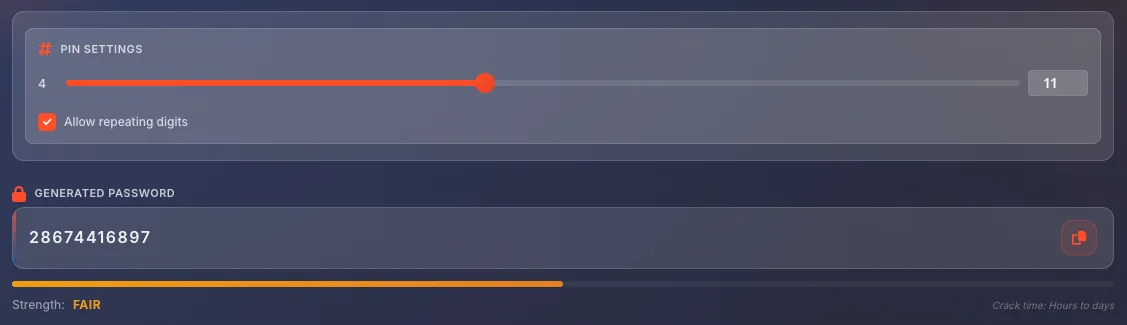
A generated PIN looks like - 768268. It contains only digits 0-9, making it suitable for keypads and numeric-only fields.
Generate PIN
Click GENERATE PIN to create a new PIN. Each click produces a different random number sequence.

PIN settings
The PIN SETTINGS section controls your PIN generation.
Length slider
Drag the slider to set PIN length. Minimum is 4 digits (standard for most devices/banks). The input field on the right shows the current length. Longer PINs are more secure.

Allow repeating digits
When checked, the same digit can appear multiple times (e.g., 7744). When unchecked, each digit appears only once (e.g., 7491).
Recommendation: Keep enabled for maximum randomness.

6 digits: Common for banking apps, more secure
8+ digits: Maximum security, use when allowed
Gamification mode Train memory
Gamification mode turns password memorization into a game. Practice recalling passwords to strengthen your memory and prepare for situations where you need to remember a password without a manager.
Select Gamification mode
Click the Gamification button (game controller icon) at the top. It shows "Train memory" as the description.
Choose your challenge
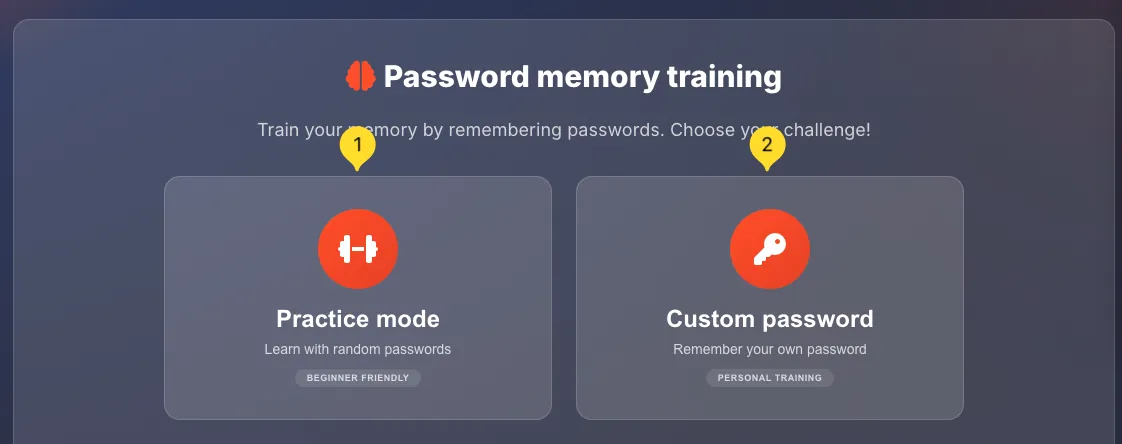
You'll see two options:
• Practice mode: Learn with random passwords (Beginner friendly)
• Custom password: Remember your own password (Personal training)
Track your progress
At the bottom, you'll see your stats:
• Best score: Your highest points achieved
• Streak: Current consecutive correct recalls

Practice mode
Practice mode generates random passwords for you to memorize and recall. It's designed for beginners learning password memorization techniques.
Start practice
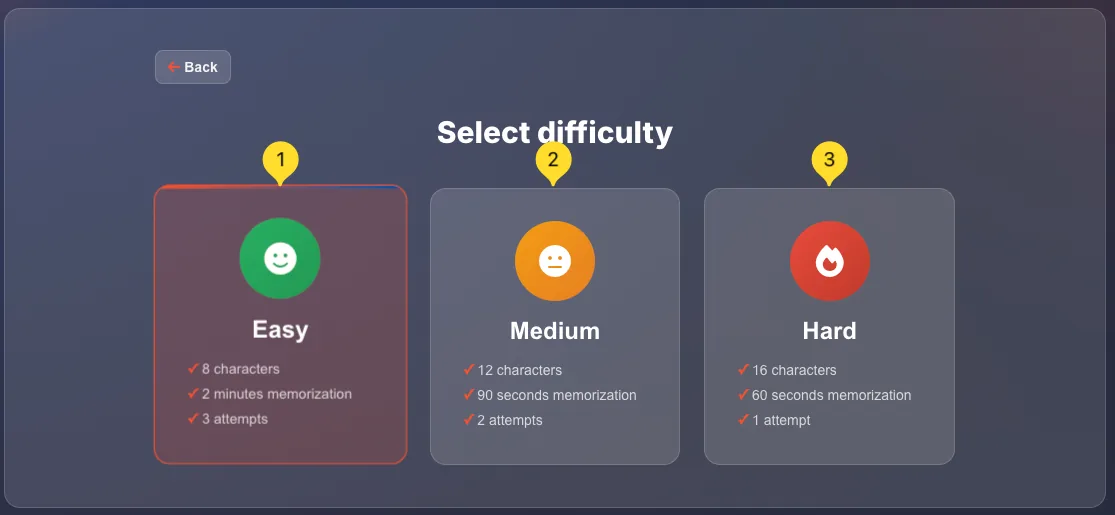
Click the Practice mode card. The system generates a random password for you to memorize.
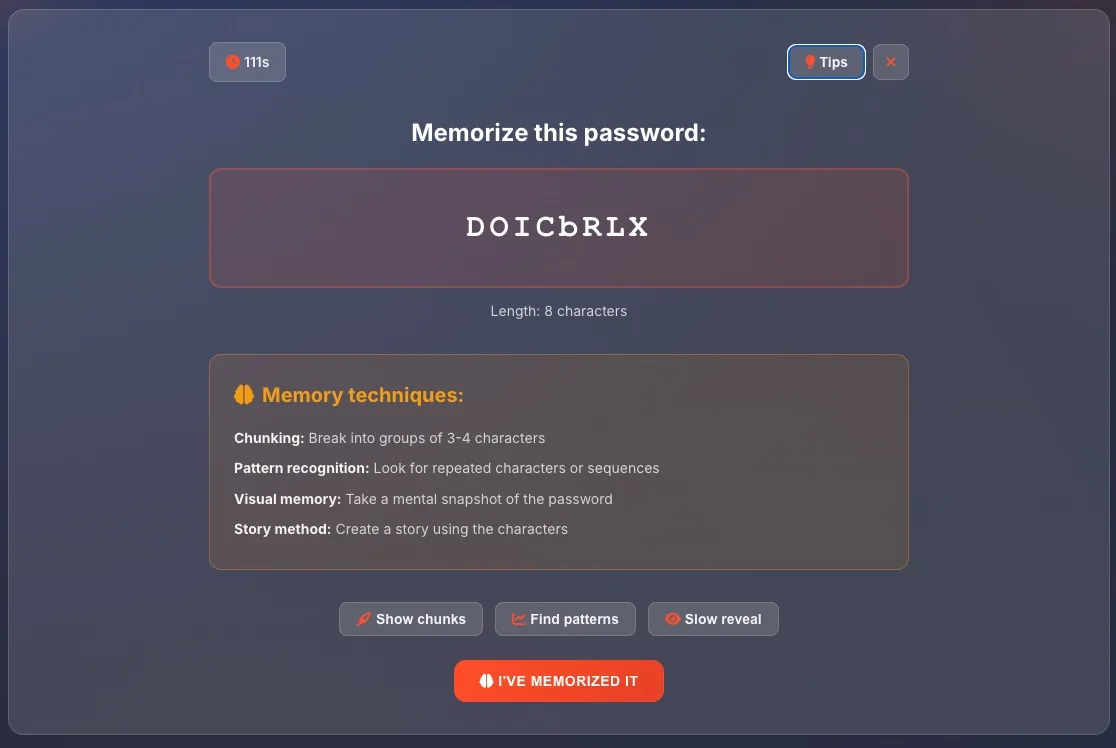
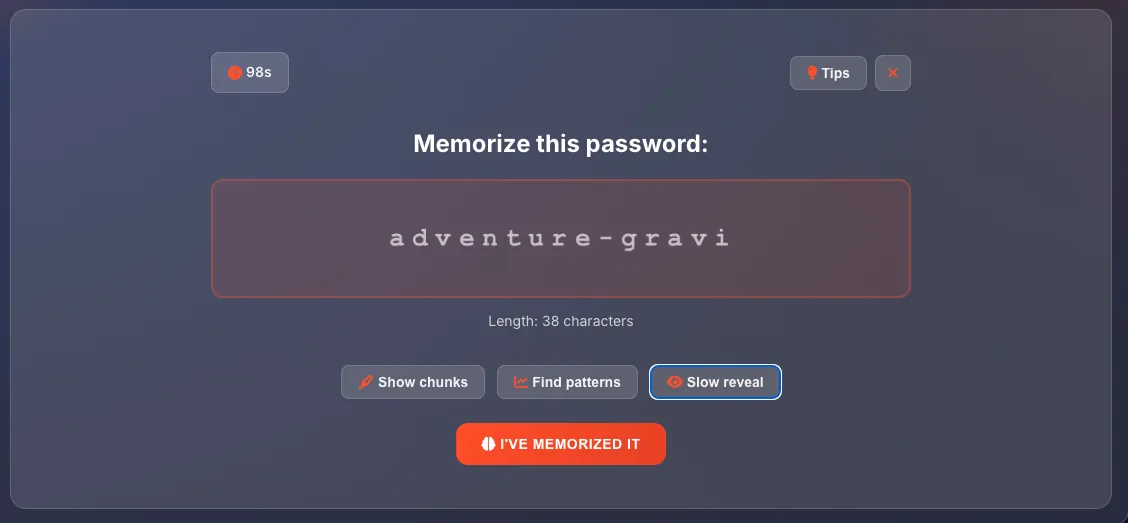
Memorize the password
Study the password carefully. Try breaking it into chunks or creating a mental story. Take your time - there's no rush during the memorization phase.
Recall challenge
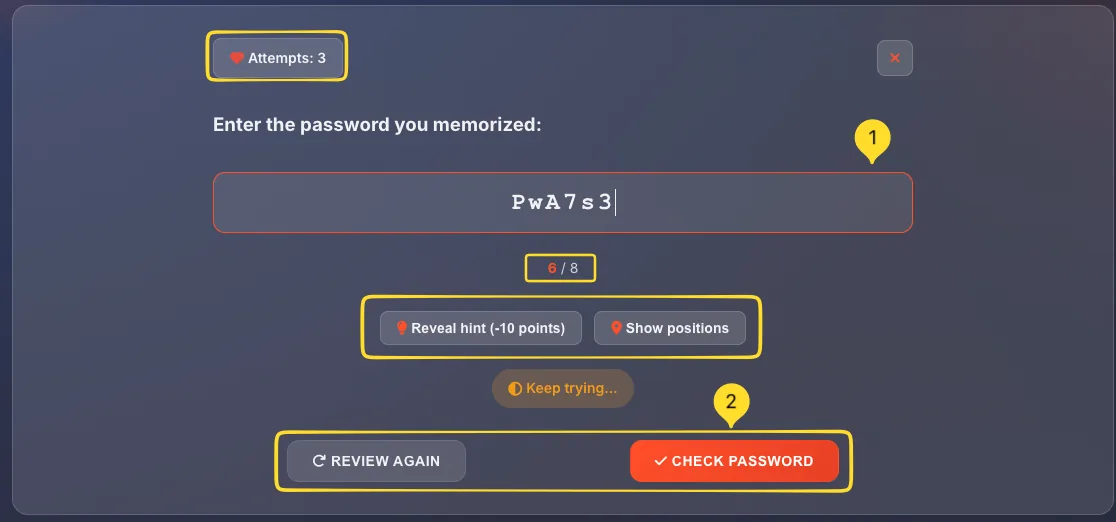
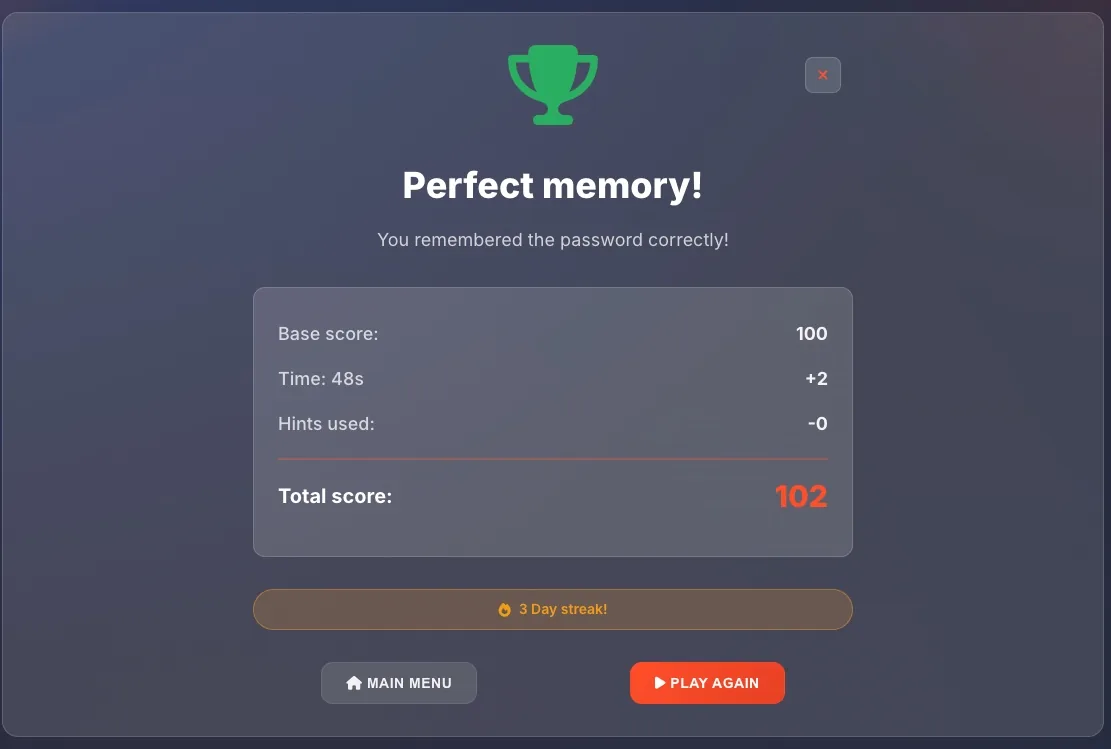
When ready, the password is hidden and you must type it back from memory. Each correct character adds to your score.
Build your streak
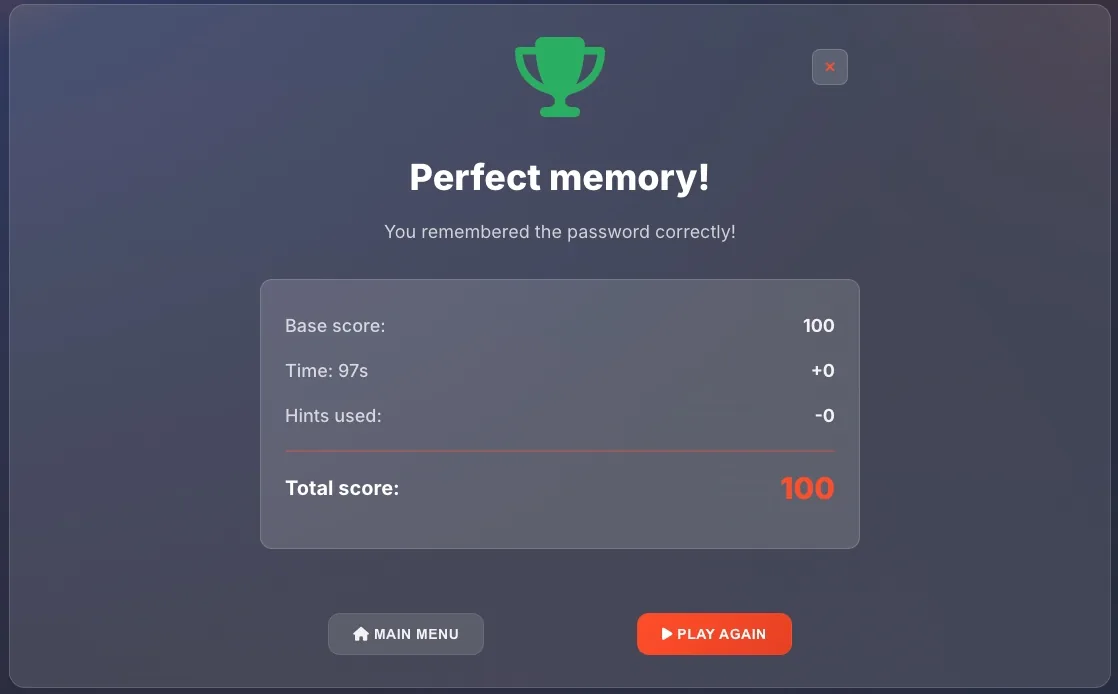
Correct recalls build your streak counter. See how many passwords you can remember correctly in a row!
Custom password mode
Custom password mode lets you practice memorizing a specific password you've chosen - perfect for learning your password manager's master password.
Enter your password
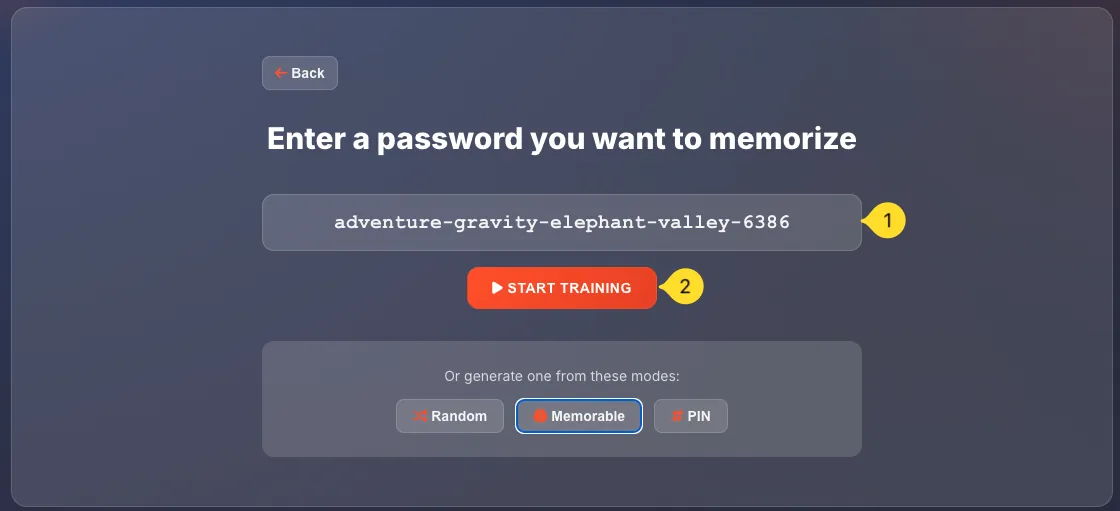
Click the Custom password card. Enter the password you want to memorize. This could be your master password, an important account password, or any string you need to remember.
Practice recall
The system hides your password and asks you to type it back. Practice until you can type it perfectly without hesitation.
Repeat daily
Memory strengthens with repetition. Practice recalling your custom password daily until it becomes second nature.
Strength meter & Crack time
Below every generated password, you'll see visual indicators of its security level.
Strength bar
A colored progress bar shows relative password strength:
• Red (25%): Weak password, easily cracked
• Orange (50%): Fair strength, needs improvement
• Blue (75%): Good password, acceptable for most accounts
• Green (100%): Strong password, recommended for all accounts
Strength label
Text label next to "Strength:" showing:
• WEAK (red) - Change settings to improve
• FAIR (orange) - Acceptable but could be better
• GOOD (blue) - Good for most accounts
• STRONG (green) - Recommended for all accounts
Crack time estimate
On the right side, "Crack time:" shows how long it would take to crack your password using brute force:
• Seconds/Minutes: Dangerously weak, don't use
• Hours/Days: Still too weak for important accounts
• Years: Acceptable minimum
• Centuries+: Excellent, effectively uncrackable
Security tips
Frequently asked questions
tiger-sunset-garden-blue has similar entropy to a 12-14 character random password. More words = more security, just like more characters.