Overview
The PDF Converter handles 19+ file formats in a single tool - documents, spreadsheets, presentations, and images - all converted to clean, high-quality PDF. Instead of visiting separate converters for Word, Excel, PowerPoint, and images, you drop everything here and get PDFs back.
What makes this tool different is hybrid processing. Document formats (Word, Excel, PowerPoint, ODT, RTF, TXT, CSV) are uploaded to our server and converted by a professional document engine with 4,000+ fonts. Image formats (JPG, PNG, WebP, SVG, BMP, AVIF, HEIC) are processed entirely in your browser - they never leave your device. Each file type gets the best engine for the job, not a one-size-fits-all approach.
How hybrid processing works Key feature
This is the core idea behind the PDF Converter and what sets it apart from every other free converter. Instead of forcing all files through one engine, we route each file to the best processing method available:
Documents go to the server
When you upload a Word, Excel, PowerPoint, ODT, RTF, TXT, or CSV file, it's securely sent to our server over HTTPS. There, a professional document engine with 4,000+ installed fonts (including all Microsoft Office fonts) converts it to PDF. This is necessary because rendering complex document layouts, spreadsheet grids, and presentation slides accurately requires a full document processing engine that can't run in a browser.
Images stay in your browser
When you upload a JPG, PNG, WebP, SVG, BMP, AVIF, or HEIC image, the conversion happens entirely in your browser using client-side JavaScript. The image is read, placed onto a PDF canvas at full resolution, and the PDF is generated locally. Your image never leaves your device - no upload, no server, no network request. It's as private as it gets.
Automatic routing
You don't have to think about any of this. Drop any mix of files and the converter automatically detects each file type and routes it to the correct engine. Document formats get server-side processing. Image formats get browser-side processing. You see the same interface and get the same result - clean PDFs.
Why this matters
Most free converters either process everything server-side (meaning all your files are uploaded somewhere) or everything client-side (meaning document rendering is poor). Our hybrid approach gives you the best of both worlds: professional-quality document rendering where you need it, and complete privacy for images where you can have it.
Supported formats
The converter accepts 19+ file formats across five categories:
Documents - DOC, DOCX, ODT, RTF, TXT
Word documents (.doc, .docx), OpenDocument text (.odt), Rich Text Format (.rtf), and plain text (.txt). DOCX gives the best quality. All processed server-side with 4,000+ fonts.
Spreadsheets - XLS, XLSX, ODS, CSV
Excel files (.xls, .xlsx), OpenDocument spreadsheets (.ods), and comma-separated values (.csv). Spreadsheets are converted with all formatting, borders, cell colors, and merged cells preserved. Each sheet becomes a page in the PDF.
Presentations - PPT, PPTX, ODP
PowerPoint files (.ppt, .pptx) and OpenDocument presentations (.odp). Each slide becomes a page in the PDF with layouts, charts, shapes, and embedded media rendered accurately.
Images - JPG, PNG, WebP, SVG, BMP, AVIF, HEIC
All common image formats including modern ones like WebP, AVIF, and Apple's HEIC. Images are processed entirely in your browser - they never leave your device. Each image becomes a full-page PDF at its original resolution.
Mix and match
You can upload any combination of the above formats in a single batch. A DOCX report, three JPG photos, an XLSX spreadsheet, and a PPTX presentation - all in one go. Each file gets routed to the correct engine automatically.
Uploading files
There are multiple ways to add files for conversion:
Drag and drop
Drag files from your computer and drop them anywhere on the page. A fullscreen drop zone appears when files are detected over the window. You can drop a mix of different formats at once.
Click to browse
Click the upload area or the SELECT FILES button to open your system file browser. Select one or multiple files of any supported format.
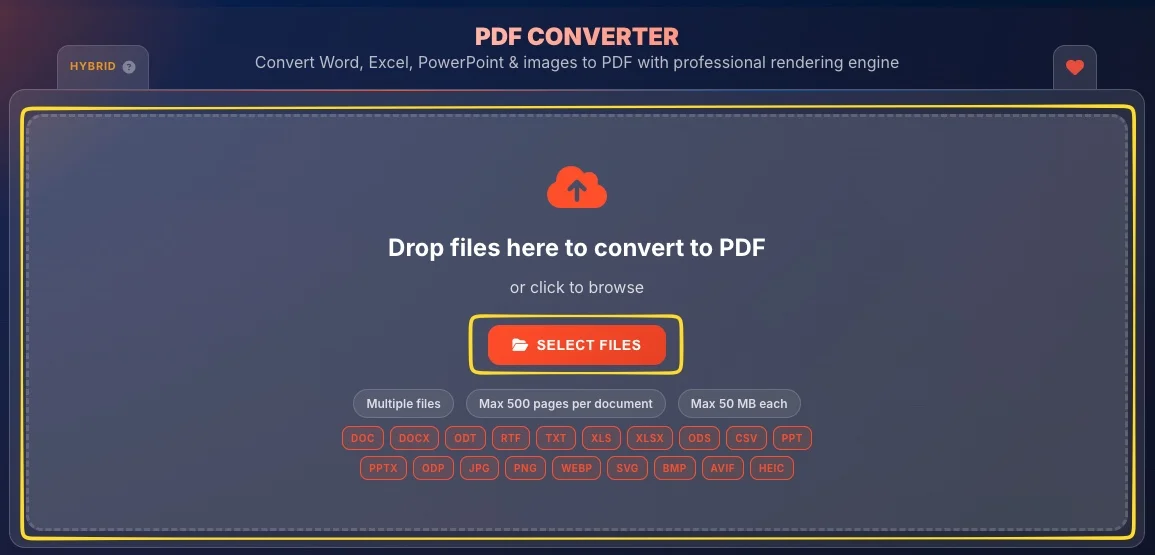
Add more files
You can add more files at any time - before or after conversion. Use the Drop more files or click to browse zone, or simply drag new files anywhere on the page. New files are added to the list and will be converted when you click the CONVERT TO PDF button.
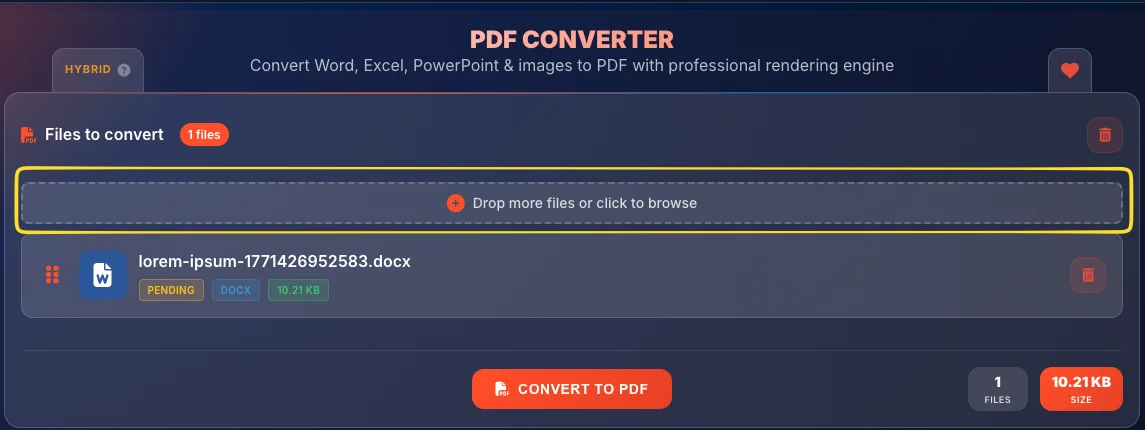
Reorder files
After uploading, drag and drop file cards to change their order. This is especially useful when you plan to merge everything into a single PDF - the merge follows the order you set.
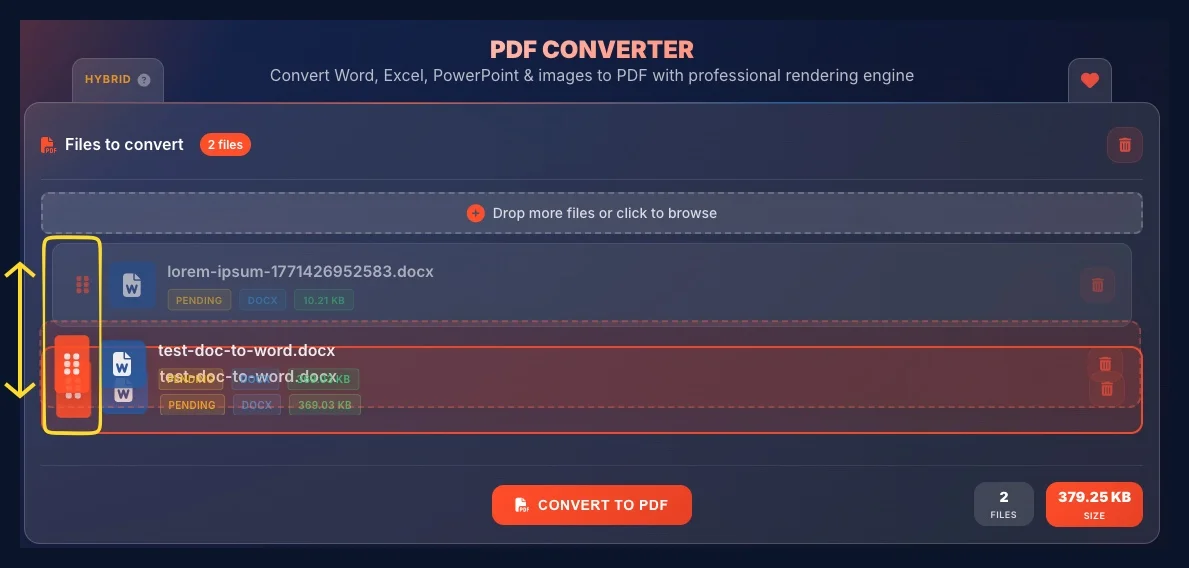
Conversion process
After uploading your files, click the CONVERT TO PDF button to start:
Click CONVERT TO PDF
All pending files start converting. Each file is automatically routed to the correct engine based on its type (see hybrid processing for details).
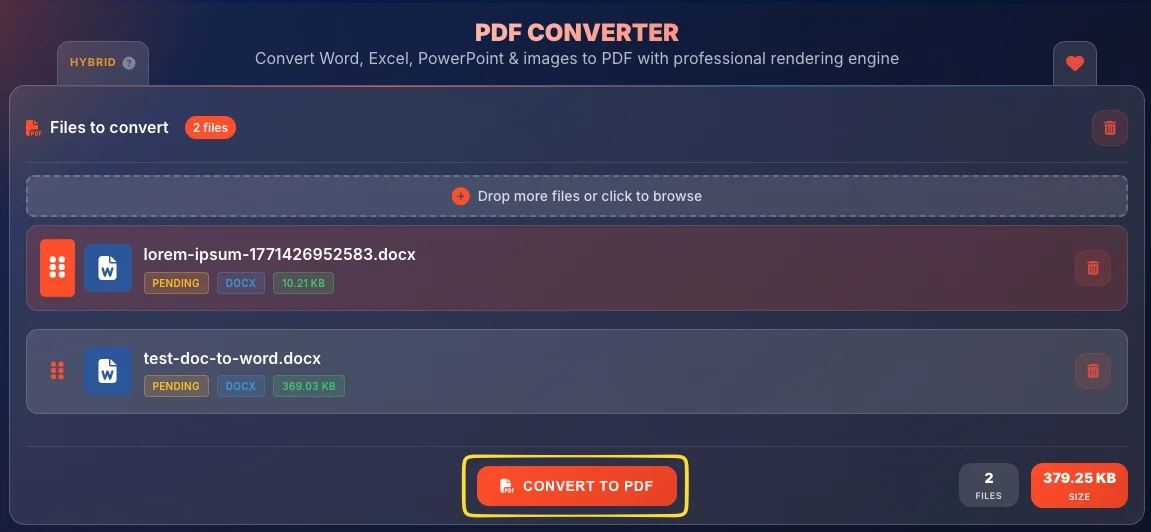
Watch the progress
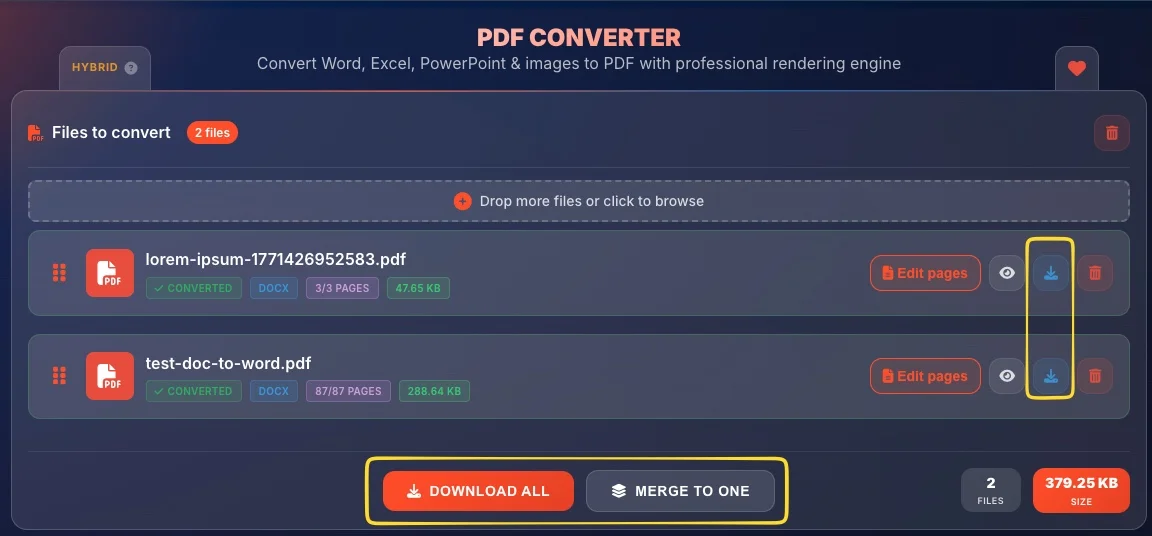
Each file card shows a Converting... badge during processing and Converted when done. Image files finish almost instantly, documents typically take 2-10 seconds. The DOWNLOAD PDF button appears on each file as it finishes.

Download your PDFs
Once all files are converted, download them individually, as a ZIP archive, or merge everything into one PDF. See output options for all download methods.
Your files and security
Security works differently depending on the file type. Here is exactly what happens, with full transparency:
Image files - complete privacy
JPG, PNG, WebP, SVG, BMP, AVIF, and HEIC files are processed entirely in your browser. They are never uploaded anywhere. No network request is made. Your images stay on your device from start to finish. This is the highest level of privacy possible - equivalent to converting on a computer with no internet connection.
Document files - encrypted transfer
Word, Excel, PowerPoint, and other document files are sent from your browser to our server over HTTPS (an encrypted connection). Nobody between you and our server can see or intercept your file - not your internet provider, not anyone on your WiFi network, nobody.
Document files - temporary processing
Your document is temporarily stored on our server under a random generated name (not your original filename) while the conversion engine processes it. This typically takes 2 to 10 seconds.
Document files - our own server
The document engine runs on the same physical server - not on any external cloud service like Google, Amazon, or Microsoft. Your file never leaves our server. The engine reads your file, creates the PDF, and that's it.
Document files - immediate deletion
The moment conversion finishes, your original file is permanently deleted from the server. This happens no matter what: whether the conversion succeeds, fails, times out, or you close the browser tab. There is no copy. There is no backup. There is no recycle bin. The file is gone.
Document files - result sent directly to you
The converted PDF is sent directly from the conversion engine to your browser. Once the transfer is complete, no copy remains on our server.
Automatic safety net
Even if something unexpected goes wrong and a document file somehow survives immediate deletion, an automatic cleanup process runs every 5 minutes and permanently deletes any file older than 5 minutes. Nothing can survive longer than that.
Preview and page selection
After conversion, you can preview the resulting PDF and select specific pages:
Open preview
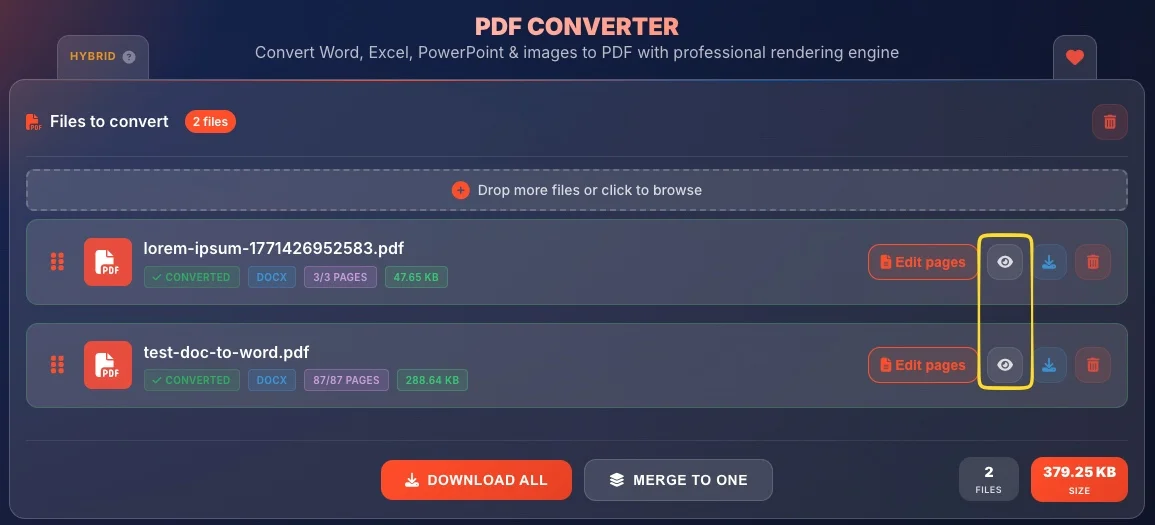
Click the preview button (eye icon) on any converted file card. This opens the page preview showing thumbnails of all pages.
Browse pages
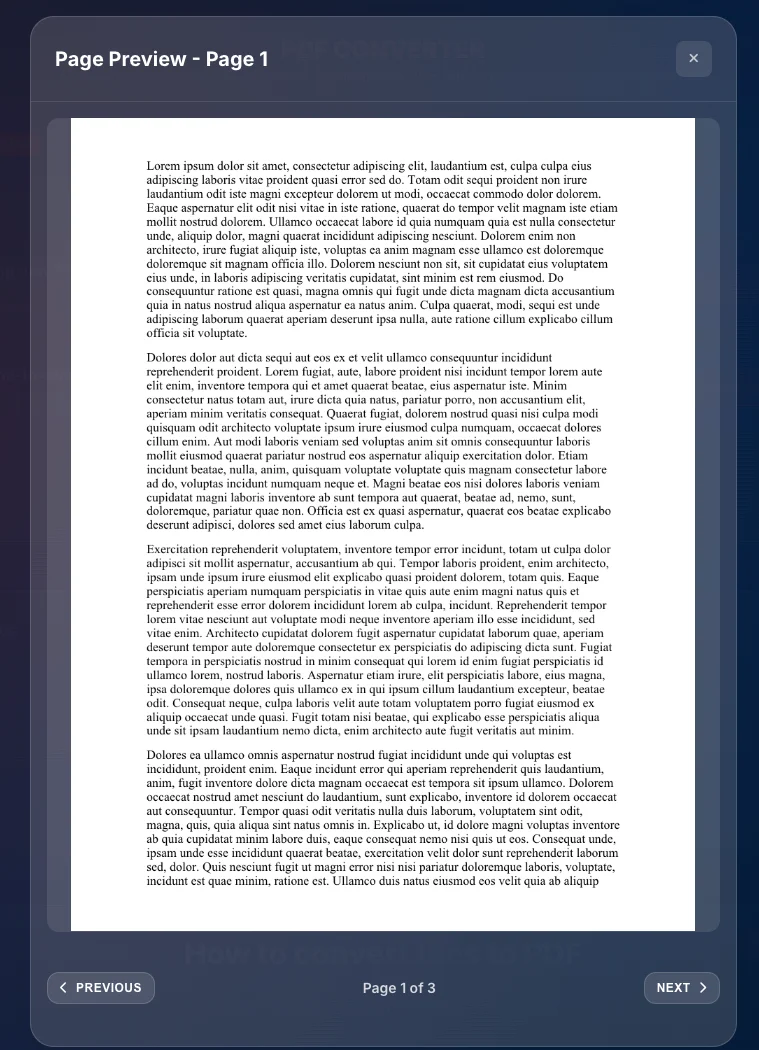
Scroll through page thumbnails to verify the conversion quality. Each page shows a rendered preview of the content.
Select pages (Edit Pages)
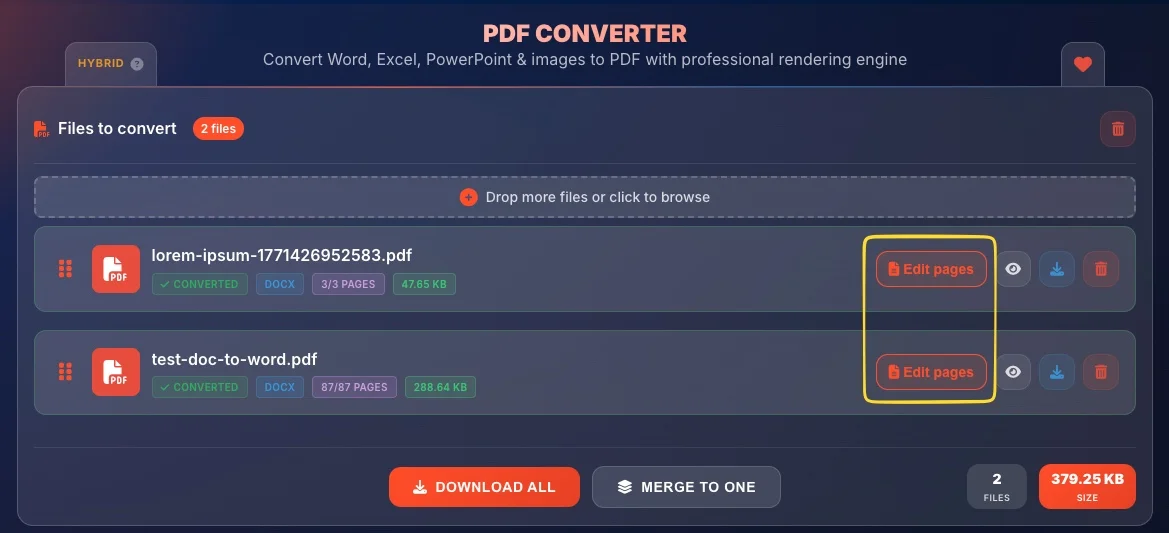
Click the Edit Pages button to open the page selection modal. Click individual page thumbnails to select or deselect them. Use the Select all / Deselect all buttons for quick selection, or type a page range (e.g., 1-5, 8, 10-12).
Apply selection
Click Apply Selection to confirm. Only selected pages will be included when downloading. The file card updates to show the page count (e.g., "5/12 pages"). This works as a built-in page extractor - no separate tool needed.
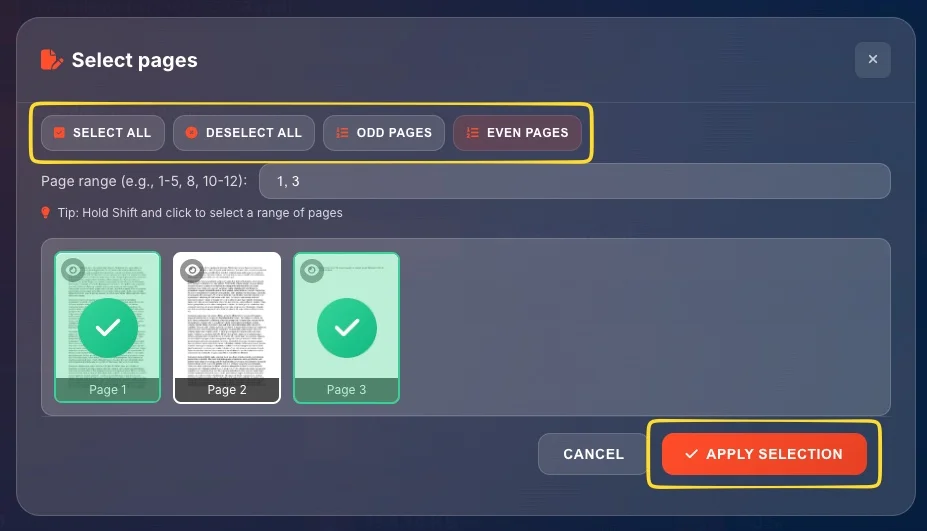
1-5 for a range, 3 for a single page, 1-5, 8, 10-12 for mixed selections. This is often faster than clicking individual thumbnails for large documents.Output options
After conversion, you have three ways to get your PDFs:
Download individual PDFs
Click the DOWNLOAD PDF button on any file card to download that specific converted PDF. Each file becomes a separate PDF named after the original (e.g., report.docx becomes report.pdf, photo.jpg becomes photo.pdf).
Download all as ZIP
When you have multiple converted files, click DOWNLOAD ALL to get all PDFs packed into a single ZIP archive. Page selections are applied before packaging.
Merge into one PDF
Click MERGE TO ONE to combine all converted PDFs into a single document. You can drag and drop file cards to change the merge order. Page selections are applied before merging. For example: select pages 1-5 from a Word report, add three photos, include two slides from a presentation - then merge everything into one combined PDF.
Rendering quality Key feature
The quality of PDF output depends on the file type and the engine processing it:
Word documents - professional engine
Our professional document engine handles complex layouts, text boxes, SmartArt, tables, and advanced formatting accurately. Combined with 4,000+ fonts including all Microsoft Office fonts, this delivers high-quality rendering for even the most demanding documents.
Excel spreadsheets - full formatting
Spreadsheets are rendered with cell formatting, borders, colors, merged cells, and conditional formatting preserved. Each worksheet becomes a page in the PDF. Column widths and row heights are maintained.
PowerPoint presentations - slide fidelity
Slides are rendered with layouts, charts, shapes, and text preserved. Each slide becomes a full page in the PDF. Transitions and animations are obviously not included (it's a PDF), but the visual content is accurate.
Images - pixel-perfect
Images are placed onto PDF pages at their original resolution. No compression, no quality loss, no resizing. The PDF page size matches the image dimensions. SVG files are rendered as vector graphics, maintaining infinite scalability.
Known limitations
Some rare elements may have minor rendering differences in document files:
• Very complex SmartArt with 3D effects
• Advanced drawing objects with precise text positioning inside shapes
• Macro-dependent content and ActiveX controls
• Very rare custom fonts not in our 4,000+ font library (a similar font will be substituted)
Statistics
The tool tracks your usage with persistent statistics (stored locally in your browser via IndexedDB):
Conversions
Total number of conversion sessions you've performed.
Files processed
Total number of individual files converted across all formats.
Downloads
How many PDFs you've downloaded (individual + ZIP + merged).
Pages merged
Total pages combined using the merge feature.
Average size and efficiency
Average file size of your uploads and overall conversion efficiency.