Overview
The PDF Page Extractor lets you pull out specific pages from one or more PDF documents. Unlike the PDF Splitter, this tool supports multiple PDF files at once - upload several PDFs and extract pages from all of them into a single output. All processing happens locally in your browser.
Interface overview
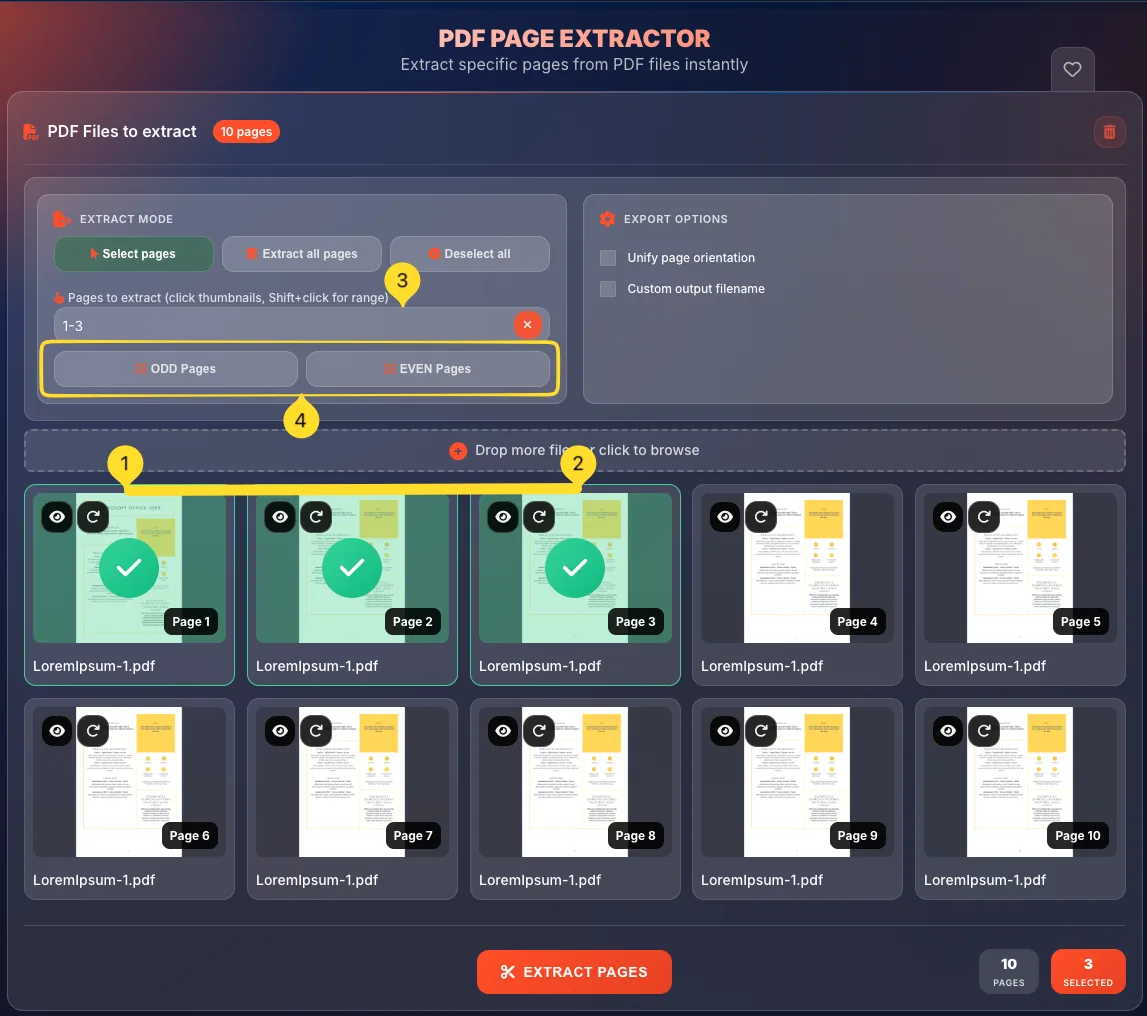
The PDF Page Extractor has a clean, organized interface. Here's what you'll find on the screen:
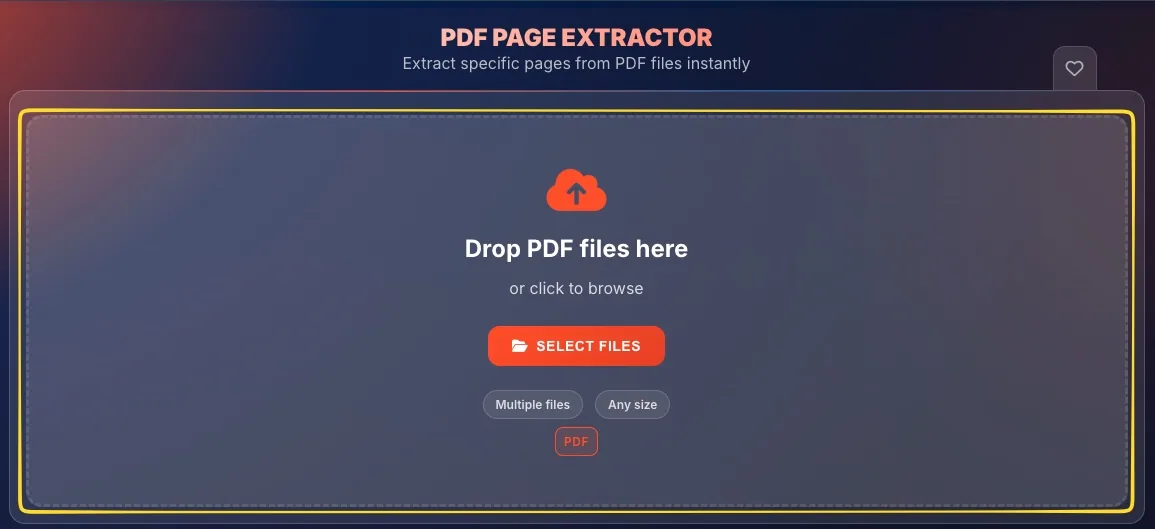
Drop zone (empty state)
When you first open the tool, you'll see a large drop zone with:
• Upload icon at the top
• Drop PDF files here heading or click to browse text
• SELECT FILES button
• Badges: Multiple files, Any size, PDF
Note: The Multiple files badge indicates you can upload several PDFs at once!
Header section
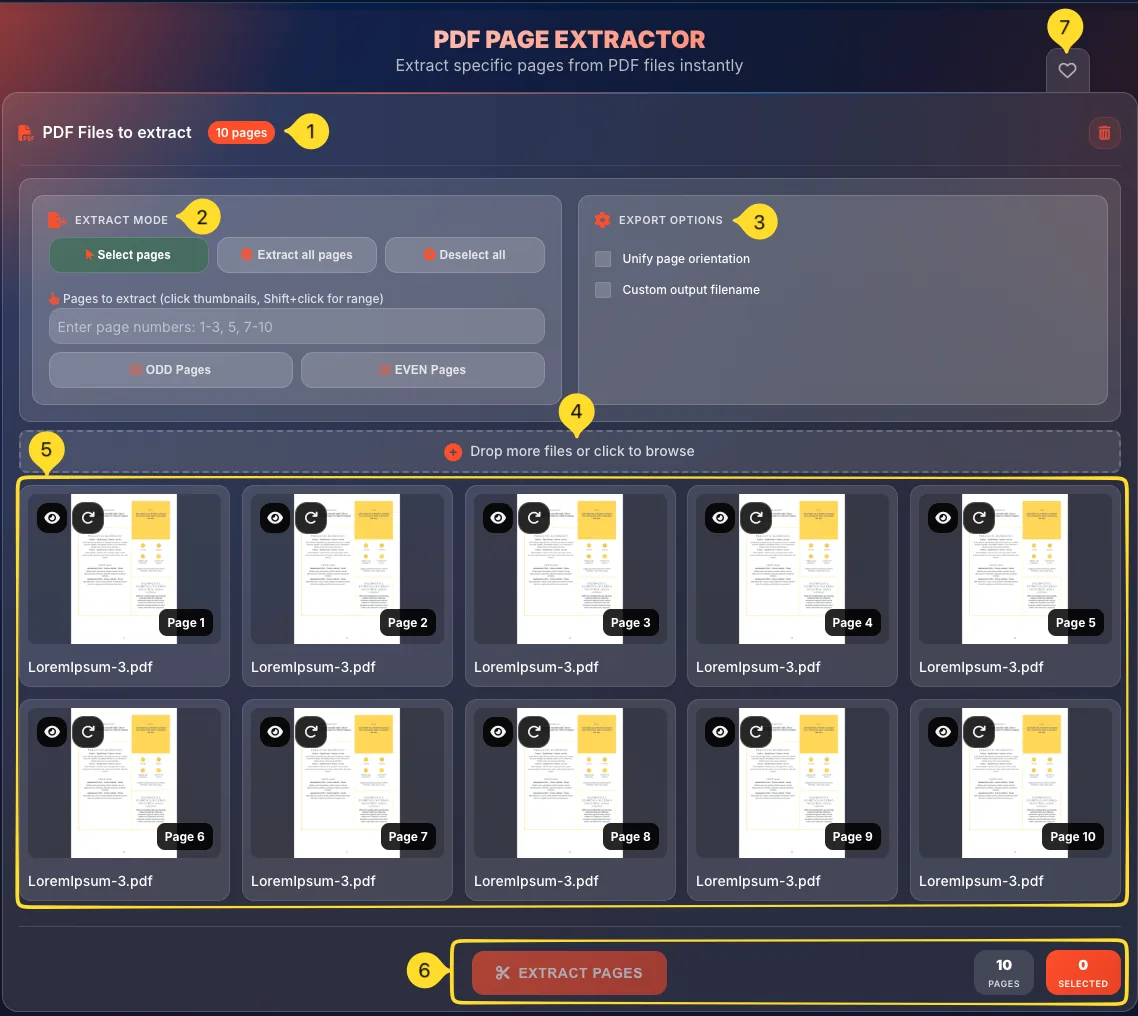
After uploading files, the interface shows:
• PDF Files to extract title with a PDF icon
• Page count badge (e.g., 46 pages) showing total pages across all files
• Clear all button (trash icon) in the top-right corner
Extract mode panel
Below the header, the EXTRACT MODE panel contains:
• Select pages: manually choose pages (default)
• Extract all pages: select every page
• Deselect all: clear all selections
Below that:
• Pages to extract tip with Shift+click hint
• Page range input field
• ODD Pages and EVEN Pages buttons
Export options panel
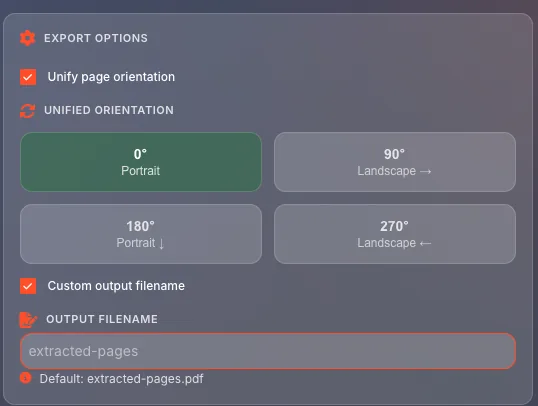
On the right side, the EXPORT OPTIONS panel contains:
• Unify page orientation: rotate pages to match
• Custom output filename: name your output file
Add more files zone
Below the options, a dashed-border zone says Drop more files or click to browse with a plus icon. Use this to add more PDFs after your initial upload.
Page thumbnails grid
The main area shows all pages from all uploaded PDFs as a grid of thumbnails. Each thumbnail shows:
• Preview button (eye icon)
• Rotate button (rotate icon)
• Page preview image
• Page number badge
• Filename (source PDF)
• Selection border (orange) when selected
Bottom action bar
At the bottom of the screen:
• EXTRACT PAGES button (orange, scissors icon)
• Pages counter (e.g., 46 PAGES)
• Selected counter (e.g., 0 SELECTED, orange background)
Favorites tab (right edge)
On the right edge of the screen, you'll find the Favorites tab (heart icon). Click it to add this tool to your favorites.
Uploading files
The PDF Page Extractor supports multiple PDF files. Here's how to upload:
Drag and drop
Drag PDF files from your computer and drop them onto the drop zone. You can drag multiple files at once: the zone will highlight when files are over it.
Click to browse
Click anywhere in the drop zone (or the SELECT FILES button) to open your system's file browser. Select one or more PDFs and click Open.
Multiple files at once
Select multiple files by holding Ctrl (Windows) or Cmd (Mac) while clicking. Or drag a selection box around multiple files.
Add more files later
After initial upload, use the Drop more files or click to browse zone to add additional PDFs. You can keep adding files until you're ready to extract.

Working with multiple files Unique feature
The PDF Page Extractor's ability to work with multiple files makes it powerful for combining content from different sources.
Upload multiple PDFs
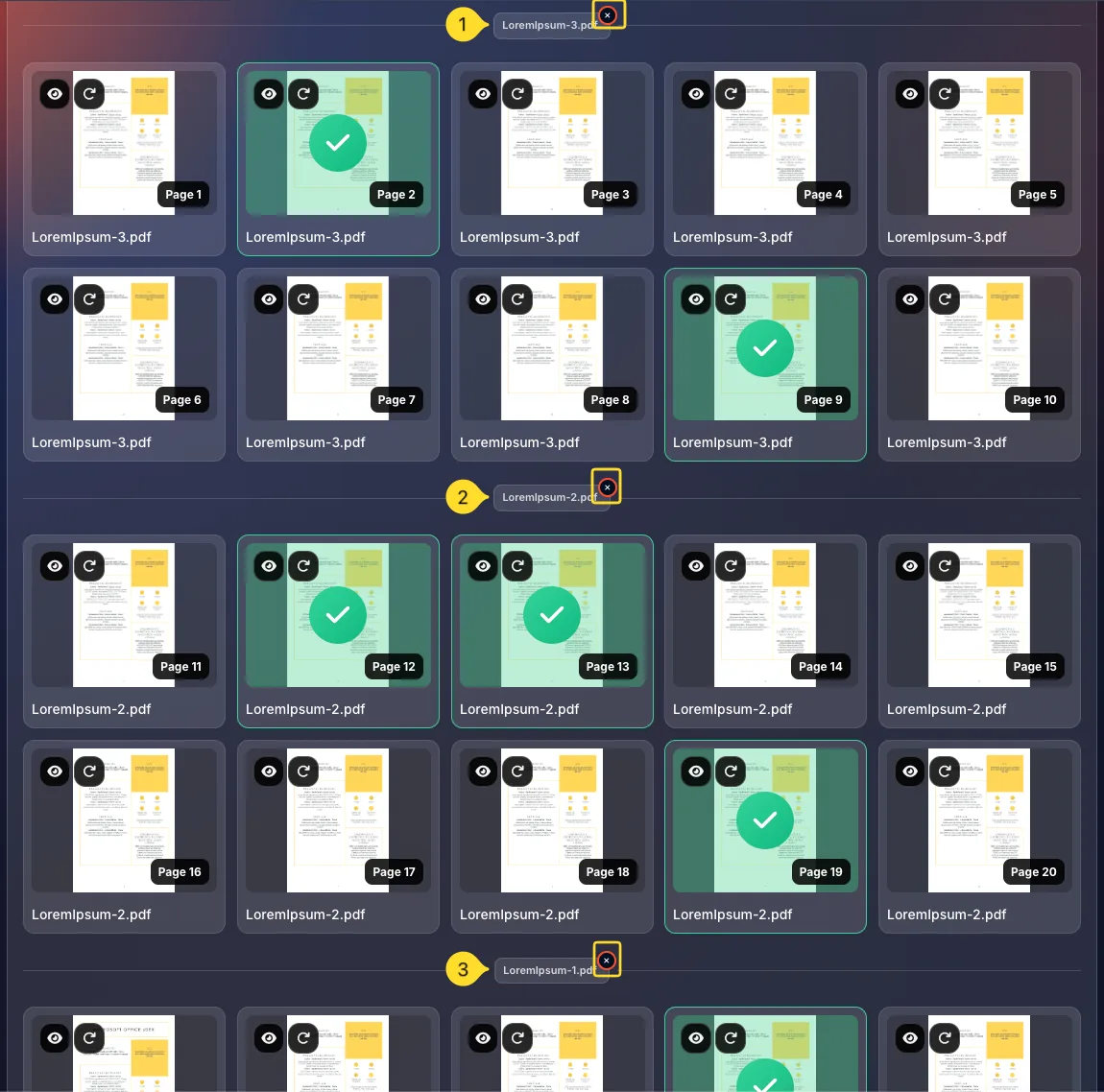
Add several PDF files using any upload method. All pages from all files appear together in the thumbnail grid.
Identify source files
Each page thumbnail shows the source filename below it. This helps you identify which pages came from which PDF when you have multiple files loaded.
Select across files
Select pages from any combination of files - for example:
• Pages 1-3 from Report.pdf
• Pages 5, 7 from Presentation.pdf
• Page 12 from Manual.pdf
All selected pages will be combined into your output.
Total page count
The header badge shows the total page count across all uploaded files.
Example: 3 PDFs with 20, 15, and 11 pages = "46 pages" badge.
Remove all files
Click the trash button next to the header to remove all uploaded files and start fresh.

Extract mode
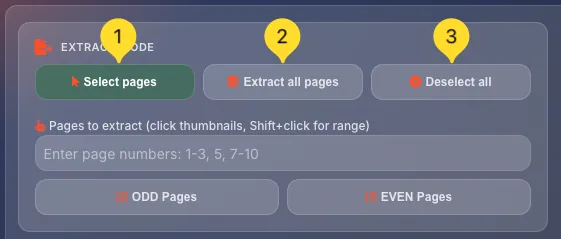
The EXTRACT MODE panel offers three quick options for selecting pages:
Select pages
The default mode. Click individual page thumbnails to select them. Selected pages are visually highlighted.
Extract all pages
Click Extract all pages to select every page from all uploaded PDFs. All thumbnails become selected. Useful when you want most pages.
Deselect all
Click Deselect all to clear all selections across all files. Start fresh with no pages selected.
Page selection methods
You have multiple ways to select which pages to extract:
Click thumbnails
Click any page thumbnail to toggle its selection. Selected pages are visually highlighted. Click again to deselect.
Shift-click for range
The tip says: "click thumbnails, Shift+click for range"
To select consecutive pages - click the first page, hold Shift, then click the last page. All pages between them are selected.
Type page numbers
Use the page range input field:
• Placeholder shows: Enter page numbers: 1-3, 5, 7-10
• Type ranges like 1-5 for pages 1 through 5
• Type individual pages like 1, 3, 7
• Combine: 1-3, 5, 7-10
ODD Pages button
Click ODD Pages to select pages 1, 3, 5, 7... from all files. Useful for extracting one side of double-sided scans.
EVEN Pages button
Click EVEN Pages to select pages 2, 4, 6, 8... from all files. Useful for extracting the other side of double-sided scans.
Page thumbnails
Each page appears as an interactive thumbnail card in the grid. Here's what each element shows:
Page preview
The main area shows a visual thumbnail of the page content. This helps you identify pages before selecting them.
Page number badge
A badge in the bottom-right corner shows the page number ("Page 1", "Page 2"...). This is the page's position in its source PDF.
Source filename
Below the thumbnail, you'll see the source filename (truncated with "..." if long). This tells you which PDF this page came from - especially useful when you have multiple files uploaded.
Selection indicator
Selected pages are visually highlighted. This makes it easy to see at a glance which pages you've chosen.
Action buttons
Each thumbnail has two action buttons in the top-left corner:
• Preview (eye icon)
• Rotate (rotate icon)
Page actions
Each page thumbnail has action buttons for preview and rotation:
Preview button (eye icon)
Click the eye icon in the top-left corner to open a larger preview of the page. Use this to verify page content before deciding whether to include it in your extraction.
Rotate button (rotate icon)
Click the rotate icon next to the eye to rotate this specific page 90° clockwise. Click multiple times for more rotation:
• 1 click = 90° (landscape)
• 2 clicks = 180° (upside down)
• 3 clicks = 270° (landscape other way)
• 4 clicks = 360° (back to original)
Individual rotation
Page rotation is per-page: you can rotate some pages while leaving others unchanged. This is separate from the "Unify page orientation" export option which affects all pages globally.
Export options
The EXPORT OPTIONS panel controls how your extracted pages are saved:
Unify page orientation
When checked: All pages are rotated to match the same orientation (all portrait or all landscape).
When unchecked: Each page keeps its original or individually-set rotation.
Custom output filename
When checked: You can specify a custom name for the output PDF file.
When unchecked: The tool uses a default name based on source files and selected pages (e.g., "extracted_pages.pdf" or "filename_pages_1-5.pdf").
Statistics counters
At the bottom-right of the screen, two counters show your extraction status:
Pages counter
Shows the total page count across all uploaded PDFs. Example: "46 PAGES". This is the total available pages to choose from.
Selected counter
Shows how many pages you've selected with an orange background. Example: 0 SELECTED when no pages are chosen, 12 SELECTED after selecting 12 pages.
This counter updates in real-time as you select/deselect pages.

Extracting & downloading
Once you've selected your pages, here's how to complete the extraction:
Review your selection
Before extracting, verify:
• The SELECTED counter shows the expected number
• Highlighted pages are the ones you want
• Export options are configured correctly
Click EXTRACT PAGES
Click the orange EXTRACT PAGES button (with scissors icon) at the bottom-center of the screen. The extraction process begins.
Wait for processing
A progress indicator shows the extraction status. Processing time depends on:
• Number of selected pages
• Size of source PDFs
• Any rotation/orientation changes
• Your device's processing power
Download the result
Once complete, the result downloads automatically:
• Single file: Downloads as a PDF with your custom filename or auto-generated name
• Multiple files: When extracting separate PDFs, downloads as a ZIP archive containing all extracted files
Verify the output
Open the downloaded PDF to verify:
• All selected pages are included
• Page order is correct
• Rotations are correct
• Content looks as expected