Overview
The Percentage Calculator handles all your percentage math needs with 5 specialized calculation modes. Whether you need to calculate a discount, find percentage change, or reverse-engineer an original price, this tool makes it instant and easy.
Interface overview
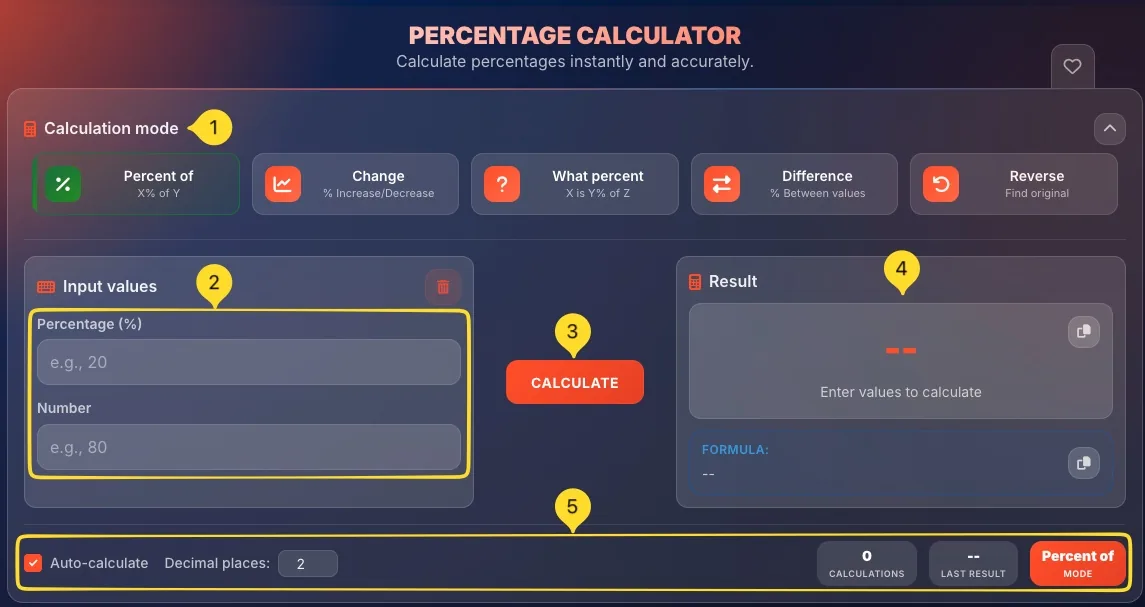
The Percentage Calculator has a clean layout with mode selection at the top, input fields on the left, and results on the right.
Calculation mode section
At the top, you see 5 mode buttons in a row. The active mode is visually highlighted. Click any button to switch modes. The section can be collapsed with the arrow icon on the right.
Input values section (left)
The left panel contains input fields that change based on the selected mode. Each mode has different fields like Percentage (%), Number, Original, New, etc. A trash icon clears all inputs.
CALCULATE button
The orange CALCULATE button sits between input and result areas. Click it to calculate (or enable Auto-calculate for instant results).
Result section (right)
The right panel shows your result with a large number display and a FORMULA section below showing the calculation. Both have copy buttons.
Bottom settings bar
At the bottom: Auto-calculate toggle, Decimal places selector, CALCULATIONS counter, LAST RESULT display, and current MODE indicator.
5 Calculation modes
The Percentage Calculator offers 5 specialized modes, each designed for a specific type of percentage calculation. Click any mode button to switch:
• Percent of: Find X% of a number (X% of Y)
• Change: Calculate percentage increase or decrease
• What percent: Find what percentage X is of Y
• Difference: Calculate % difference between two values
• Reverse: Find the original value before a % change
Each mode changes the input fields to match what that calculation needs.
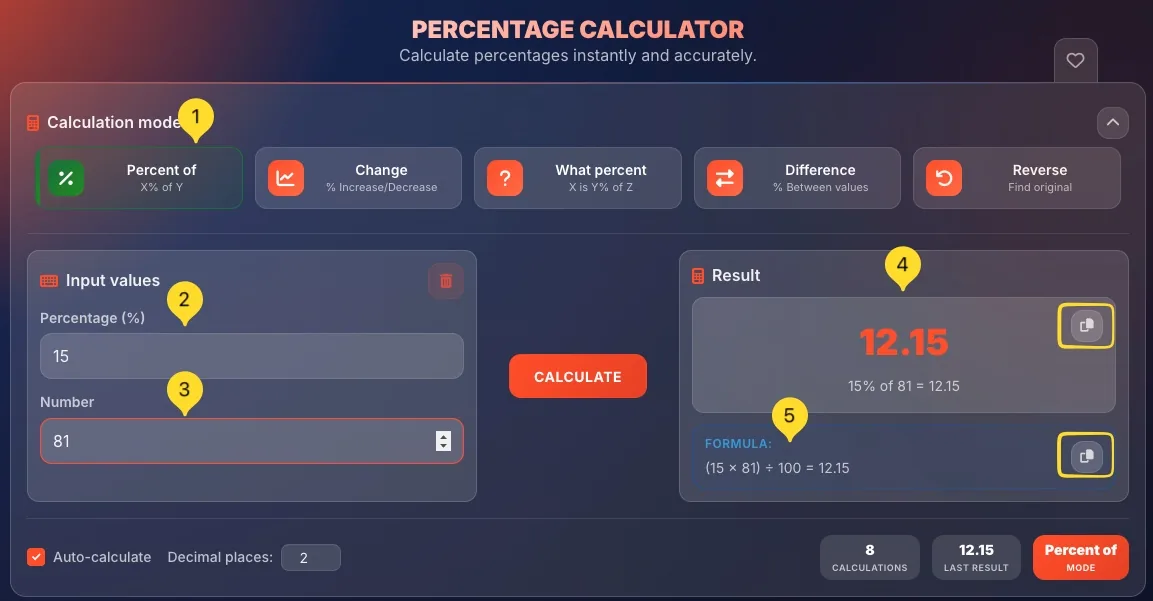
Percent of mode X% of Y
The most common percentage calculation. Find what a percentage of a number equals.
Select Percent of mode
Click the Percent of button (shows "X% of Y" below it). It's usually the first/default mode.
Enter the percentage
In the Percentage (%) field, enter the percentage as a number. For 15%, type 15 (not 0.15). Placeholder shows "e.g., 20".
Enter the number
In the Number field, enter the value you want to find a percentage of. Placeholder shows "e.g., 80".
View the result
The result shows immediately.
Example: 20% of 80 = 16.
The FORMULA section shows: 20% × 80 = 16.
Tax: 8% of $100 = $8
Discounts: 25% of $80 = $20 savings
Change mode % Increase/Decrease
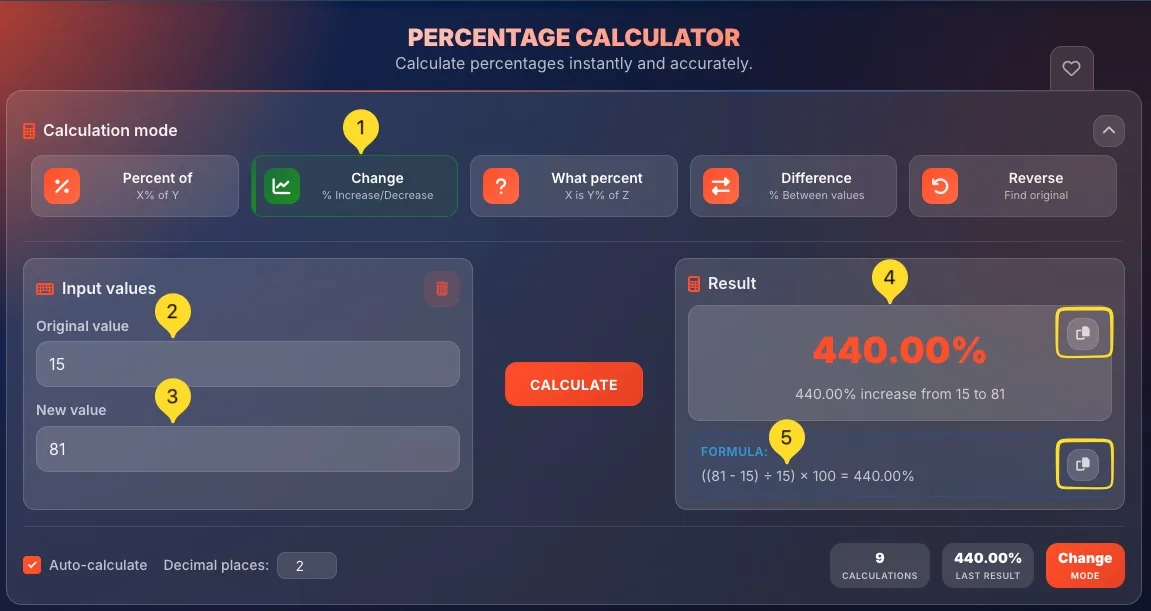
Calculate the result after a percentage increase or decrease. Perfect for price changes, tax additions, and discounts.
Select Change mode
Click the Change button (shows % Increase/Decrease below it).
Enter the starting value
In the Number or Original value field, enter your starting amount. This is the "before" value.
Enter the percentage change
In the Percentage (%) field, enter the increase or decrease percentage. Use positive for increase, negative for decrease (or there may be separate +/- toggle).
View the new value
Result shows the value after the change.
Example: 100 increased by 25% = 125.
Formula: 100 × 1.25 = 125.
Decrease: 100 - 20% = 80 (multiply by 0.80)
What percent mode X is Y% of Z
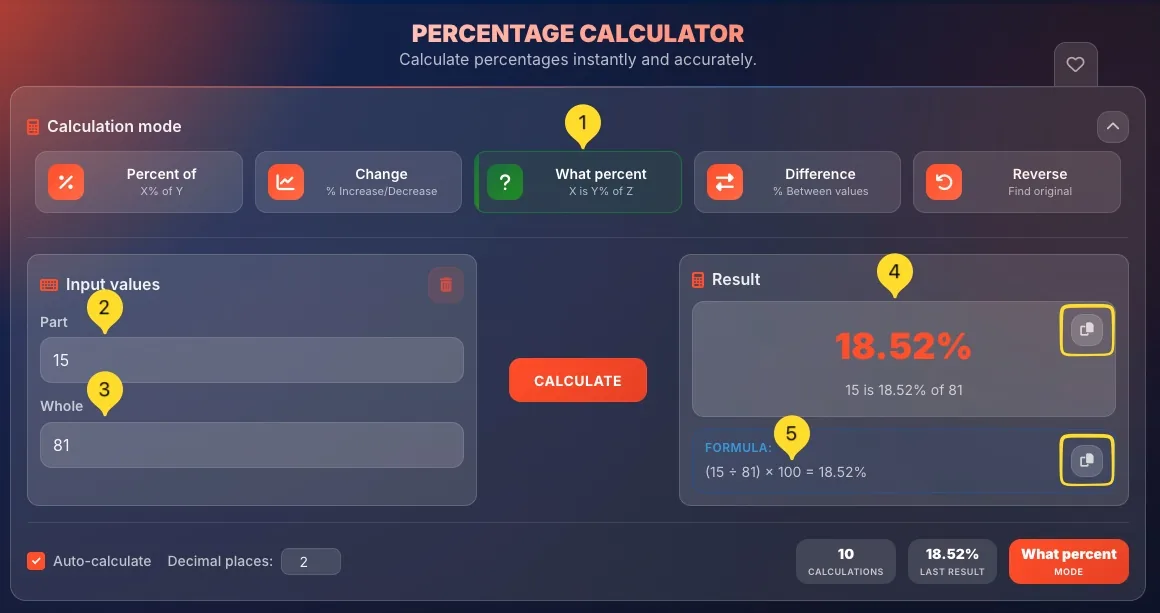
Find what percentage one number is of another. Great for test scores, proportions, and comparisons.
Select What percent mode
Click the What percent button (shows "X is Y% of Z" below it).
Enter the part (X)
In the first field, enter the smaller number or the "part". This is what you want to express as a percentage.
Enter the whole (Z)
In the second field, enter the larger number or the "whole". This is the total or base value.
View the percentage
Result shows the percentage.
Example: 42 is 84% of 50.
Formula: (42 ÷ 50) × 100 = 84%.
Savings rate: $300 saved of $2000 income = 15%
Completion: 75/100 tasks = 75%
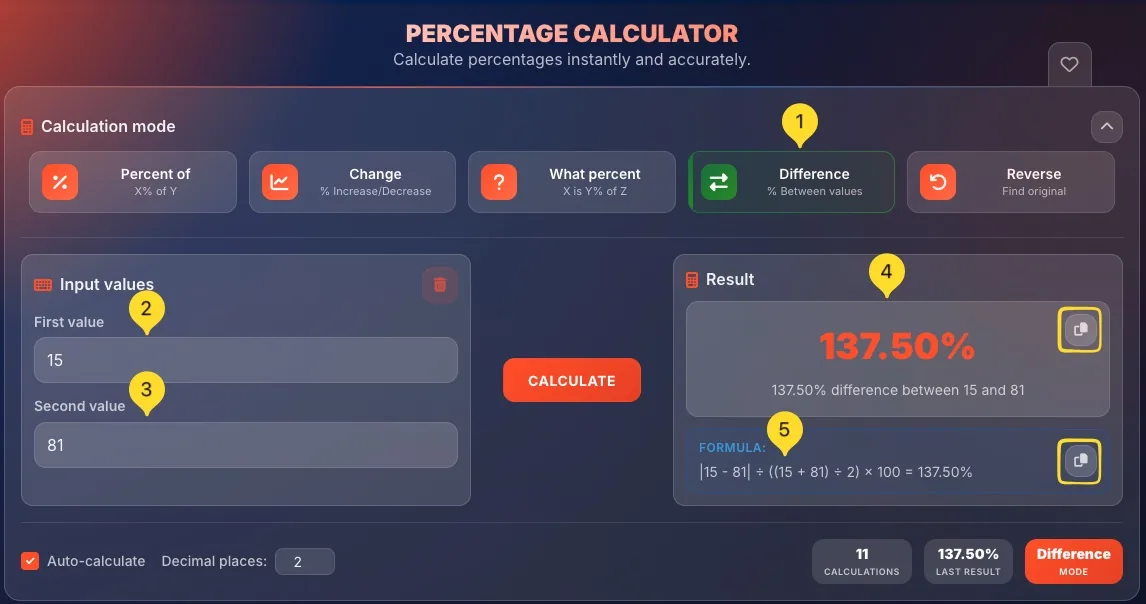
Difference mode % Between values
Calculate the percentage difference or change between two values. Useful for comparing prices, tracking growth, or measuring change over time.
Select Difference mode
Click the Difference button (shows % Between values below it).
Enter the original value
In the Original or From field, enter the starting/old value. This is your reference point.
Enter the new value
In the New or To field, enter the ending/new value. This is what you're comparing to.
View the % difference
Result shows the percentage change.
Example: From 80 to 100 = +25% increase.
Formula: ((100 - 80) ÷ 80) × 100 = 25%.
Negative % = decrease (new < old)
Example: 100 to 75 = -25%
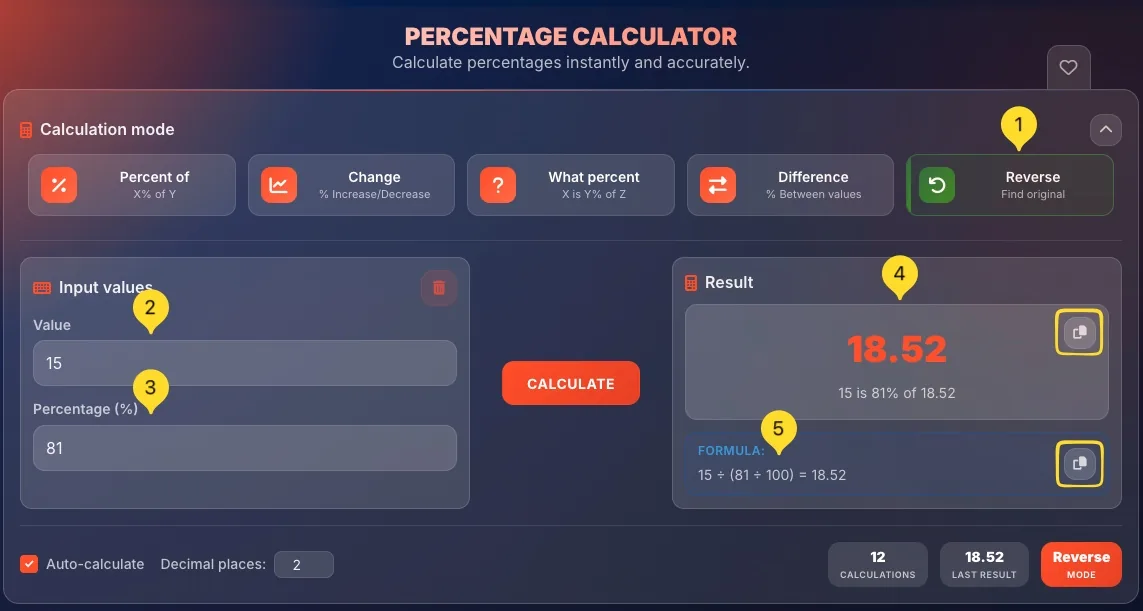
Reverse mode Find original
Find the original value before a percentage change was applied. Perfect for figuring out pre-discount prices or original amounts.
Select Reverse mode
Click the Reverse button (shows Find original below it).
Enter the final value
In the Final value or After field, enter the value after the percentage change. This is what you have now.
Enter the percentage change
In the Percentage (%) field, enter the percentage that was applied. Use negative for discounts, positive for increases.
View the original
Result shows the original value.
Example: $80 after 20% off → Original was $100.
Formula: 80 ÷ 0.80 = 100.
Result & formula display
The result section shows your answer and the mathematical formula used:
Settings & statistics bar
The bottom bar provides settings and tracks your calculation history.
Auto-calculate toggle
When checked (default), results update instantly as you type. When unchecked, you must click CALCULATE button manually.
Decimal places selector
Choose how many decimal places to show in results. Default is 2. Options range from 0 to 10. Affects display precision.
CALCULATIONS counter
Shows total number of calculations performed in this session.
Example: "67 CALCULATIONS". Resets when you close the tool.
LAST RESULT display
Shows your most recent calculation result for quick reference. Shows "--" if no calculations yet.
MODE indicator
Orange badge showing current active mode. Example: "Percent of MODE". Quick visual confirmation of which calculation type is selected.

Practical examples
Change mode: 80 decreased by 25% = $60. You pay $60, save $20.
Percent of mode: 18% of 45 = $8.10.
Total with tip: $53.10.
What percent mode: 42 is what % of 50 = 84%.
Difference mode: from 3.20 to 4.00 = +25% increase.
Reverse mode: What was original? = $150.
Change mode: 50 increased by 8% = $54 total.
Frequently asked questions
Example: Original $100, 25% off → enter 100, -25% → result $75.
Or use Percent of to find just the discount amount (25% of 100 = $25).
Example: Paid $80 after 20% off → enter 80, -20% → original was $100.
• Difference mode: you know two values, want the percentage (80 → 100 = +25%)
Note: This is NOT the same as 15% increase (which would be 115).