Overview
The QR Code generator is the one of the most powerful and feature-rich tool on MORELESS.TOOLS. It supports 14 different QR code types, extensive customization options, batch generation, and multiple export formats. Whether you need a simple URL QR code or hundreds of unique codes from a CSV file, this tool has you covered.
Interface overview
The QR Code Generator interface is divided into several key areas. Understanding this layout will help you work efficiently.
Type selector (top)
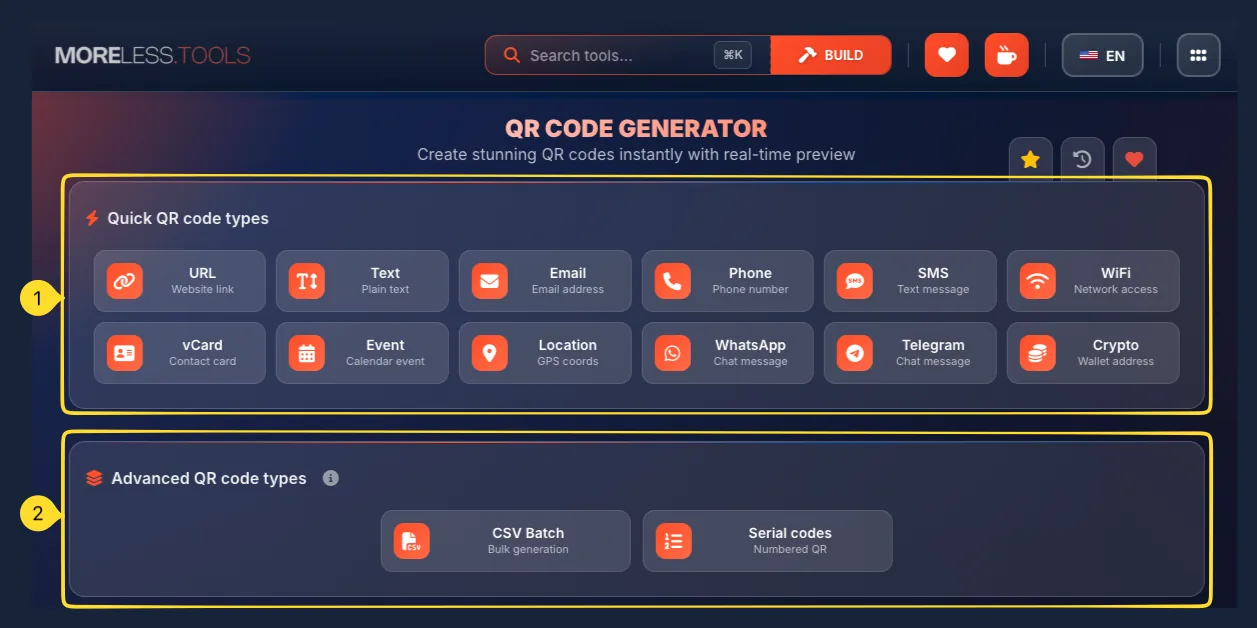
At the top, you'll find two sections for selecting your QR code type:
• Quick QR code types: 12 everyday types for common use cases (URL, Text, Email, Phone, SMS, WiFi, vCard, Event, Location, WhatsApp, Telegram, Crypto)
• Advanced QR code types: CSV Batch and Serial codes for bulk generation of multiple QR codes at once
Left panel - Input & Settings (Quick types)
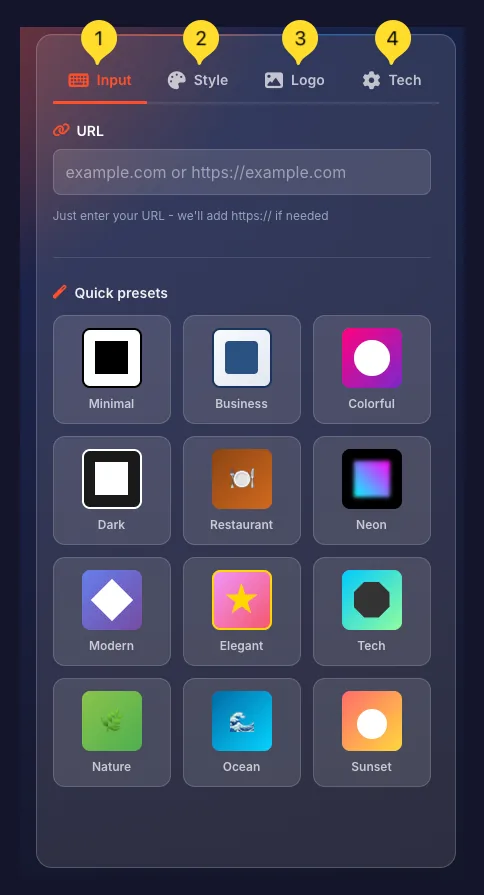
For Quick QR code types, the left side contains 4 tabs:
• Input: content entry form specific to the selected type + Quick presets section
• Style: colors, patterns, and gradient options
• Logo: upload and configure a logo overlay
• Tech: error correction level and quiet zone settings
Note: For Advanced types (CSV Batch, Serial), the interface is different - it shows upload/configuration options and a grid of generated QR codes instead of these tabs.
Right panel - Live preview
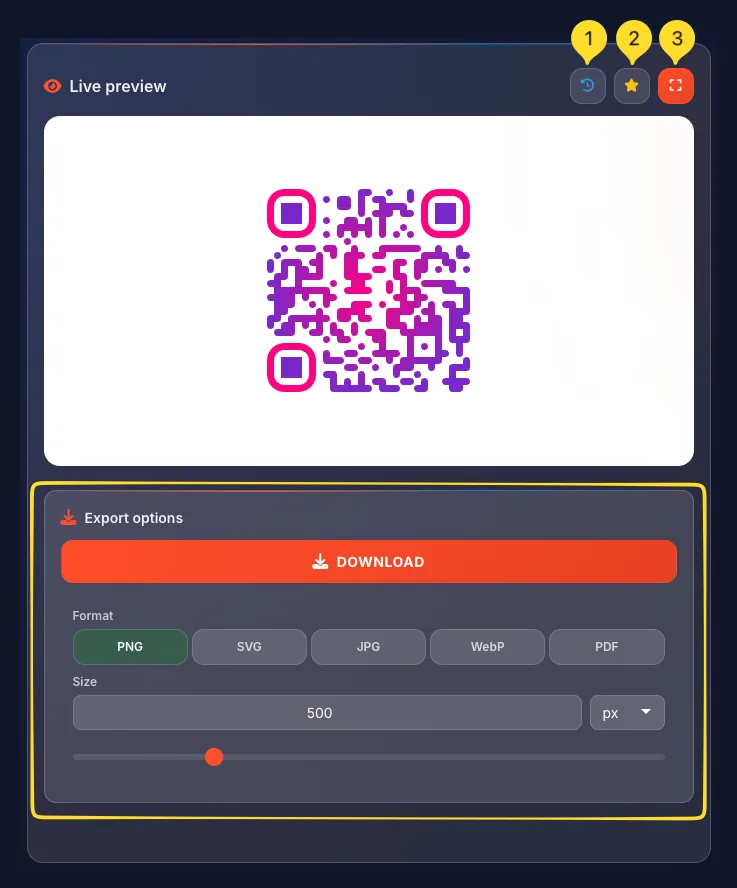
The right side shows your QR code in real-time. Above the preview are three buttons:
• History (clock icon) - view recently generated QR codes
• Preset Manager (star icon) - save current QR code configuration as a preset for later use
• Fullscreen (expand icon) - view QR code in fullscreen mode for easy scanning
Export section
Below the preview is the Export options section with download button, format selector, and size controls.
Tool tabs (right edge)
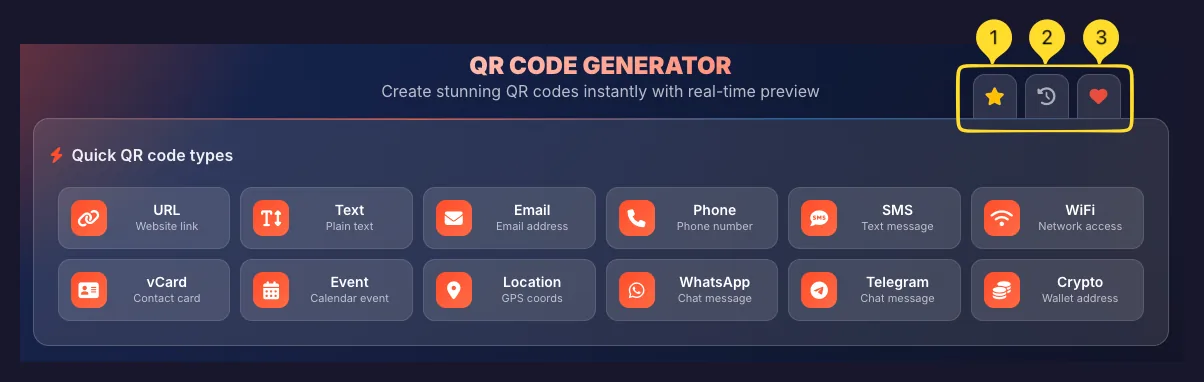
On the right edge of the screen, you'll find the tool tabs:
• Preset Manager (star icon) - manage your saved QR code presets
• History (clock icon) - view your QR code generation history
• Favorites (heart icon) - add this tool to your favorites for quick access from the homepage
URL - Website link Most popular
Create QR codes that link to any website. When scanned, the phone opens the URL in the browser.
Select URL type
Click the URL button in the Quick QR code types section. It shows a link icon and Website link description.
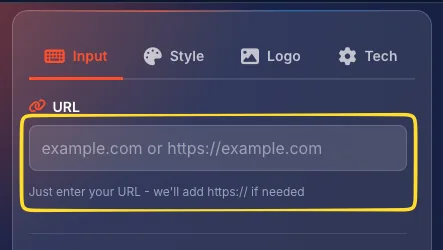
Enter your URL
Type or paste your website address. You can enter it with or without https:// - we'll add it automatically if needed. Example: moreless.tools or https://moreless.tools
Preview and export
The QR code updates instantly in the Live preview. Customize the style if needed, then download in your preferred format.
Text - Plain text
Encode any plain text message into a QR code. When scanned, the text is displayed on the phone.
Select Text type
Click the Text button with the Plain text description.
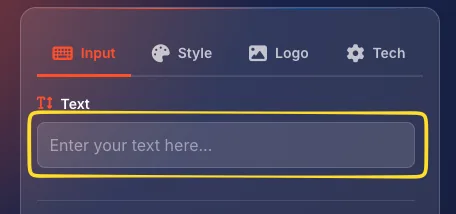
Enter your message
Type or paste any text you want to encode. The limit is approximately 4,296 characters, but shorter is better for reliable scanning.
Preview and export
Your QR code is generated instantly. Download or copy it.
Email - Email address
Create QR codes that open a new email draft when scanned. You can pre-fill the recipient, subject, and body.
Select Email type
Click the Email button with the envelope icon.
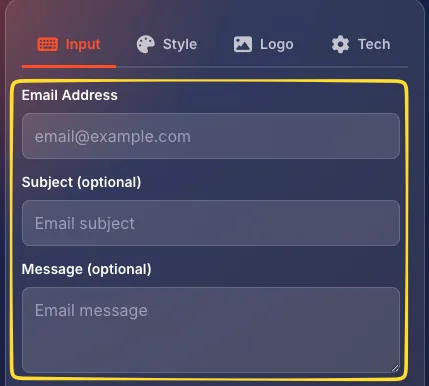
Enter email details
Fill in the form fields:
• Email address (required) - the recipient's email
• Subject (optional) - pre-filled email subject line
• Body (optional) - pre-filled email message
Test and export
Scan the preview with your phone to verify the email opens correctly, then export.
Phone - Phone number
Generate QR codes that initiate a phone call when scanned.
The phone's dialer opens with the number pre-filled.
Select Phone type
Click the Phone button with the phone icon.
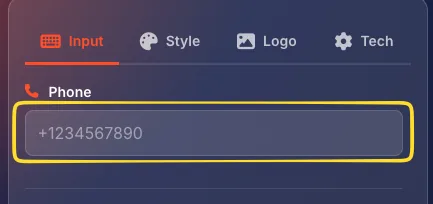
Enter phone number
Type the phone number including country code for international use. Example +15551234567
Enter the number exactly as you want it stored - without spaces or formatting.
Export
Generate and download your QR code.
SMS - Text message
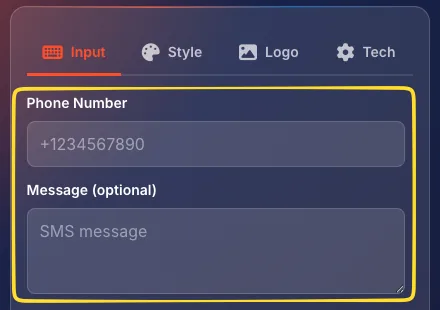
Create QR codes that open the SMS app with a pre-filled phone number and message.
Select SMS type
Click the SMS button with the message bubble icon.
Enter details
Fill in the form:
• Phone number (required) - recipient's phone number with country code
• Message (optional) - pre-written message text
Export
Download your QR code.
WiFi - Network access Very popular
Generate QR codes that allow instant WiFi connection. Users scan the code and connect without typing the password.
Select WiFi type
Click the WiFi button with the wireless icon.
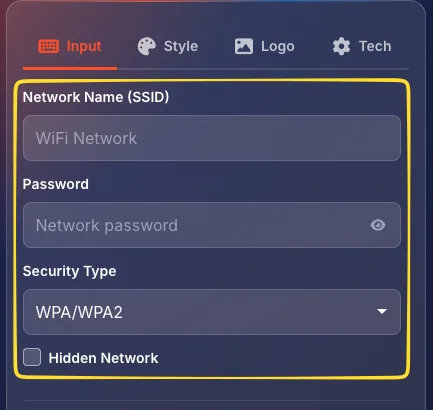
Enter network details
Fill in the network information:
• Network name (SSID): exactly as it appears on your router
• Password: your WiFi password
• Security type: select WPA/WPA2 (most common), WEP, or None
• Hidden network: check this box if your network doesn't broadcast its SSID
Export and display
Print the QR code and display it where guests can scan it. Frame it near your entrance or on a table.
Important: For security reasons, WiFi passwords are never saved in history or presets. When you load a WiFi QR code from history or a preset, you'll need to re-enter the password.
vCard - Contact card Business
Create QR codes containing full contact information. When scanned, the contact is added directly to the phone's address book.
Select vCard type
Click the vCard button with the contact card icon.
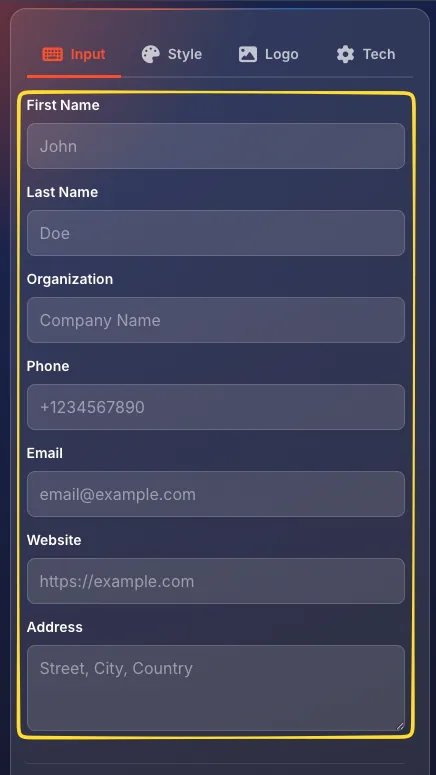
Fill in contact details
Complete the form with your information:
• First Name: your first name
• Last Name: your last name
• Organization: company name
• Phone: phone number with country code
• Email: email address
• Website: personal or company URL
• Address: street, city, country
Review and export
Only fill in fields you want to share. More data = more complex QR code = harder to scan. Focus on essential info.
Event - Calendar event
Generate QR codes that add an event to the scanner's calendar. Perfect for invitations, conferences, and appointments.
Select Event type
Click the Event button with the calendar icon.
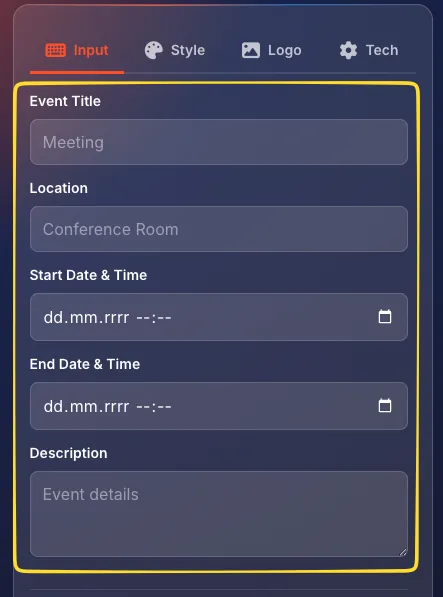
Enter event details
Fill in the event information:
• Event name: title of the event
• Location: where the event takes place
• Start date and time: when it begins
• End date and time: when it ends
• Description (optional) - additional details
• All-day event: check if no specific times
Export
Download and add to your invitation or poster. Guests scan to add the event to their calendar.
Location - GPS coords
Create QR codes that open a map at specific coordinates. Users scan and get directions to your location.
Select Location type
Click the Location button with the map pin icon.
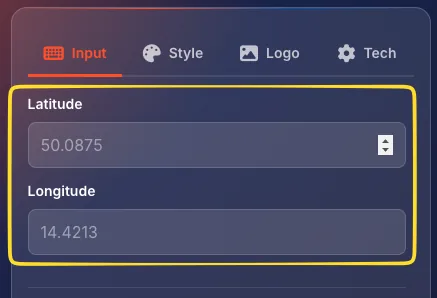
Enter coordinates
Fill in the location data:
• Latitude: in decimal format (e.g., 40.7128)
• Longitude: in decimal format (e.g., -74.0060)
You can find these from Google Maps by right-clicking any location and selecting "What's here?".
Export
When scanned, the map app opens with directions to this exact location.
WhatsApp - Chat message
Generate QR codes that open WhatsApp with a pre-filled message to a specific number.
Select WhatsApp type
Click the WhatsApp button with the WhatsApp icon.
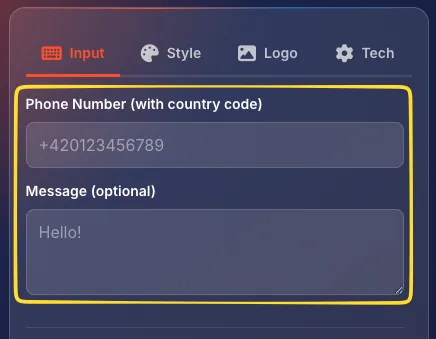
Enter details
Fill in the form:
• Phone number: include country code (e.g., +420123456789)
• Message (optional) - pre-filled message text
Export
When scanned, WhatsApp opens with the chat ready to send.
Telegram - Chat message
Create QR codes that open a Telegram chat or channel.
Select Telegram type
Click the Telegram button with the Telegram icon.
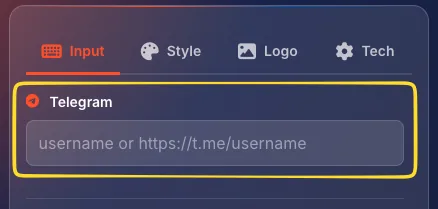
Enter username
Enter your Telegram Username (without the @ symbol). For groups or channels, enter the public link name.
Export
When scanned, Telegram opens your profile or channel.
Crypto - Wallet address
Generate QR codes for cryptocurrency wallet addresses. Supports Bitcoin (BTC), Ethereum (ETH), and Litecoin (LTC).
Select Crypto type
Click the Crypto button with the coins icon.
Select cryptocurrency
Choose your cryptocurrency type from the dropdown: Bitcoin (BTC), Ethereum (ETH), or Litecoin (LTC).
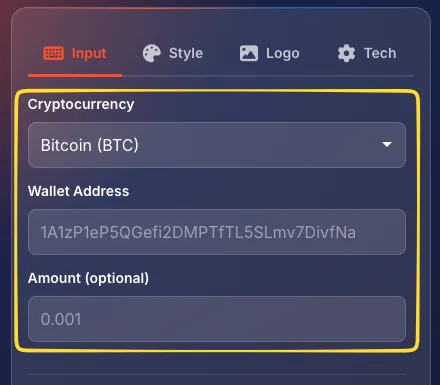
Enter wallet address
Paste your wallet address. The format depends on the cryptocurrency selected.
Amount (optional)
Optionally pre-fill a requested amount.
Export
When scanned by a crypto wallet app, it pre-fills your address for payment.
CSV Batch - Bulk generation Advanced
Generate hundreds of unique QR codes from a CSV file. Each row becomes a separate QR code. Perfect for inventory, badges, or marketing campaigns.
Select CSV Batch type
Click the CSV Batch button in the Advanced section.

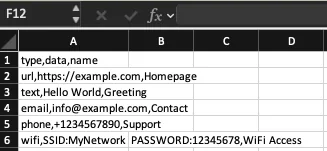
Prepare your CSV file
Create a CSV file with columns for your data. The first row should be headers. One column will contain the QR code content. You can also download a template directly from the tool to get started quickly.
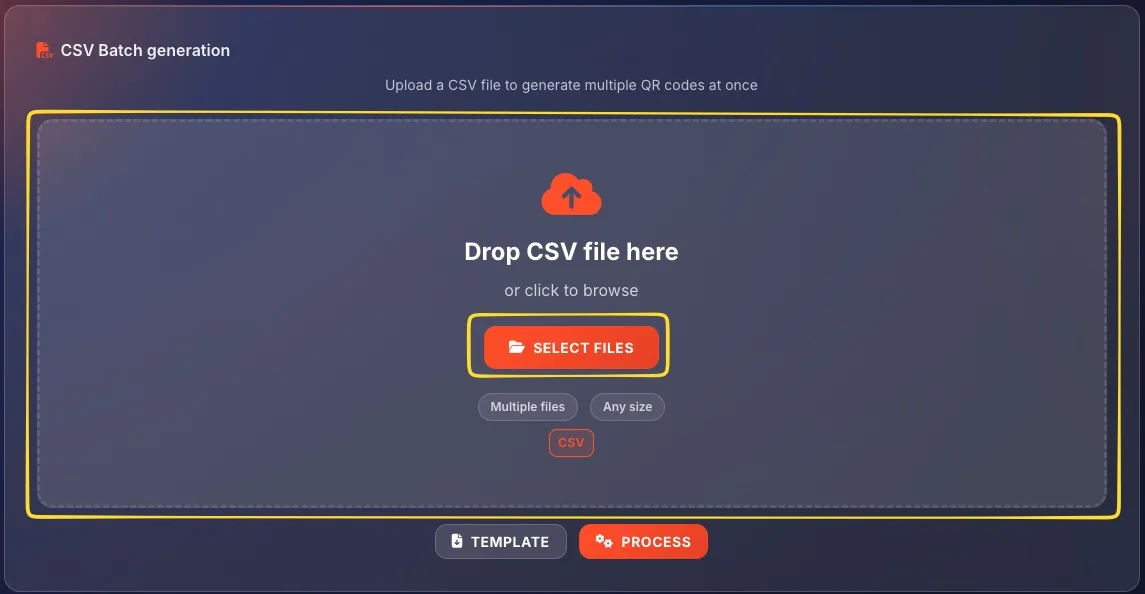
Upload CSV
Click Upload CSV or drag and drop your file.
Configure style and export
Before generating, configure the output:
• Style: click to customize colors and patterns for all QR codes
• Tech: click to set error correction level
• Size: use the slider or enter exact dimensions in px, cm, mm, or inch
• Format: choose export format (PNG, SVG, JPG, WebP, PDF)
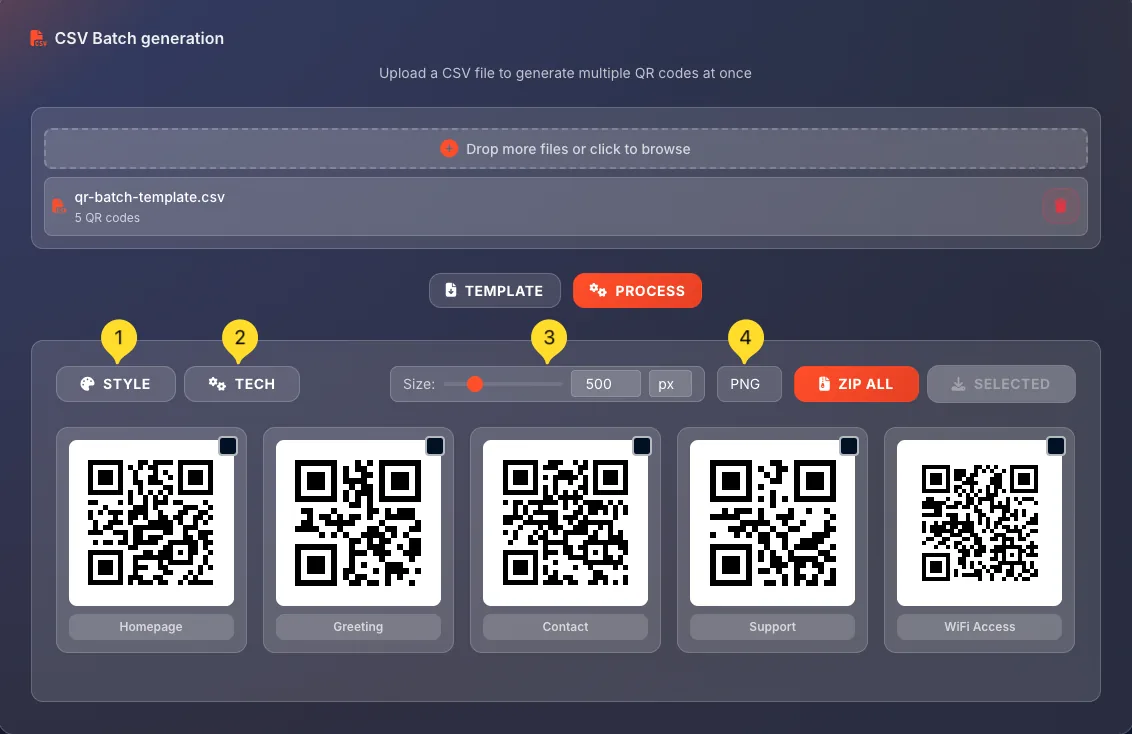
Generate and download
QR codes are generated for each row and shown in a grid. Click ZIP ALL to download all codes as a ZIP file, or select specific codes and click SELECTED to download only those.
url,product_name,sku
https://shop.example.com/product/1,Widget A,SKU-001
https://shop.example.com/product/2,Widget B,SKU-002
https://shop.example.com/product/3,Widget C,SKU-003
Serial codes - Numbered QR Advanced
Generate a series of sequentially numbered QR codes. Ideal for tickets, inventory labels, or any numbered items.
Select Serial codes type
Click the Serial codes button in the Advanced section.

Set the pattern
Enter a pattern using {n} as the placeholder for the number. Example: TICKET-{n} generates TICKET-0001, TICKET-0002, etc.
Configure range
Set Start number (e.g., 1) and End number (e.g., 100). The tool will generate QR codes for the entire range.
Set padding
Choose number padding: how many digits to use. Padding of 4 means 0001, 0002... instead of 1, 2...
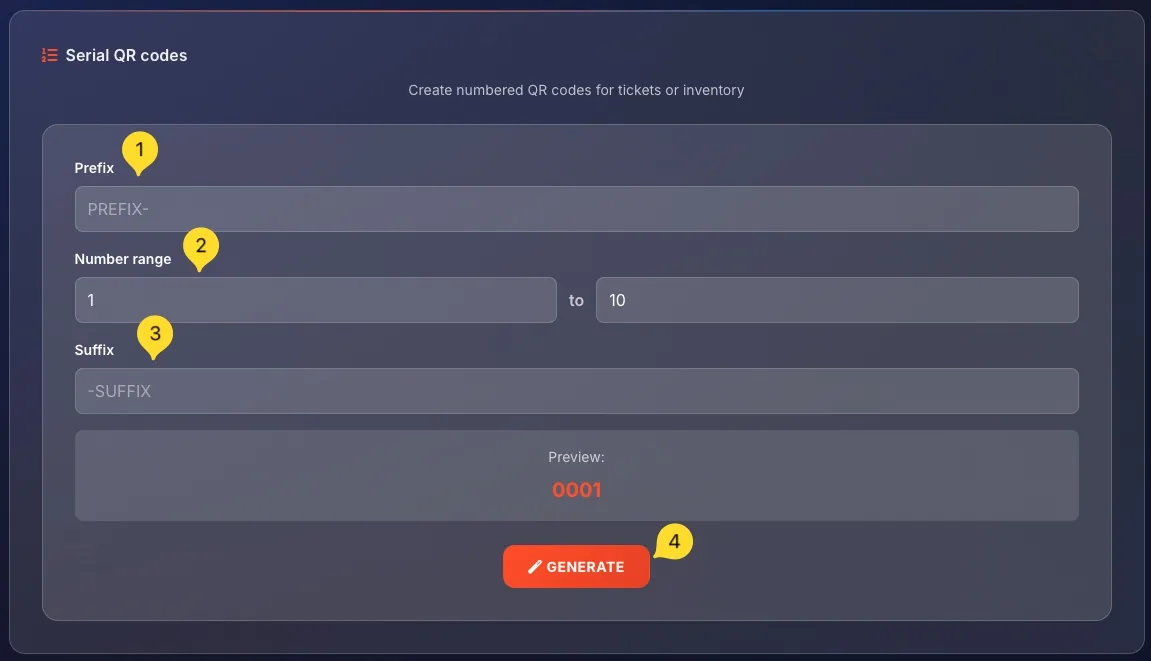
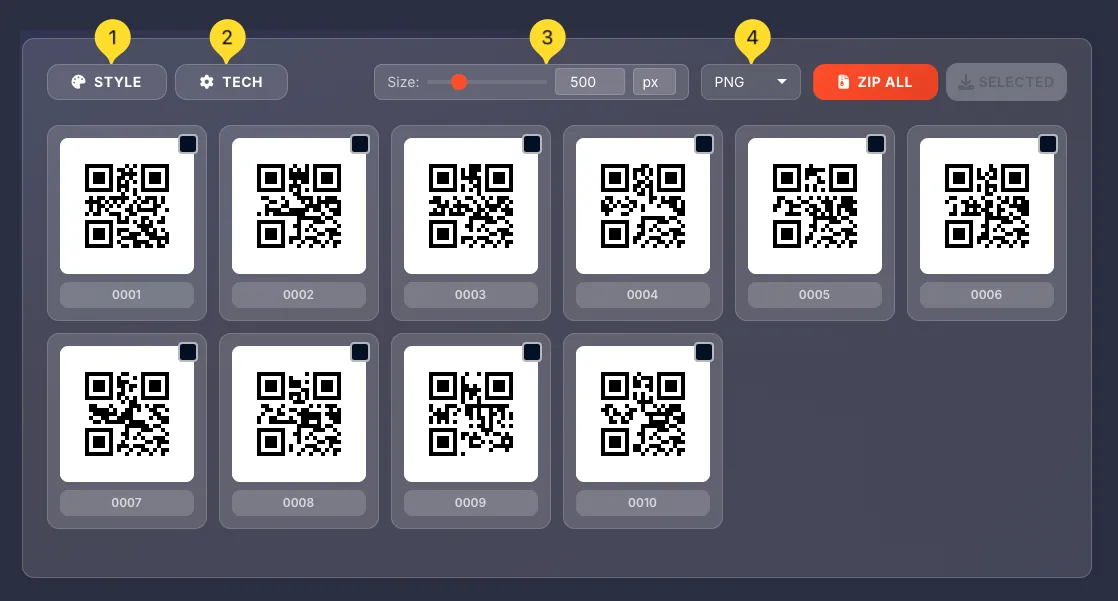
Configure style and export
Before generating, configure the output:
• Style: click to customize colors and patterns for all QR codes
• Tech: click to set error correction level
• Size: use the slider or enter exact dimensions in px, cm, mm, or inch
• Format: choose export format (PNG, SVG, JPG, WebP, PDF)
Generate and download
QR codes appear in a grid. Use ZIP ALL or SELECTED to download.
TICKET-{n}         → TICKET-0001, TICKET-0002...
INV-2026-{n}       → INV-2026-0001, INV-2026-0002...
https://site.com/{n} → https://site.com/0001...
Input tab
The Input tab is the first tab in the left panel (for Quick QR code types only). It contains the content entry form for the selected QR code type, plus the Quick presets section for instant styling.
Content entry form
The top part shows input fields specific to your selected QR code type. For URL, it's a single URL field. For vCard, it's multiple contact fields. For WiFi, it's network name, password, and security settings.
Quick presets section
Below the input fields, you'll find Quick presets: 12 pre-designed style templates you can apply with one click. See the next section for details on each preset.
Quick presets
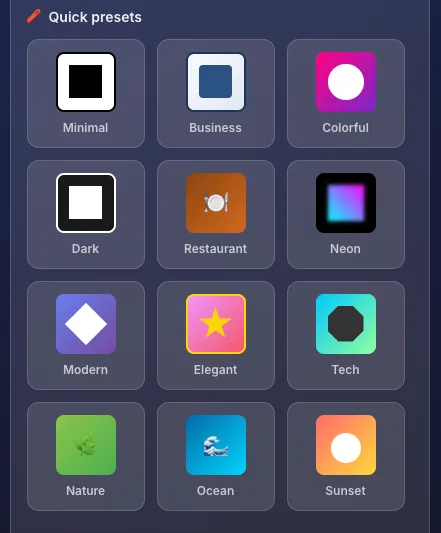
Quick presets are pre-designed style combinations that you can apply with one click. Each preset sets colors, patterns, and other style options automatically. Here are all 12 presets:
Minimal
Classic black and white. Clean, professional, maximum scanning compatibility. The safest choice for any use case.
Business
Dark blue on white background. Professional corporate look suitable for business cards and official documents.
Colorful
Vibrant gradient from pink to purple. Eye-catching and modern, great for creative projects and social media.
Dark
White QR code on dark background. Perfect for dark-themed materials, presentations, and modern designs.
Restaurant
Warm brown/orange tones with plate icon aesthetic. Ideal for menus, food businesses, and hospitality.
Neon
Bright neon colors on dark background. Vibrant and attention-grabbing for nightlife, gaming, and tech events.
Modern
Soft blue/purple gradient with rounded elements. Contemporary and clean for modern brands.
Elegant
Pink/magenta tones with star accent. Luxurious and sophisticated for premium products and events.
Tech
Cyan/teal gradient with octagonal pattern. Tech-forward and digital for software, apps, and IT companies.
Nature
Green earth tones with leaf accent. Organic and eco-friendly for sustainable brands and outdoor events.
Ocean
Blue gradient with wave aesthetic. Fresh and calming for travel, wellness, and water-related businesses.
Sunset
Orange to pink gradient. Warm and inviting for lifestyle brands, events, and summer themes.
Style tab
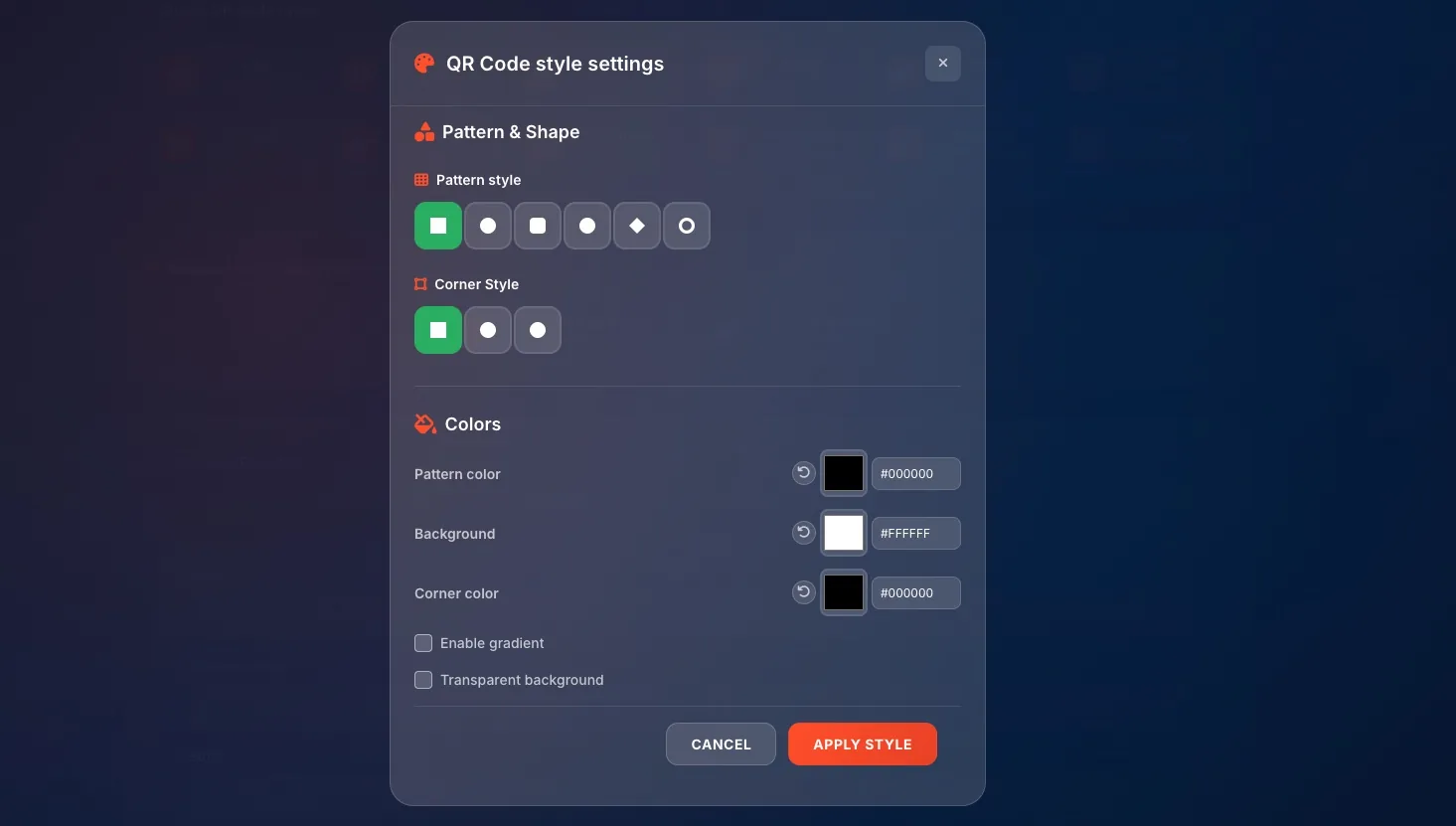
The Style tab provides detailed control over your QR code's appearance. Click the Style tab (palette icon) to access these options.
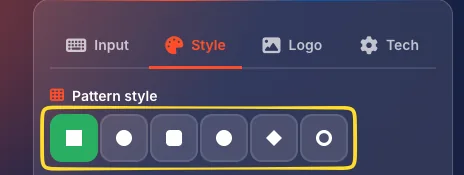
Pattern style
Choose the shape of the main data modules (dots). Options include:
• Square: classic rectangular modules
• Dots: circular modules
• Rounded: squares with rounded corners
• Extra rounded: very rounded corners
• Classy: diamond-shaped modules
• Classy rounded: rounded diamond shapes
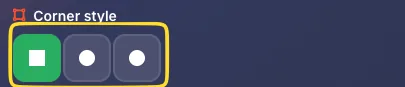
Corner style
Choose the shape of the three large corner squares (finder patterns):
• Square: classic sharp corners
• Dot: circular corner element
• Rounded: soft rounded corners
Pattern color
The color of the QR code modules. Click the color picker or enter a hex code (e.g., #000000 for black). Dark colors on light backgrounds scan best.

Background
The background color behind the QR code. Default is white (#FFFFFF). Click the reset button to restore default.

Corner square color
Separate color for the large corner finder patterns. Can be the same as pattern color or different for visual effect.
Corner dots color
Color for the smaller dots inside the corner squares.
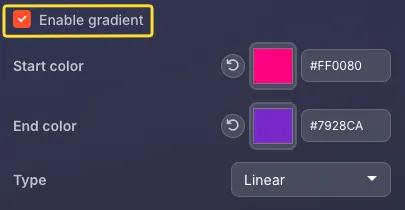
Enable gradient
Check this to use a gradient instead of solid color. When enabled, additional options appear:
• Start color: gradient starting color
• End color: gradient ending color
• Type: Linear or Radial gradient
Transparent background
Check this to make the background transparent (for PNG export). Useful when placing QR codes on colored backgrounds.

Logo tab
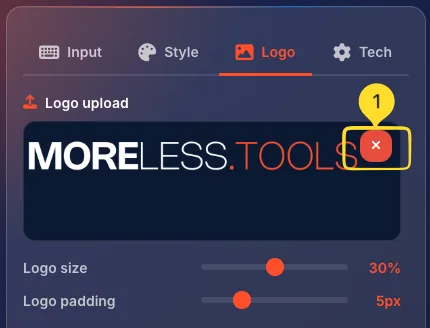
The Logo tab lets you add an image overlay to the center of your QR code. Click the Logo tab (image icon) to access these options.
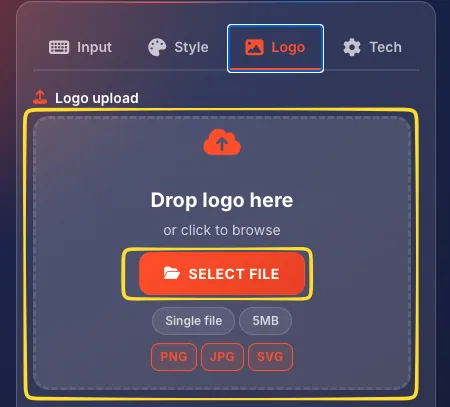
Logo upload
Upload your logo by:
• Drag and drop: drop an image file onto the upload area
• Click to browse: click the upload area or "SELECT FILE" button to browse your files
Supported formats - PNG, JPG, SVG. Maximum file size - 5MB. PNG with transparent background works best.
Logo size
Adjust the Logo size slider to control how large the logo appears. The percentage shown (e.g., 30%) indicates how much of the QR code area the logo covers. Keep it under 30% for reliable scanning.

Logo padding
Adjust the Logo padding slider to add white space around the logo (shown in pixels, e.g., 5px). This improves contrast between the logo and the QR code pattern.

Remove logo
To remove the logo, upload a new image or reload the page to start fresh.
Tech tab
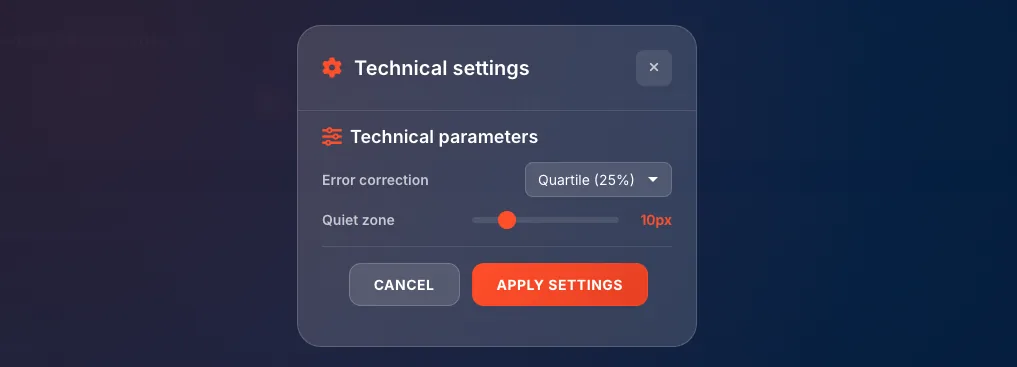
The Tech tab contains technical settings that affect QR code reliability and appearance. Click the Tech tab (gear icon) to access these options.
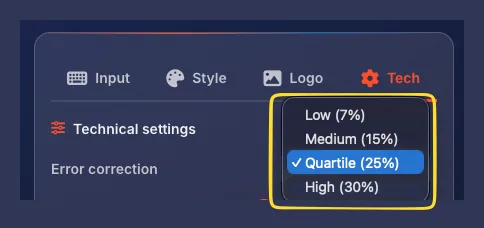
Error correction
How much damage or obstruction the QR code can tolerate and still scan successfully. Options (select from dropdown):
• Low (7%): smallest QR code, least damage tolerance
• Medium (15%): good balance for most uses
• Quartile (25%): higher tolerance, recommended when using a logo
• High (30%): maximum tolerance for harsh conditions (outdoor, industrial)
Quiet zone
The white space (margin) around the QR code. Adjust the slider to set the size in pixels (e.g., 10px). Minimum 4 modules (about 10px) recommended. This helps scanners detect the code edges.

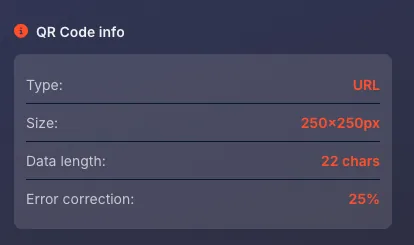
QR Code info
Below the settings, you'll see real-time information about your current QR code:
• Type: the selected QR code type (e.g., Crypto)
• Size: current output dimensions (e.g., 250×250px)
• Data length: how many characters are encoded (e.g., 22 chars)
• Error correction: current error correction level (e.g., 25%)
Live preview panel
The right side of the interface shows your QR code in real-time. Every change you make is instantly reflected in the preview.
Live preview area
The large area displays your current QR code. It updates automatically as you type content or change any settings.
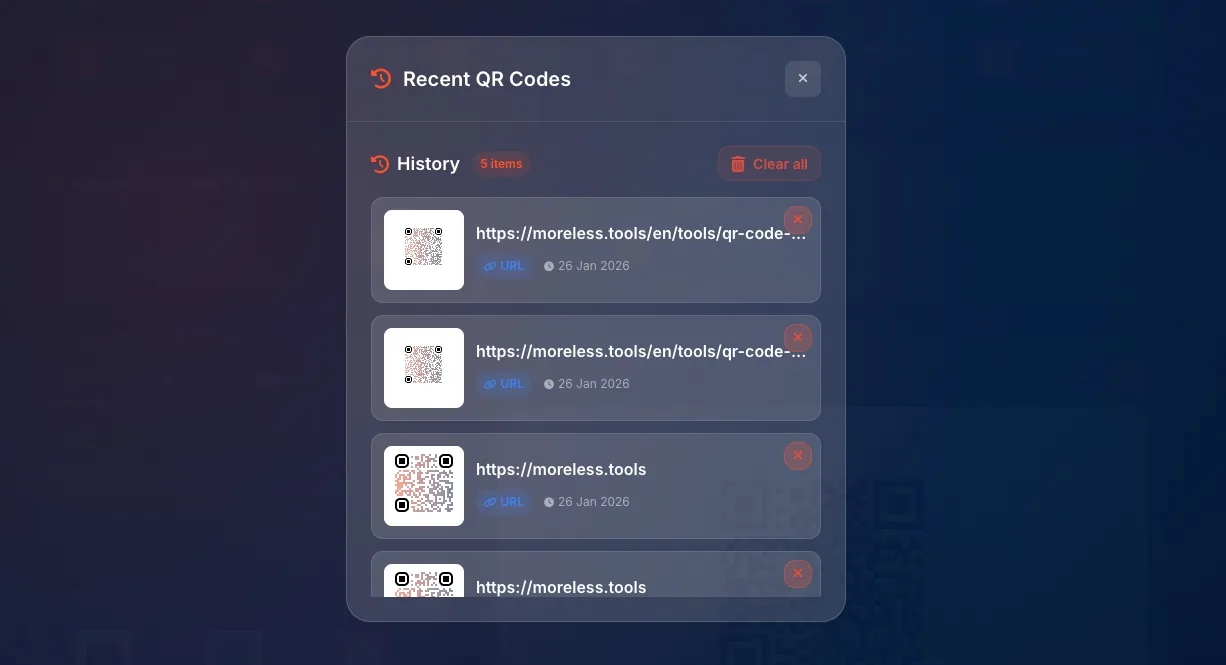
History button (clock icon)
Click the clock icon above the preview to view recently generated QR codes. You can click any previous code to restore it.
Important - For security reasons, WiFi passwords are NOT saved in history. When you restore a WiFi QR code from history, you'll need to re-enter the password.
Preset manager button (star icon)
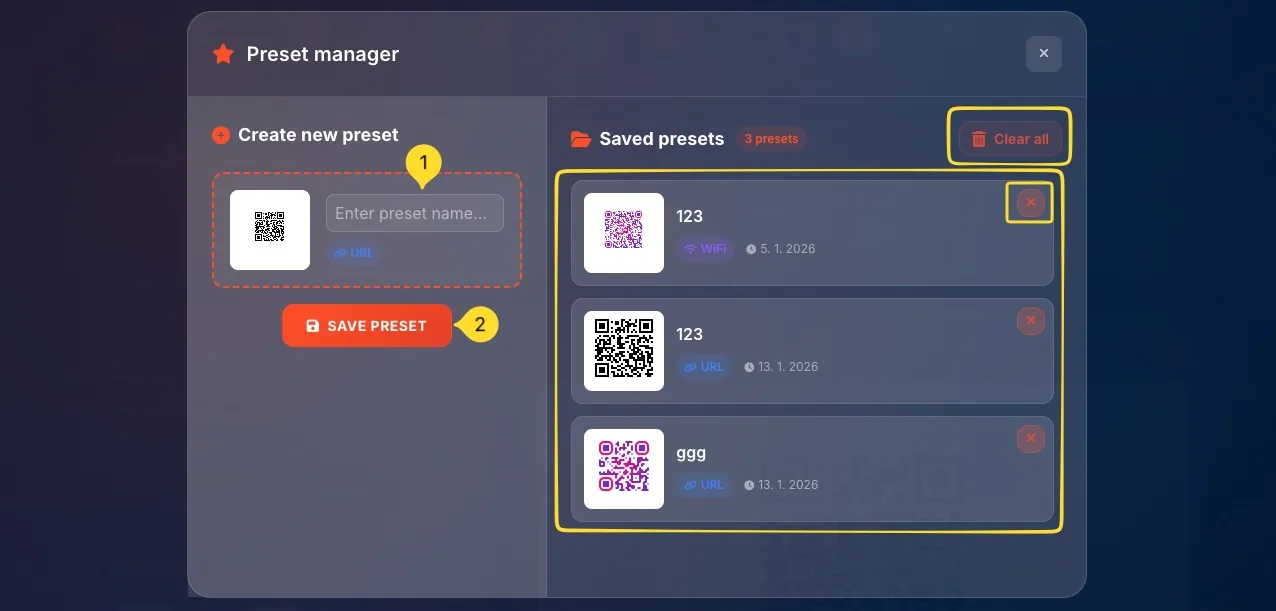
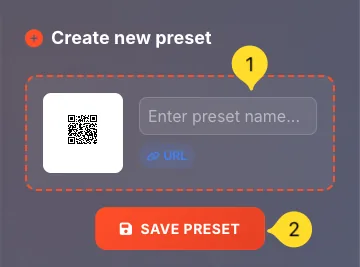
Click the star icon to save the current QR code configuration as a preset. This saves ALL your current settings:
• Content (URL, text, etc.)
• All style settings (colors, patterns)
• Logo settings
• Tech settings (error correction, quiet zone)
You can then reload this exact configuration anytime from the Preset manager.
Fullscreen button (expand icon)
Click the expand icon to view the QR code in fullscreen mode. Great for displaying on a screen so people can scan it directly.

Export options
Below the live preview is the Export options section where you download your QR code.
Download button
The large orange DOWNLOAD button saves your QR code in the selected format and size.

Format selector
Choose your export format:
• PNG: raster image, best for web and most uses, supports transparency
• SVG: vector format, infinitely scalable, best for print and professional design
• JPG: raster image, smaller file size, no transparency support
• WebP: modern format, good compression, supports transparency
• PDF: document format, great for print materials and professional documents

Size controls
Set your desired output size:
• Slider: drag to adjust size visually
• Input field: type exact value for precision
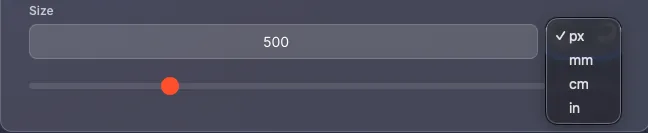
• Unit selector: choose between px, cm, mm, or inch
Range: 100px to 2000px (or equivalent in other units). For print at 300 DPI, 1000px equals approximately 8.5cm.
Print materials - SVG or PNG at 1500-2000px
Email/documents - PNG at 500px
Professional design - Always SVG for infinite scalability
Preset manager
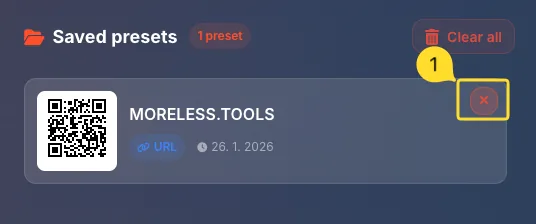
The Preset Manager lets you save and load complete QR code configurations. Access it by clicking the star icon above the live preview or in the tool tabs on the right edge of the screen.
Saving a preset
Configure your QR code exactly how you want it (content, colors, logo, settings), then click the star icon above the preview. Enter a name for your preset and save. All settings are stored.
Loading a preset
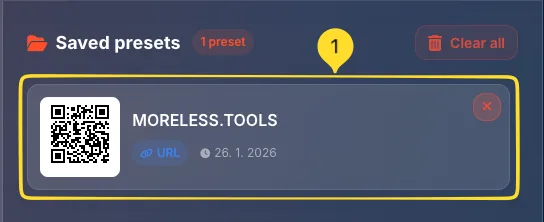
Open the Preset Manager (star icon in tool tabs) to see all your saved presets. Click any preset to instantly restore all its settings - content, style, logo, and tech options.
Deleting a preset
In the Preset Manager, hover over a preset and click the trash icon to delete it. This action cannot be undone.
What's saved
Each preset stores:
• QR code type and content
• All style settings (colors, patterns, gradients)
• Logo (if uploaded) and logo settings
• Tech settings (error correction, quiet zone)
Note: WiFi passwords are NOT saved in presets for security reasons.
Favorites & History
The tool tabs on the right edge of the screen provide quick access to Preset Manager, History, and Favorites.
Preset Manager (star icon)
Click the star icon to open the full Preset Manager panel where you can view, load, and delete your saved QR code presets.
History (clock icon)
Click the clock icon to see recently generated QR codes. History is stored locally in your browser. Click any item to restore that QR code.
Note: WiFi passwords are not stored in history for security reasons.
Favorites (heart icon)
Click the heart icon to add the QR Code Generator tool itself to your favorites. This adds it to your favorites list on the homepage for quick access - it does NOT save QR code configurations (use Preset Manager for that).

Tips & Best practices
Frequently asked questions
• Low contrast: ensure dark pattern on light background
• Too small: minimum 2cm x 2cm for reliable scanning
• No quiet zone: leave white border around the code
• Too much data: simplify content or use URL shortener
• Low error correction: try increasing to Quartile (25%) or High (30%)