Overview
The Subnet Calculator is a comprehensive networking tool that computes all essential information about IP networks for both IPv4 and IPv6 protocols. Enter an IP address with subnet mask or prefix length and instantly get network address, broadcast address, usable host range, binary representations, and generate subnet lists. Essential for network planning, troubleshooting, and IT administration.
Interface overview
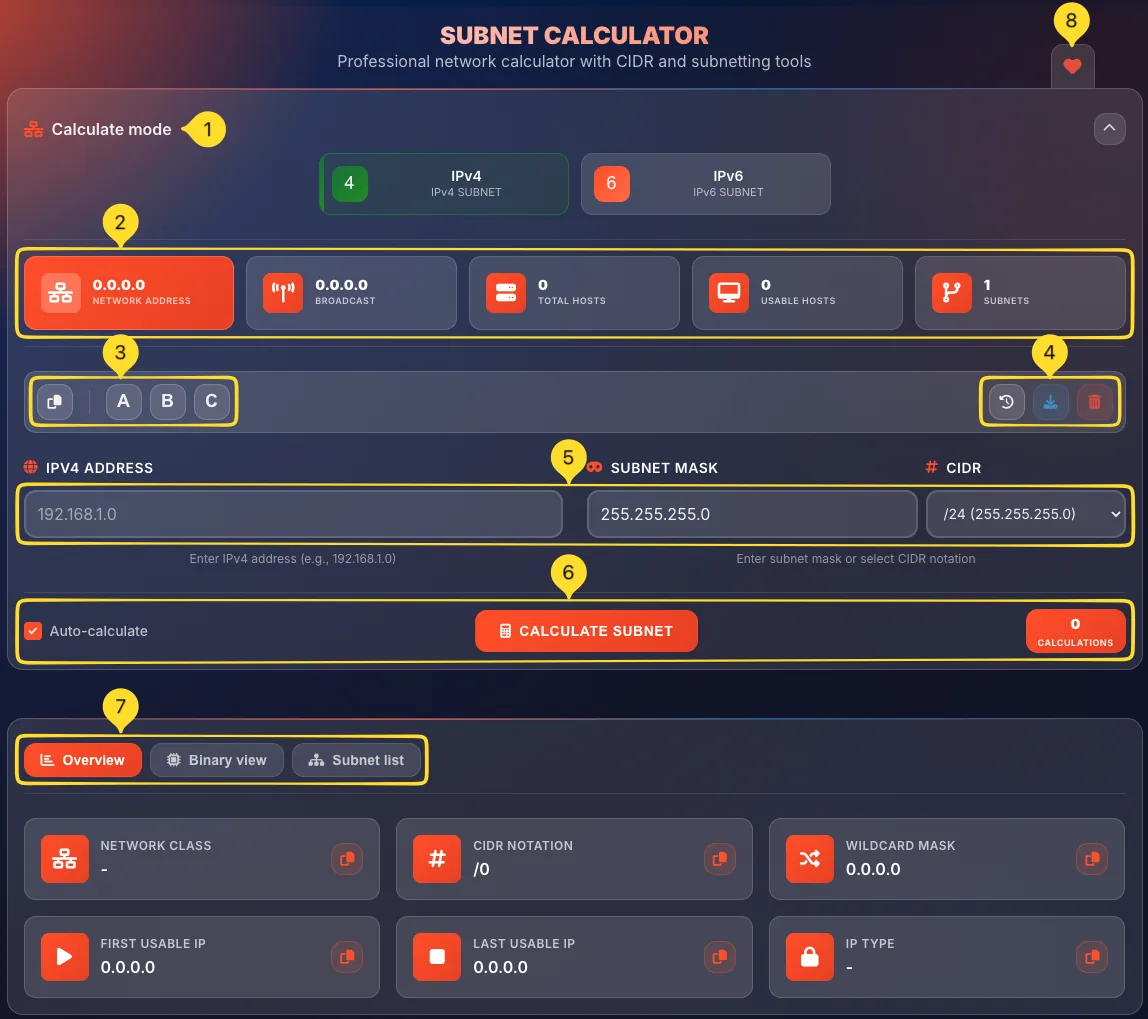
The Subnet Calculator interface is organized into several key areas. Understanding each component helps you use the tool efficiently.
Protocol tabs (IPv4 / IPv6)
At the top of the calculator, you'll see two tabs - IPv4 and IPv6. Click on a tab to switch between Internet Protocol version 4 (32-bit addresses) and version 6 (128-bit addresses). The entire interface adapts to the selected protocol.
Stats bar
Below the protocol tabs is a horizontal bar showing key statistics:
• NETWORK ADDRESS
• BROADCAST (IPv4 only)
• TOTAL HOSTS
• USABLE HOSTS
• SUBNETS
These update in real-time as you enter or modify your input.
Class buttons (IPv4 only)
Three buttons labeled A, B, and C let you quickly load example configurations for common network classes. Click a button to auto-fill IP address, subnet mask, and CIDR prefix with typical values for that class.
Action buttons row
Four buttons in the upper right:
• Copy: copy results
• History: view previous calculations
• Download: export results
• Delete: clear current input
Input area
The main input section contains fields for IP address and subnet mask/prefix. IPv4 shows IPV4 ADDRESS and SUBNET MASK with CIDR dropdown. IPv6 shows IPV6 ADDRESS and PREFIX LENGTH dropdown.
Settings bar
Below the inputs:
• Auto-calculate checkbox: enables real-time calculation
• CALCULATE SUBNET button: manual calculation
• CALCULATIONS counter: showing how many calculations you've performed
Result tabs
Three tabs display results in different formats:
• Overview: summary cards
• Binary view: binary representations
• Subnet list: generate multiple subnets
Each provides unique insights into your network.
Favorites tab
On the right edge of the screen, you'll find the Favorites tab (heart icon). Click it to add this tool to your favorites for quick access from the homepage.
IPv4 mode IPv4
IPv4 (Internet Protocol version 4) uses 32-bit addresses written as four decimal numbers. This is the most common protocol for local and internet networks.
Select IPv4 tab
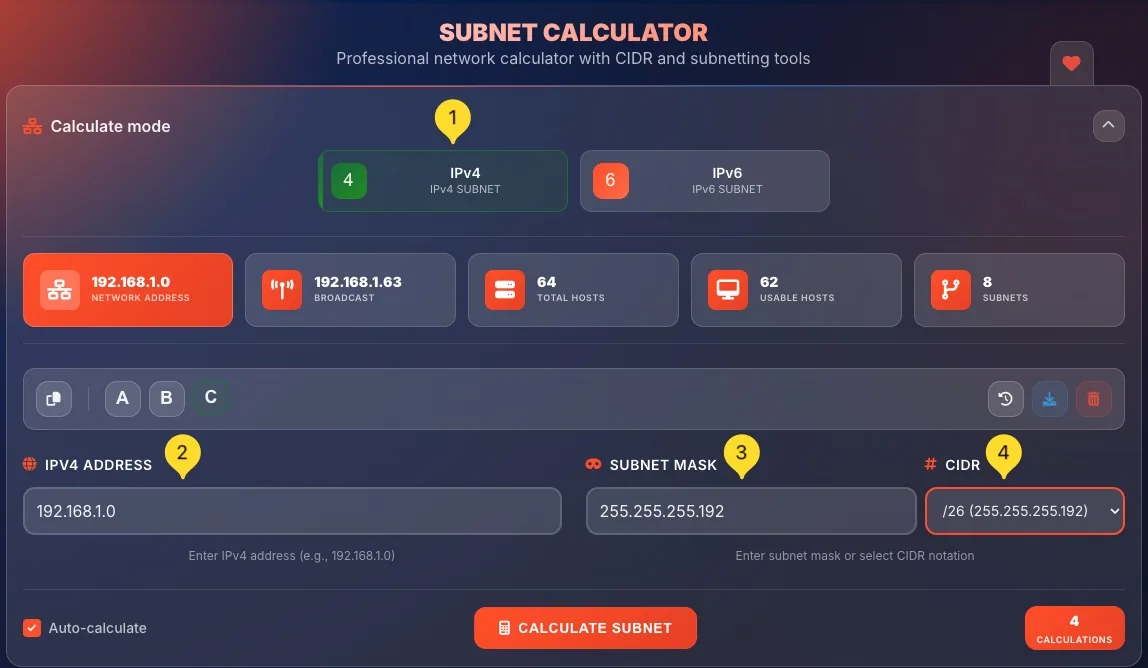
Click the IPv4 tab at the top of the calculator. The interface displays IPv4-specific input fields and the class selection buttons (A, B, C) become visible.
Enter IPv4 address
In the IPV4 ADDRESS field, type your IP address in dotted decimal format.
• Format: 192.168.1.100
• Four octets separated by dots
• Each octet ranges from 0 to 255
• Example: 10.0.0.1, 172.16.50.25, 192.168.0.1
Enter subnet mask
In the SUBNET MASK field, enter the subnet mask in dotted decimal format.
• Format: 255.255.255.0
• Common masks: 255.0.0.0, 255.255.0.0, 255.255.255.0
• The mask determines which bits are network vs. host
Select CIDR prefix (alternative)
Instead of typing the mask, use the CIDR dropdown to select a prefix length.
• Click the dropdown showing /24 (or current value)
• Select from /1 to /32
• Common values: /8 (Class A), /16 (Class B), /24 (Class C)
• The subnet mask field updates automatically
Use class buttons (quick selection)
Click A, B, or C button to preset common configurations:
• A: Sets CIDR range /8 to /15 (large networks)
• B: Sets CIDR range /16 to /23 (medium networks)
• C: Sets CIDR range /24 to /32 (small networks)
• The CIDR dropdown options filter to that class
Calculate
If Auto-calculate is checked, results appear instantly. Otherwise, click the orange CALCULATE SUBNET button. The stats bar updates with: NETWORK ADDRESS, BROADCAST, TOTAL HOSTS, USABLE HOSTS, and SUBNETS count.
View results
Results appear in the three tabs below:
• Overview: Summary cards with all key values
• Binary view: Binary representation of addresses
• Subnet list: Generate list of available subnets
Standard LAN:        192.168.1.100 / 255.255.255.0  (/24)
Large enterprise:    10.0.0.1 / 255.0.0.0          (/8)
Medium network:      172.16.50.25 / 255.255.0.0    (/16)
Small segment:       192.168.10.1 / 255.255.255.192 (/26)
Point-to-point:      10.1.1.1 / 255.255.255.252    (/30)
IPv6 mode IPv6
IPv6 (Internet Protocol version 6) uses 128-bit addresses written in hexadecimal. It provides a vastly larger address space than IPv4 and is becoming the standard for modern networks.
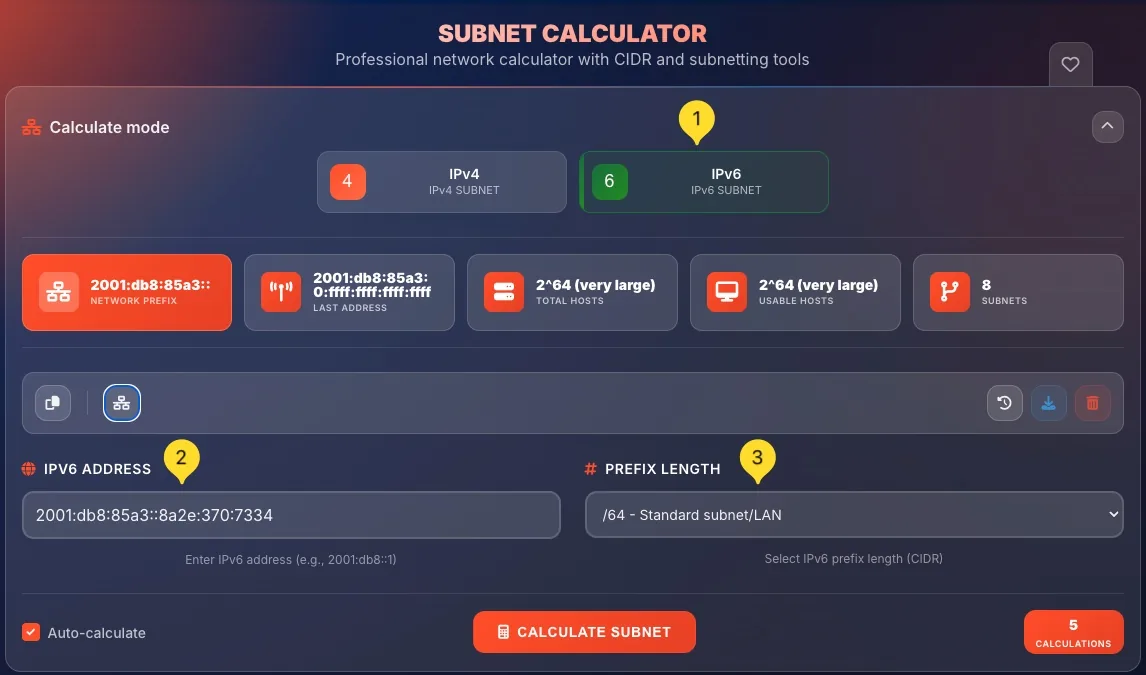
Select IPv6 tab
Click the IPv6 tab at the top of the calculator. The interface changes to show IPv6-specific fields. Note that class buttons (A, B, C) disappear as IPv6 doesn't use classful addressing.
Enter IPv6 address
In the IPV6 ADDRESS field, type your IPv6 address in hexadecimal format.
• Format: 2001:0db8:85a3:0000:0000:8a2e:0370:7334
• Eight groups of four hex digits, separated by colons
• Leading zeros can be omitted: 2001:db8:85a3::8a2e:370:7334
• Consecutive zero groups can be replaced with ::
Select prefix length
Use the PREFIX LENGTH dropdown to select the network prefix.
• Click the dropdown (shows current value like /64)
• Range: /1 to /128
• Common values:
- /64 - Standard subnet/LAN (most common)
- /48 - Typical allocation to organizations
- /128 - Single host (loopback)
Understand prefix descriptions
The dropdown shows helpful descriptions for each prefix:
• /64 - Standard subnet/LAN - What you'll use for most networks
• Other prefixes show their typical use case
• This helps you choose the right prefix without memorizing
Calculate
If Auto-calculate is enabled, results appear as you type. Otherwise, click CALCULATE SUBNET. The stats bar shows - NETWORK PREFIX, LAST ADDRESS, TOTAL HOSTS, USABLE HOSTS, and SUBNETS.
Note the differences from IPv4
IPv6 results differ from IPv4:
• No broadcast address - IPv6 uses multicast instead
• Much larger host counts (astronomical numbers)
• Network prefix shown instead of network address
• Last address shown instead of broadcast
View IPv6 results
Results appear in the Overview, Binary view, and Subnet list tabs. IPv6 calculations show the network prefix, last address, and the vast number of available hosts in your subnet.
Overview tab Results
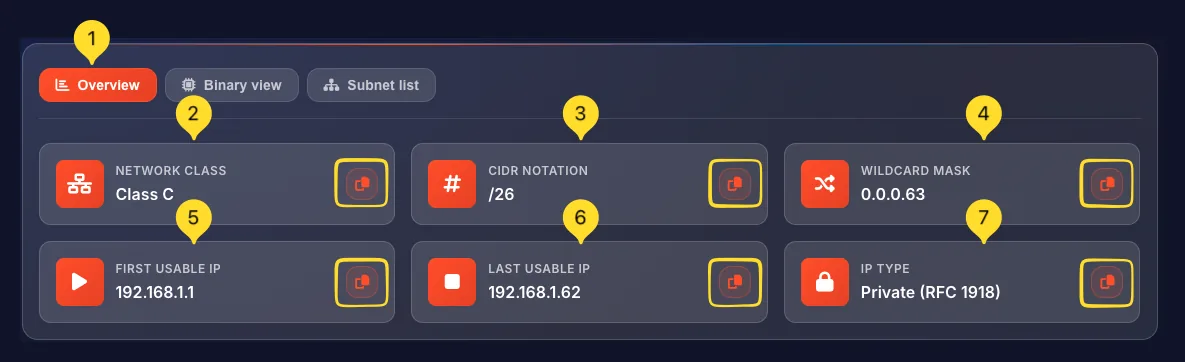
The Overview tab displays your calculation results in easy-to-read cards. Each card shows one piece of network information with a copy button for quick access.
Access Overview tab
After calculating, click the Overview tab (first of three tabs). Six result cards appear in a grid layout, each displaying a specific network value.
NETWORK CLASS card
Shows which address class your IP belongs to (IPv4 only):
• Class A: First octet 1-126 (large networks)
• Class B: First octet 128-191 (medium networks)
• Class C: First octet 192-223 (small networks)
• Class D: Multicast addresses
• Class E: Reserved/experimental
CIDR NOTATION card
Displays the complete CIDR notation of your network:
• Example: 192.168.1.0/24
• Combines network address with prefix length
• Standard format used in routing and configuration
• Click the copy icon to copy this value
WILDCARD MASK card
Shows the inverse of your subnet mask:
• Example: 0.0.0.255 (for subnet 255.255.255.0)
• Used in ACLs (Access Control Lists) and some router configs
• Network bits become 0, host bits become 1
• Cisco routers often use wildcard masks
FIRST USABLE IP card
The first IP address you can assign to a device:
• Network address + 1
• Example: 192.168.1.1 (for 192.168.1.0/24)
• This is typically where you'd put your gateway/router
• Cannot use network address itself
LAST USABLE IP card
The last IP address you can assign to a device:
• Broadcast address - 1
• Example: 192.168.1.254 (for 192.168.1.0/24)
• Everything between first and last is assignable
• Cannot use broadcast address itself
IP TYPE card
Indicates whether the address is public or private:
• Private: Not routable on internet (10.x.x.x, 172.16-31.x.x, 192.168.x.x)
• Public: Routable on internet
• Loopback: 127.x.x.x (localhost)
• Link-local: 169.254.x.x (auto-assigned)
Copy individual values
Each card has a copy icon in the corner. Click it to copy that specific value to your clipboard. A notification confirms the copy. This is faster than selecting and copying text manually.
Binary view tab Educational
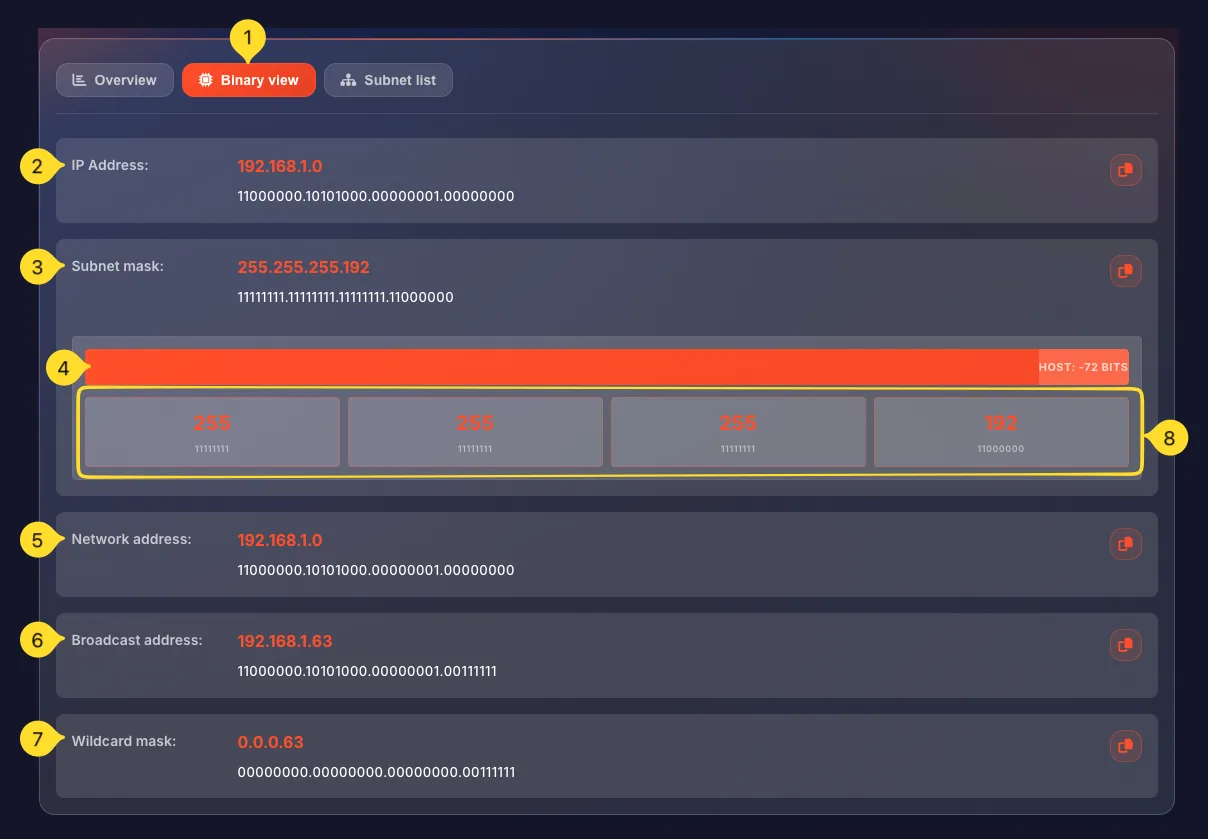
The Binary view tab shows the binary representation of addresses and masks. This is invaluable for understanding how subnetting actually works at the bit level.
Access Binary view tab
Click the Binary view tab (second of three tabs). This displays all network values in both decimal and binary format, side by side.
IP Address row
Shows your entered IP address:
• Left side: Decimal format (e.g., 192.168.1.100)
• Right side: Binary format (e.g., 11000000.10101000.00000001.01100100)
• Each octet is 8 bits, separated by dots
• Total of 32 bits for IPv4
Subnet mask row
Shows the subnet mask in binary:
• Example: 255.255.255.0 = 11111111.11111111.11111111.00000000
• Network bits are all 1s (contiguous from left)
• Host bits are all 0s (contiguous from right)
• The boundary between 1s and 0s defines the subnet
Network bits / Host bits bar
A visual bar shows the split between network and host portions:
• Orange/colored section: Network bits (e.g., 24 bits)
• Gray section: Host bits (e.g., 8 bits)
• Labels show the exact count: "Network bits: 24" / "Host bits: 8"
• This visualizes how the subnet mask divides the address
Network address row
Shows the network address in binary:
• The IP address with all host bits set to 0
• Example: 192.168.1.0 = 11000000.10101000.00000001.00000000
• Notice the last 8 bits are all zeros
• This identifies the subnet itself
Broadcast address row
Shows the broadcast address in binary:
• The IP address with all host bits set to 1
• Example: 192.168.1.255 = 11000000.10101000.00000001.11111111
• Notice the last 8 bits are all ones
• Packets sent here reach all hosts in subnet
Wildcard mask row
Shows the wildcard mask in binary:
• Inverse of subnet mask
• Example: 0.0.0.255 = 00000000.00000000.00000000.11111111
• Where subnet has 1s, wildcard has 0s and vice versa
• Used in router ACLs and some configurations
Learning from binary view
Use Binary view to understand:
• Why certain IPs are in the same subnet (matching network bits)
• How subnet size relates to host bits (more host bits = more hosts)
• How network/broadcast addresses are calculated (zeroing/maxing host bits)
• Why you lose 2 addresses per subnet (network + broadcast)
Subnet list tab Generator
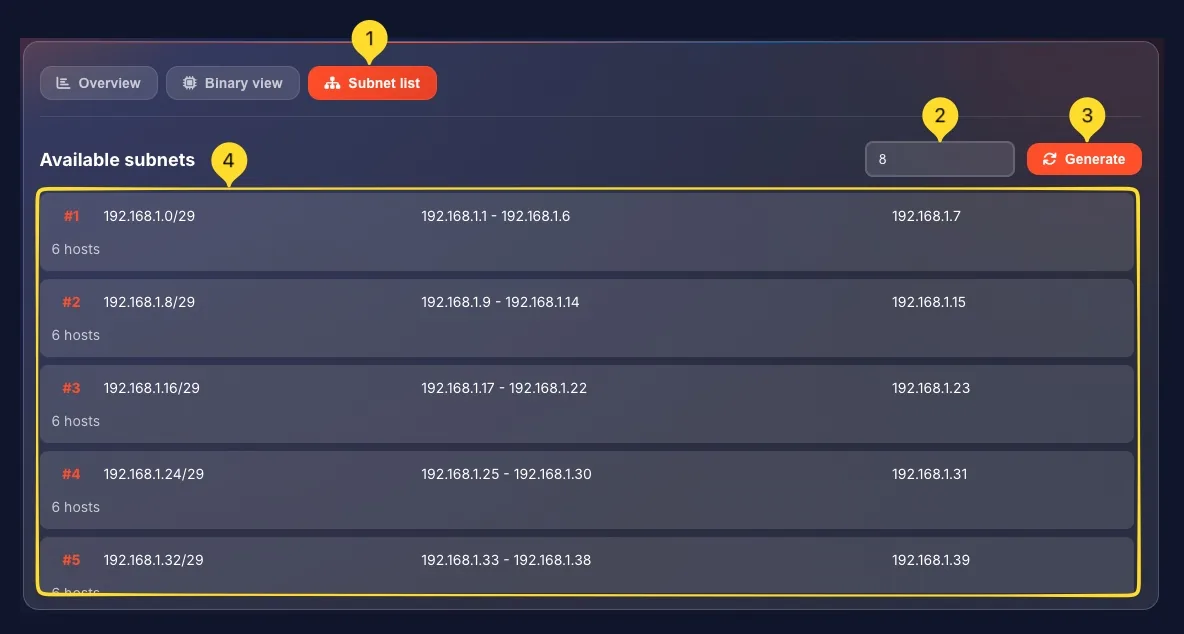
The Subnet list tab generates a list of available subnets within your network. This is incredibly useful for network planning and address allocation.
Access Subnet list tab
Click the Subnet list tab (third of three tabs). You'll see an "Available subnets" section with a count input field and Generate button.
Set number of subnets
In the count input field, enter how many subnets you want to generate:
• Enter a number (e.g., 10, 50, 100)
• Higher numbers show more subnets from the available range
• The maximum depends on your prefix length
Click Generate
Click the Generate button next to the count field. The calculator computes and displays a list of subnets based on your network configuration.
Understand the subnet list
Each subnet in the list shows:
• #number: Sequential subnet identifier (Subnet #1, #2, etc.)
• CIDR: The subnet in CIDR notation (e.g., 192.168.1.0/26)
• IP range: First to last usable IP
• Broadcast: The broadcast address for that subnet
• Hosts: Number of usable host addresses
Example: Splitting /24 into /26
If you have 192.168.1.0/24 and change to /26:
• A /24 has 256 addresses (254 usable)
• A /26 has 64 addresses (62 usable)
• You get 4 subnets from one /24
• List shows: 192.168.1.0/26, 192.168.1.64/26, 192.168.1.128/26, 192.168.1.192/26
Use cases for subnet lists
Generate subnet lists when:
• Planning office/department network segments
• Allocating VLANs in enterprise networks
• Designing cloud VPC subnets
• Creating DMZ and internal zone separation
• Documenting network architecture
Subnet #1:  192.168.1.0/26    | Range: .1-.62     | Broadcast: .63   | 62 hosts
Subnet #2:  192.168.1.64/26   | Range: .65-.126   | Broadcast: .127  | 62 hosts
Subnet #3:  192.168.1.128/26  | Range: .129-.190  | Broadcast: .191  | 62 hosts
Subnet #4:  192.168.1.192/26  | Range: .193-.254  | Broadcast: .255  | 62 hosts
CIDR reference table Quick Reference
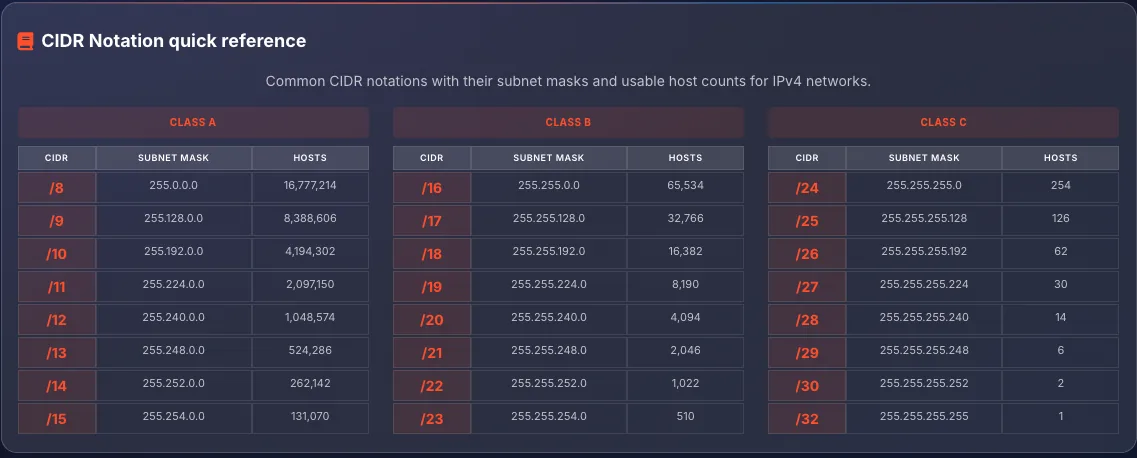
The calculator includes a built-in CIDR Notation quick reference table. This saves you from having to memorize subnet masks and host counts.
Locate the reference table
Scroll down below the result tabs to find the CIDR Notation quick reference section. It displays a table organized by network class.
Class A section (/8 to /15)
Shows large network prefixes:
• /8: 255.0.0.0 - 16,777,214 hosts
• /9: 255.128.0.0 - 8,388,606 hosts
• Through /15: 255.254.0.0 - 131,070 hosts
• These are for major ISPs, large enterprises, or cloud providers
Class B section (/16 to /23)
Shows medium network prefixes:
• /16: 255.255.0.0 - 65,534 hosts
• /17: 255.255.128.0 - 32,766 hosts
• Through /23: 255.255.254.0 - 510 hosts
• Common for large organizations and data centers
Class C section (/24 to /32)
Shows small network prefixes:
• /24: 255.255.255.0 - 254 hosts (most common LAN)
• /25: 255.255.255.128 - 126 hosts
• /26: 255.255.255.192 - 62 hosts
• /27: 255.255.255.224 - 30 hosts
• /28: 255.255.255.240 - 14 hosts
• /29: 255.255.255.248 - 6 hosts
• /30: 255.255.255.252 - 2 hosts (point-to-point)
• /31: 255.255.255.254 - 2 hosts (special P2P)
• /32: 255.255.255.255 - 1 host (single host route)
Table columns explained
Each row in the table shows three pieces of information:
• CIDR: The prefix notation (e.g., /24)
• SUBNET MASK: The equivalent dotted decimal mask (e.g., 255.255.255.0)
• HOSTS: Number of usable host addresses (e.g., 254)
Using the reference table
Reference the table when:
• You need to convert between CIDR and subnet mask
• Planning how many hosts you can fit in a subnet
• Determining what prefix to use for a given number of devices
• Quick verification of your calculations
Network class buttons (A, B, C) IPv4 Only
The A, B, and C buttons provide quick access to common network class configurations. They filter the CIDR dropdown to show only relevant prefix lengths.
Class A button
Click the A button to load a Class A example:
• Loads IP: 10.0.0.0
• Loads mask: 255.0.0.0 (/8)
• First octet range: 1-126
• Use for: Very large networks, ISPs, cloud infrastructure
• Example networks: 10.0.0.0/8 (private), 44.0.0.0/8 (amateur radio)
Class B button
Click the B button to load a Class B example:
• Loads IP: 172.16.0.0
• Loads mask: 255.255.0.0 (/16)
• First octet range: 128-191
• Use for: Large organizations, universities, data centers
• Example networks: 172.16.0.0/12 (private range spans multiple /16s)
Class C button
Click the C button to load a Class C example:
• Loads IP: 192.168.1.0
• Loads mask: 255.255.255.0 (/24)
• First octet range: 192-223
• Use for: Small to medium networks, home/office LANs
• Example networks: 192.168.0.0/24, 192.168.1.0/24 (typical home networks)

How class selection affects CIDR
When you click a class button:
• The IP address field is filled with a typical private IP for that class
• The subnet mask is set to the default for that class
• The CIDR dropdown is set to match the loaded mask
• Calculation runs automatically if auto-calculate is enabled
Note about classful vs. classless
Modern networking uses CIDR (Classless Inter-Domain Routing) which ignores traditional class boundaries. These buttons are a convenience feature - you can still use any prefix with any IP. The calculator doesn't enforce class rules; it just helps organize common choices.
Action buttons
Four action buttons in the upper right corner provide quick access to common operations. Each button has a specific function for managing your calculations.
Copy button
Click the Copy button (copy icon) to copy calculation results:
• Copies all current results to clipboard
• Formatted for easy pasting into documents
• Includes network address, mask, hosts, etc.
• A notification confirms successful copy
History button
Click the History button (clock icon) to view previous calculations:
• Opens a list of your past subnet calculations
• Shows IP, mask, and key results for each
• Click any entry to reload those values
• Useful for comparing different subnets or revisiting work
Download button
Click the Download button (download icon) to export results:
• Downloads calculation results as a file
• Useful for documentation or reporting
• Can be shared with colleagues or saved for reference
• Format is human-readable text
Delete button
Click the Delete button (trash icon) to clear current input:
• Resets all input fields to empty/default
• Clears current calculation results
• Does NOT delete history
• Use when starting a fresh calculation

Stats bar
The stats bar below the protocol tabs shows key metrics that update in real-time. Here's what each statistic means:
Understanding subnetting concepts
Subnetting fundamentals help you use the calculator effectively and interpret results correctly.
What is a subnet?
A subnet (subnetwork) is a logical division of an IP network. Subnetting allows you to split a large network into smaller, manageable segments. Each subnet has its own range of IP addresses, isolated from others unless routed.
IP addresses explained
IPv4: 32 bits, written as four decimal octets: 192.168.1.100. Each octet is 8 bits (0-255). About 4.3 billion possible addresses.
IPv6: 128 bits, written as eight hex groups: 2001:db8::1. About 340 undecillion addresses - enough for every grain of sand on Earth.
Subnet masks explained
A subnet mask determines which bits represent the network vs. the host:
• Network bits (1s in mask) - Identify which subnet an IP belongs to
• Host bits (0s in mask) - Identify specific devices within that subnet
• Example: 255.255.255.0 means first 24 bits = network, last 8 bits = host
CIDR notation explained
CIDR appends the prefix length: 192.168.1.0/24 means 24 network bits. Equivalent representations:
• /24 = 255.255.255.0 = 24 ones followed by 8 zeros
• /16 = 255.255.0.0 = 16 ones followed by 16 zeros
• /8 = 255.0.0.0 = 8 ones followed by 24 zeros
Network and broadcast addresses
Every subnet reserves two addresses:
• Network address: All host bits = 0 (identifies the subnet)
• Broadcast address: All host bits = 1 (sends to all hosts)
• Neither can be assigned to devices
• That's why usable hosts = total hosts - 2
Why subnet?
Benefits of subnetting:
• Security: Isolate sensitive systems (servers, management)
• Performance: Reduce broadcast traffic (broadcasts stay within subnet)
• Organization: Logical grouping (HR subnet, Engineering subnet)
• Scalability: Efficient address allocation
Common subnet masks
These are the most frequently used subnet masks with their characteristics and typical use cases.
/8 (255.0.0.0) - Class A
Hosts: 16,777,214
Use: Major ISPs, very large enterprises, cloud providers
Example: 10.0.0.0/8 (private), AWS VPC default
Note: Rarely used in full; usually subnetted further
/16 (255.255.0.0) - Class B
Hosts: 65,534
Use: Large organizations, universities, corporate networks
Example: 172.16.0.0/16 (private)
Note: Common starting point for enterprise network design
/24 (255.255.255.0) - Class C
Hosts: 254
Use: Standard LANs, home networks, small offices
Example: 192.168.1.0/24 (typical home router default)
Note: Most common subnet size - easy to remember and manage
/26 (255.255.255.192)
Hosts: 62
Use: Small department segments, DMZs
Example: Splitting a /24 into 4 subnets
Note: Good balance of isolation and capacity
/28 (255.255.255.240)
Hosts: 14
Use: Small server farms, VLAN segments
Example: Web server subnet, database subnet
Note: Popular for isolating server groups
/30 (255.255.255.252)
Hosts: 2
Use: Point-to-point links between routers
Example: WAN links, router interconnects
Note: Exactly 2 usable IPs - one for each end of link
/32 (255.255.255.255)
Hosts: 1
Use: Host routes, loopback addresses, ACLs
Example: Loopback 127.0.0.1/32
Note: Represents a single specific IP address
Class A:  10.0.0.0/8        (10.0.0.0 - 10.255.255.255)
Class B:  172.16.0.0/12     (172.16.0.0 - 172.31.255.255)
Class C:  192.168.0.0/16    (192.168.0.0 - 192.168.255.255)

These ranges are reserved for private networks and are NOT
routed on the public internet. Use freely within your LAN.