Overview
The URL Encoder/Decoder converts special characters into URL-safe format (percent-encoding) and back, with full RFC 3986 compliance. It also includes a powerful URL Builder for constructing URLs with query parameters. Essential for working with web addresses, API requests, form data, and any text that needs to travel safely in URLs.
Interface layout
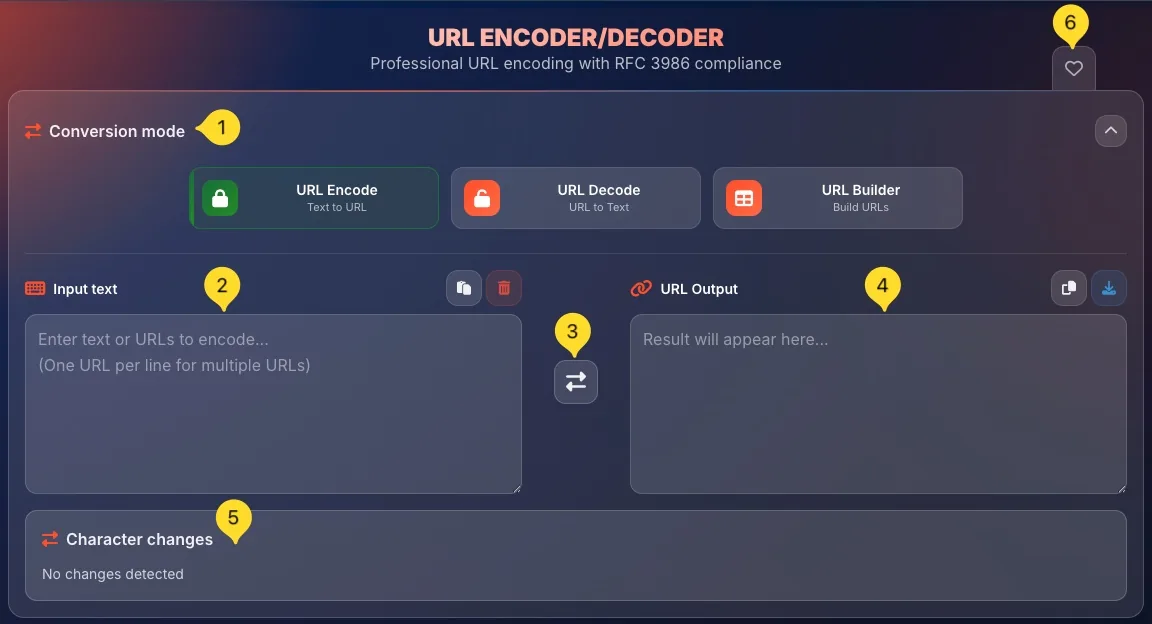
The URL Encoder/Decoder has a clean layout with three conversion modes. Here's what you'll see when you open the tool:
Conversion mode selector (top)
At the top, you'll find the Conversion mode panel (collapsible with a chevron icon) containing three mode buttons:
• URL Encode (Text to URL) - encodes text for safe use in URLs
• URL Decode (URL to Text) - decodes percent-encoded URLs back to readable text
• URL Builder (Build URLs) - visually construct URLs with query parameters
Click a mode button to switch between modes.
Input panel (left side) - Encode/Decode modes
In URL Encode and URL Decode modes, the left panel is for entering your input:
• Label - Input text with keyboard icon
• Placeholder - Enter text or URLs to encode... (One URL per line for multiple URLs)
Header buttons:
• Paste (clipboard icon) - paste from clipboard
• Clear (trash icon) - clear all input
Swap button (center)
Between the input and output panels, the Swap button (⇄) exchanges the content between input and output. Useful for quick back-and-forth encoding/decoding.
Output panel (right side)
The right panel displays conversion results:
• Label - URL Output with link icon
• Placeholder - Result will appear here...
Header buttons:
• Copy (clipboard icon) - copy result to clipboard
• Download (download icon) - open Export modal
Character changes section
Below the input/output panels, the Character changes section shows exactly which characters were modified during conversion. When empty, it displays No changes detected. After conversion, it shows a detailed breakdown of each character change.
Favorites (top right)
The heart icon in the top right corner lets you add this tool to your favorites for quick access from the homepage.
URL Character reference (below main interface)
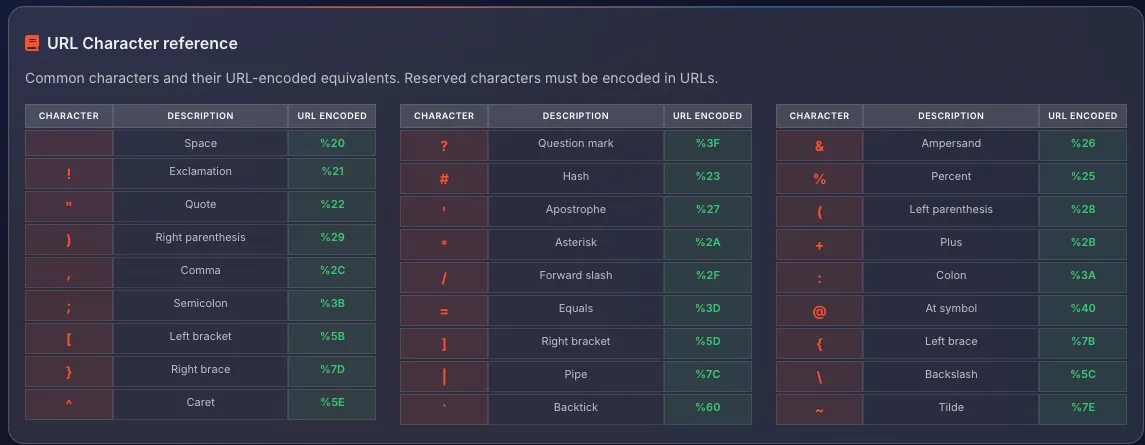
Scroll down to find the URL Character reference section - a comprehensive table showing all common characters and their URL-encoded equivalents.
URL Encode mode Text to URL
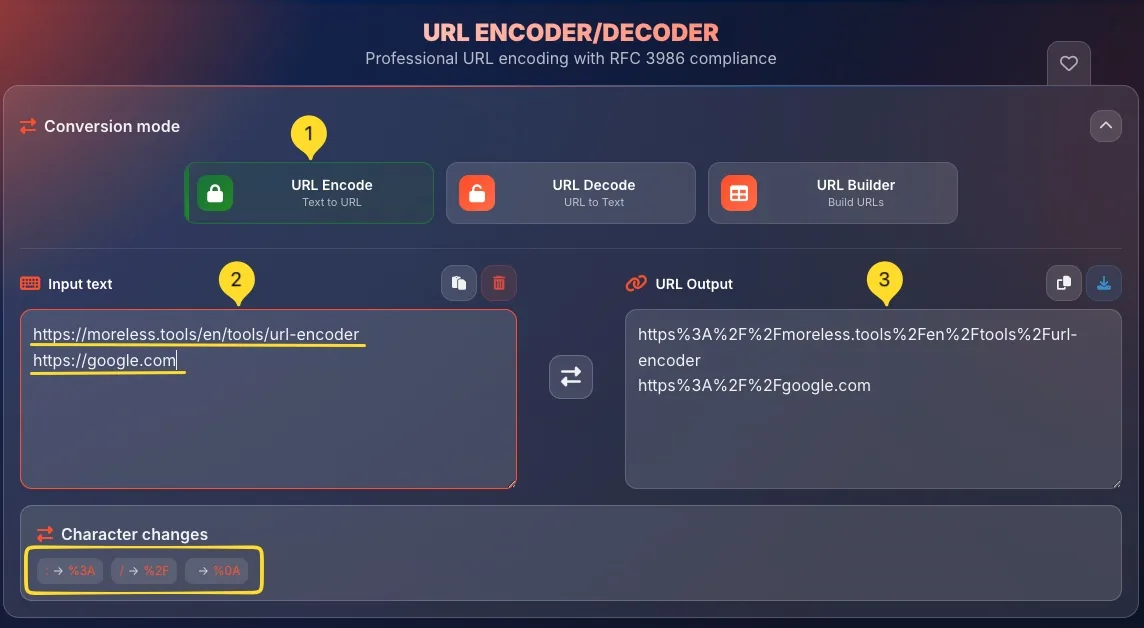
The URL Encode mode (icon with lock) converts regular text into URL-safe percent-encoded format. Use this before putting text into URLs, query parameters, or form submissions.
When to use this mode
Use URL Encode when:
• Building URLs with dynamic content
• Creating query parameters with special characters
• Encoding email addresses, search queries, or file names for URLs
• Preparing data for API requests
• Handling international characters in URLs
How it works
The encoder scans your text and replaces characters that are unsafe or have special meaning in URLs:
• Space → %20
• & → %26
• = → %3D
• ? → %3F
• International characters → UTF-8 bytes (e.g., é → %C3%A9)
Input panel label
In this mode, the left panel is labeled Input text: enter your plain text here that needs to be encoded for URL use.
Multiple URLs
You can encode multiple values at once - enter one per line. Each line is encoded separately, making it easy to batch-process multiple parameters or URLs.
Output panel label
The right panel shows URL Output: this contains your text converted to percent-encoded format, ready to use in URLs.
://, /, ?, &, =) should remain unencoded.URL Decode mode URL to Text
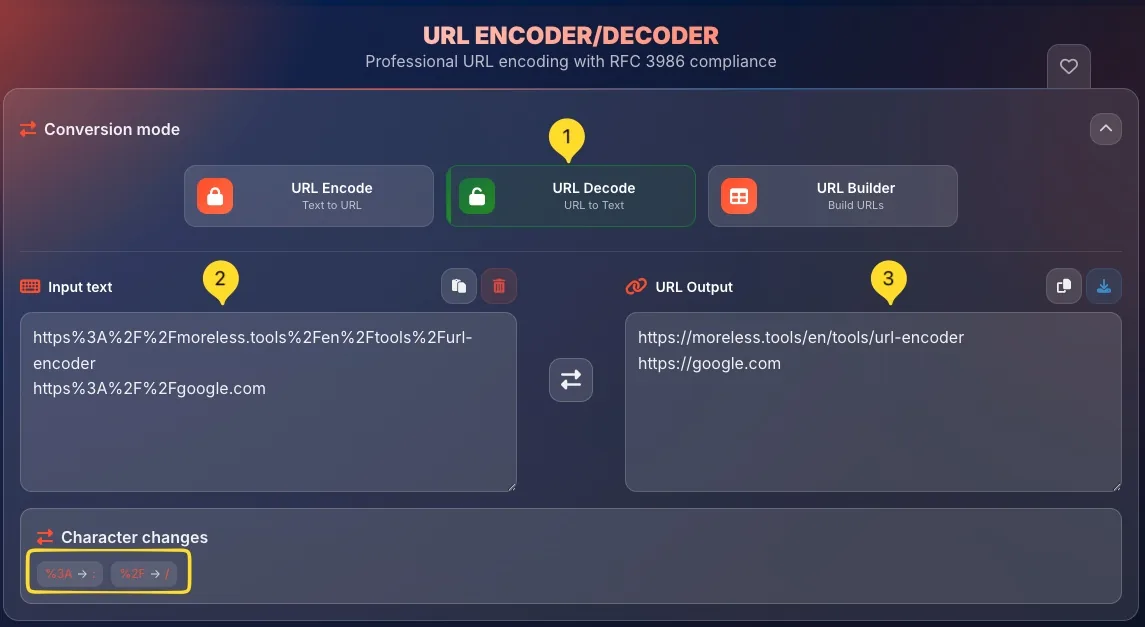
The URL Decode mode converts percent-encoded URLs back to readable plain text. Use this to read encoded URLs, debug API requests, or extract parameter values.
When to use this mode
Use URL Decode when:
• Reading URLs with encoded characters
• Debugging API requests or responses
• Extracting and editing URL parameter values
• Understanding what an encoded URL actually contains
• Converting copied URLs back to readable format
How it works
The decoder recognizes all percent-encoded sequences and converts them back to actual characters:
• %20 → Space
• %26 → &
• %3F → ?
• %C3%A9 → é
• + → Space (in query strings)
Input panel
In this mode, enter your encoded URL or text containing %XX sequences in the input panel. You can paste an entire URL or just the encoded portion you want to decode.
Output panel
The output shows the decoded, human-readable text. All percent-encoded sequences are converted to their actual characters.
%2520 instead of a space, or %2526 instead of &, the URL was double-encoded. %25 encodes the % character itself. You may need to decode twice to get the original text.URL Builder mode Build URLs
The URL Builder mode provides a visual interface for constructing complete URLs with query parameters. Parameters are automatically encoded, making it perfect for building API requests or complex URLs without manual encoding.
When to use URL Builder
Use URL Builder when:
• Constructing API request URLs with multiple parameters
• Building search URLs with complex queries
• Creating tracking URLs with UTM parameters
• Generating redirect URLs with callback parameters
• Any time you need a URL with multiple query parameters
Interface overview
URL Builder mode shows a different interface than Encode/Decode:
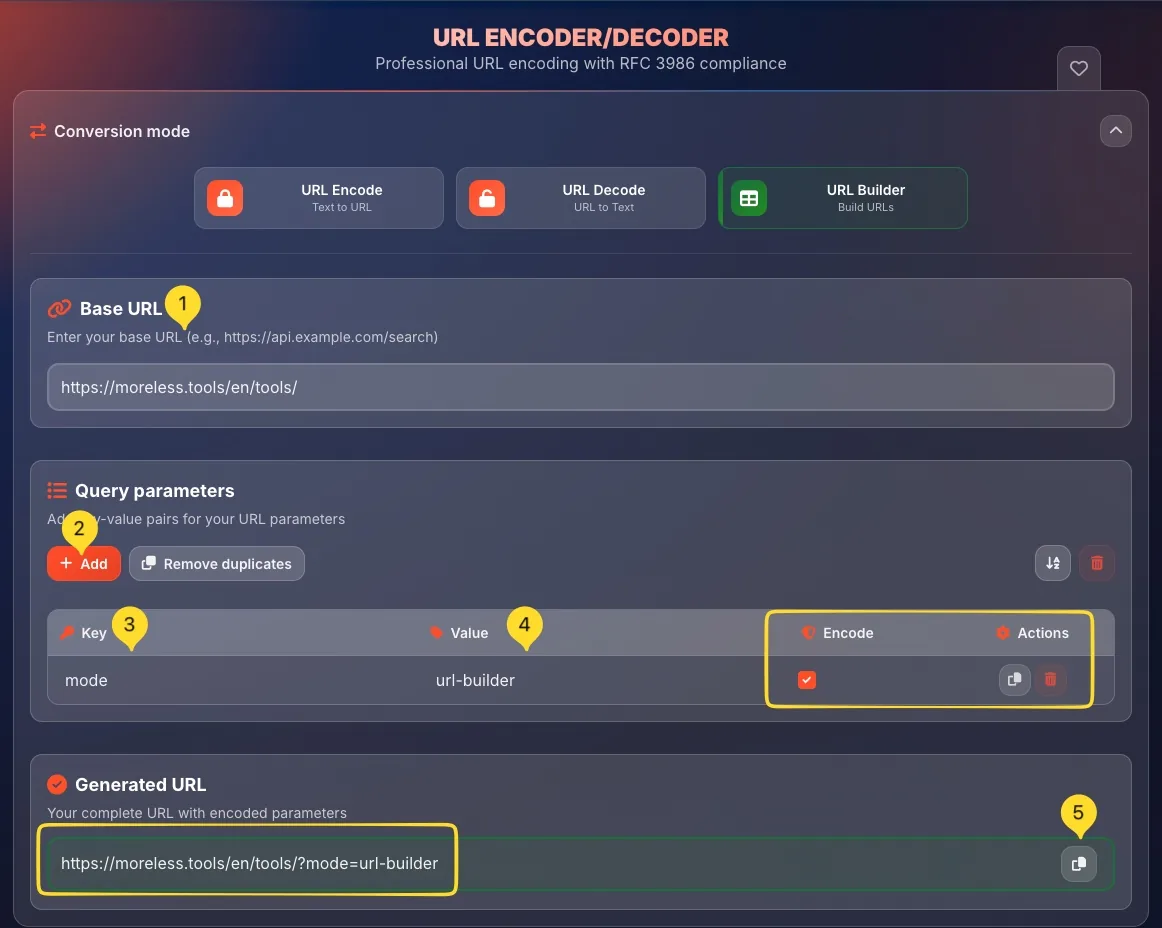
• Base URL section - enter your base URL
• Query parameters section - add key-value pairs
• Generated URL section - shows the complete, properly encoded URL
Automatic encoding
All parameter names and values are automatically percent-encoded when added. You can type plain text with special characters - the builder handles the encoding for you.
Live preview
The Generated URL updates in real-time as you modify the base URL or parameters. You always see the complete, valid URL ready to copy and use.
Base URL section
The Base URL section is where you enter the foundation of your URL - the part before the query string.
Enter your base URL
Type or paste your base URL in the input field. This should include:
• Protocol - https:// or http://
• Domain - example.com or api.example.com
• Path (optional) - /search, /api/v1/users
Example: https://api.example.com/search
Placeholder hint
The placeholder text shows an example: Enter your base URL (e.g., https://api.example.com/search). This helps you understand the expected format.
Don't include query string
The base URL should NOT include ? or any parameters. Those are added separately in the Query parameters section. If you paste a URL with parameters, only enter the part before ?.

Query parameters section
The Query parameters section lets you add, manage, and organize URL parameters as key-value pairs.
Adding parameters
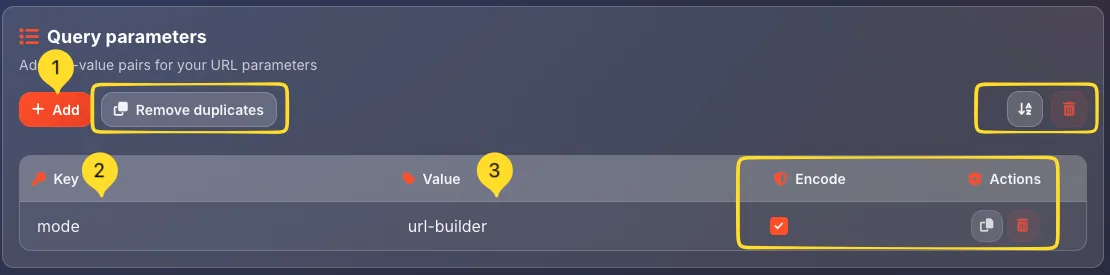
Click the + Add button to add a new parameter. Each parameter has two fields:
• Key: the parameter name (e.g., q, page, sort)
• Value: the parameter value (e.g., hello world, 1, price_asc)
Both key and value are automatically percent-encoded.
Remove duplicates
Click the Remove duplicates button to automatically remove parameters with identical keys. Useful when building complex URLs where you might accidentally add the same parameter twice.
Sort parameters
Click the Sort button (icon with arrows) to alphabetically sort all parameters by key. This helps organize long parameter lists and creates consistent URLs.
Clear all
Click the Clear button (red trash icon) to remove all parameters at once and start fresh.
Empty state
When no parameters are added, you'll see: No parameters yet - Click 'Add Parameter' to get started. Add your first parameter to begin building.
&, =, international characters. The builder automatically encodes everything correctly so your URL remains valid.Generated URL section
The Generated URL section displays your complete, properly formatted URL with all parameters encoded and ready to use.
Live URL preview
The generated URL updates in real-time as you:
• Change the base URL
• Add, edit, or remove parameters
• Modify parameter values
You always see the current, valid URL.
URL format
The generated URL follows proper format:{base URL}?{param1}={value1}&{param2}={value2}
Example: https://example.com/search?q=hello%20world&page=1
Copy button
Click the Copy button on the right side of the URL field to copy the complete URL to your clipboard.
Empty state
If you haven't entered a base URL or parameters, you'll see: Enter base URL and add parameters. Add content to see your generated URL.

Input panel actions
The input panel (in Encode/Decode modes) has action buttons for managing your input. Here's what each button does:
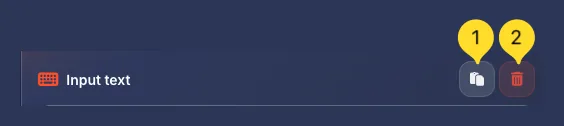
Paste button
Click the clipboard icon to paste content from your clipboard directly into the input area. Equivalent to Ctrl+V / ⌘+V but works with a single click.
Useful when you've copied a URL from your browser or another application.
Clear button
Click the trash icon to instantly clear all content from the input area. This also clears the output and the character changes section.
Use this to start fresh with a new conversion.
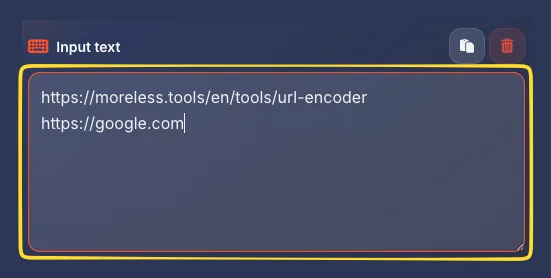
Multiple lines
The input area supports multiple lines. Enter one URL or value per line to batch-process multiple items at once. Each line is converted separately.
Output panel actions
The output panel displays conversion results and provides options to use them. Here's what each button does:
Copy button
Click the clipboard icon to copy the entire output to your clipboard. A notification confirms the copy was successful.
The copied content is ready to paste into your code, API client, or browser address bar.
Download button
Click the download icon to open the Export modal with multiple export options:
• Download as TXT or JSON file
• Copy results to clipboard
• Get a shareable link
See the Export modal section for full details.
Character changes section
The Character changes section appears below the input/output panels and shows exactly which characters were modified during conversion.
Before conversion
When no conversion has happened or the input is empty, this section displays:
No changes detected
This indicates there's nothing to show yet.
After conversion
After encoding or decoding, this section shows a detailed breakdown of every character that was changed:
• Original character
• Encoded/decoded result
• Position in the text
This helps you understand exactly what the conversion did.
Why it's useful
The character changes breakdown is invaluable for:
• Debugging: see exactly which characters caused issues
• Learning: understand how specific characters are encoded
• Verification: confirm the conversion did what you expected

Export modal Export
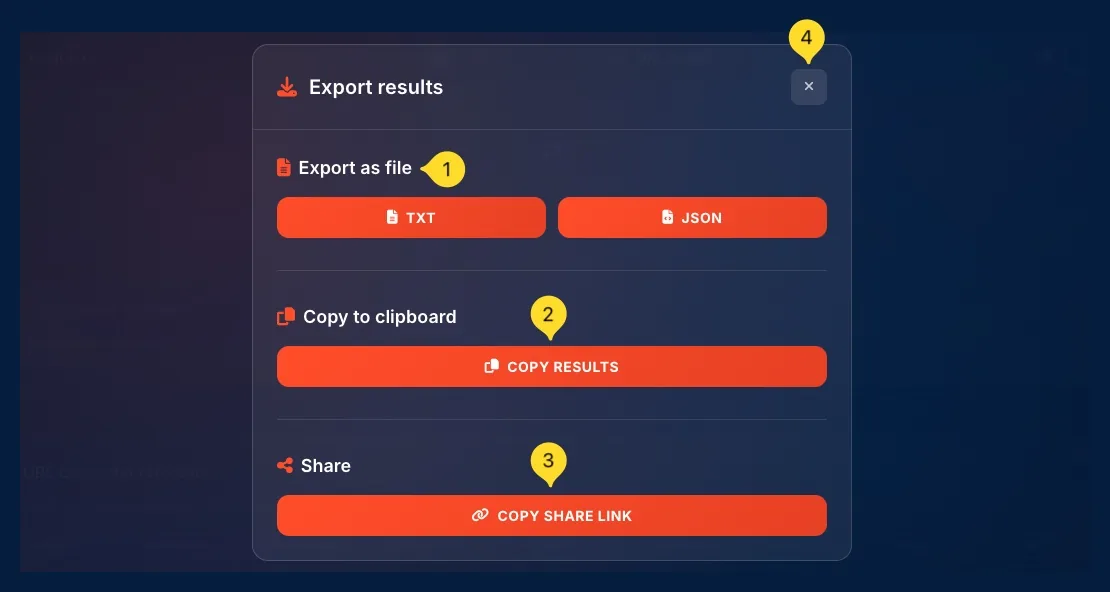
Click the Download button on the output panel to open the Export modal. This provides multiple ways to save and share your converted content.
Export as file
Download your results as a file:
• TXT: Plain text file with your encoded/decoded content
• JSON: JSON format, useful for programmatic use or when working with structured data
Click a button to instantly download the file to your device.
Copy to clipboard
COPY RESULTS: Click to copy the entire output to your clipboard. Same as the copy button on the output panel, but accessible from the modal.
A notification confirms the successful copy.
Share
COPY SHARE LINK: Creates a shareable URL that contains your input text encoded in the link. When someone opens this link, they'll see the tool with your content pre-loaded.
Perfect for sharing examples with teammates or asking for help online.
Close modal
Click the X button in the top right corner to close the export modal and return to the main interface.
URL Character reference Built-in
Scroll down below the main converter to find the URL Character reference: a comprehensive table showing common characters and their URL-encoded equivalents.
Table structure
The reference table has three columns:
• CHARACTER: the actual character
• DESCRIPTION: what the character is called
• URL ENCODED: the percent-encoded equivalent
Characters included
The reference covers all commonly encoded characters including:
• Whitespace: Space (%20)
• Punctuation: !, ", #, $, %, &, ', (, ), *, +, ,, -, ., /
• Symbols: :, ;, =, ?, @, [, ], ^, `, {, |, }, ~
• Brackets and braces: of all types
Multi-column layout
The table is organized in multiple columns for easy scanning. Each column shows a group of related characters with their encodings.
Examples from the reference
Some frequently used encodings:
• Space → %20
• ! Exclamation → %21
• # Hash → %23
• % Percent → %25
• & Ampersand → %26
• + Plus → %2B
• = Equals → %3D
• ? Question mark → %3F
• @ At symbol → %40
Common encoded characters
Here are the most frequently encountered URL encodings organized by category:
%20 or + (in forms)• Tab =
%09• Newline =
%0A• Carriage Return =
%0D& = %26•
= = %3D•
? = %3F•
/ = %2F•
# = %23•
% = %25These have special meaning in URL structure.
! = %21•
@ = %40•
' = %27•
" = %22•
: = %3A•
; = %3B•
, = %2C•
. (not encoded)( = %28•
) = %29•
[ = %5B•
] = %5D•
{ = %7B•
} = %7Dé = %C3%A9•
ñ = %C3%B1•
ü = %C3%BC•
€ = %E2%82%ACMulti-byte UTF-8 encoding
+ = %2B•
< = %3C•
> = %3E•
^ = %5E•
| = %7C•
~ = %7E•
* = %2A•
\ = %5CWhy URL encoding exists
URLs can only contain a limited set of characters defined by RFC 3986. Understanding why encoding exists helps you know when and how to use this tool.
URL safe characters
URLs can safely contain only these characters without encoding:
• Letters: A-Z, a-z
• Numbers: 0-9
• Unreserved symbols: - _ . ~
Everything else needs encoding - including spaces, accented letters, and most punctuation.
Reserved characters
Some characters have special meanings in URL structure:
• / separates path segments
• ? starts query parameters
• & separates parameters
• = assigns values to parameters
• # marks the fragment identifier
To use these literally (as data, not structure), they must be percent-encoded.
How percent-encoding works
Percent-encoding (URL encoding) replaces unsafe characters with % followed by two hexadecimal digits representing the character's byte value:
• Space → %20 (hex 20 = decimal 32)
• & → %26 (hex 26 = decimal 38)
• é → %C3%A9 (UTF-8 multi-byte encoding)
The %XX format ensures any byte value can be safely transmitted in a URL.
Spaces: %20 vs +
Spaces can be encoded two ways:
• %20 - Universal encoding, works everywhere
• + - Only valid in query strings (application/x-www-form-urlencoded)
Use %20 for path segments and general encoding. The + notation is a legacy from HTML forms.
RFC 3986 compliance
RFC 3986 is the official specification for URIs/URLs. This tool follows RFC 3986 exactly, ensuring your encoded URLs are valid according to the standard and work correctly with any compliant system.
Original: Hello World! How are you?
Encoded:  Hello%20World%21%20How%20are%20you%3F

Original: https://example.com/search?q=café & tea
Encoded:  https://example.com/search?q=caf%C3%A9%20%26%20tea
Common use cases
example.com/search?q=hello%20world. Without encoding, the space would break the URL or be interpreted incorrectly. Use URL Builder to construct complex search URLs.api/data?filter=price%3E100%26category%3Dbooks. The > and & must be encoded to not break the query structure. URL Builder makes this easy.@ symbol needs encoding - user%40example.com. Essential for mailto links, login redirects, OAuth callbacks, and API parameters that include email addresses.share?url=https%3A%2F%2Fexample.com%2Fpage. The inner URL must be fully encoded so /, :, and ? don't interfere with the outer URL structure.?utm_source=newsletter&utm_campaign=spring%20sale. URL Builder is perfect for creating tracking URLs with multiple properly encoded parameters./products/caf%C3%A9 for /products/café. Modern browsers display the decoded version but send the encoded one to servers.Tips & Best practices
://, /, ?, &, =) should remain as-is.%25 (the encoded %), the URL is already encoded. Encoding it again creates broken URLs like %2520 for spaces.Frequently asked questions
://, /, ?, &, =). A URL like https://example.com/?q=hello world only needs the hello world part encoded, resulting in https://example.com/?q=hello%20world.
+ character can represent a space specifically in query strings (application/x-www-form-urlencoded format, used by HTML forms). %20 is the universal encoding that works everywhere. Both are valid in query strings, but only %20 works in path segments.
%25 is the encoding for the % character itself. If you encoded an already-encoded URL, %20 (space) becomes %2520. Use URL Decode mode twice to get back to the original, then encode only once.
%20) is for URLs and query strings. HTML encoding ( , &) is for HTML content. They're completely different systems for different contexts. A space is %20 in URLs but in HTML (or just a regular space). Use our HTML Entity Converter for HTML encoding.
-, _, ., ~) don't need encoding. Encoding them still works but creates unnecessarily long URLs. Our tool follows RFC 3986 and only encodes what's necessary.
?, &, =) and encoding automatically. Use URL Encode mode when you just need to encode a single value or text that will be inserted into an existing URL.