Overview
The Username Generator creates unique, creative usernames for social media accounts, gaming profiles, forums, and any online service. With 6 different generation modes and extensive customization options, you can create the perfect username for any platform.
Interface overview
The Username Generator has a clean, two-panel layout. Here's what you'll find:
Generation mode selector
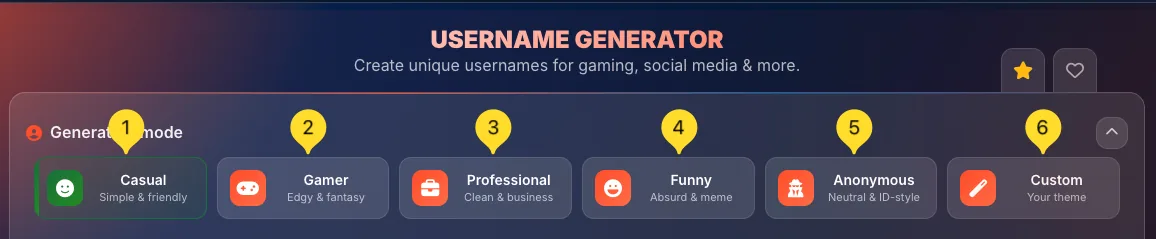
At the top, you'll see 6 mode buttons:
• Casual (smiley icon) - Simple & friendly
• Gamer (gamepad icon) - Edgy & fantasy
• Professional (briefcase icon) - Clean & business
• Funny (laughing face icon) - Absurd & meme
• Anonymous (spy icon) - Neutral & ID-style
• Custom (magic wand icon) - Your theme
Click any button to switch modes. The active mode shows with a colored (green) tile. You can collapse this section using the arrow icon on the right.
Generation settings panel (left)
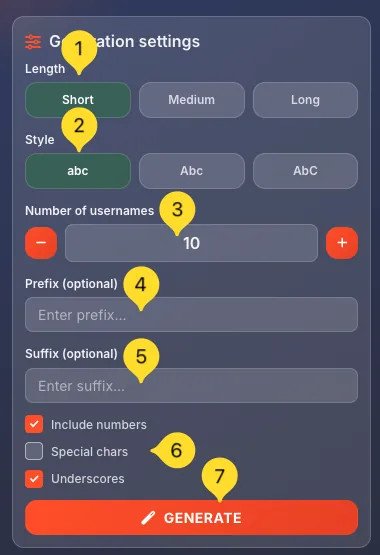
Below the mode selector on the left side, you'll find the Generation settings panel with:
• Length: Short, Medium, Long buttons
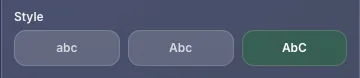
• Style: abc, Abc, AbC buttons (capitalization)
• Number of usernames: how many to generate
• Prefix/Suffix: optional text to add
• Character checkboxes: numbers, special chars, underscores
• GENERATE button - creates your usernames
Generated usernames panel (right)
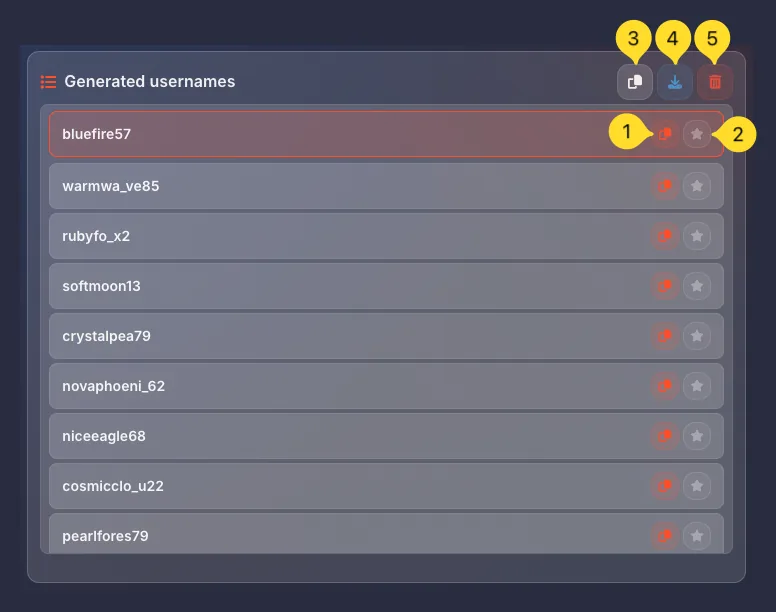
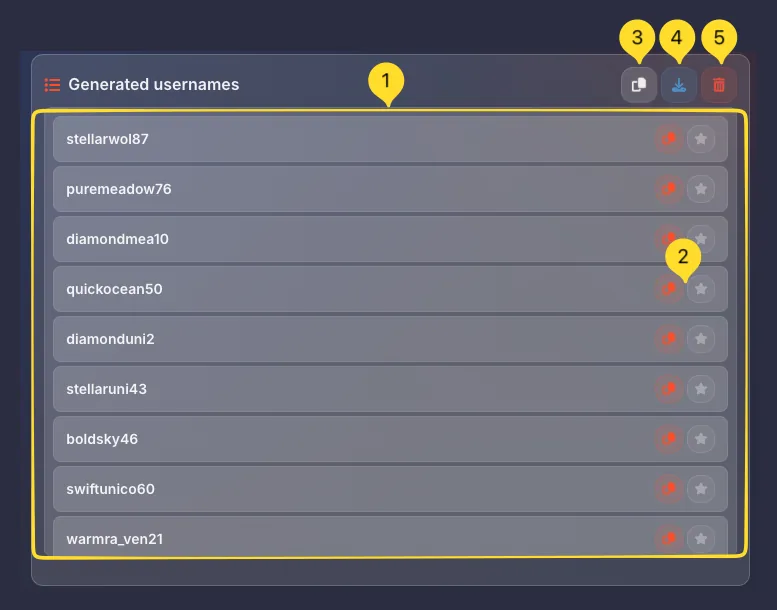
The right side shows the Generated usernames section. Before generation, it displays "Click Generate to create usernames...". After generation, your usernames appear in a list.
Each username row has two action buttons:
• Copy (clipboard icon) - copy that specific username to clipboard
• Favorite username (star icon) - save that username to your Saved Usernames list
Header action buttons (top right of panel):
• Copy (clipboard icon) - copy ALL usernames at once
• Download (download icon) - save all usernames as text file
• Clear (trash icon) - clear all generated usernames
Tool tabs (top right)
In the top right corner:
• Saved Usernames (star icon) - opens a modal with all usernames you've saved by clicking the star button on individual usernames. In this modal, you can copy or delete individual saved usernames, or use COPY ALL and CLEAR ALL buttons at the bottom
• Favorites (heart icon) - add this tool to your favorites for quick access

Statistics (bottom right)
At the bottom right, counters track your session:
• GENERATED: total usernames created
• FAVORITES: usernames you've saved using the star button
• AVG LENGTH: average character length of generated usernames

Casual mode Default
Casual mode generates simple, friendly usernames perfect for everyday social media use. These names are approachable and easy to remember.
Select Casual mode
Click the Casual button (smiley face icon) at the top. It shows "Simple & friendly" as the description. This is the default mode when you open the tool.
What it generates
Casual mode creates names using:
• Common adjectives + nouns (like HappyPanda, BlueSky)
• Simple word combinations
• Easy-to-remember patterns
• Optional numbers for uniqueness
Best for
Use Casual mode for:
• Instagram, Twitter/X, TikTok
• Personal blogs
• General social media accounts
• Any platform where you want a friendly presence
Gamer mode Gaming
Gamer mode generates edgy, fantasy-inspired usernames perfect for gaming platforms, Discord servers, and competitive environments.
Select Gamer mode
Click the Gamer button (gamepad icon) at the top. It shows "Edgy & fantasy" as the description.
What it generates
Gamer mode creates names using:
• Power words (Shadow, Storm, Blade, Fire)
• Mythical creatures (Dragon, Phoenix, Wolf)
• Tech/cyber terms (Cyber, Neon, Void)
• Action verbs and intense adjectives
Best for
Use Gamer mode for:
• Steam, Xbox Live, PlayStation Network
• Discord servers
• Twitch, YouTube Gaming
• Competitive gaming clans
• MMORPG character names
Professional mode Business
Professional mode generates clean, respectable usernames suitable for work contexts, professional networking, and business accounts.
Select Professional mode
Click the Professional button (briefcase icon) at the top. It shows "Clean & business" as the description.
What it generates
Professional mode creates names using:
• Name-based patterns (JSmith, MariaK)
• Industry terminology
• Clean, simple formatting
• Minimal numbers (or none)
• No slang or informal words
Best for
Use Professional mode for:
• LinkedIn
• GitHub, GitLab
• Professional portfolios
• Business email addresses
• Corporate Slack/Teams accounts
Funny mode Humor
Funny mode generates absurd, meme-inspired usernames that stand out and make people smile. Perfect for casual platforms where humor is appreciated.
Select Funny mode
Click the Funny button (laughing face icon) at the top. It shows "Absurd & meme" as the description.
What it generates
Funny mode creates names using:
• Absurd word combinations
• Food references (SnackyPanda, TacoNinja)
• Silly titles (Captain, Sir, Lord)
• Pop culture references
• Intentionally random pairings
Best for
Use Funny mode for:
• Reddit
• Twitter/X meme accounts
• Discord (casual servers)
• TikTok
• Any platform where humor fits
Anonymous mode Privacy
Anonymous mode generates neutral, ID-style usernames that don't reveal anything about your identity. Perfect for privacy-focused use.
Select Anonymous mode
Click the Anonymous button (spy icon) at the top. It shows "Neutral & ID-style" as the description.
What it generates
Anonymous mode creates names using:
• Generic word + number combinations
• User/Member/Account prefixes
• Random alphanumeric strings
• No personality indicators
• No identifiable information
Best for
Use Anonymous mode for:
• Throwaway accounts
• Privacy-sensitive platforms
• Testing and development
• When you want zero personal connection
• Forums where anonymity is valued
Custom mode Your theme
Custom mode lets you define your own theme for username generation. Enter any topic, and the generator creates usernames inspired by it.
Select Custom mode
Click the Custom button (magic wand icon) at the top. It shows "Your theme" as the description. The button border turns green when selected.
Enter your theme
A new field appears: Custom theme with placeholder "Enter custom theme...". Type any topic you want:
• Animals (cats, wolves, birds)
• Colors (blue, crimson, golden)
• Nature (forest, ocean, mountain)
• Hobbies (music, cooking, coding)
• Anything you can imagine!
Generate themed names
Click GENERATE. The tool creates usernames incorporating your theme. For example, theme "ocean" might generate: OceanBreeze, DeepTide, CoralDiver, WaveRider.
Generation settings
The Generation settings panel on the left side gives you full control over how usernames are created. Here's a detailed breakdown of each option:
Overview
The settings panel (marked with a sliders icon) contains all the options you need to customize your usernames. Settings are applied to all generation modes, so you can switch modes without losing your preferences.
Length & Style options
Control how long your usernames are and how they're capitalized:
Length setting
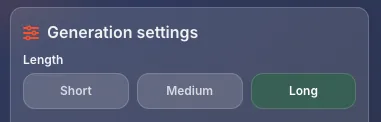
Choose from three length options (button group):
• Short: compact usernames, typically 6-10 characters
• Medium: balanced length, typically 10-15 characters
• Long: detailed usernames, typically 15-20+ characters
Click the button to select. The active option shows with a colored background.
Style setting
Choose the capitalization style (button group):
• abc: all lowercase (example: coolplayer)
• Abc: first letter capitalized (example: Coolplayer)
• AbC: mixed case/camelCase (example: CoolPlayer)
Most platforms accept all styles, but lowercase is most common.
Number of usernames
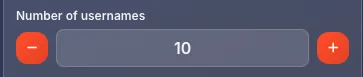
Set how many usernames to generate at once:
• Use the - button to decrease the count
• Use the + button to increase the count
• Or type directly in the input field
• Default is 10 usernames
Generate more options to increase your chances of finding the perfect name.
Prefix & Suffix
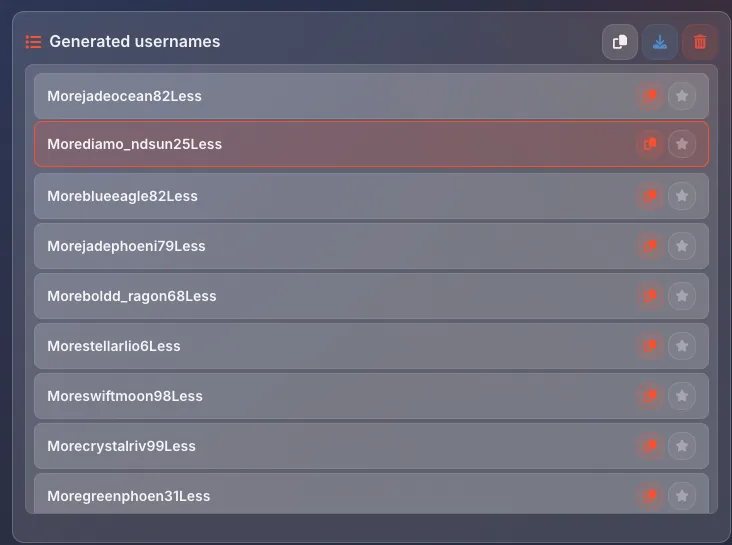
Add custom text to the beginning or end of every generated username:
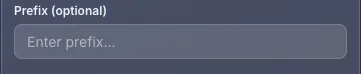
Prefix (optional)
Enter text in the Prefix field (placeholder: "Enter prefix...") to add it to the START of every username.
Examples:
• Prefix "The" → TheNightWolf, TheBlueSky
• Prefix "Dr" → DrCyberStorm, DrQuantum
• Prefix your name → DanNinja, DanGamer
Suffix (optional)
Enter text in the Suffix field (placeholder: "Enter suffix...") to add it to the END of every username.
Examples:
• Suffix "Gaming" → NightWolfGaming, BlueSkyGaming
• Suffix "Official" → CyberStormOfficial
• Suffix year → QuantumToast2026

Combining Prefix & Suffix
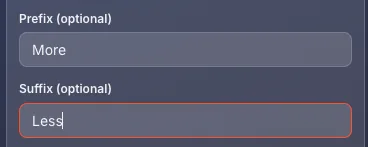
You can use both at the same time:
• Prefix "Team" + Suffix "Pro" → TeamNightWolfPro
• Prefix "The" + Suffix "_YT" → TheCyberStorm_YT
This is great for creating branded or team-related usernames.
Character options
Three checkboxes control which special characters can appear in your usernames:
Include numbers
When checked (default is ON), usernames may include numbers (0-9).
Examples with numbers: CoolPlayer42, Night7Wolf, Gamer2026
Examples without: CoolPlayer, NightWolf, GamerPro
Note: Numbers help when simple names are taken, but can look generic if overused.

Special chars
When checked (default is OFF), usernames may include special characters like dots, hyphens.
Examples with special chars: Cool.Player, Night-Wolf
Note: Most platforms don't allow special characters in usernames. Keep this OFF unless you know your platform supports them.

Underscores
When checked (default is ON), usernames may include underscores (_).
Examples with underscores: Cool_Player, Night_Wolf_Gaming
Examples without: CoolPlayer, NightWolfGaming
Note: Underscores are widely supported and help separate words clearly.

Output & Actions
After clicking GENERATE, your usernames appear in the right panel. Here's how to work with them:
Generated usernames list
Your usernames appear in a scrollable list. Each username is displayed on its own line with action buttons on the right side.
Individual username actions
Each username row has two buttons on the right:
• Copy (orange clipboard icon) - copies that specific username to your clipboard. A notification confirms the copy.
• Star (gray star icon) - saves that username to your Saved Usernames list. The star turns filled/highlighted when saved.
This lets you quickly save the usernames you like best while browsing through the generated options.
Copy all (header)
Click the Copy button (clipboard icon in the header) to copy ALL currently generated usernames to your clipboard at once. They're copied with line breaks between each name.
Download
Click the Download button (download icon) to save all generated usernames as a text file. Useful when generating large batches for team accounts or backup purposes.
Clear
Click the Clear button (trash icon) to remove all generated usernames and start fresh. This does NOT affect your Saved Usernames: those remain in the modal.
Saved Usernames modal
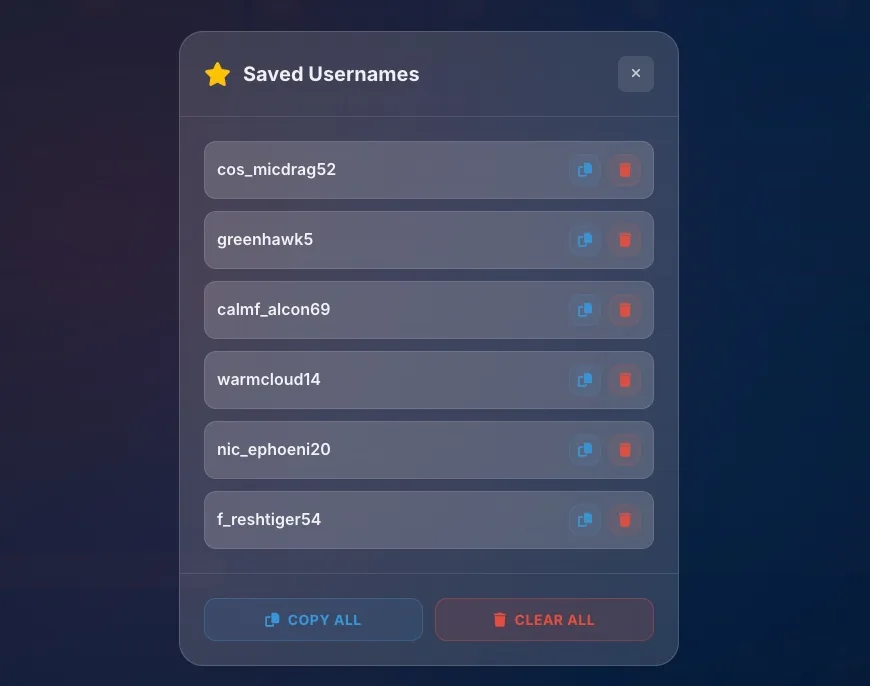
Click the star icon in the top right to open the Saved Usernames modal. This shows all usernames you've saved:
• Each saved username has Copy and Delete buttons
• COPY ALL button at bottom - copies all saved usernames at once
• CLEAR ALL button at bottom - removes all saved usernames
Use this to collect your favorite options from multiple generation sessions.

Generate more
Don't like any of the options? Simply click GENERATE again for a completely new batch. The generator uses random elements, so every batch is different.

Saved Usernames feature Collect favorites
The Saved Usernames feature lets you collect your favorite generated usernames across multiple generation sessions. Here's how it works:
Save individual usernames
When you see a username you like, click the star icon (gray) on the right side of that username row. The star indicates the username is now saved.
Open Saved Usernames modal
Click the star icon in the top right corner of the tool (next to the heart icon) to open the Saved Usernames modal. This modal shows all usernames you've collected.
Manage your saved usernames
In the modal, each saved username has:
• Copy button: copy that specific username to clipboard
• Delete button: remove that username from saved list
Bulk actions
At the bottom of the modal:
• COPY ALL: copies all saved usernames to clipboard (separated by line breaks)
• CLEAR ALL: removes all saved usernames at once
Workflow tip
Generate multiple batches, saving your favorites along the way. When done, open the modal and use COPY ALL to get your curated list. This is perfect for checking username availability across multiple platforms.
Tips for good usernames
Frequently asked questions
• Casual (friendly everyday names),
• Gamer (powerful fantasy names),
• Professional (clean business names),
• Funny (humorous meme names),
• Anonymous (neutral ID-style),
• Custom (your own theme).
• abc = all lowercase (coolplayer),
• Abc = first letter capital (Coolplayer),
• AbC = mixed/camelCase (CoolPlayer).