Overview
The Word Counter is a professional text analysis tool providing 20+ real-time metrics. Beyond basic word and character counts, it offers keyword density analysis, detailed text statistics, text transformation tools, Find & Replace functionality, customizable targets, and export options. Whether you're writing an essay, blog post, or speech - this tool gives you complete insight into your text.
Interface layout Overview
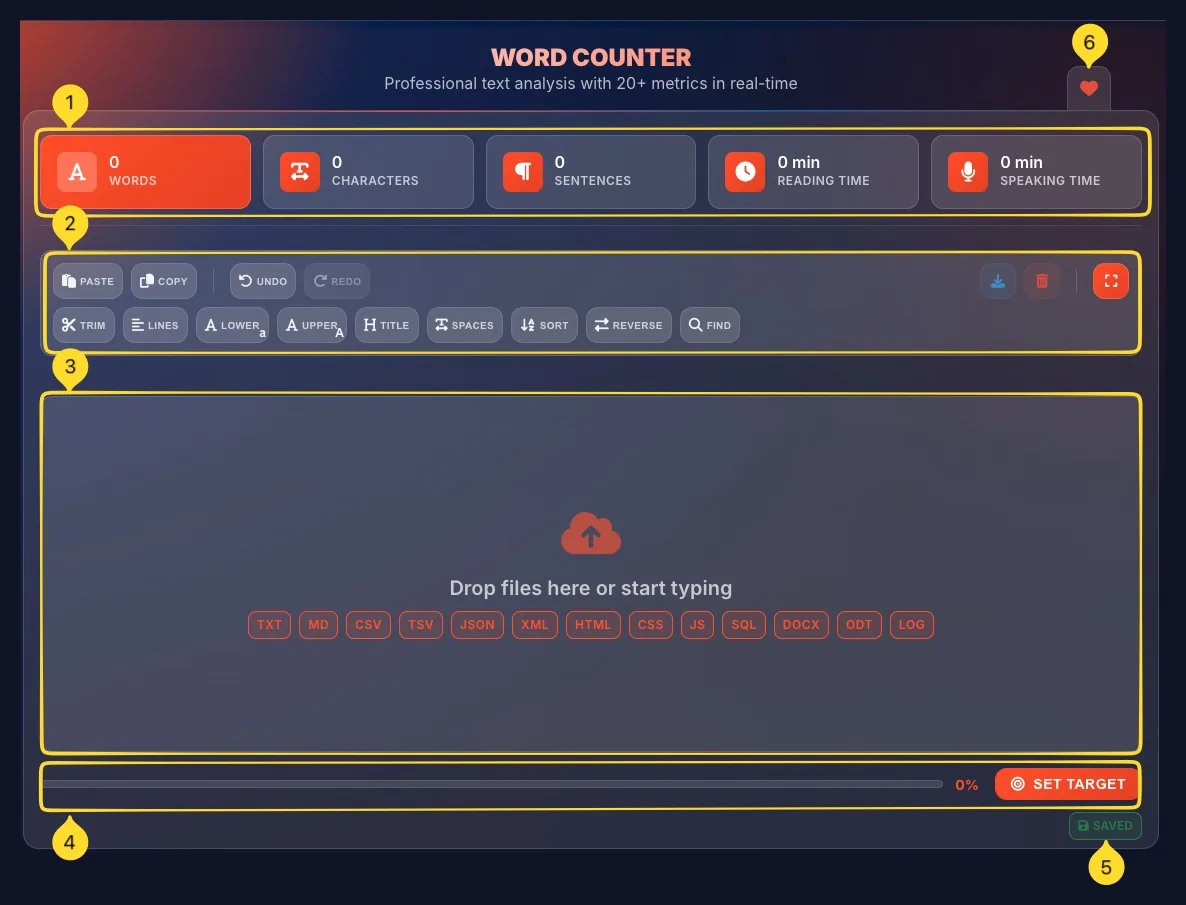
The Word Counter interface is organized into distinct areas for efficient text analysis:
Stats cards (top)
Five colorful cards displaying primary metrics:
• WORDS
• CHARACTERS
• SENTENCES
• READING TIME
• SPEAKING TIME
All update in real-time as you type.
Toolbar
Two rows of action buttons:
• Row 1: PASTE, COPY, UNDO, REDO + Download, Clear, Fullscreen
• Row 2: Text transformations - TRIM, LINES, LOWER, UPPER, TITLE, SPACES, SORT, REVERSE, FIND
Text input area
Large drop zone where you type, paste, or drag files. Shows Drop files here or start typing when empty. Supports 13 file formats.
Progress bar & target
At the bottom: a progress bar showing percentage toward your target, with SET TARGET button to configure word/character goals.
Save status
SAVED badge in the corner confirms your text is automatically saved to browser storage.
Favorites tab
On the right edge of the screen, you'll find the Favorites tab (heart icon). Click it to add this tool to your favorites for quick access from the homepage.
Analytics section
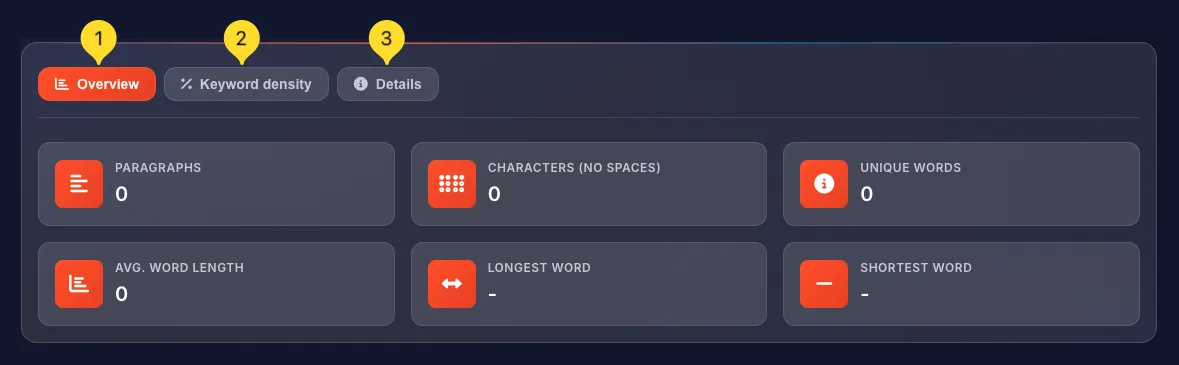
Below the text area: 3 tabs (Overview, Keyword density, Details) providing in-depth analysis of your text.
Stats cards 5 Primary Metrics
The five stats cards at the top provide instant visibility into your text's key metrics. Each card has an icon and updates in real-time:
WORDS
Total word count (highlighted in orange as the primary metric). Words are separated by spaces. Hyphenated words like "well-known" count as one word.
Icon: Letter "A" symbol
CHARACTERS
Total character count including spaces. Every letter, number, punctuation mark, and space is counted.
Icon: Text width symbol
Note: Characters without spaces is shown separately in the Overview tab.
SENTENCES
Number of sentences detected by periods (.), question marks (?), and exclamation points (!).
Icon: Paragraph pilcrow symbol
READING TIME
Estimated time to read the text silently, based on average reading speed of ~200-250 words per minute.
Icon: Clock symbol
Example: 500 words ≈ 2 min reading time
SPEAKING TIME
Estimated time to speak the text aloud, based on average speaking pace of ~130-150 words per minute.
Icon: Microphone symbol
Example: 500 words ≈ 3-4 min speaking time

Toolbar buttons 14 Actions
The toolbar provides quick access to text operations and tool features. Buttons are organized in two rows:
Row 1: Basic operations
PASTE: insert text from clipboard
COPY: copy all text to clipboard
UNDO: revert last change
REDO: restore undone change
Row 1: Right side icons
Download: opens Export report modal
Clear: removes all text
Fullscreen: opens fullscreen editing mode

Row 2: Text transformations
TRIM: remove extra whitespace
LINES: operations on lines
LOWER: convert to lowercase
UPPER: convert to UPPERCASE
TITLE: convert to Title Case
SPACES: normalize spaces
SORT: sort lines alphabetically
REVERSE: reverse text/lines
FIND: open Find & Replace panel

Text transformations
The second toolbar row provides powerful text transformation tools. Click any button to instantly transform your text:
Find and Replace Search & Edit
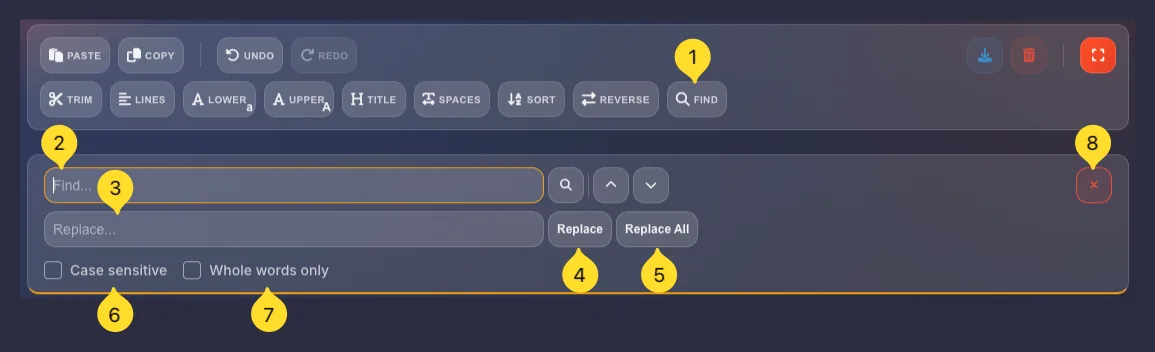
Click the FIND button in the toolbar to open the Find and Replace panel. This powerful feature lets you search for text and optionally replace it:
Open Find panel
Click the FIND button in the toolbar (second row, last button). The Find and Replace panel appears below the toolbar with two input fields.
Find field
Type your search term in the Find... input field. The field has:
• Search icon (magnifying glass) to execute search
• Up/Down arrows to navigate between matches
Matches are highlighted in the text area.
Replace field
Type the replacement text in the Replace... input field. This is optional - you can use Find alone to locate text without replacing.
Replace button
Click Replace to replace the currently highlighted match with your replacement text. The selection moves to the next match automatically.
Replace All button
Click Replace All to replace ALL occurrences of the search term at once. A notification shows how many replacements were made.
Case sensitive checkbox
Enable Case sensitive to match exact capitalization.
• Enabled: "Hello" won't match "hello"
• Disabled: "Hello" matches "hello", "HELLO", "HeLLo"
Whole words only checkbox
Enable Whole words only to match complete words only.
• Enabled: "the" won't match "there" or "other"
• Disabled: "the" matches inside any word containing those letters
Close panel
Click the X button (red, on the right) to close the Find and Replace panel and return to normal editing.
Text input area Drop Zone
The main text input area is where you enter and edit your content. It supports multiple input methods:
Empty state
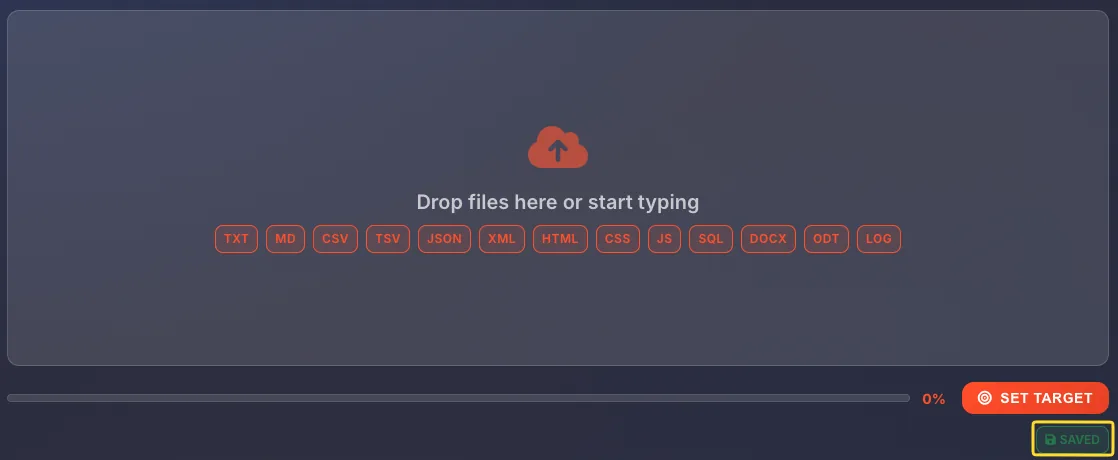
When empty, shows Drop files here or start typing with an upload icon. Below that, badges show all 13 supported file formats.
Type directly
Click anywhere in the text area and start typing. Your text appears immediately and all metrics update in real-time.
Paste text
Click the PASTE button in the toolbar, or press Ctrl+V (⌘+V on Mac) to paste from clipboard. Works with text from any source.
Drag and drop files
Drag a file from your computer and drop it onto the text area. The file content is extracted and loaded automatically.
Auto-save
Your text is automatically saved to browser storage. The SAVED badge confirms this. Refresh the page and your text will still be there.
Supported file types
The Word Counter accepts 13 file formats via drag-and-drop or file upload. Text content is extracted automatically:
Analytics tabs 3 Views
Below the text input, three tabs provide different analytical perspectives on your text:
Tab bar
Three tabs appear as buttons:
• Overview: Summary metrics in large cards
• Keyword density: Word frequency analysis
• Details: Granular text statistics
Switching tabs
Click any tab to switch views. The content below updates instantly to show that tab's analysis.
Real-time updates
All three tabs update in real-time as you type or edit. No need to click anything - the analysis is always current.
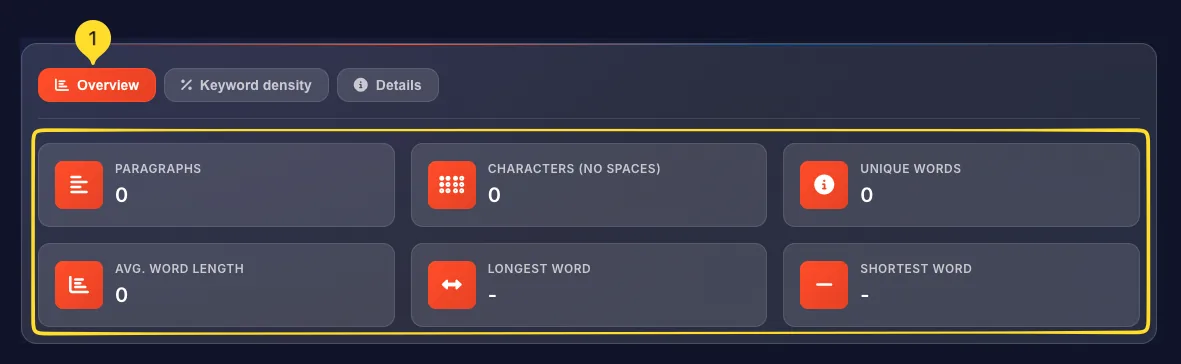
Overview tab 6 Metric Cards
The Overview tab displays 6 large metric cards providing a comprehensive summary of your text:
PARAGRAPHS
Number of paragraphs in your text. Paragraphs are separated by blank lines.
Icon: Alignment icon
CHARACTERS (NO SPACES)
Character count excluding spaces. Only counts letters, numbers, and punctuation - not whitespace.
Icon: Braille icon
Useful for: Social media limits that count characters without spaces.
UNIQUE WORDS
Number of distinct words in your text. If "the" appears 10 times, it counts as 1 unique word.
Icon: Info circle icon
Useful for: Measuring vocabulary diversity.
AVG. WORD LENGTH
Average number of characters per word. Higher averages indicate more complex vocabulary.
Icon: Chart bar icon
Example: "The cat sat" has avg. length 3.0
LONGEST WORD
The longest word found in your text. Displays the actual word.
Icon: Horizontal arrows icon
SHORTEST WORD
The shortest word found in your text. Displays the actual word.
Icon: Minus icon
Keyword density tab SEO Analysis
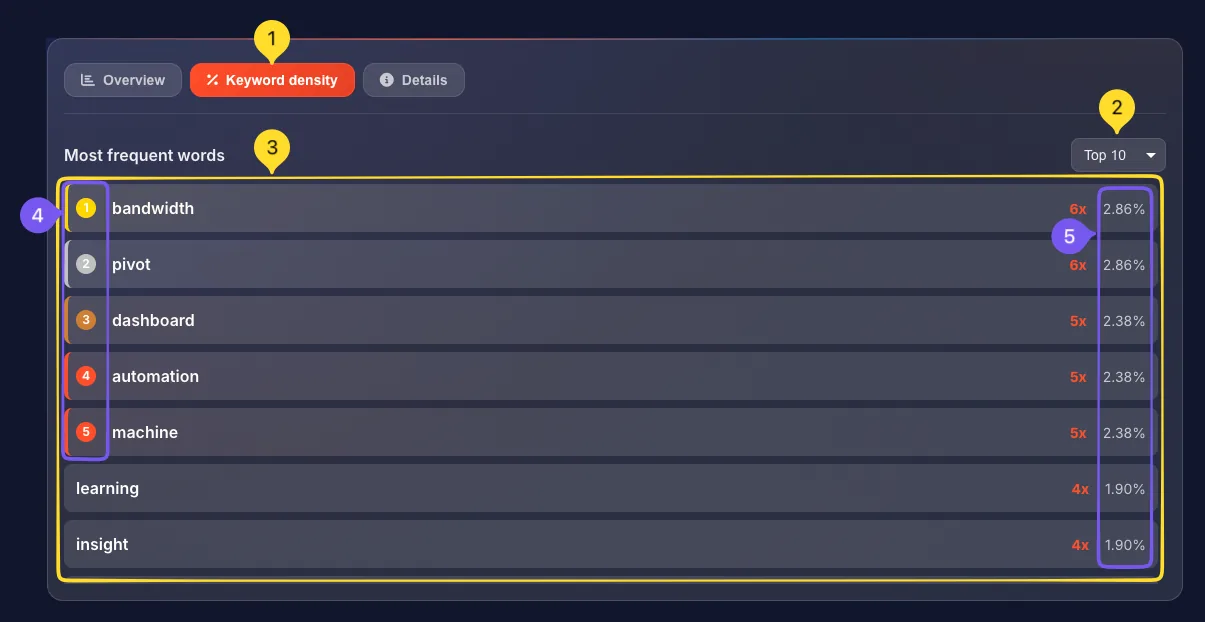
The Keyword density tab shows your most frequently used words - essential for SEO optimization and writing analysis:
Most frequent words heading
Shows Most frequent words as the section title. This lists words ordered by how often they appear.
Top N dropdown
A dropdown in the top-right lets you choose how many words to display: Top 10, Top 20, Top 50, etc. Default is Top 10.
Word list
Each word appears as a row with:
• Rank number (1, 2, 3...) with colored accent (gold for top, silver for second, etc.)
• The word itself
• Count: how many times it appears (e.g., "2x")
• Percentage: what % of total words (e.g., "28.57%")
Visual ranking
Top-ranked words have visual indicators:
• #1: Orange/gold accent bar
• #2: Yellow accent bar
• #3+: Standard styling
This makes it easy to spot your most-used words.
SEO interpretation
For SEO content:
• Your target keyword should appear in the top positions
• Aim for 1-3% keyword density (not too high = spam, not too low = weak targeting)
• Check if unimportant words dominate (filter them mentally)
Details tab 8 Metrics
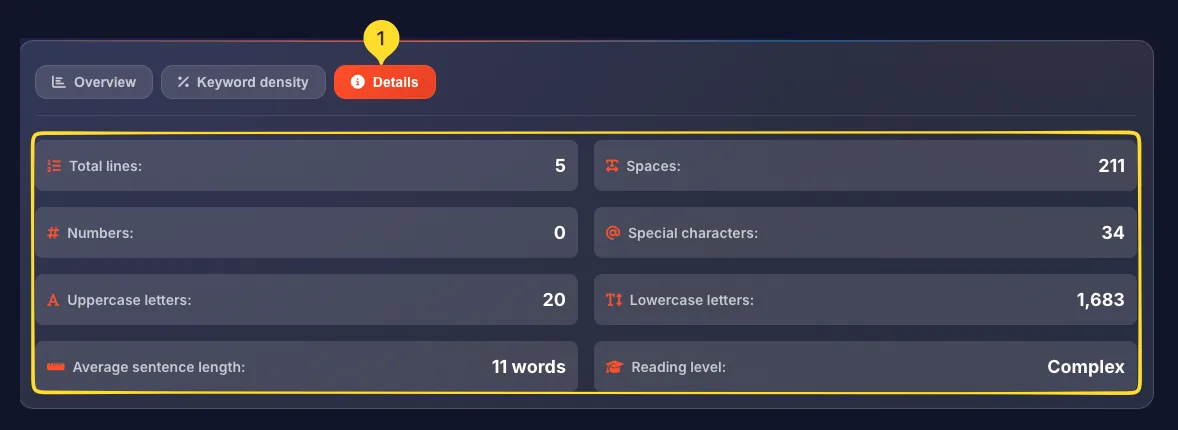
The Details tab provides granular statistics about your text in a clean grid layout:
Total lines
Number of lines in your text. Each line break creates a new line, including empty lines.
Spaces
Total count of space characters. Useful for understanding text density.
Numbers
Count of numeric digits (0-9) in your text. Each digit counts individually ("123" = 3 numbers).
Special characters
Count of special characters like @, #, $, %, &, *, etc. Excludes standard punctuation.
Uppercase letters
Number of capital letters (A-Z) in your text.
Lowercase letters
Number of small letters (a-z) in your text.
Average sentence length
Average number of words per sentence. Shorter averages (10-15) = easier to read. Longer averages (25+) = more complex.
Display: Shows "X words"
Reading level
Estimated reading difficulty level based on word length and sentence complexity.
Levels: Basic, Intermediate, Advanced, or grade-level equivalents.
Example: "Basic" = easily understood by most readers.
Set word/character target Progress Tracking
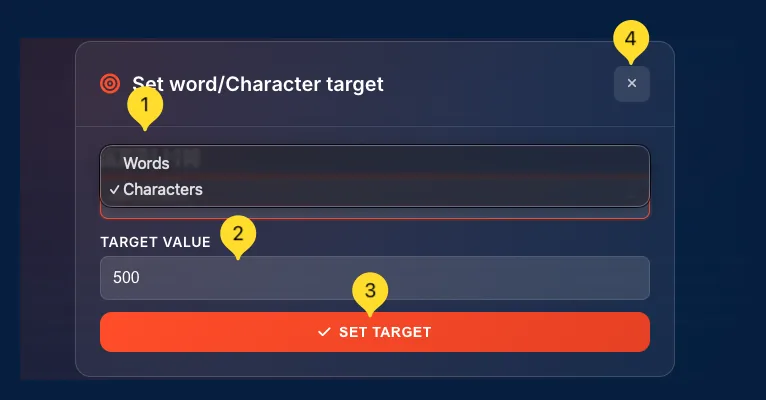
Set a word or character goal to track your progress visually. The progress bar shows how close you are to your target:
Open target modal
Click the SET TARGET button (orange) at the bottom-right of the interface. The "Set word/Character target" modal opens.
TARGET TYPE dropdown
Choose what you want to track:
• Words: target word count
• Characters: target character count
Select from the dropdown menu.
TARGET VALUE input
Enter your target number. For example:
• 500 words for a blog post
• 1000 words for an article
• 280 characters for a tweet
• 2000 characters for a LinkedIn post
SET TARGET button
Click the SET TARGET button (orange) to save your target. The modal closes and your target is applied.
Progress bar
After setting a target, the progress bar at the bottom shows:
• Visual bar filling up as you type
• Percentage (e.g., "45%") showing progress
The bar fills from left to right as you approach your goal.
Reaching 100%
When you reach 100%, the progress bar is fully filled. You can continue writing - the bar stays at 100% or can show over-target percentage.

Essays: varies by assignment
Tweets: 280 characters
Meta descriptions: 155-160 characters
LinkedIn posts: 1300 characters optimal
Export report 5 Export Options
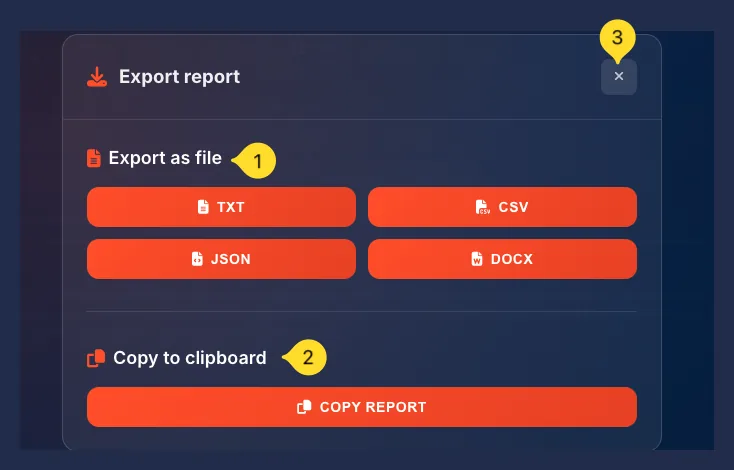
Export your text analysis as a report in multiple formats. Click the Download button (arrow down icon) in the toolbar to open the Export modal:
Open export modal
Click the Download button (down arrow icon) in the toolbar's right side. The "Export report" modal opens.
Export as file section
Four file format buttons appear in a 2x2 grid:
• TXT: Plain text report
• CSV: Comma-separated values (for spreadsheets)
• JSON: Structured data format
• DOCX: Microsoft Word document
TXT export
Click TXT to download a plain text file containing all your text statistics in readable format.
CSV export
Click CSV to download a spreadsheet-compatible file. Great for importing into Excel or Google Sheets for further analysis.
JSON export
Click JSON to download structured data. Useful for developers or automated processing of statistics.
DOCX export
Click DOCX to download a Word document. Perfect for including in reports or sharing with others.
Copy to clipboard
Below the file buttons, the COPY REPORT button copies the entire report to your clipboard. Paste it anywhere (email, document, chat).
Close modal
Click the X button in the top-right corner to close the export modal without exporting.
Fullscreen mode Focus Mode
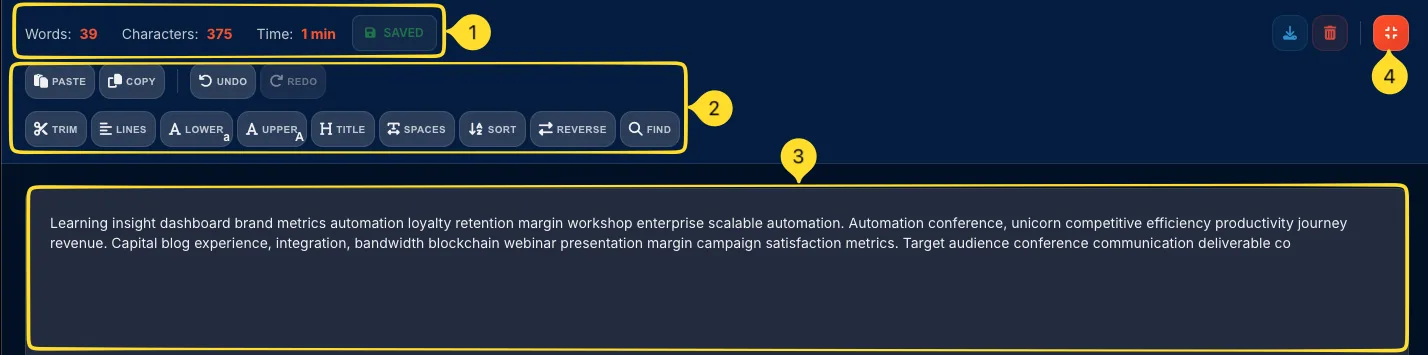
Enter fullscreen mode for distraction-free writing with a larger text area:
Enter fullscreen
Click the Fullscreen button (expand icon, blue) in the top-right of the toolbar. The interface expands to fill your entire browser window.
Fullscreen header
At the top, a compact header shows:
• Words: X: current word count
• Characters: X: current character count
• Time: X min: reading time
• SAVED badge - confirmation of auto-save
Toolbar in fullscreen
The full toolbar is available:
• Row 1: PASTE, COPY, UNDO, REDO
• Row 2: TRIM, LINES, LOWER, UPPER, TITLE, SPACES, SORT, REVERSE, FIND
• Right side: Download, Clear, Exit fullscreen
Large text area
The text input area expands to fill the remaining screen space. Perfect for writing longer content without distractions.
Exit fullscreen
Click the Exit fullscreen button (compress icon, blue) in the top-right, or press Escape key. Returns to the normal interface view.
Tips & best practices
Frequently asked questions
• TXT: Plain text
• CSV: Spreadsheets
• JSON: Structured data
• DOCX: Word documents
Plus Copy to clipboard for quick pasting.